What happens if you press the "Select a different Roon Server" button?
· I see my Roon Server, but I still can't connect.
When you try to connect, what screen do you see?
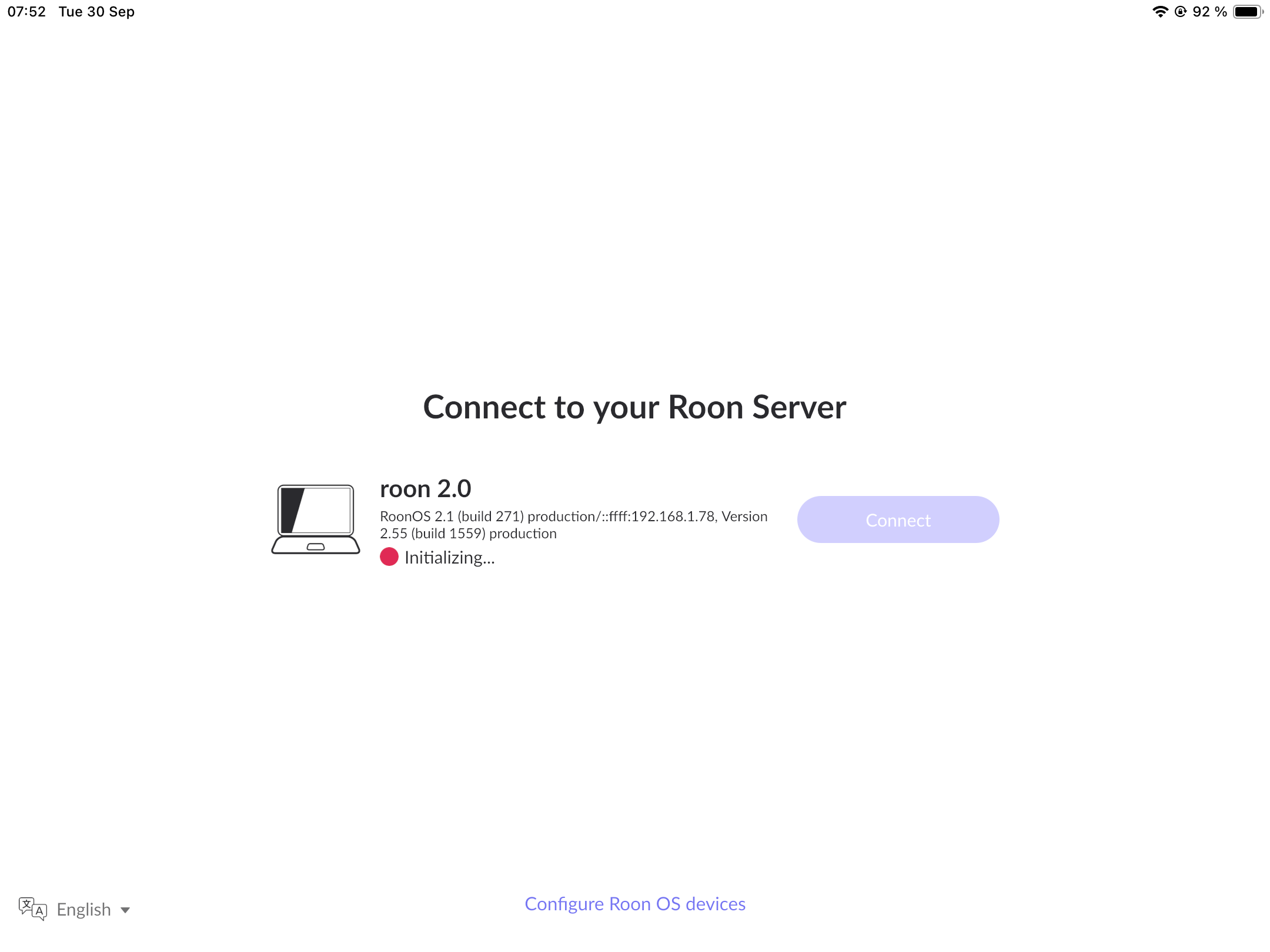
· I see the Server but the Connect button is grayed out
Please try to restart your network setup by unplugging, waiting 30 seconds and then replugging in your networking gear.
· No, the issue remains the same
Please select how you've connected your Roon Server to the internet
· Roon Server is connected by *Ethernet*
Have you checked your firewall settings to ensure that Roon is allowed through?
· Roon still won't connect even after checking this aspect
Have you verified that Roon Server is on the same subnet as your Remotes?
· My Remotes and Server are on the same subnet and I still can't connect
Sometimes the issues can be resolved with a reinstall of your Roon Remote app. Let's try to perform a reinstall and see if it helps.
· I've reinstalled the Roon Remote but it did not help
What is the operating system of your Roon Server host machine?
· *Roon Optimized Core Kit* (ROCK)
Select any of the following components that are present in your local network setup
· None of the above
Describe the issue
Roon remote won't connect to the kernel (ROCK on NUC8), it says initializing, and then nothing happens. Rebooting the router and reinstalling Roon OS don't help.
Describe your network setup
Keenetic Giant. ROCK server connect via ethernet, roon remote on ipad (wifi) or PC (ethernet). Same network, of course.
If Windows is configured to use a comma (,) instead of a dot (.) as the decimal symbol, the backup created on that PC will not restore correctly on the Roon OS. This happens because the backup data is generated using the regional settings of the system, and the comma as a decimal separator leads to incompatibility when restoring on Nucleus.
To resolve this, you will need to create a new backup. Please adjust your Windows regional settings so that the decimal symbol is set to a dot (.) instead of a comma (,).
1. Change the Decimal Symbol in Windows
On your Windows PC, open the Control Panel.
Quick way: press Win + R, type control, and press Enter.
Go to:
3.Clock and Region* → Region.
In the Region window, click Additional settings….
In the Numbers tab, find the field Decimal symbol.
Change the value from a comma (,) to a dot (.).
Click Apply and then OK to save the changes.
2. Create a New Backup
Open Roon on your Windows PC.
Go to Settings → Backups → Schedule or backup now.
Create a new backup with the updated locale settings.
3. Reset the Database on Nucleus and Restore the Backup
We’re pinging this thread to ensure you’d seen the message above. Please let us know once you’ve had a chance to follow the steps to reconfigure the nomenclature of your Backup destination.