What is the operating system of your Roon Server host machine?
· Roon on a NAS (Synology, QNAP, ASUSTOR)
What kind of device are you using to perform the login?
· iOS
Where are you trying to login?
· I can't log into TIDAL, KKBox or nugs
Please try to restart your Roon Server by closing the Roon Server app in the taskbar (MacOS), task manager (Windows) or rebooting your Roon Server machine.
· No, the issue remains the same
Different device
· I am able to switch to the diffrent device
Are you still facing the issue on the different device
· No, the issue remains the same
Describe the issue
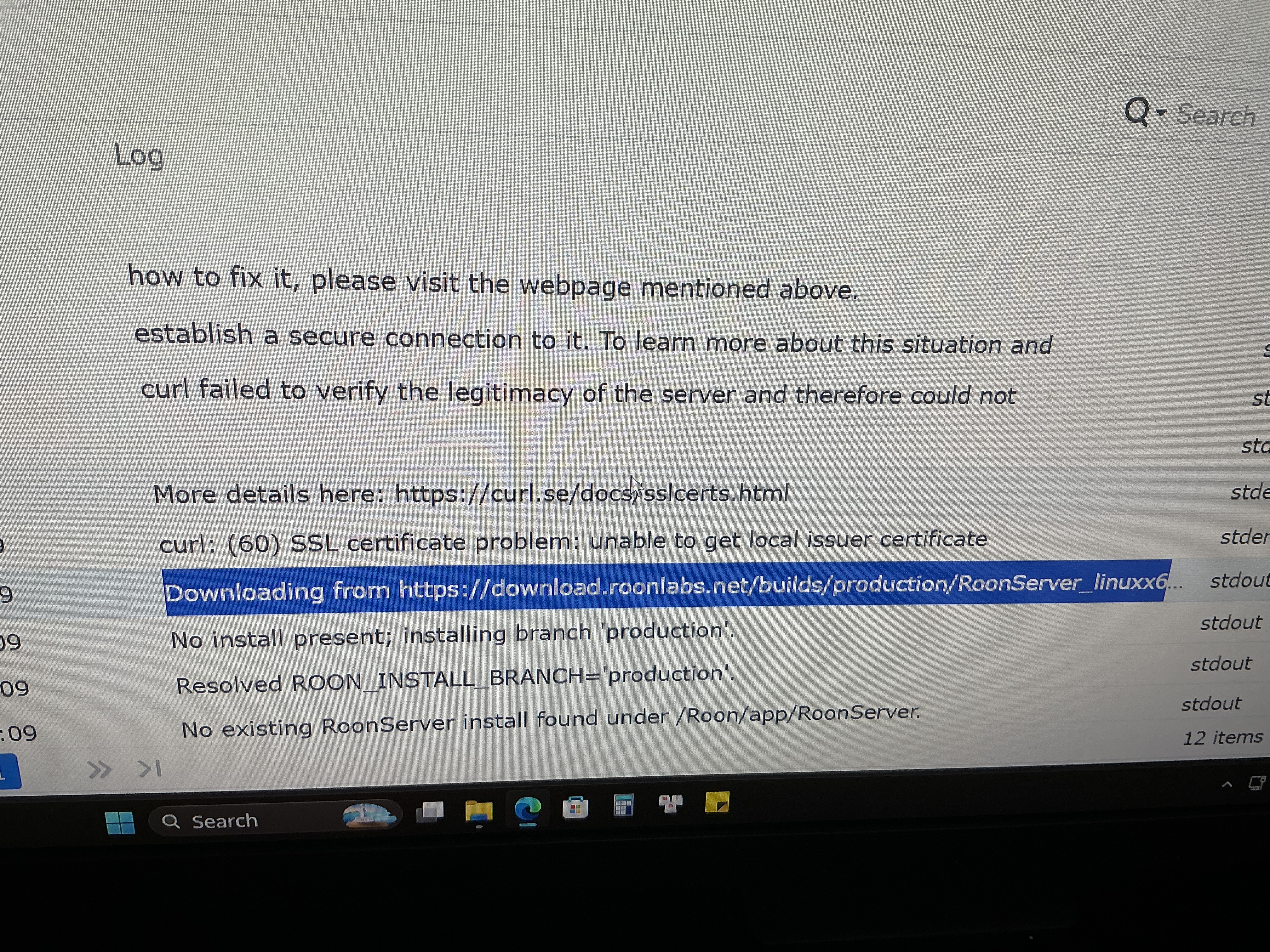
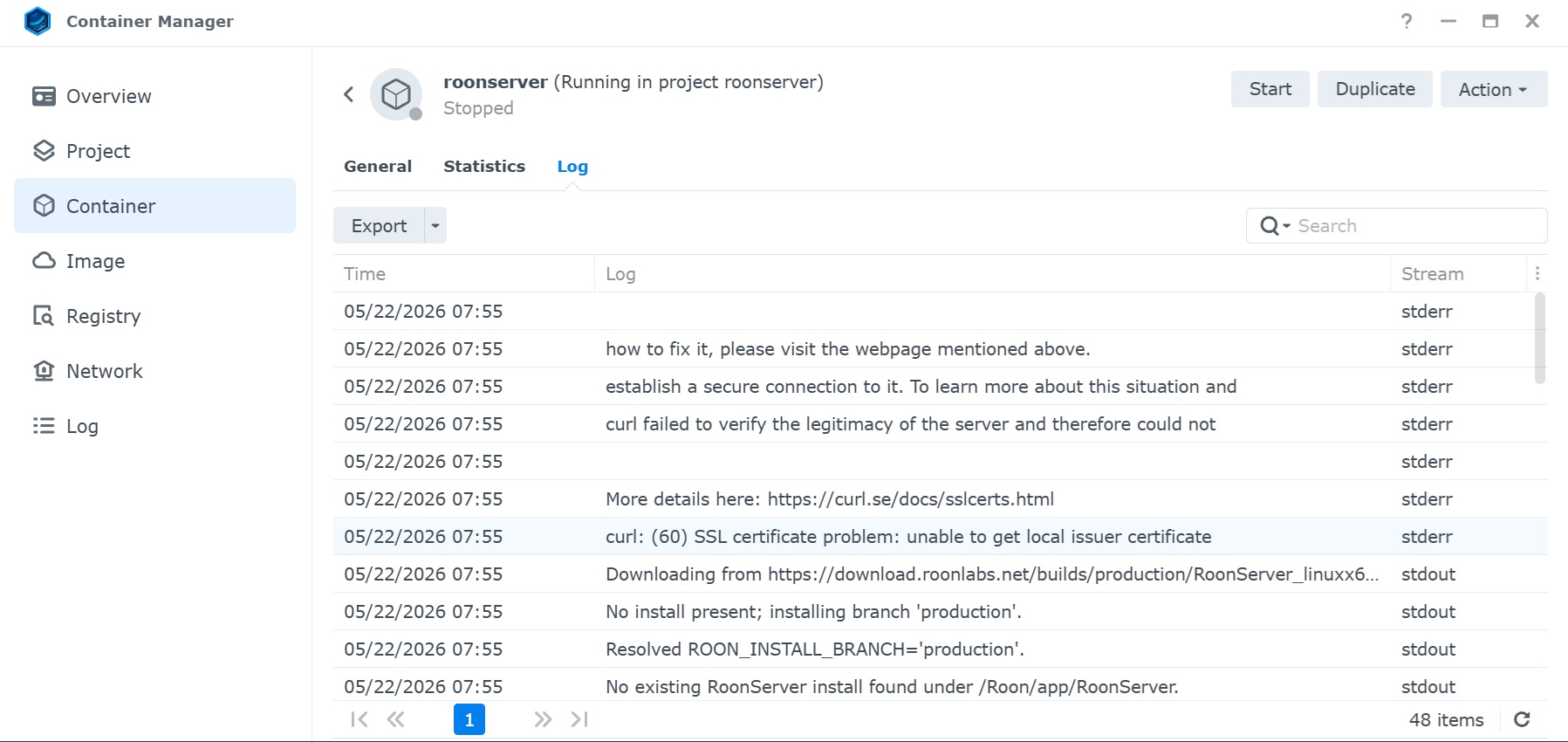
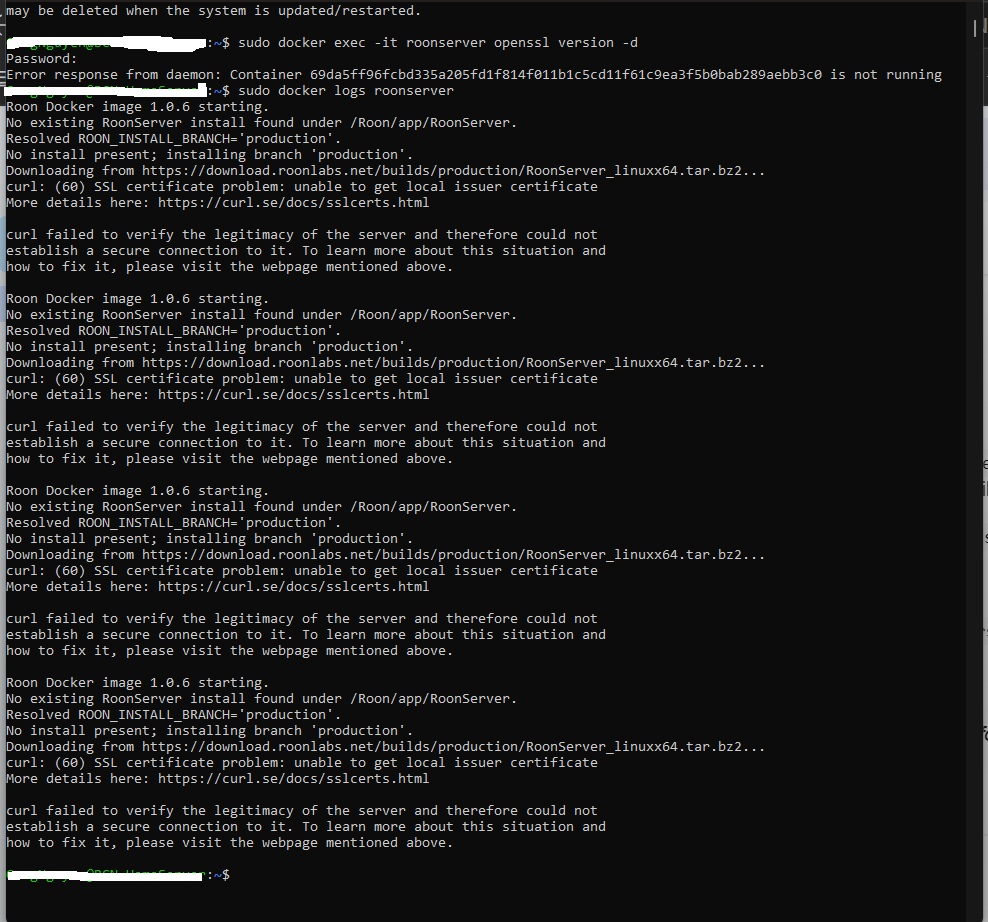
I use Xpenology DSM 7.3-86009 update 3 (up to date). Install Roon server by Docker as official guided fron Roonlabs. Roon docker start then stop immediately. Log from roon server: curl: (60) SSL certificate problem: unable to get local issuer certificate. Downloading from https://download.roonlabs.net./ …/RoonServer_linuxx64…. If I download above link on laptop, tar into Roon folder on NAS, Roon server can start but can not login by official account. Welcome back screen then loop login. Can not use.
Welcome to the community, and thank you for sharing your report!
The errors you are seeing on your Xpenology DSM build are actually directly connected. The curl: (60) SSL certificate problem: unable to get local issuer certificate error means the Docker environment on your NAS cannot verify securely signed internet traffic.
When you initially deployed the container, it couldn’t download the official installation files because it didn’t trust our secure download servers. By manually dropping the tar package into the directory, you bypassed the startup crash, but the underlying issue remains: the container still lacks the local SSL certificates needed to safely talk to Roon’s authentication and database servers, which is what throws your app straight into that endless login loop.
Let’s fix the underlying certificate mapping so your container can safely communicate with the outside world:
Fix the Time and Date Settings
SSL handshakes will immediately fail if your server’s internal clock is out of sync by even a couple of minutes.
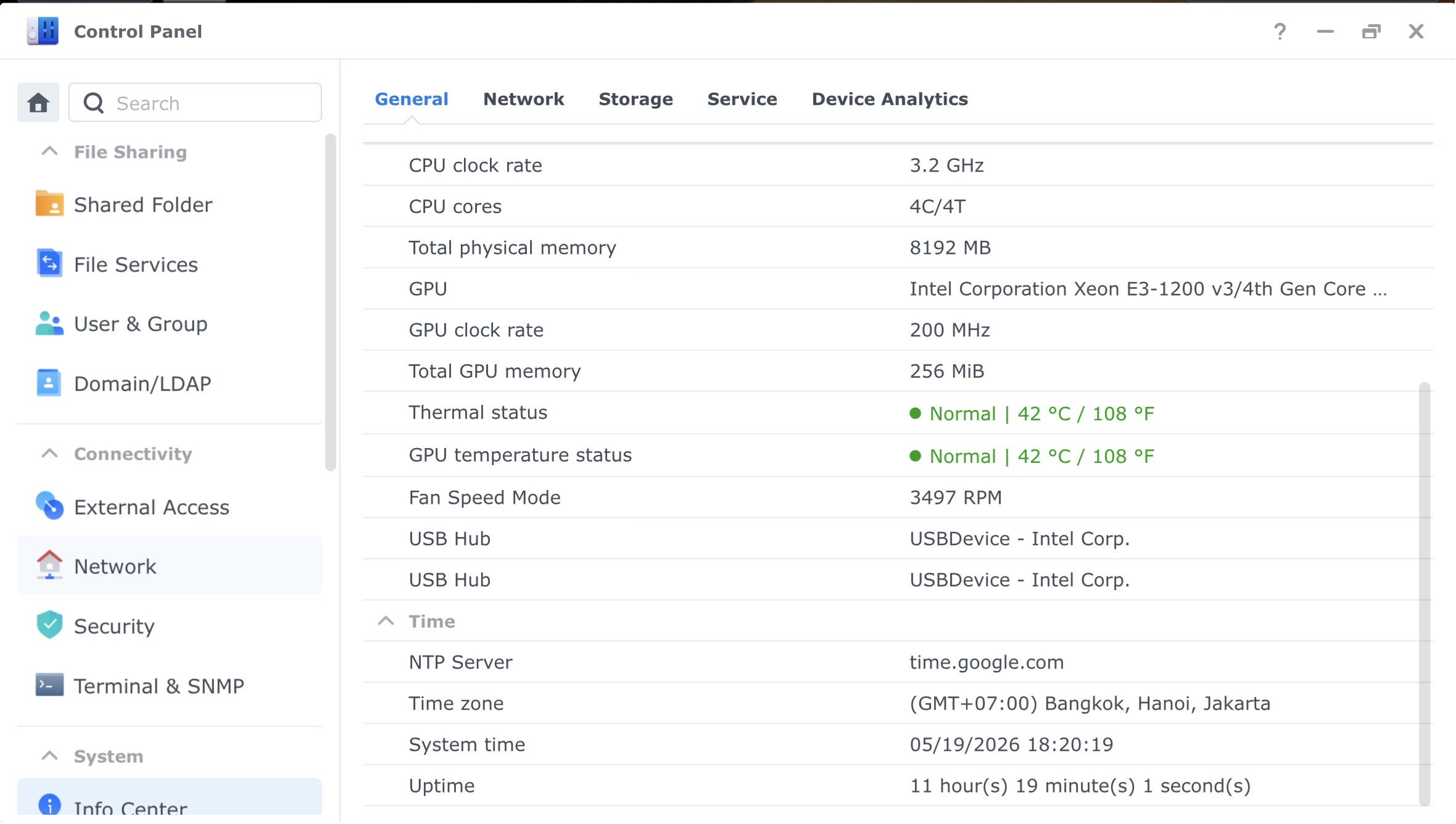
Open your DSM Control Panel > Regional Options > Time.
Ensure your Xpenology build is set to Synchronize with a NTP server (like time.google.com or time.nist.gov) and that your time zone is perfectly accurate.
Under normal circumstances, the server certificate issuer will be Google. This indicates that the SSL certificate is trusted and issued by Google’s official certificate authority.
Example
issuer=C = US, O = Google Trust Services, CN = WR2
If the output instead shows an unexpected or substituted certificate, this typically means the SSL certificate is being replaced or blocked, usually by a firewall or security appliance such as Sophos.
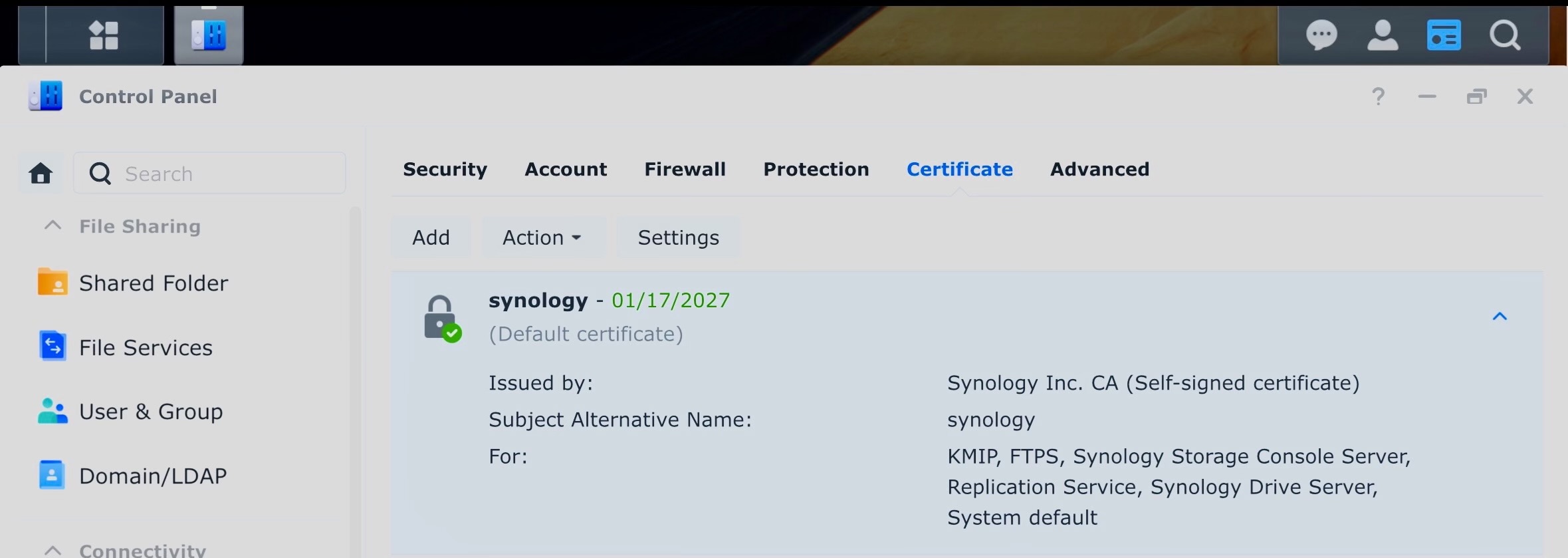
However, your test results confirm that the issue is isolated specifically to the environment inside your container. Since Docker containers operate in an isolated environment, they do not automatically “inherit” the certificate trust store from your host system (Xpenology).
To investigate why the container is failing to verify these connections, I need to check how the container sees its own SSL environment. Please run the following command in your terminal:
docker exec -it [roon_container_name] openssl version -d
Note: Replace [roon_container_name] with the actual name of your container.
This will show us if the container is correctly identifying its certificate directory (OPENSSLDIR).
Additionally, please provide the following logs:
Docker Container Logs: Run docker logs [roon_container_name] and share the output.
Roon Application Logs: Please navigate to the folder you mounted as your Roon database on your NAS. Inside that directory, you will find a folder named RoonServer/logs. Please zip up the contents of this folder and share them with us. These files contain the detailed internal handshake errors that will tell us exactly why the Roon software is rejecting the connection despite the host being able to reach the server.
Once we have this data, we will have a complete picture of the environment “inside the box” and can resolve this for you. Thank you for your patience!
The permission denied while trying to connect to the Docker daemon socket error in your terminal indicates that the account you are using for your SSH session does not have the required administrative privileges to interact with Docker. This is a standard security restriction on DSM/Linux systems.
To successfully run those commands, you will need to use sudo (Super User DO) to grant the command administrative rights.
Please try running these exact commands instead:
sudo docker exec -it roonserver openssl version -d
sudo docker logs roonserver
(Note: When you run a sudo command, it will prompt you for your NAS password. As you type the password, the screen will remain completely blank for security reasons—just type it in and press Enter).
Once you have the output from these corrected commands, please share it here so we can see exactly what is happening inside the container’s environment!
It is same as above mentioned on begin. Nothing in Roon directory caused by it did not download installer from your side. Once again, if I download the tar file, then tar into Roon directory, it starts then stop immediately.
Thank you for your patience and for providing those logs.
It is important to clarify that our official Roon Docker image is built to be self-contained—it includes the ca-certificates package and the necessary trust store by default. This is why hundreds of users are able to deploy this image on Synology and Xpenology systems without any additional SSL configuration. Because your container is consistently failing with curl (60), it indicates that for some reason, the certificate store inside your specific container environment is either being bypassed, corrupted, or blocked from accessing the internet.
Since the container is isolated, the most reliable way to bypass this “missing certificate” loop is to explicitly mount the verified certificate store from your host Xpenology system directly into the container.
You need to add a volume mapping (bind mount) to your Docker container configuration that passes the host’s certificate folder into the container.
To be absolutely certain about what is happening “inside the box” before we make configuration changes, please run these two diagnostic commands. They will show us exactly what the container sees in its certificate directories:
List the contents of the certification folder:sudo docker exec -it roonserver ls -ltr /etc/ssl/certs
Verify the system-wide certificate path:sudo docker exec -it roonserver ls -ltr /usr/lib/ssl/certs
If you are using the Synology/Xpenology GUI (Container Manager):
Stop the roonserver container.
Select the container and click Edit.
Go to the Volume Settings tab.
Click Add Folder.
Map the Host Path/etc/ssl/certs to the Mount Path/etc/ssl/certs inside the container.
Check the Read-Only box.
Save the settings and Start the container again.
If you are using Docker Compose (docker-compose.yml): Add this line under the volumes: section for your Roon container: - /etc/ssl/certs:/etc/ssl/certs:ro
By mounting your host’s /etc/ssl/certs directly into the container, you are overriding the internal (and currently non-functional) certificate store with the one from your host system that you already know is healthy and configured. Once the container is mapped this way, the curl command will successfully verify the secure handshake with our servers, the automatic download/install process will complete, and your login loop will be resolved.
Please apply this volume mapping and let us know if the container successfully completes the installation!
Just checking in on this, have you had a chance to try the certificate checks and volume mapping we mentioned? We were asking you to run the two docker exec commands to inspect /etc/ssl/certs and /usr/lib/ssl/certs, then either bind-mount /etc/ssl/certs into the container in Container Manager or add - /etc/ssl/certs:/etc/ssl/certs:ro in your Docker Compose setup. Let us know what you see, thanks.