Roon Server software fails to run despite following recommendations (ref#X9YSU3)

Is Roon Server running?

· No, Roon Server is not running.

For Roon connectivity to work properly, both Roon Server and Roon Remote need to be turned on.

· I can't turn on Roon Server, I need help.

Describe the issue

My Roon Server software is not running. I followed all the recommendations but to no avail.

Describe your network setup

I have a Nucleus which is connected to my network through a TP Link Archer AX6000 router. I have never had any issues before. This is the first time I get this error message that the Roon Server Software is not running. I have a MacBook Pro.

Good day @BOR_VAN_DER_WEERDEN !

I hope you’re doing well today.

We’re sorry to see you’ve run into such a problem.

Could you please get the logs from your macbook as per instruction here :

?

And then upload them to our Logs File Storage here:

https://workdrive.zohoexternal.com/collection/8i5239cc05950ac07456889838d9319545a82/external
?

This will help us to understand the issue more precise.

Looking forward to your reply!

Regards.

Hi Alex. As requested, I uploaded the logs for both the RAAT and the Roon server.

Hey @BOR_VAN_DER_WEERDEN,

Thanks for sending over logs! We were able to review them, and saw potential corruption in some of your server cache files.

Let’s clear your database cache as a next step to see if that helps:

  • Stop Roon Server from running in the Web UI
  • Find and open your RoonServer database
  • Navigate to RoonServer/Cache
  • Move the contents of the /Cache folder elsewhere, like your desktop
  • Try restarting Roon Server via the WebUI and verify if the issue still occurs

We’ll be on standby for your reply and results, thank you! :folded_hands:

Hi Benjamin. I followed your instructions but to no avail. The Roon Server software is not running. I rebooted the Nucleus as well as my MacBook Pro numerous times but without any results. When I try to restart the Roon Server software in the Web UI the same error message appears: Restart Error

Roon Server could not be successfully restarted. Please try rebooting, or contact support.

Thanks for giving that a try!

Since that didn’t help - we’ll next want to test out freshing your current Roon Server database.

Do you have a recently saved backup? If so, great! If not, and do not want to lose your saved data, do not proceed:

  • Create a Backup of your current Roon Database (if you have a saved backup, this works too)
  • Stop RoonServer from running in Nucleus’s WebUI
  • Navigate to your Nucleus’ Database Location
  • Find the folder that says “RoonServer”
  • Rename the “RoonServer” folder to “RoonServer_old”
  • Restart the RoonServer in the WebUI to generate a new Database
  • On the Roon Remotes, press “Use another Roon Server” and connect to the new database

We’ll be on standby for your reply and results :+1:

Hi Benjamin. Ok this worked but I am unable to add any network share folders for Roon to monitor. I would like Roon to monitor my music folder on the hard drive of my MacBook Pro as well as the music stored on my Melco N100 music server. Somehow I don’t provide the right path as I always get the same error message that the host could not be found.

I copy the smb path for my Melco but it doesn’t work either. Not sure anymore also what the correct path should be for my MacBook Pro.

I use the IP address for both the Melco and my MacBook Pro but Roon tells me that there is an unexpected error.

Hello @BOR_VAN_DER_WEERDEN,

Thank you for the update.

Here’s our step-by-step guide on how to add a watched folder from macOS to Roon OS devices:
:backhand_index_pointing_right: How do I create a shared folder on Mac and add it as a watched folder in Roon?

To make sure your Mac share is accessible over SMB, please double-check the following:

  • System Settings → Sharing → File Sharing is enabled.
  • The folder you want to share is listed under Shared Folders.
  • Under Options, make sure “Share files and folders using SMB” is checked.
  • Verify that your user account is enabled for SMB sharing and that you’re using the same username/password when adding the share in Roon.
  • The correct network path format for macOS is:
\\<MacBookName>\SharedFolderName

Could you please share a screenshot of the “Settings → Storage → Add folder in Roon where you enter the path and credentials?

From the diagnostic data, we can already see that your N100 has been successfully added as a network share:

Network share:
path: \

cifsconfig:
network_path: \\n100bor\internal

Hi Vadim. Yes, I was finally able to add the Melco as a network share. Unfortunately, I was not able to add the music folder on my MacBook Pro as a share. I am having trouble to find the correct path.

Good day @BOR_VAN_DER_WEERDEN !

In order to add Mac’s folder as shared please go to System Settings → Sharing → File Sharing.

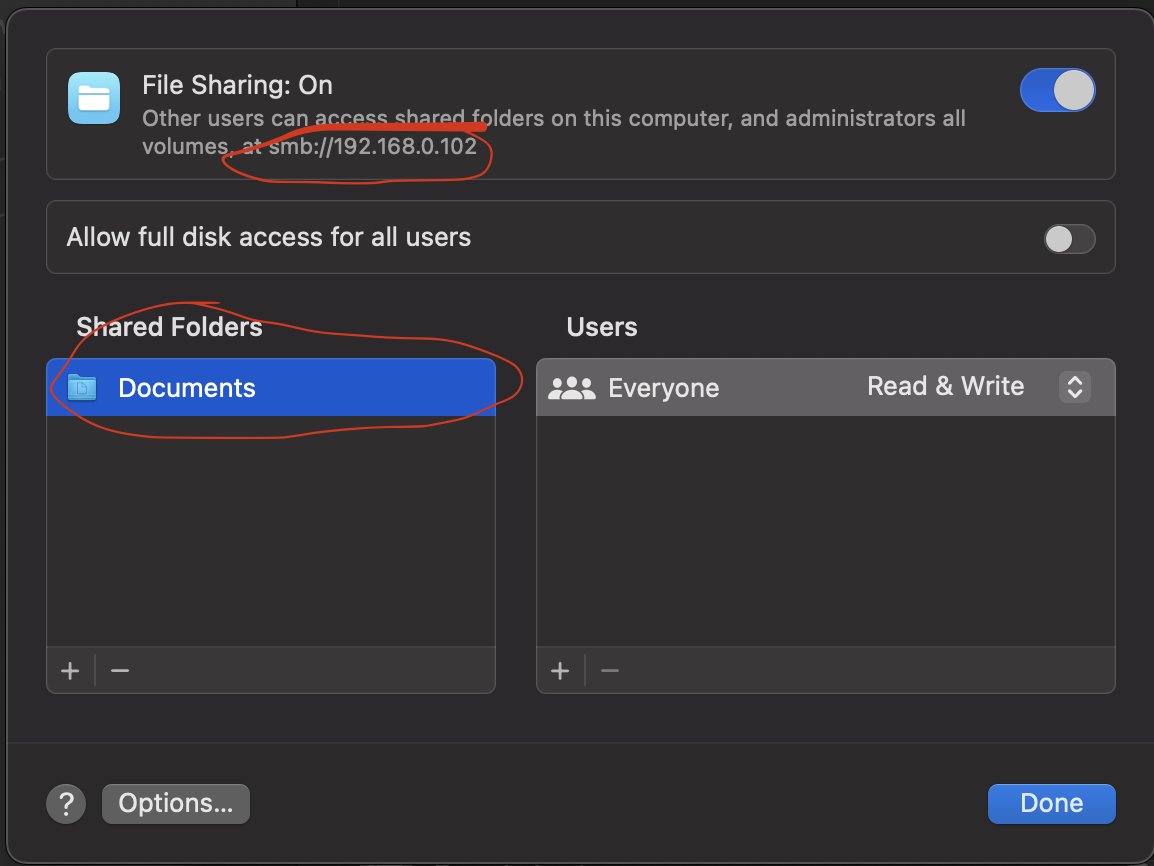
Open the item and there you should see something like this:

Add the Shared folders you like and then the path will be the smb path + the folder’s name.

For the folder on Screenshot it would look like “smb://192.168.0.102/Documents”.

For you it might be like "“smb://192.168.0.207 /Music” where “Music” is your shared folder name.

Please do not forget to chose the correct user on the “Users” tab in order to authorize login.

And then when connecting you will need to enter the username of your mac user (“whoami” command in terminal will show it) and password from your mac.

Let us know please whether this instruction is helpful.

Have a nice day!

Regards.

Hi @BOR_VAN_DER_WEERDEN,

The instructions above resolve the vast majority of file-sharing issues on MacOS.

Diagnostics indicate that you might have successfully set up a network share Watched Folder in the interim. Please let us know if we can clarify anything further.

If you’re all set, there’s no need to respond to this thread, as it will close automatically without a response from the OP after several days. Thank you!

This thread will now automatically close due to inactivity. If you require further assistance, simply open a support request here,and we’ll merge threads accordingly.

Thanks!