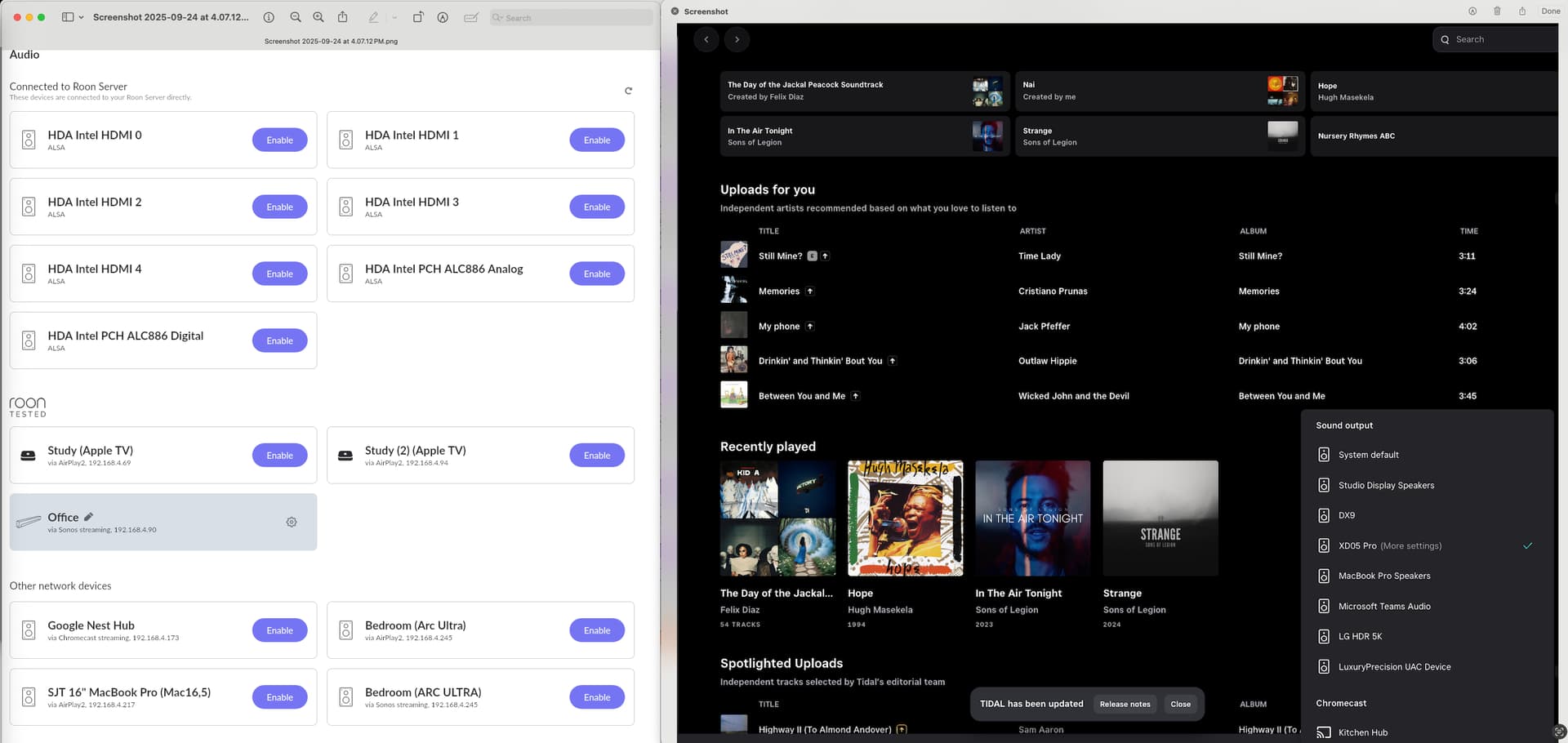
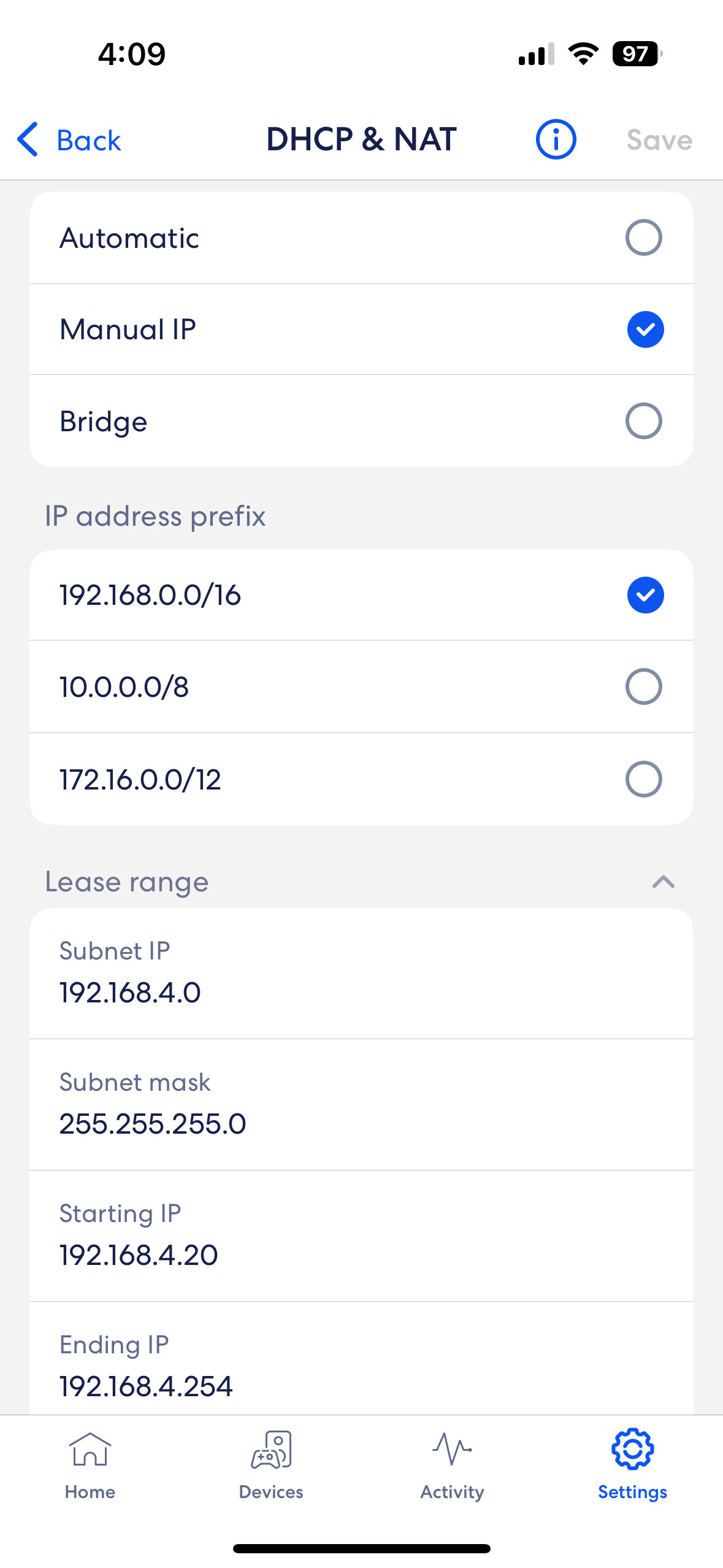
None of my devices are showing up in Roon. They are visible on Tidal and in Apple’s Audio MIDI Setup app. I can use Tidal to play to the devices. This is an ongoing problem with Roon that stretches back a year. I did follow Roon Support’s advice to use Eero’s DHCP & NAT settings and set the subnet IP ranges to a 20 to 254 range. This helped for a few months but the problem has now returned.
My system is a MacBook Pro M4 Max , running Sequoia 15.7 and my network is an Eero Pro6e mesh network. I access my Roon Rock NUC over wifi, the Rock is connected by ethernet to one of the Eero stations (I have 3) but not the main Eero hub that is connected to my Broadband modem. I use a CalDigit TS4 hub, connected to my MacBook.
Roon will not recognise my devices even when hard connected directly to the MacBook (Tidal and MIDI continue to do so).
Please advise what I need to do to address this issue.
Thank you for your post and we apologize that you had to re-submit the form.
Where are the devices listed in your screenshot physically connected? Some of these outputs are physical outputs on the Mac itself - others appear to be Roon Ready devices. Are these devices all physically connected to the same Mac/CalDigit hub?
Looking back through your past submissions, we’re not able to confirm if toggling Roon’s local network access in MacOS System Settings → Privacy & Settings → Local Network had any effect on this problem.
Roon relies on the loopback ethernet interface to reach the Apple audio kernel; local network privacy settings have a tendency to reset on Sequoia whenever Roon updates or is reinstalled.
Eero’s DHCP and NAT settings may have reset if the router has taken any updates to the firmware. It’s worth double-checking that Eero hasn’t recreated separate blocks and re-delegated devices.
The Topping DX9 & xDuoo XD05 Pro are connected to my CalDigit Hub. The Luxury/Precision is connected directly to the Mac. Direct connection to the Mac or to the CalDigit makes no difference, they’re all missing in Roon.
I am not certain whether these are Roon-Ready. I had no issues with them when the system is working, Roon functioned fine.
Any device connected directly to the NUC is recognized by Roon even now.
Toggling through the Privacy and Settings in MacOS then rebooting the Mac works…for a few hours, then the problem reverts.
I have attached a screenshot of the Eero’s DHCP/NAT settings , they remain the same.
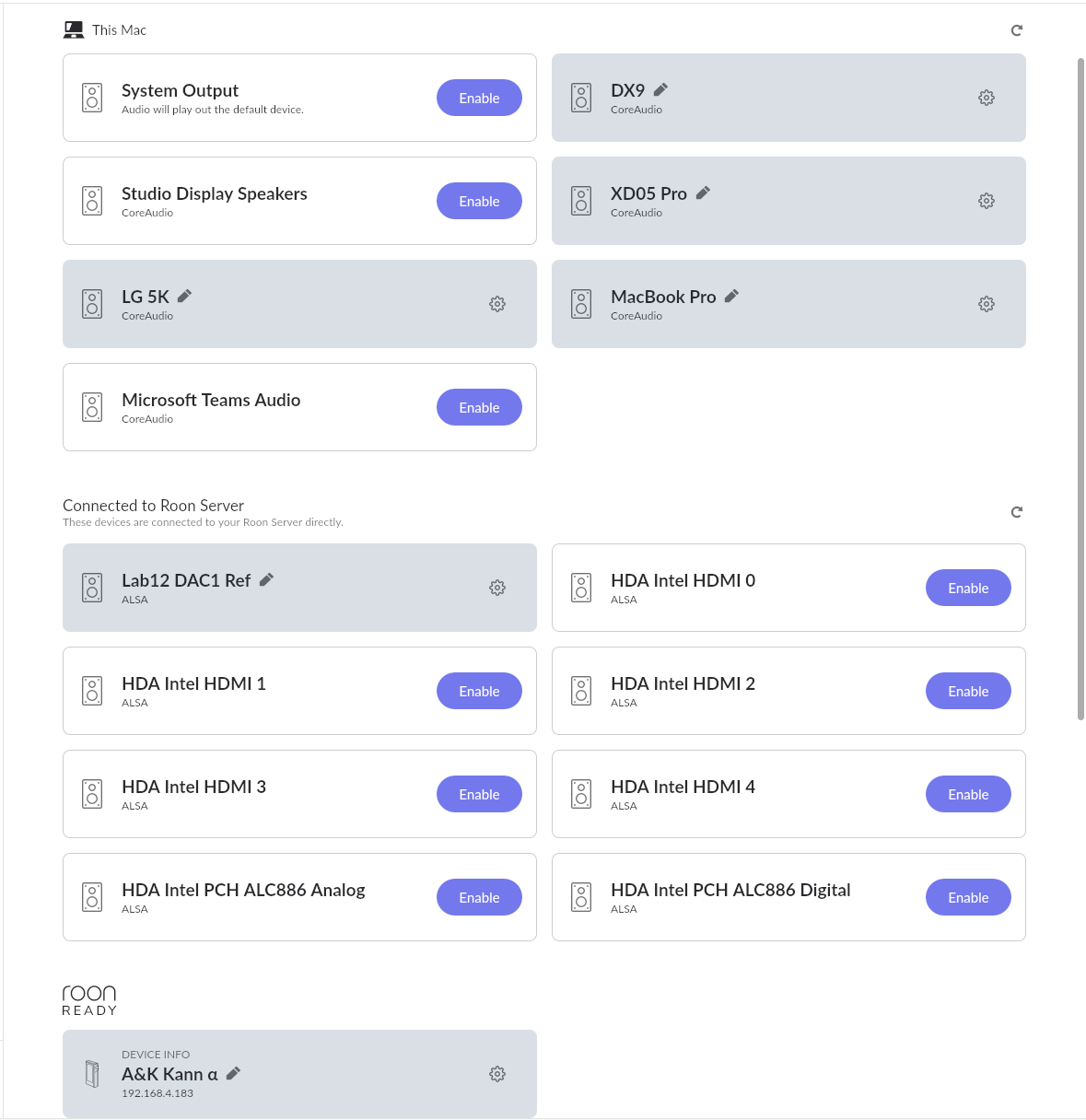
Here are all the devices showing up in Roon following the Privacy toggling and a restart. It won’t last… you can see what’s connected to the Mac, the Roon NUC and wifi only
Would you kindly share the screenshot of the DHCP table from your main router, where we can see the IP addresses of the devices that are not detected by the Roon server?
We’re pinging this thread since we haven’t seen a response in some time. Diagnostics indicate that you might have used Roon since you last posted, so we’re eager to ensure we’ve provided a troubleshooting pathway to relieve these network symptoms.
The fact that these devices initially appear after a restart - and then disappear - is evidence that the router might be re-allocating IP addresses more often than Roon expects.
It’s for this reason that we requested a screenshot of the DHCP table in your router settings administration page. Please provide this at your convenience.
Thanks. The system did work well for a few days following restart but then lapsed into a non functioning status again yesterday. Since my primary Eero unit plugs into my Router, I am trying to figure out how to access a DHCP table. Any suggestions?
Based on your setup, the DHCP table can be accessed either on your main router or, if you have two separate DHCP servers, it might also appear on your mesh node. Here’s how to proceed:
Access the main router:
Open a web browser and enter the router’s IP address (often 192.168.0.1 or 192.168.1.1).
Log in with your admin credentials.
Look for a section labeled DHCP, LAN settings, or Connected Devices.
Here, you can view the full DHCP table, including IP addresses and device names.
Check the mesh node (Eero):
If your mesh node is also running a DHCP server, log into its web interface or app.
Make sure DHCP is disabled on the mesh node, as only the main router should handle DHCP to avoid conflicts.
Verify your network setup:
Confirm that your Eero mesh is in bridge mode if the main router handles DHCP.
Restart the network devices if necessary to apply the settings.
By following these steps, you can ensure there’s a single DHCP server managing IP assignments, which should help stabilize your network.
Thank you for this. I have a call in to my ISP about accessing the DHCP table since I have no clue how to do this, I have a Router that appears to handle DHCP. In any case, I switched my Eero settings to Bridge mode and restarted my computer. So far so good, fingers crossed.
Sorry to report the problem is back. So far the only solution is to restart my Mac, which is tiresome. Does this point you in any helpful direction as to the cause of the problem?
Thank you for the follow-up. Just to clarify — do the devices appear and play normally at first, and then disappear after some time, requiring a Mac restart? Or are they not detected at all until after a restart?
Also, could you please confirm how your Mac is connected to the network — via Wi-Fi, Ethernet, or both?
If possible, please provide the approximate timestamp of when the devices disappeared again. This will help us trace the corresponding diagnostic data in the logs.
Hi Vadim,
I took a few days to be able to answer your questions with some input.
Yes, my devices , appear and play normally after a computer restart and then disappear. In the latest case, this lasted about 72 hours. The latest “disappearance” occurred last night between 2200 EST and 0500EST today.
FYI, any devices connected directly to my NUC show up at all times and do not disappear.
Can you please confirm if your Eero is using the latest firmware avaliable? There should be a setting to disable IPv6 on the Eero interface, can you try to disable IPv6 and let us know if it helps? Sometimes the Eero creates different subnet, when the issue occurs, does your Mac have a 192.168.4.XYZ IP address?
I confirmed that my Eero is using Version v7.11.1-113 and this is the latest version. IPv6 is not enabled as I changed my system to Bridge mode as per one of the previous recommendations. IPv6 is not available under Bridge mode in Eero. My IP address is 192.168.108.xxx