· NAS is an Asustor FS6712 running latest ADM version Router is an Eero 7 Max - 1.6Gbps internet connection Everything internally is hardwired over 2.5gbe Shared Directory created with universal RW permissions. Package is from App Central and appears to install ok. However, RoonServer user hasn't been created and no process is running Clicking on installed app from ADM desktop brings up web page where Directory can be specified. However, this step repeats ad infinitum and it therefore seems as if the directory isn't being set as indicated.
With glibc 2.39 and OpenSSL 3.5.0, you are well beyond the minimum requirements.
Since your system architecture is perfect, the “infinite loop” you’re seeing in the directory selection is almost certainly a permissions handshake failure between the ADM interface and the Roon installer script.
When you select a directory in the web UI, Roon tries to write a small configuration file (RoonServer.conf) to that folder. If the system-level permissions aren’t exactly right—or if the RoonServer user wasn’t created by the installer—the write fails silently, and the web page simply refreshes, asking you to “try again.”
1. Create a “Clean” Shared Folder Instead of using a general folder, create a brand-new Shared Folder via ADM > Access Control > Shared Folder.
Name it exactly: RoonServer
Ensure it is on Volume 1 (NVMe drives).
During creation, set User Permissions for your own admin account to Read & Write.
2. The Manual Permission “Nudge” Since the installer didn’t create the user automatically, we need to make sure the folder is wide open for the initial setup:
Go to Access Control > Shared Folder.
Select your new RoonServer folder and click Edit.
Go to the Permissions tab.
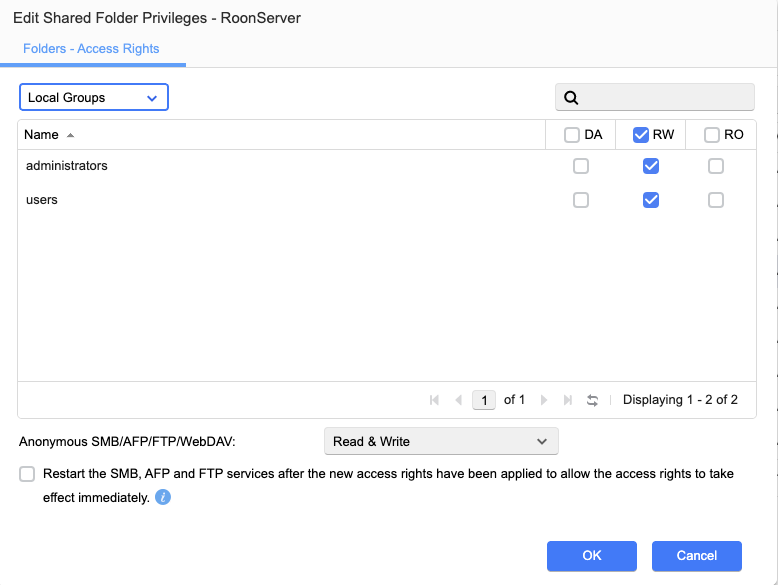
Change the dropdown to Local Groups and ensure administrators have RW access.
Also, check the ACL tab (if enabled) and ensure there are no “Deny” rules overriding your access.
3. The “Incognito” Trick Browser extensions or cached data in ADM can sometimes interfere with the directory picker.
Open your NAS interface in a Private/Incognito browser window.
Try the Roon installation/directory selection again.
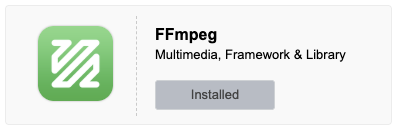
Asustor units often need a manual “nudge” for codecs. Ensure you have the FFmpeg package installed from App Central. Roon uses this to “talk” to various audio formats; without it, the server process might fail to stay running even if the directory is accepted.
Please let us know how it goes with the manual permission setup
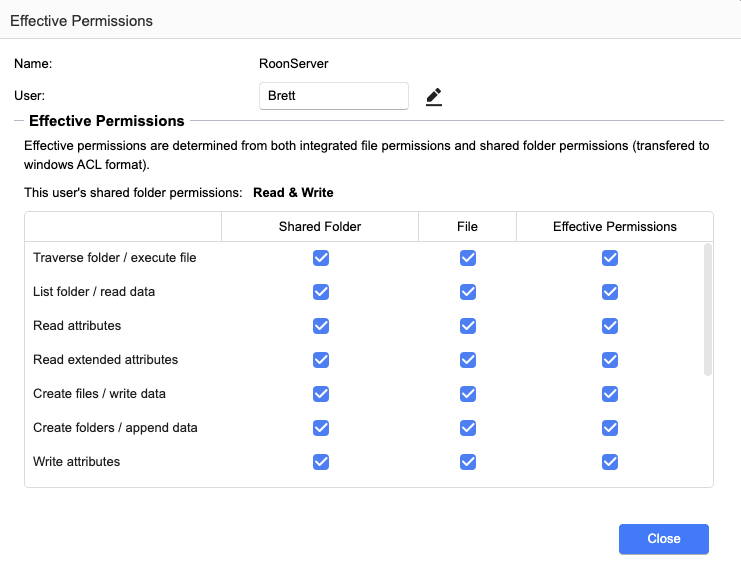
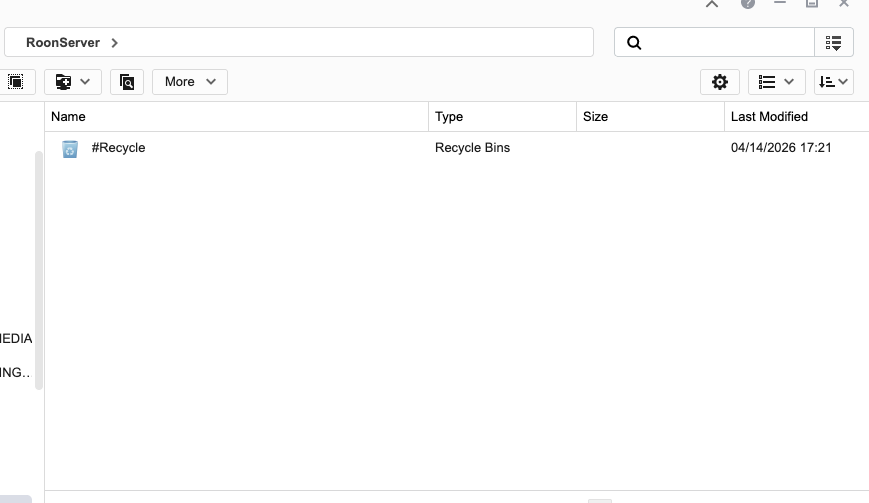
Hi There. I followed all of the above and no joy, I’m afraid. Here’s a selection of images showing what permissions are set on the folder etc. I uninstalled everything, re-created the folder in the way that you suggested, and reinstalled/configured everything from an incognito window.
I still see the same behaviour. No file being written to the folder, no user being created and a loop in the Roon app that asks me for the folder again and again.
All help gratefully received! I really don’t want to run Roon Server from a desktop.
Since the native Asustor App Central package is struggling to create the necessary background user and keeps looping during the directory setup, this points to a strict permission conflict within the NAS’s operating system (ADM) that is blocking the standard installation script.
The best way forward is to bypass these ADM permission quirks entirely by running Roon Server via Docker.
We recently announced official support for Docker installations! While we have slightly pushed back the final production release until April 27th to iron out a few last-minute wrinkles across various NAS environments, the Docker image itself is already available for download and is exactly what you need for this situation. Docker allows you to explicitly define the network and storage paths without ADM interfering.
According to diagnostics, a Roon Server instance associated with your account was active since you last posted. We’re going to assume that you’ve setup a containerized version of Roon since you last posted, but in case you’re having any issues, please reach out here.
After a certain duration of inactivity, this thread may auto-close, in which case you can reactivate it by submitting a new request here. Thank you!
Hi there. A server instance has been active, but not on the asustor nas. I have a second nas for backup purposes (ZimaOS) on which I created a docker instance (before your official release.) It’s working fine, but pointing to my primary nas for my offline music library.