· RoonServer on 2020 Macbook Pro won't recognize devices hooked to Windows PC I'm using as a remote. When I set PC as my server, it recognizes them all without issue, and the MacBook used to recognize them normally. I'd prefer the MacBook to be the server due to far lower resource/energy usage when using Roon overnight.
This sounds like a discovery issue between your MacBook Pro running Roon Server and the Windows remote side of the network.
Because the Mac used to see these devices and now does not, the first things we’d want to confirm are whether Roon Server on the Mac is still on the same network segment as the Windows PC and whether anything in the network path changed around the time this started. The most useful details would be:
What platform is the Windows remote on, and is it wired or on WiFi?
Is the MacBook Pro running Roon Server connected by Ethernet or WiFi, and are there any switches or mesh nodes between the Mac and the rest of the network?
When you switch back to the Mac as Roon Server, do the devices fail to appear everywhere in Roon, or only from the Windows remote?
Did this start after a router, network, or macOS change?
In the meantime, please check that both machines are on the same local network, then restart Roon Server on the Mac and the Windows Roon Remote once. If that does not change anything, we can go deeper from there.
We’ll enable diagnostic mode for Roon Server on your Mac in the meantime, if you could please bring it back online.
Reply with those details and we’ll take the next step.
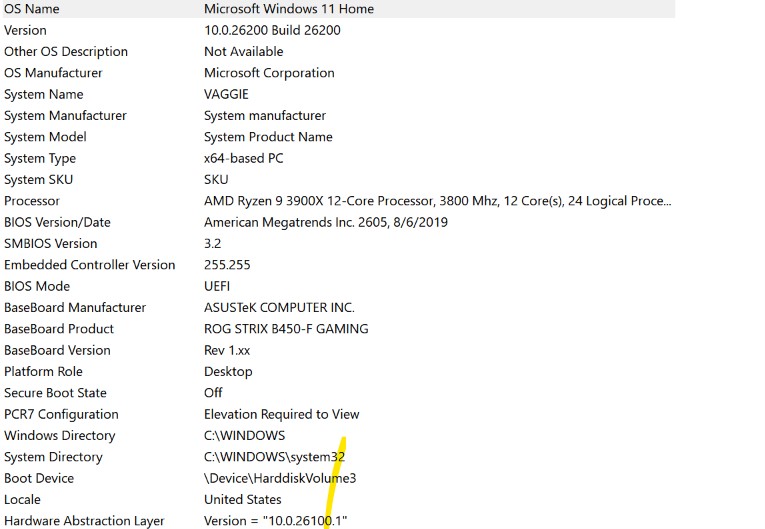
It’s wired, but I don’t know what you mean other than that by “platform” unless it’s something contained in my screenshot.
Wi-fi(I have no adapter to use it wired, but I get the sense you’re saying I need them to both be wired to really isolate the problem) and no, there are no switches/nodes that I know of, at least.
Only from the Windows remote. I could use the Mac’s speakers, for instance, without issue if I wanted to.
I can’t be sure it didn’t start after a MacOS change as I hadn’t thought of that at all, but there certainly was no network/router change.
So, do I realistically need to put the PC and Mac both on wi-fi since I can’t put them both on wired/ethernet? I can do so, but would likely need an adapter since the wired connection has so much better speed ratings it’s not even funny.
Thanks for the additional information @MouseOfBlues!
Since your devices attached to the Windows PC fail to appear only when the Mac is Server, the Mac’s local outputs still work fine, and this may have started after a macOS change. That pattern, local outputs OK, LAN device discovery broken, points away from “audio config” and toward the Mac being unable to do multicast discovery on the network.
This behavior you’re seeing is consistent with the newer, stricter Local Network permission controls in the recent macOS releases.
Please try the following steps:
Open macOS System Settings → Privacy & Security → Local Network
Make sure Roon and Roon Server are both enabled
Even if they are already enabled, please toggle them off and back on
Fully quit Roon Server from the macOS menu bar / task bar
Reboot your Mac
After reboot, launch Roon again and check if the devices is avaliable again.
Once these permissions are refreshed and the system restarted, your audio devices should reappear.
Please let us know if the issue persists after these steps, and we’ll continue from there.
Just checking in on this. Were you able to go into macOS System Settings, open Privacy & Security, and verify that both Roon and Roon Server are enabled under Local Network? If they were already on, have you had a chance to toggle them off and back on, quit Roon Server fully, reboot the Mac, and then check whether the Windows-attached devices show up again?
Please note, if we don’t hear back from you this thread may close automatically soon. If the thread auto-closes and you need further assistance, please submit a reopen support request via the technical support help form below and specify that the issue should be reopened. Thank you.
Thanks for letting us know. It sounds like this could be a firewall issue on the PC side, can you please verify this firewall aspect?
You can use these instructions to add the exceptions and the executables themselves would be located in your Database Location/Application folder path.
I would also add these exceptions to any Antivirus or other Firewall blocking applications you may have and ensure that you connected to your network via a Private network, not a Public one, see this guide for more information.
Just checking in on this. Were you able to add the Roon Server executables from your Database Location/Application folder to the Windows firewall, and also make the same exceptions in any antivirus or other firewall software? We also asked you to confirm that the PC is connected to a Private network rather than a Public one, so if you have a chance to verify that too, it would be helpful. Let us know what you find, or if you need anything clarified.
Please note, if we don’t hear back from you this thread may close automatically soon. If the thread auto-closes and you need further assistance, please submit a reopen support request via the technical support help form below and specify that the issue should be reopened. Thank you.
So far it’s worked after doing everything you’ve said, though something reset it maybe twice and I couldn’t figure out what it was(maybe I accidentally allowed Roon’s remote Android app to reset the server?
In any case, it’s currently working fine–I’m just feeling a bit reluctant to say I’m confident it’ll stay this way since I had so much trouble in the past and it apparently is easy to set off a reset, causing the problem to pop up again…
Your instinct that something resets it is right, and it is predictable. Windows firewall rules point at a specific file in a specific folder. When Roon updates, it installs into a new folder, so your existing rules no longer match and Windows treats the new files as unknown. That is almost certainly what happened both times.
One thing worth doing now, while it is working. Open Windows Defender Firewall, then Advanced settings, then Inbound Rules, and look for every entry for Roon and RAATServer. If any are set to Block rather than Allow, please delete them. A Block rule is created automatically whenever a firewall prompt is cancelled, and it overrides any Allow rules added later. A leftover one would explain this coming back.
If it happens again after an update, re-add the exceptions for the new folder, and when Windows asks, make sure Private networks is ticked.
One thing you can rule out: the Android remote cannot reset your server or its firewall rules.