Thanks for the updates and additional information! A few thoughts on what you’ve shared so far:
There are two overlapping problems:
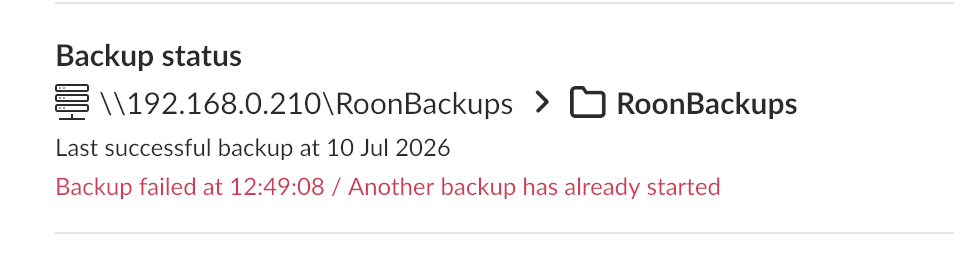
A hung/zombie backup process on the Titan. The "Another backup has already started" error means Roon OS still thinks a backup job is running, likely a ghost from a previous failed attempt. Neither IP address will work until this lock is cleared. The only thing that clears it right now is the full power-pull reset.
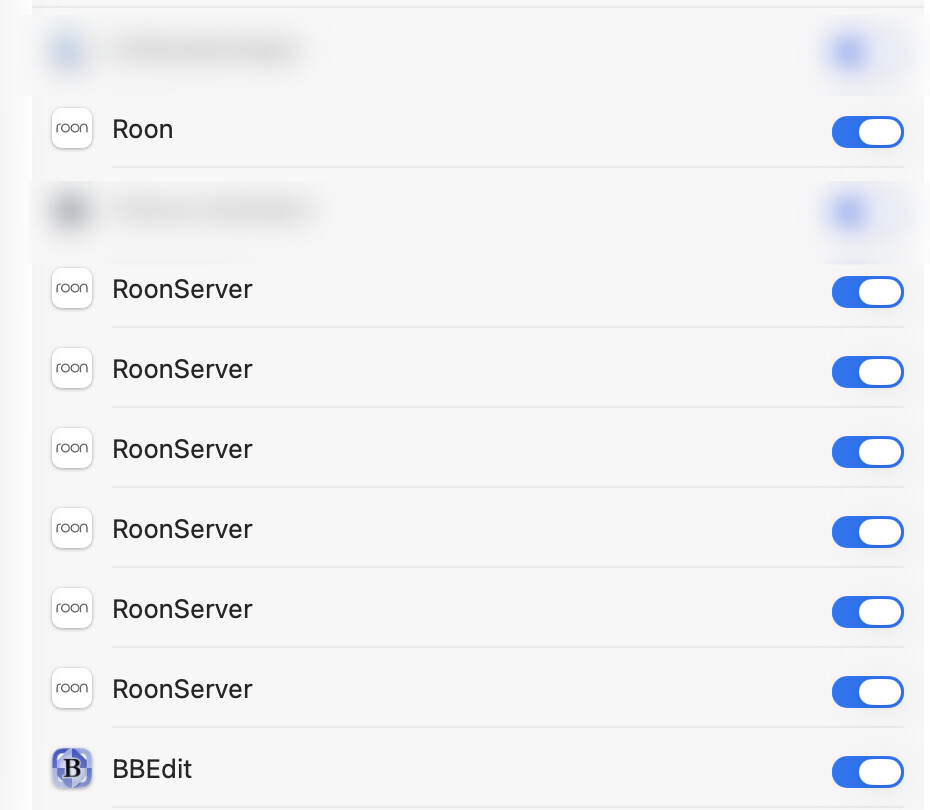
The multiple RoonServer entries in macOS Local Network privacy. These are almost certainly leftover permission entries from previous Roon installations or updates. They're not causing the hung backup directly, but they can cause the Mac-side "Waiting for server" connection issues after a Titan restart.
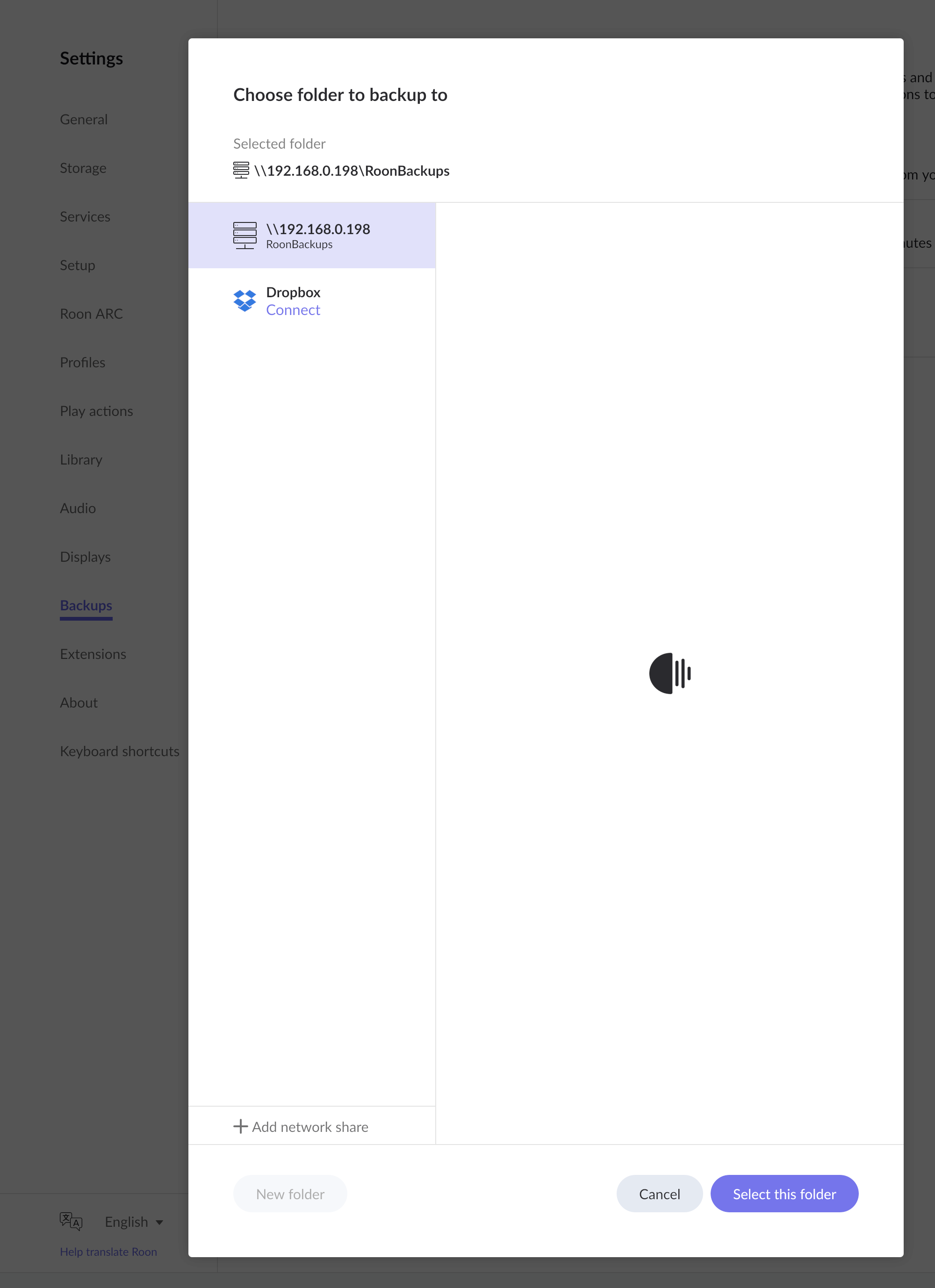
For the IP address confusion (reserved vs. non-reserved): The reserved IP (.198) is the correct one to use going forward — that's the one that will stay stable. The reason it showed "jellyfish" (searching) rather than finding the share is likely because the Samba share was configured on the Titan pointing to the old non-reserved address (.210). The share path needs to be re-entered in Roon using .198 and saved fresh.
For the multiple RoonServer Local Network entries: These are harmless duplicates but worth cleaning up. The simplest approach is just to leave only one enabled and leave the rest off. Vadim’s toggle-off/toggle-on advice was right; the key thing is making sure at least one “RoonServer” and “Roon” entry is on.
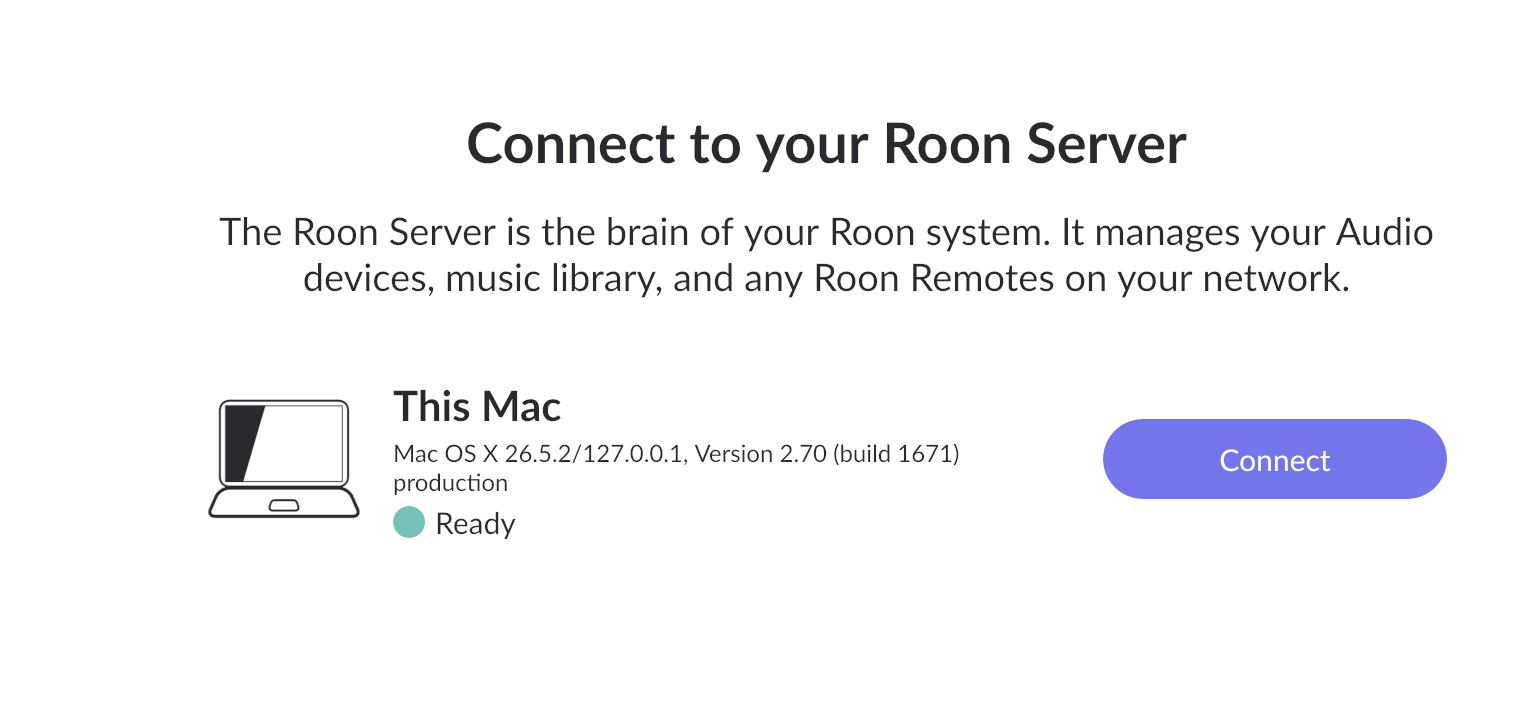
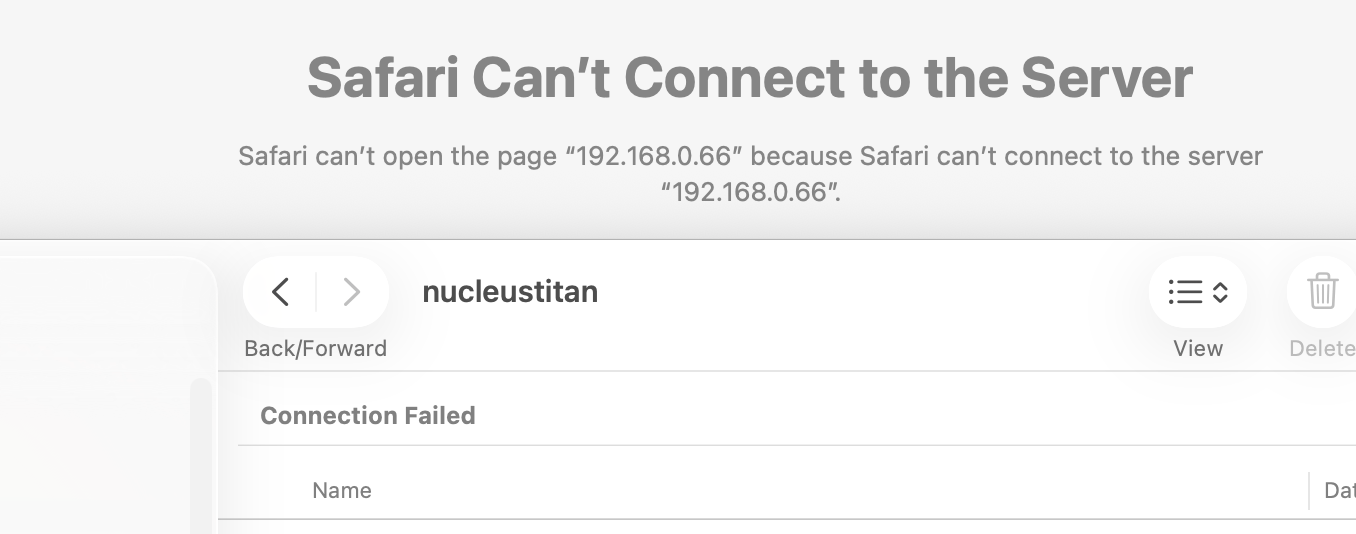
Have you tried clicking the purple IP address? That should open the webUI for you.
The most important part - we’ll need to review a fresh set of Roon Server logs from your Nucleus. Could you please bring the machine back online if possible, it should auto-enable diagnostic mode and get us what we need.
Very many thanks, @benjamin, for your supportive, full and helpful reply!
I have read through it carefully noting everything you suggest.
May we go through the several issues that need addressing in stages, please?
So, first:
I can see exactly how that has come about. Bearing in mind the need to respect the hard- and software integrity(/fragility) of data, how exactly should I perform the ‘power-pull’ reset, please?
I tried that. But without success, I’m afraid. I deleted the .210 address in Roon’s Backup procedure… ‘X’ → gone.
But now I can’t get Roon to connect to the .198 address, even after removing the share in the macOS Settings and adding it again; indefinite jellyfish even after restarting Roon etc.
Apologies here, I was simply referring to the hard-reset you performed early (pulling the power cable plug from the Nucleus itself, which is indeed dangerous as you’ve mentioned.)
Without getting a set of Titan server logs to inspect deeper, it’s diffcult to know exactly whats going on behind the scenes.
Looking at your screenshot, do you back your backup folder nestled within the music folder your Titan is actievly monitoring?
If so, I’d highly suggest moving your backups folder to a completely separate location. We don’t want the Titan to overlap the two as it has been known to cause databse corruption. It’s best to always keep your watched folders (local music files) and Roon Backup folders totally separate.
Ok, so that said, let’s take a closer look at the share settings you have in place. At first glance, everything looks correct. Have you also clicked the Options setting, and confirmed SMB File Sharing is enabled for your folder? try retoggling it just in case.
Another thing you can test - if you temporarily move your Backups folder (or create a new folder for this test) right on your macOS desktop, and apply the same share settings via your macOS settings, and attempt to connect via Roon, are you successful?
When reviewing all the applications within your macOS firewall settings, you’ll see a small negative sign ‘-’ next to the add sign ‘+’. Select the server instances that are disable, and click the ‘-’ option to remove them.
The webUI is always the safest method to reboot Roon Server. That said, I can’t confirm as to why we’re unable to enable diagnostic mode from our end, there seems to be a failure from your Titan to reach our upstream servers at the moment.
Perhaps sending over a set of manual Roon Server logs from the Titan would work. Could you please use the directions found here and send over a set of Roon Server logs from the Titan to our File Uploader? Once logs have been uploaded, please let us know so that we can check the server for your files, thanks!
Hello again, @benjamin - and many thanks for your patience and thoroughness here!
I’m sorry this appears to be so tough to sort out; and am truly grateful.
No problem. Now I understand; and have done just that. Powered down via the red button, top right in the Web UI; waited; disconnected the low voltage power cable from Titan’s front; waited; reconnected; waited. Then everything came back online. Everything also looks completely normal, and as expected.
So my first question, please, is: can you now see the Titan logs, which you need?
I can also report that the Roon client can now see everything I would expect in the Backup dialogue. That is, only .198
No. Great question, though - and I can see how that would be a bad move. No, my Roon database backups are - and has always been - at:
~/Music/RoonBackups
namely:
drwxrwxrwx@  6 mark  staff    192 Jun  7 13:05 .

drwx------@ 27 mark  staff    864 Feb 27 19:21 ..

-rw-rw-rw-@  1 mark  staff  14340 May 13 12:13 .DS_Store

-rw-rw-rw-@  1 mark  staff  18436 Dec 22  2023 DS_Store

drwxrwxrwx   6 mark  staff    192 May 27 12:59 RoonBackups

drwxrwxrwx   5 mark  staff    160 Jun  1 14:00 Scheduled Roon backups
Whereas Titan’s folder is here:
/Volumes/Data/Storage/InternalStorage
Yes; I have done that. But it hasn’t helped in those several and repeated occasions alluded to in this thread. The only thing that does, unfortunately, is a ‘power-pull’ reset.
Shall we (temporarily) set the share anomalies aside, please, Benjamin, given that the ‘pull-reset’ seems (again, perhaps only temporarily) to have resolved them?
My question about removal (sorry I wasn’t clearer) was to remove a share from the Roon Backup dialogue path, not in macOS. Again, this has righted itself now.
Again, I’m sorry I wasn’t clearer:; I’m asking about the multiple Roon server instances in the MacOS Settings > Privacy & Security > Local Network dialogue, here:
I appreciate that I can toggle one, several or all except one off. But how do I actually remove these, which you explained are most likely ‘leftover permission entries from previous Roon installations or updates’ and could be (partially) responsible for some of the trouble I’m having.
In fact, as I’ve said previously, I have been unable for quite some time - maybe the last half dozen updates - to perform a satisfactory update of both client and server when they become available. I do them separately. But ‘failed’ server updates could well be there!
Going back to your diagnosis procedure:
Which hopefully I’ve just enabled?
.
Of course. Yes. Thanks. Duly uploaded per those instructions…
We were able to review a fresh set of Titan logs, which has been illuminating, and I’ll share our findings below.
Before anything else, it’s important to note we’re unfortunately only able to see activity between May 26 → June 12, so the May 22 incident you and Vadim discussed is before this log set begins, so none of it is in here. What is captured is the June 8 power‑pull and the two weeks leading up to it.
That said, it appears that the backup failures may be Roon’s own retention limit, not the Mac.
This is the clearest, most actionable result. Every day the scheduled backup runs at 21:00 UTC (14:00 PDT) and logs:
[backup] found 11 backups (we need to have at maximum 10)
Your retention is set to keep 10 backups, and Roon keeps finding 11 (which is normal) but could be failing to prune the oldest one, day after day. On the days it can't get back under the cap before the new backup's prepare step, it fails with:
In this window that failure hit at least 3 times (e.g. May 27 and June 11) against 5 clean successes. So "the share becomes unavailable for backup" is, at least for the scheduled job, really Roon hitting its own backup quota and not being able to delete the surplus backup folder on the Mac's SMB share.
As a side test - if you perform a fresh RoonOS reinstall via the webUI, does that by chance clear the backup error message you see?
Or, as another test, if you temporarily move and clear out your backup folder (Safely move your prior backups to a temporary location) and reboot Roon Server, do you still see an error with a now clean and empty backup location?
Outside of that, we also observed some memory pressure that is directly related to some known issues. The good news here is that our development team is on the cusp of releasing some memory-related optimizations that I’m confident will help keep that snappy performance you feel following a fresh server reboot.
Thanks, Mark! We’ll be curious to see your results from the above.
Hello again, Benjamin; many thanks for your detailed and helpful reply - as always!
Yes; I suppose that was inevitable. Thanks anyway.
I see. Just to be clear, I’ve not been too concerned about scheduled backups failing.
It’s those which I start myself at times other than at 21:00 UTC that have concerned me. IOW I don’t get the error message that the backup is unable to start because another one is already in progress after I’ve had to perform a pull-reset on Titan.
And even that (‘already in progress’) error no longer appears when I do a pull reset.
This makes me think that there is something extra in removing the low voltage power cable from Titan, which does even more in the way of resets than a ‘hard boot’ from the web GUI.
Am I correct here, Benjamin, please?
Is there any point in doing this (I did it at your (team’s) suggestions a few weeks ago anyway) or in starting to use a new backup folder when I don’t routinely see that ‘backup already started’ message?
Is there any way to reset the maximum number of backups to the intended 10/ten myself, please?
Good news on the improvements in the pipeline with your developers there. Thanks.
So - by my calculation - these are nevertheless these other remaining issues, please:
most vitally, how should I avoid having to manually stop and start Titan when it hangs and by having to remove, wait and replace the power cable - currently the only way to reset everything in such a way that I can use Roon again?
Correct you are! A web GUI “Restart” only restarts the Roon Server software process. A web GUI “Reboot/Power Off” restarts RoonOS but the hardware never loses power. Pulling the low-voltage cable forces a full power cycle of the hardware itself, it clears volatile RAM, resets the network interface controller at the hardware level, and tears down every TCP socket and SMB session the kernel was holding.
There isn’t a guaranteed software substitute for a hardware power cycle once a process is truly wedged, that’s the unfortunate reality, but a forced power-button-hold is preferable to a cable pull if you haven’t already given that a try.
My apologies, I was referring to the firewall settings in my prior reply. The Privacy & Security → Local Network list does not have a remove button or option, macOS gives you only on/off toggles there by design. You cannot delete individual entries from that pane.
To actually clear those stale entries, you’d need to reset the whole Local Network permission database, which forces macOS to rebuild it from only the apps currently installed.
The retention number is the value you set in the backup schedule configuration (Settings → Backups → edit the scheduled backup → “keep N backups”). The log line I shared, “found 11 backups (we need to have at maximum 10),” means the setting is already 10; the problem is Roon failing to prune the 11th from the SMB share, not a wrong number.
The clean fix is to let Roon start fresh rather than fight the stuck folder:
Move (don't delete) your existing RoonBackups and Scheduled Roon backups folders out to a temporary location.
Point Roon at a fresh, empty backup folder.
Let it run. If a clean folder backs up without the QuotaExceeded error, that confirms the issue was a surplus folder Roon couldn't delete over SMB, which could be a failure mode where macOS SMB permissions block Roon from deleting the oldest backup.
Very many thanks, again, for the thoroughness and supportiveness of your reply!
Progress, for sure … So I’m shortening my responses; hope that’s OK?
== Titan Power Cycle ==
So am I correct, please, to think that - regrettable and risky though it may be - there are times when users have no choice?
How exactly would I perform a forced power-button-hold, please; I know there’s a difference in the length of time over which the push-button on the front of Titan is actually held, isn’t there: greater or less than four seconds?
And does the fact that I was able to perform a fresh backup (see below) of the database without errors confirm that there is no corruption in my Roon database?
because the second suggestion there (toggling to Off, restarting, launching Roon) does not work.
I’m a little reluctant to do the tccutil because of the amount of work involved in regranting access to everything else!
In a previous post here you have kindly pointed out that having multiple entries (there are now 11 ‘RoonServers’!) could itself cause (other) problems.
I’d like to try and correct this if I can, please; do you - or other specialists on your team, perhaps - know of a utility etc which can help here, perhaps, please?
== Fix for max backups reached error ==
It did. Took about 50% longer; but no errors, 100% completed. See my question above about how far I can/should take this as an indication that the database is… ‘in good shape’, please. No corruption?
The folder size is now 767 MB as opposed to 43 GB. But that’s what you’d expect, isn’t it?
Again, thanks for the help! Looking forward to what might be a final set of answers/suggestions from you, please…
Yes, there are unfortunately cases where a hardware power cycle is the only way out of a truly wedged state. For the power button hold: press and hold the button on the front of the Titan for approximately 4 seconds until it powers off, then press it once to start it back up. This is preferable to a cable pull as it gives the hardware a cleaner shutdown signal, though the end result is similar.
A successful backup does not guarantee zero corruption in the database, but it is a strong positive indicator - a badly corrupted database typically fails to serialize during backup. So while it is not a 100% guarantee, it is a good sign.
Stale Local Network entries
tccutil reset All will indeed clear everything and require you to re-grant permissions to all applications, which is a significant undertaking. A more targeted command that resets only the Local Network permissions would be:
tccutil reset LocalNetwork
This should clear only the Local Network entries without affecting your other privacy permissions. That said, we are not macOS support specialists, so we would recommend verifying this with Apple support or documentation before running it.
Backup folder
The 767 MB vs 43 GB difference is expected - the old folder likely accumulated many incremental backups over time. The fresh folder contains just one clean backup.
Hello again, @vadim and @benjamin ; and very many thanks for your continued, supportive and focused help. It is all much appreciated!
Thanks. Noted.
Thanks. Good. I appreciate that you can’t possibly guarantee that. But I have no reason to sense anything wrong with my database.
I do have three questions pertaining to this, please:
I use Carbon Copy Cloner to clone exact copies of my files. I run Carbon Copy Cloner with the entire Titan RoonOS hierarchy as its source and an external APFS-formatted hard drive as my target. So far, all I do is make sure that the Roon client on my MacStudio (running macOS 26.5.1) is inactive. Of course I could STOP the Roon Server manually (in the Web GUI) each time that I make such a clone. Would you advise doing that; would you recommend even writing a script which Carbon Copy Cloner would run before and after it clones Titan? The reason I don’t goes right back to my OP here: I can’t always get it started !
is there, in fact, any way of verifying the integrity of the Roon database… a SQL command or similar?
is the new, ‘Log Watcher’ utility developed earlier this year by Roon user StefanMauron and detailed in this thread something you’d recommend, please?
1. Carbon Copy Cloner and stopping Roon Server first
Yes, stopping Roon Server before running the clone is the safer approach. Copying the RoonOS hierarchy while the database is live and potentially mid-write risks capturing files in an inconsistent state, the same reason a full backup is safer than a raw file copy of a running database.
That said, given what you’ve described about restarts not always succeeding reliably, I’d be cautious about fully automating a stop-then-restart script around Carbon Copy Cloner right now. If the “start” side of that script hangs the way your manual restarts sometimes have, you could end up with Titan sitting stopped and unattended rather than back up and running. My suggestion: keep doing the stop/clone/start as manual steps for now, and once we’ve nailed down the restart reliability issue, revisit scripting it, at that point it becomes a much safer thing to automate.
2. Verifying Roon database integrity directly
There isn’t a supported, user-facing SQL command or tool for checking database integrity on demand, the database internals aren’t something we expose for direct querying, largely because running arbitrary commands against a live Roon database can itself cause corruption. The most reliable signal available to you is what you already have: a backup that completes and serializes successfully is a strong positive indicator, as @vadim mentioned.
3. The community “Log Watcher” utility (StefanMauron)
I can’t officially endorse or vouch for third-party tools built by community members, since they’re outside our support and testing process, I’d want to be upfront about that rather than steer you toward something we can’t stand behind if it goes wrong. If you want to experiment with it on your own judgment that’s your call, but for anything log-related, our official channel remains sending logs through the process we’ve been using in this thread, since that’s what we can actually act on.
Thanks for confirming on the tccutil reset LocalNetwork piece, let us know how that goes.
I managed to query the relevant database (TCC.db) at ~/Library/Application Support/com.apple.TCC to find that the only lines (entries) there with the string ‘oon’ had instead:
@benjamin I hope this will be easy to address as an addendum to the duplicate RoonServer entry issues, the last question dealt with (thanks!) in these posts.
I’ve done a lot of research into removing these duplicate entries of ‘RoonServer’ in System Settings > Privacy & Security > Local Network… there are ten now.
It seems as though this is a known problem - one which appears particularly when updating Chrome. That may be useful to your engineers… any shared code?
It may even be (related to?) a bug in Roon’s own updater/installer.
Appreciating that you are not responsible for every (any!) aspect of how macOS works, may I nevertheless ask you to pass this along to your team, so that they can look into the best way of solving it?
I really don’t want to have to either uninstall Roon just to re-grant it permissions. This is really because - unless this is fixed - the next Roon update would probably spawn another instance. Nor do I want to reset everything and have to grant many dozens of permissions again. Especially if the next Roon update defeats this.
I am reluctant to mess with the database using this, really because I might make things worse.
Looking forward to your advice and guidance here, please.
Good detective work, and yes, your TCC.db finding is the answer. On macOS, the Roon Server process registers with the privacy database under the identifier you found, so the correct command would be:
The path-based variants fail because tccutil only accepts bundle identifiers, not file paths. One honest caveat: on recent macOS versions, Local Network entries are handled somewhat differently from other TCC categories, and there are reports of per-app resets silently not taking effect for this category. So it is worth trying; it is the right identifier and the targeted approach you were looking for. If the duplicates survive it, the category-wide tccutil reset LocalNetwork (without a bundle ID) remains the fallback. That resets Local Network permissions only: your other privacy grants (microphone, files, folders, etc.) stay untouched, so it is far less drastic than a full reset.
On the duplicate entries themselves: the threads you found describe the situation accurately. This is macOS’s TCC behavior when an application’s binary is replaced during an update, and it affects other frequently updated apps the same way; Chrome is the well-known example. The entries are created and managed entirely by macOS. Applications have no API to view, deduplicate, or remove their own TCC records, so unfortunately this is not something Roon can fix from its side. The duplicates are cosmetic (only the current entry matters functionally), and cleaning them up is only possible through the tccutil route above. Feedback about the accumulation itself would be best directed to Apple via Feedback Assistant, since only they can change how TCC handles updated binaries.
I would also echo your own instinct: avoid editing TCC.db directly; the risk/benefit there is not in your favor.
And on the restart reliability issue: the most helpful thing remains exactly what you are doing, noting the precise date and time of any failed start so we can match it against diagnostics.
Hello again, @vadim; and very many thanks to you and @benjamin!
Your persistence, patience and supportive approach are much appreciated .
Pruning…
I was hopeful here; and was/am definitely happy to avoid more intricate ‘meddling’ with that database!
But I could not get it to work (Roon Server stopped via the GUI, and all dozen or so instances unchecked in Settings…):
Last login: Tue Jul 7 10:58:42 on console % tccutil reset LocalNetwork com.roon.RoonHeadlessManager tccutil: Failed to reset LocalNetwork approval status for com.roon.RoonHeadlessManager %
Google’s (admittedly Gemini, I guess) explanation isn’t encouraging, is it.
I wonder whether you have any other ideas, please. The macOS Terminal has what I have to believe are the right analogous permissions in ‘Privacy & Security’.
OK. Thanks. Got it. Will do. I can report immediately that by applying today’s updates (thank you team!) first to the server and only then - when that had completed - to the client separately I had no problems. (Between 12:15 and 12:30 PDT; 19:15, 19:30 UTC)
It does seem (though I may be wrong) that one cause of the errors I’ve had recently may be the fact that I ran ‘Update All’ from the purple banner at the foot of the Roon main window and perhaps the two (sets of?) processes ‘collided’.
Thanks again for your help here. Maybe I do need a Bundle ID?
I then tried to follow the instruction again which @DDPS kindly gave for reserved IP addresses in case the IP address had somehow come unstuck. It had. And I was able to add a new network share. But now when I try to backup I again get this:
It didn’t get any better, unfortunately: I stopped the Roon Server via the web GUI (as we’ve so often discussed) in order to run ‘external’ filesystem backups using Carbon Copy Cloner; and successfully restarted the server (at around 14:00 to 14:15 PDT (UTC 20:00 to 20:15), on July 12).
Nothing would get Titan back online at the point (not even the four-second pull you suggested here). Once again, removing the psu cable (14:15 PDT, 20:15 UTC, July 12) was the only thing that would work.
May I ask you to review the logs (or should I send you longs for July 11?) and advise, please?
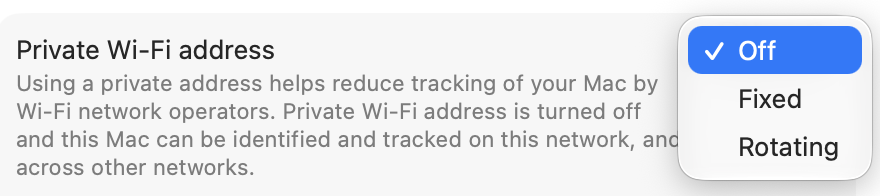
Is the machine that you made the DCHP reservation for (192.168.0.198) a macOS machine connected by WiFi? If so, did you set Private WiFi address to “off”?
If not, and the destination machine is wired, then please ignore this. It does sound like you might not have gotten the setup quite right in your router’s DHCP settings.
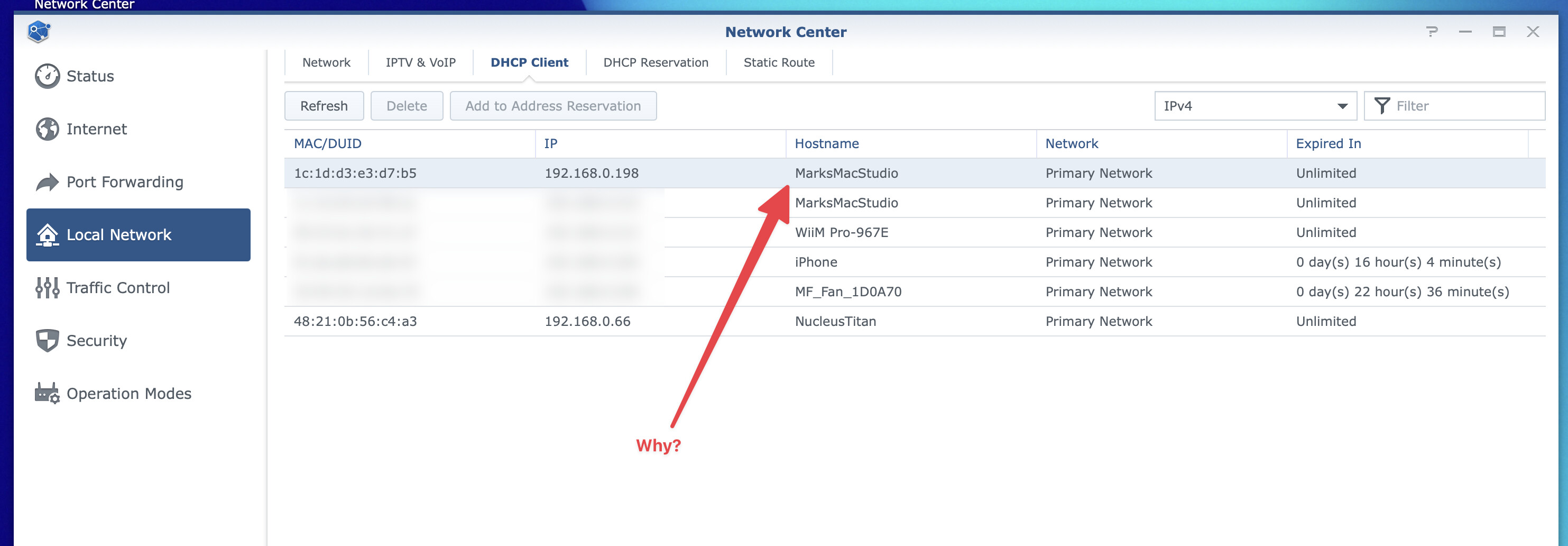
Well, you have two entries for MarksMacStudio. Presumably, the second is for your WiFI interface. I suggest changing the first one to something like MarksMacStudioEthernet.
I didn’t pay attention but it seemed as though one or both of those two entries had expired; even though they were set to "reserved "as you kindly suggested in May.
That would certainly explain why the Roon backup couldn’t be performed, wouldn’t it?


 !