Hi!
Since I’ve been referenced, I thought I’d pop by. I went through and spent an hour or so doing tests and screen shots about the installation process, but, I will put that in a new thread linked below (when I get that thread setup) as it really has nothing to do with the OP’s request. So, that is where I want to start, the OP’s request.
I’ve already sent him a PM on how to resolve, but, I wanted to explain further. Rob also has multiple licenses so that can affect things. As I mention later, Roon displays different things in different environments.
I’m going to give an example as that might clarify things. Lets say there is a house hold with two users and both have laptops (could be any PC) and we call them LaptopA and LaptopB. the Users install Roon as a Core on LaptopA and then install Roon as a remote or client on LaptopB.
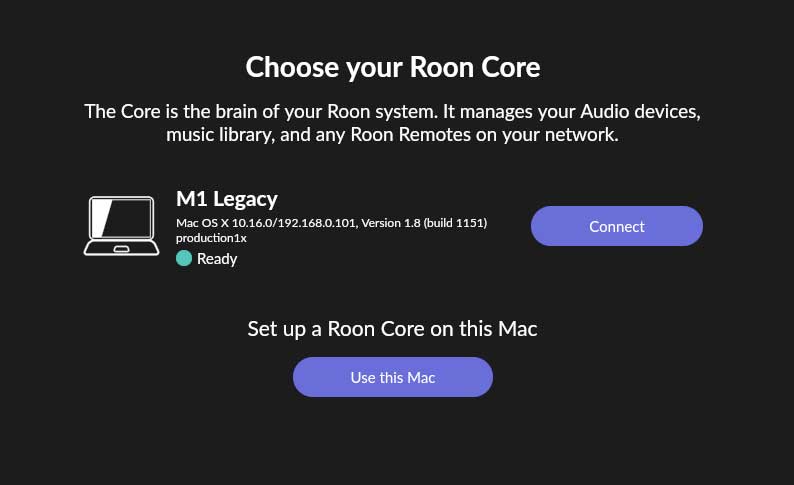
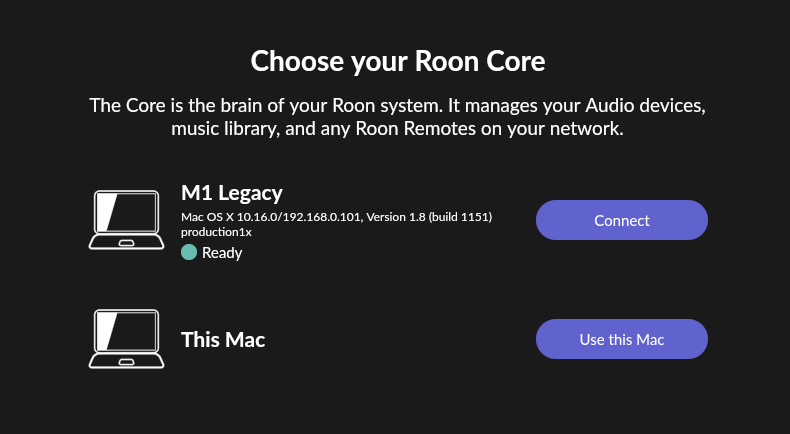
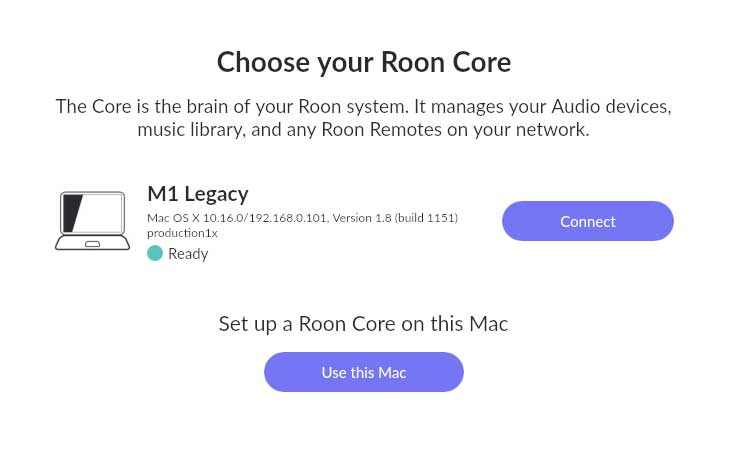
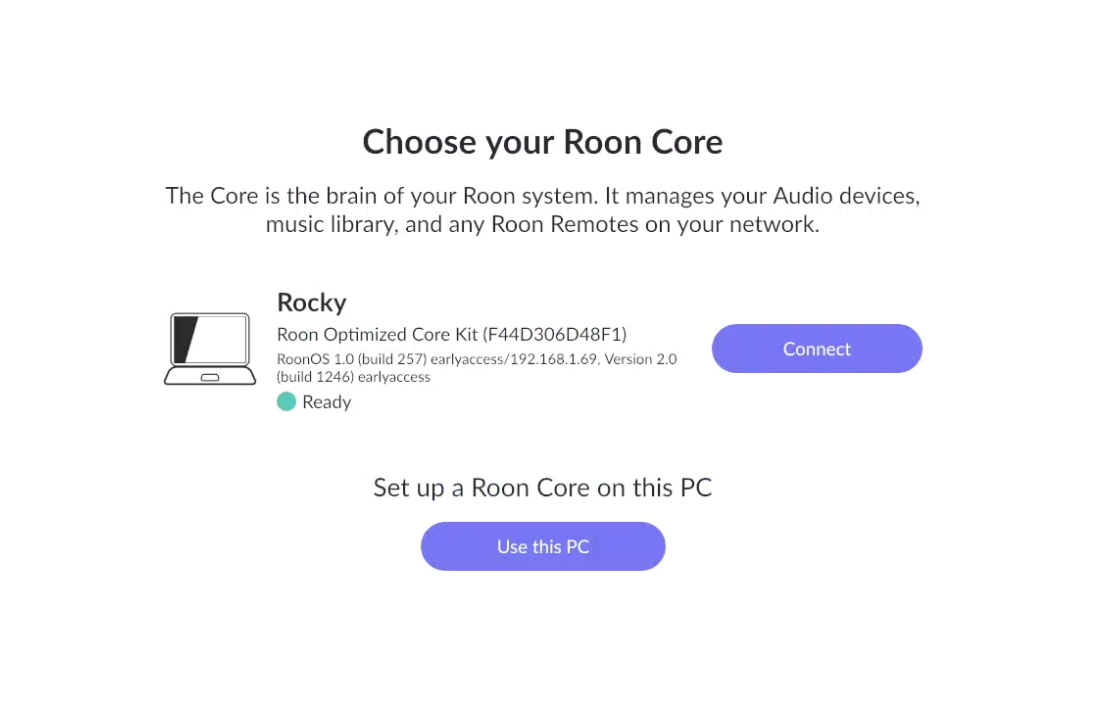
Now, during the install, the LaptopA install will get either an option to Find a Roon Core or to be a Roon Core screen. Because there are no other Roon Core’s on the network, at this time, the only option is to “Use this PC”. However, when LaptopB goes to install Roon, they will see a screen like below:
Choosing to Connect to an existing server sets that Roon install up as a Remote Control which means some processes are not setup and it doesn’t broadcast itself as a core. It is common in Roon that screen options will change depending on the specific environment.
All is well and after awhile, they decide to invest in a ROCK NUC. The users setup the ROCK NUC, migrates the library, moves the authorization from LaptopA to the ROCK NUC, and connects both LaptopA and LaptopB to the ROCK NUC so that they are both running as a remote to the ROCK NUC’s Core.
Now, we get to the OPs question. The user on LaptopB notices that when the user of LaptopA (former core) is running Roon, they are seeing LaptopA as a valid Core choice to connect to. This is what the OP wanted to stop, LaptopA showing up anymore as a Core option to other Roon Remotes while Roon is running on LaptopA as a Roon Remote.
There are two options (and will go into detail more in the other thread); the right one depends upon what you want.
A. Remove all old aspects of the Roon Core, i.e. databases, so that it is a lean/clean remote.
This is where uninstall/re-install comes from. Depending on how big the library was, it can free up several gigabytes of space. It is fast and gets the job done, with the understanding that during the uninstall the user removes all settings and databases (an option in a Windows uninstall, not sure about Mac).
Now, yes, for those wanting to dive into the base files, there maybe other ways, but, this is the cleanest for most non-technical Roon users.
B. Don’t care about the cleaning unused files out; and just stop the Core from showing up
Connect a remote to LaptopA’s Core and on Settings/General “LogOut”. This should stop LaptopA’s Core from broadcasting itself as a Core to other remotes.
In the end, LaptopA needs to be logged out from Roon Central, which happens with either option, which is why they both work.
Other Thread:
Installation Discussion with Screenshots (link coming soon ™)