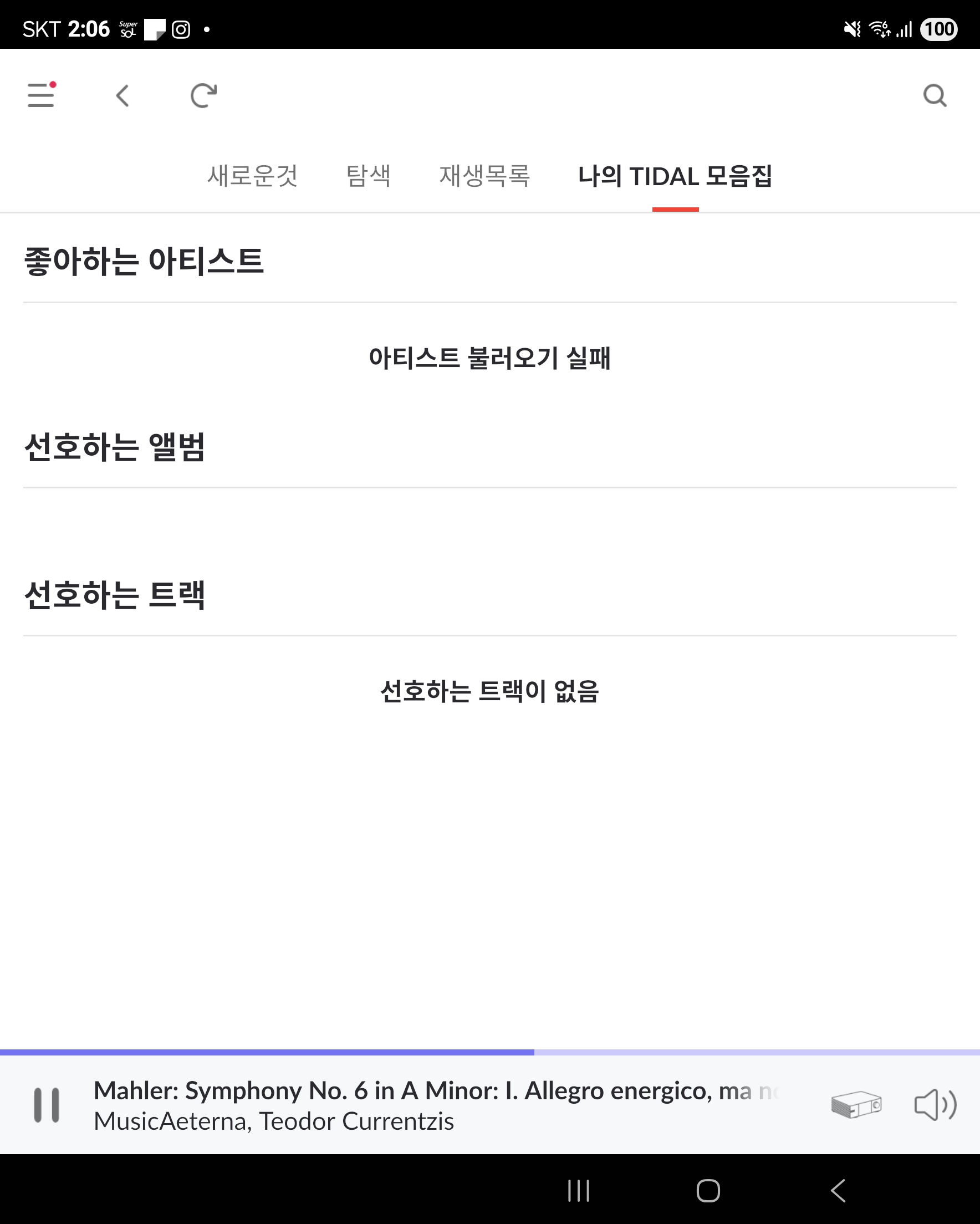
We were able to analyze the diagnostics report from your machine and spotted the following: there appears to be a synchronization loop and some network-related timeouts preventing Roon from properly communicating with TIDAL servers, which results in tracks being grayed out.
To resolve this, please try the following steps:
1. Reset TIDAL Authorization
Go to Settings -> Services in Roon.
Click Edit next to TIDAL and select Sign Out.
Important: Please wait a couple of minutes before logging back in. This will force Roon to refresh your authentication token and request a fresh sync.
2. Perform a Full Restart
Close your Roon remote app and fully stop the Roon Server.
Restart your home router.
Once the network is back online, start the Roon Server first and wait for it to fully initialize, then open your Roon remote app. This should break the synchronization loop we saw in the diagnostics.
3. Clean Up Library
Navigate to Settings -> Library.
Click on Library Maintenance and select Clean Up Library.
4. Update Network DNS Settings
If the tracks are still grayed out after the previous steps, this is often caused by your ISP's default DNS servers struggling to resolve TIDAL's addresses. We highly recommend changing the DNS settings on your router to a reliable public DNS, such as Google (8.8.8.8) or Cloudflare (1.1.1.1).
Please let us know how it goes or if you need any further assistance.
This thread is now closing due to inactivity. You can reactivate the conversation by submitting a new tech support request here and our team will pick up the case. Thank you!