What is the operating system of your Roon Server host machine?
· Roon Optimized Core Kit (ROCK)
What kind of device are you using to perform the login?
· Android
Where are you trying to login?
· I can't log into TIDAL, KKBox or nugs
Have you been redirected to the Tidal/KKBOX/nugs login page in your browser?
· Yes
Please try clearing the browser cache and cookies for the [l](https://account.roon.app/)ogin page where you have been redirected
· No, the issue remains the same
Content / Popup Blockers
· No, the issue remains the same
Temporarily try to use a different browser
· No, the issue remains the same
Please try to restart your Roon Server by closing the Roon Server app in the taskbar (MacOS), task manager (Windows) or rebooting your Roon Server machine.
· No, the issue remains the same
Different device
· I am able to switch to the diffrent device
Are you still facing the issue on the different device
· No, the issue remains the same
Record the timestamp
· 12:20
Describe the issue
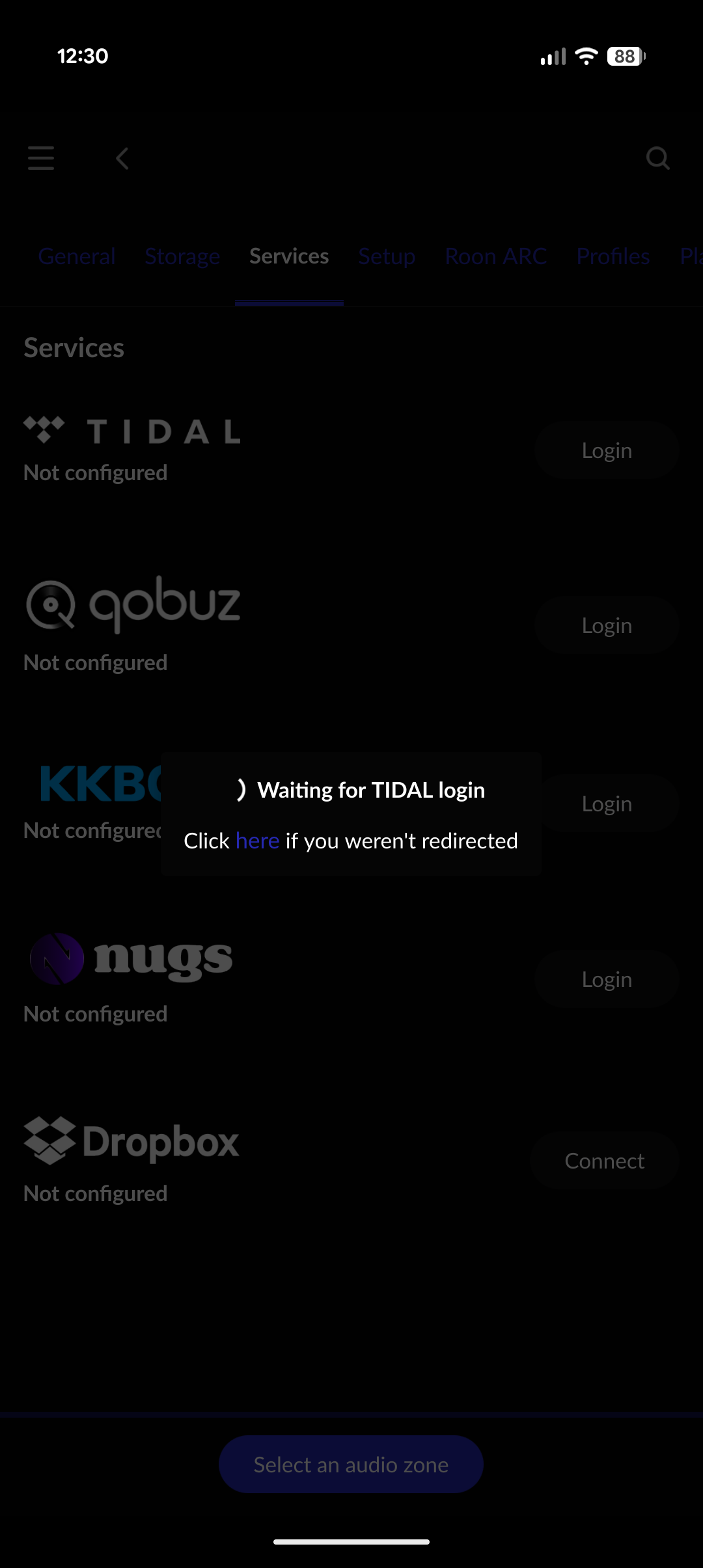
When trying to log in to tidal is am taken to the web browser sign in. Successfully log in on the web browser and I am returned to the roon remote app but it is stuck in the attempting to login spin wheel before it times out and I try the whole process multiple times. I have deleted the tidal cache from my roon server folders but this still has not helped.
Describe your network setup
Full fibre Vodafone home broadband. ROCK connected via ethernet
Adblockers/content blockers will cause login loops sometimes by intercepting the URL redirect back to Roon. Please try disabling any adblockers in the default browser on this device, rebooting Roon Server, and then trying again.
I have done all of the steps above but it still does not log in on the roon side. Logging in to the tidal website is fine but when it auto redirects back to roon, the endless loop for logging in still happens.
The same also happens when I try to do it from my windows laptop. It is odd that I have not made any changes to my system and it has never been an issue before.
I have opted out of the beta programme and reinstalled to 2.64 for both ROCK and android remote but I still can’t log in to tidal. I have tried multiple restarts and with / without VPN. Still the same.
On the “about” section of the settings in the remote app it shows roon server 2.64 but is always “Checking for an update…”
Sorry to hear your issues persist! If you could, please use the directions found here and send over a set of Roon Server logs to our File Uploader? Once logs have been uploaded, please let us know so that we can check the server for your files, thanks!
I have done this before for a separate issue and did not hear anything back and this was all the way back in September 2025. This was about another issue but it does not build confidence that this will be resolved any time soon.
Hi @benjamin , if I do upload the log files can you give me an estimate when it would be reviewed by the team? I have still not heard anything from the last time I uploaded logs for a separate issue in Sept 25.
Thank you for your patience, and I apologize for the long wait.
The diagnostic logs from your system reveal exactly why the TIDAL login is getting stuck in an endless loop: your ROCK device is currently unable to reach the internet at all.
When you successfully log into the TIDAL website, the browser attempts to pass a secure authentication token back to your Roon Server. Because your ROCK cannot connect to the outside network, it never receives this token, leaving your Remote app spinning indefinitely as it waits for a confirmation that will never arrive.
The logs specifically show repeated NetworkUnreachable errors, as well as failures to sync the server’s internal clock (NTP errors). If a server’s time is out of sync, secure login connections will automatically reject the handshake.
We need to clear the roadblock between your ROCK and the Internet. Please run through this checklist:
The Physical Connection: Double-check the Ethernet cable connecting your ROCK to the router. Unplug it at both ends and plug it back in firmly.
Router Firewalls & Security: Log into your Vodafone router and ensure there are no strict firewall rules, parental controls, or “Safe Surfing” features actively blocking the ROCK’s IP address.
The Full Network Restart: Unplug your ROCK and your Vodafone router from power. Plug the router back in, wait 5 full minutes for the network to stabilize, and then power the ROCK back on.
DNS Here’s a step-by-step on how to change the DNS settings on your ROCK:
Open a web browser on a device connected to the same network as your ROCK.
Enter the IP address of your ROCK in the address bar.
If you don’t know the IP address:
Open the Roon app.
Go to Settings > Setup > Find Roon OS.
Note the IP address shown for the ROCK.
Alternatively, use http://rock.local/ (on macOS or Windows with Bonjour installed).
Log into the Web Interface:
Once the web page loads, you’ll see the Nucleus web administration interface.
Change the DNS Settings:
Scroll down to the Networking section.
If the Nucleus is using DHCP:
Note that you cannot directly edit DNS settings under DHCP. You will need to switch to a static IP to specify custom DNS servers.
Switch to a Static IP:
Click on the Configure or Edit option under networking.
Enter the current network settings for your Nucleus (IP address, subnet mask, gateway) manually. These can often be found in your router’s settings or your current DHCP lease information.
Specify Custom DNS Servers:
Add DNS servers in the relevant fields. Common choices:
Google DNS: 8.8.8.8 and 8.8.4.4
Cloudflare DNS: 1.1.1.1 and 1.0.0.1
OpenDNS: 208.67.222.222 and 208.67.220.220
Save and Apply Changes:
Click Save or Apply to confirm your new settings.
Restart the ROCK (make sure Roon Server is stopped) and let me know if you continue to experience issues
Are you currently able to access the ROCK’s Web Administration page by typing its IP address into a web browser on your laptop or phone?
Our account servers show a Tidal account associated with this Roon account on last login. Are we correct that you’ve been able to login to Tidal via Roon in the interim? If not, please let us know. Otherwise, this thread is at risk of auto-closing due to inactivity if it stops receiving responses from the OP.
We’ll watch for your reply and proceed from there. Thank you!