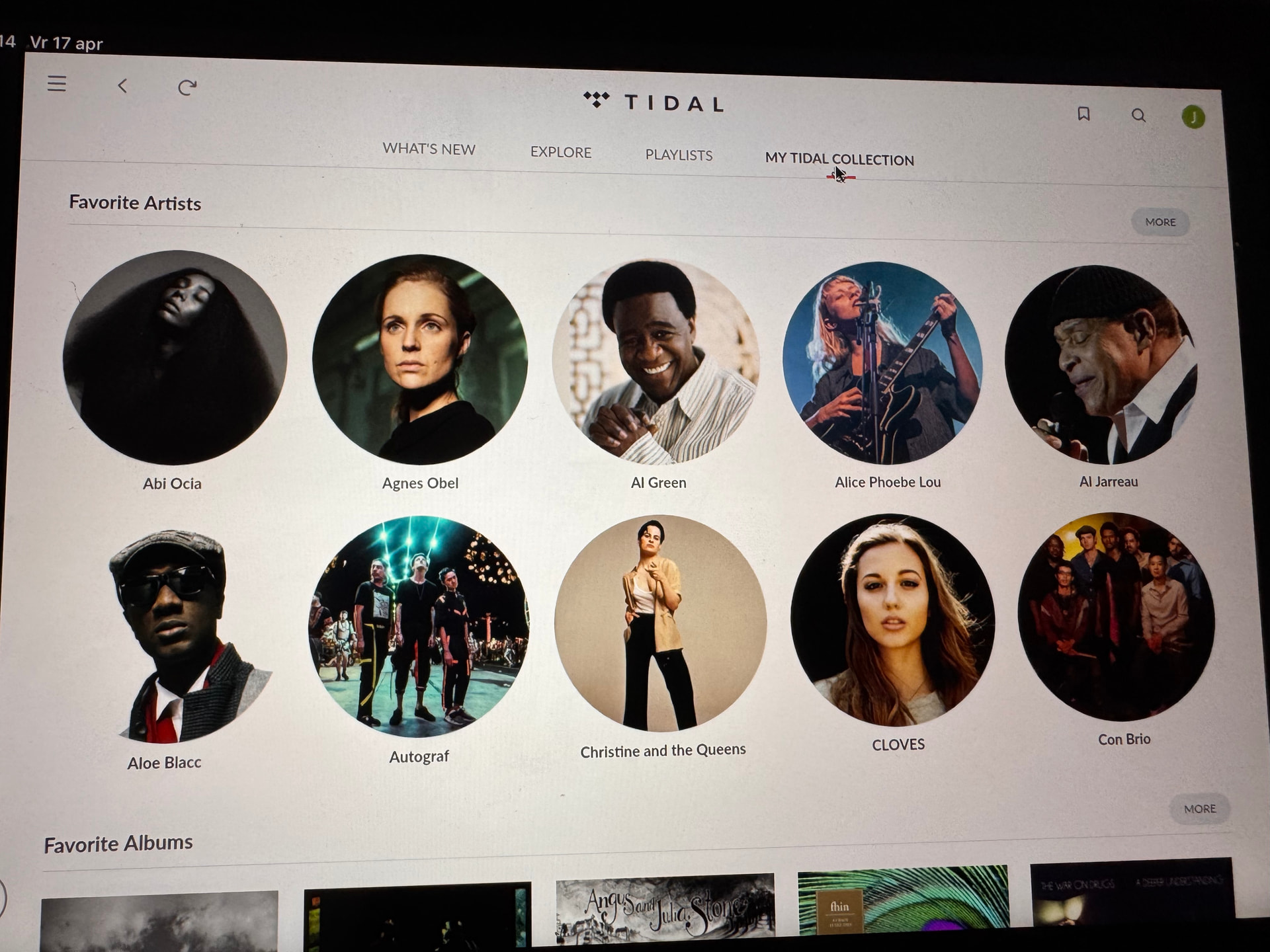
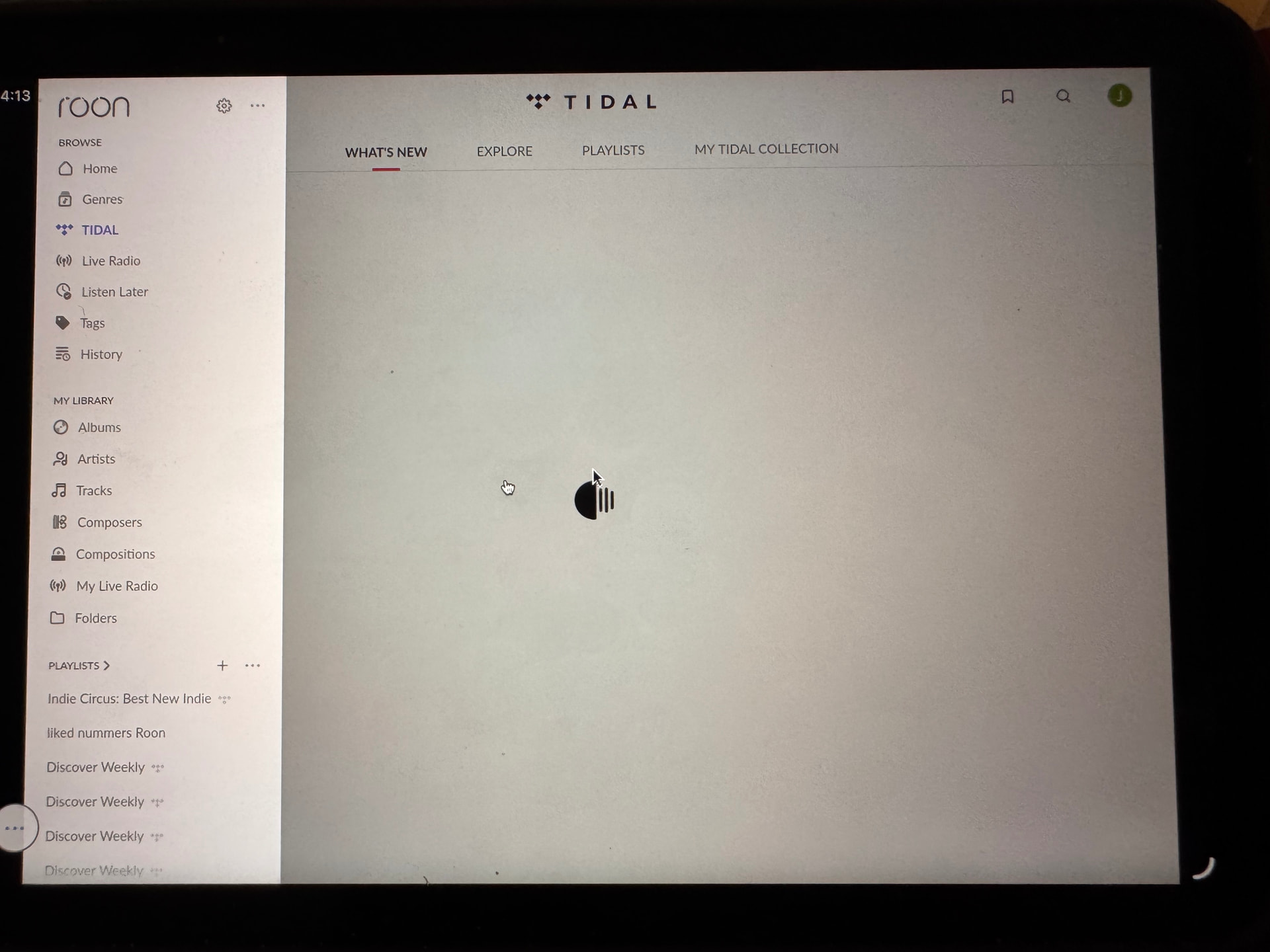
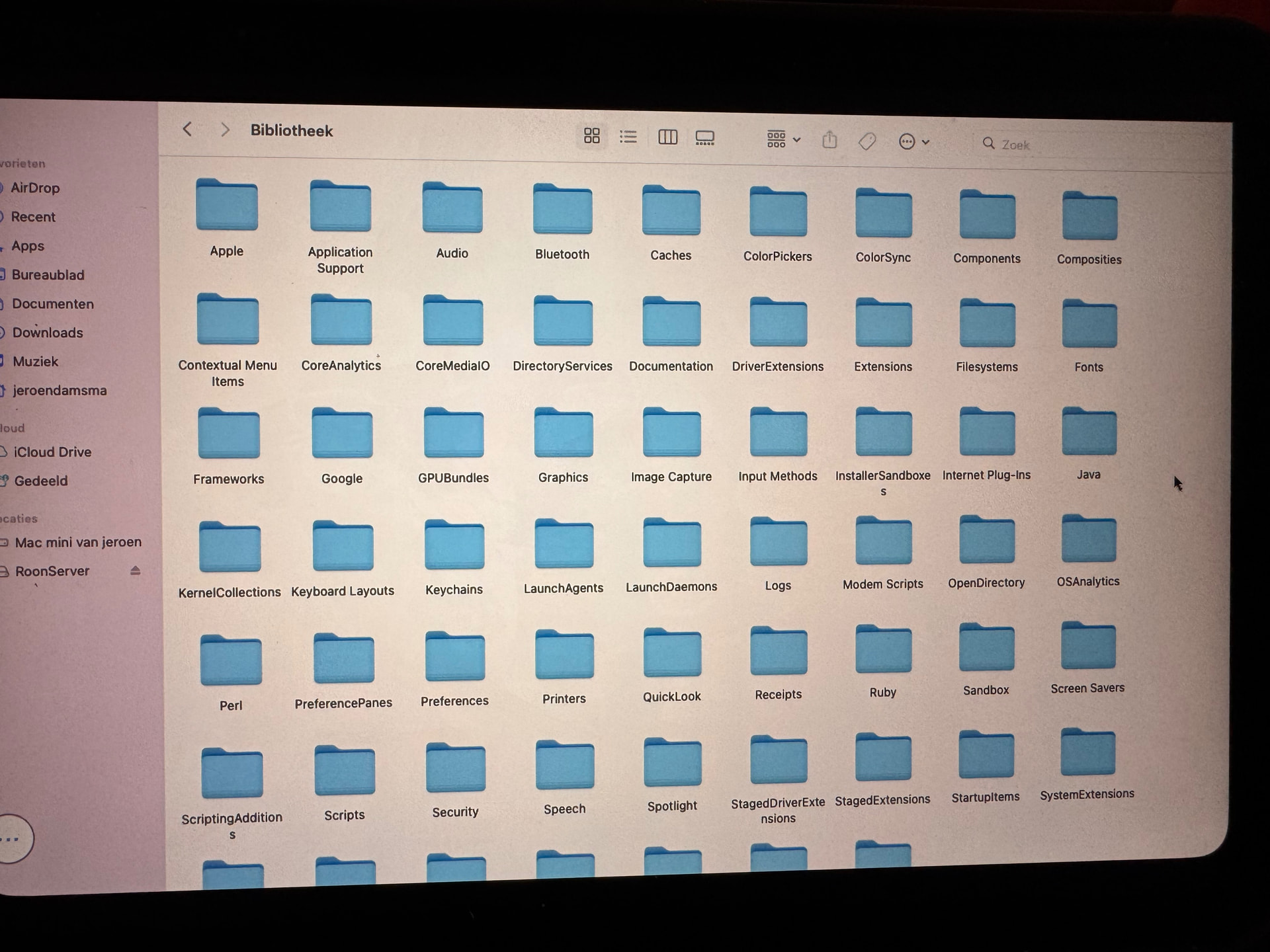
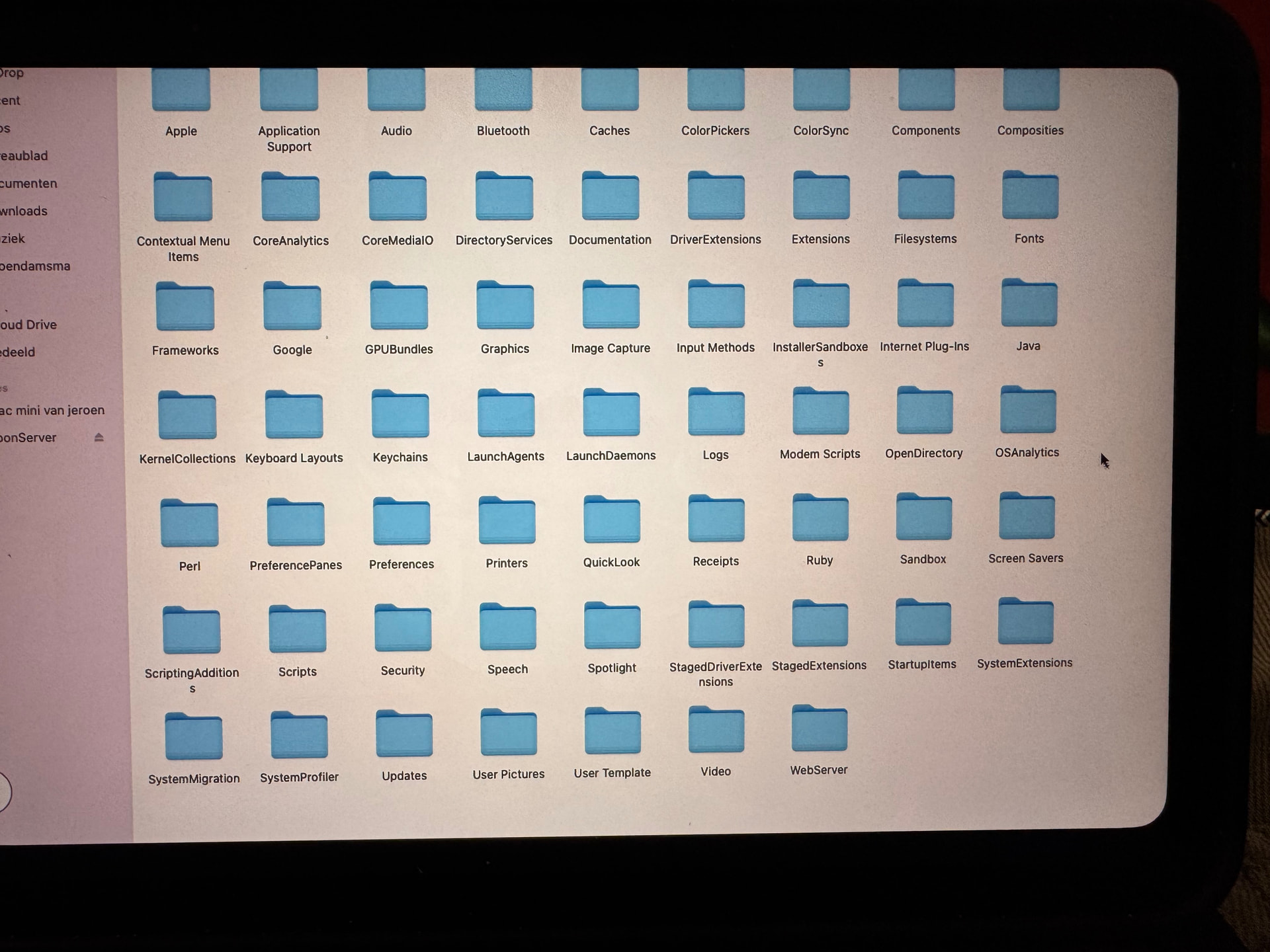
Thanks for reaching out. Can you please share a few screenshots of the current behavior? You can try to clear your TIDAL cache by using the following instructions:
Just checking in on this. Were you able to grab a few screenshots of the current behavior and try clearing the TIDAL cache by exiting Roon or RoonServer, opening your Roon database, and moving the contents of the /Library/RoonServer/Cache folder elsewhere before restarting? Let us know what you found, thanks.
After reviewing your log files, we’ve identified a few synchronization errors with TIDAL which suggest that your local database is relying on corrupted or outdated cached data. This is likely why your Playlists and “What’s New” sections aren’t updating correctly.
To resolve this, we recommend a “fresh start” for your TIDAL cache. Please follow these steps exactly:
Sign out of TIDAL in the Roon Settings -> Services.
Fully exit Roon and RoonServer from the macOS menu bar (ensure the icon is no longer visible).
To quickly locate your RoonServer directory, open the Terminal app and run the following command:
for p in "$HOME/Library" "/Library" "/Applications" "/Users"; do find "$p" -type d -name "RoonServer" -print -quit 2>/dev/null && break; done
Once you have the path, navigate to that folder and locate the Cache folder.
Delete the contents of the Cache folder (or move them to your desktop temporarily).
Restart RoonServer, sign back into TIDAL, and let it perform a fresh sync.
Also, we’d recommend updating the Roon App on your iPhone to keep everything in sync an up to date.
Let us know, please, if deleting the cache helps to restore TIDAL access.