What’s happening?
· My library isn’t working correctly (local/streaming, importing, or storage access)
Describe the issue
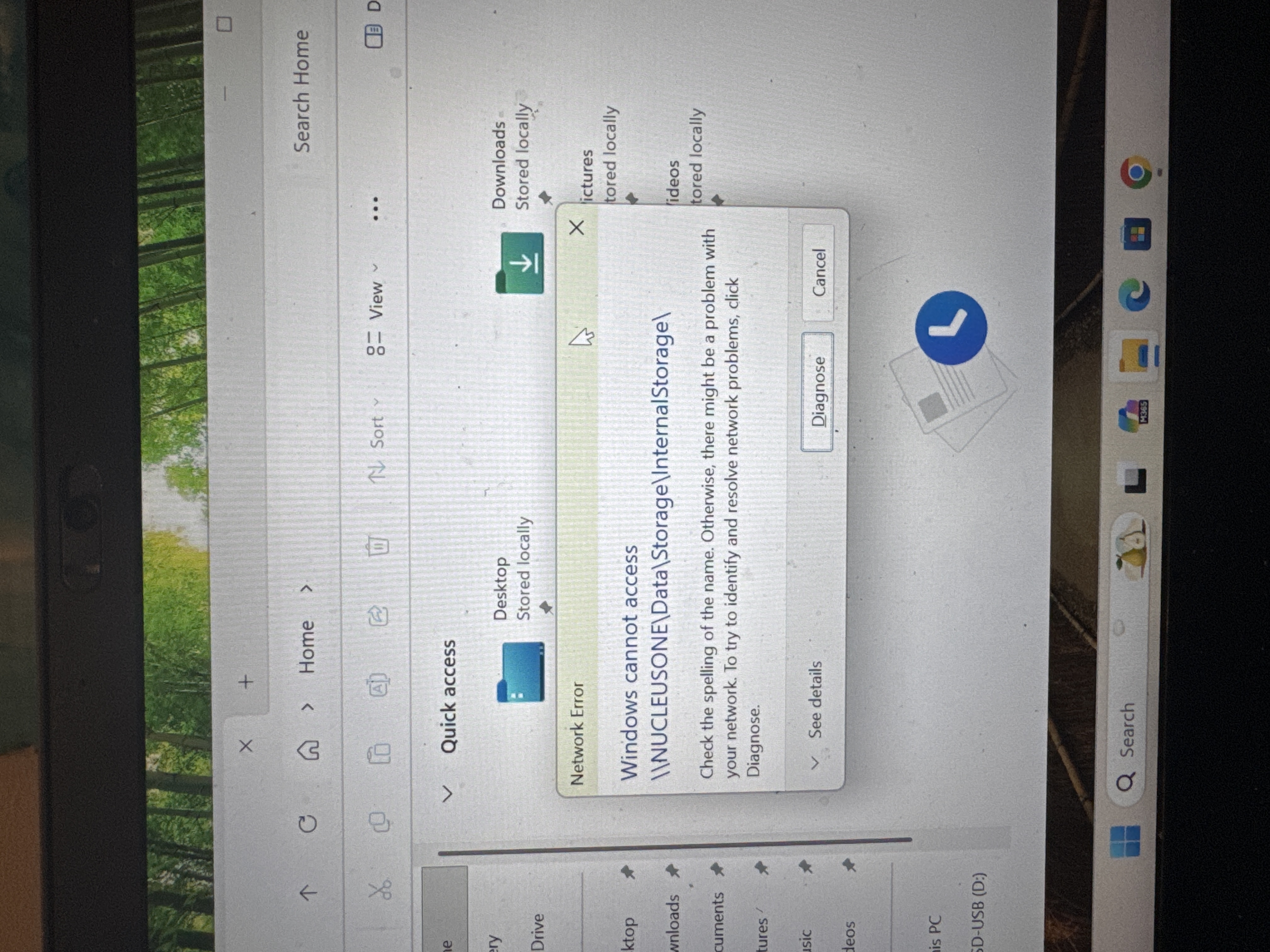
I have a usb drive with my music connected to my fully-updated One and want to migrate that to the formatted internal ssd. I have a fully updated win11pro laptop that runs roon and can access the One via browser but cannot access One via the file explorer, by name or (static) IP,
Upon full rebuild of the laptop OS, I received the request for guest credentials but got the error that they were not allowed.
In steps, I have tried to remedy this but from step one I lost the ability to discover the Roon in the file explorer (I find it easily via browser).
I have moved wired network (everything is on wired network with Ubiquity Dreamer router) to Private, enabled file sharing and weak guest credentials. After even the first step to remedy the credential issue, I now cannot access Nucleus One from the filer because is does not find it. Even turning firewall off. I have turned on SMBv1
Thank you.
ARC and roon work great right now with the usb drive. I just want the music in the SSD.
Describe your network setup
Lenovo 480s, 64-bit, Win 11 Pro, 25H2, 26200.7171
Nucleus One version 2.1 build 271 production
S/n 10FFE0D526E9
Ubiquity Dreamer. Everything is cat6 and visible in a small loft.
Laptop is wired directly to dreamer, as is a small switch that connects to an LG TV, and Blue Node and the Nucleus.
The Nucleus one has a static IP, mask 255.255.255.0. DNS and gateway managed by Dreamer.
ARC port forward works great.