Unable to Access ROCK Server Due to Guest Authentication Restrictions (ref#HRIAR8)

What’s happening?

· Other

How can we help?

· None of the above

Other options

· Other

Describe the issue

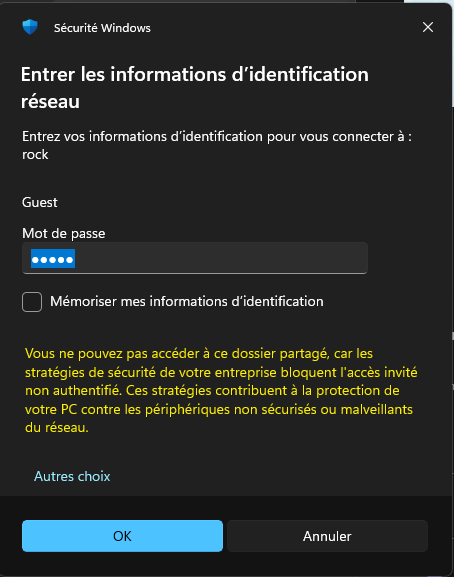
Trying to connect to the just installed Rock server on my network, a login request popup on the windows PC I am using to connect to Rock. As explained in the Roon help (I want to add the codec on the Rock server) I use Guest & Guest, but I have a security warning showing up, saying that I cannot access this shared folder, because safety rules are blocking guest access without authentification. .. What shall I do ?

Describe your network setup

Roon server Rock installed on a NUC mini PC. In house intranet network managed from my internet box (freebox). Rock wire connected and accessible from any computer through 192.168.1.xx

See Troubleshooting Connection Issues (Windows)

1 Like

Hey @laurent_le_parc,

Thanks for writing in! @Suedkiez has shared the correct article for next steps in troubleshooting - I’ll copy and paste it here for easier access:

For Windows Pro / Enterprise (using Group Policy Editor):

  1. Press Win + R, type gpedit.msc, and press Enter.
  2. In the Local Group Policy Editor, navigate to: Computer Configuration > Administrative Templates > Network > Lanman Workstation
  3. Double-click Enable insecure guest logons.
  4. Set the policy to Enabled, then click OK.
  5. Still in the Local Group Policy Editor, navigate to: Computer Configuration > Administrative Templates > Network > SMB Client
  6. Double-click Allow insecure guest logons.
  7. Set the policy to Enabled, then click OK.
For Windows Home:
  1. Since Group Policy Editor is not available by default, you’ll need to use PowerShell:
  2. Press Start, type powershell, right-click Windows PowerShell, and choose Run as administrator. Accept the prompt.
  3. To disable the SMB signing requirement, run:
Set-SmbClientConfiguration -RequireSecuritySignature $false
  1. When prompted, type Y and press Enter.
  1. To enable guest fallback, run:
Set-SmbClientConfiguration -EnableInsecureGuestLogons $true
  1. Again, type Y and press Enter.
Let me know if this helps! 🙌
1 Like

Works !

Thanks a lot.

1 Like

Hello @laurent_le_parc ,

Glad to hear that @benjamin ‘s suggestion worked on your end! I’ll go ahead and mark the thread for closure, we wish you a pleasant continued Roon experience!
This topic was automatically closed 24 hours after the last reply. New replies are no longer allowed.