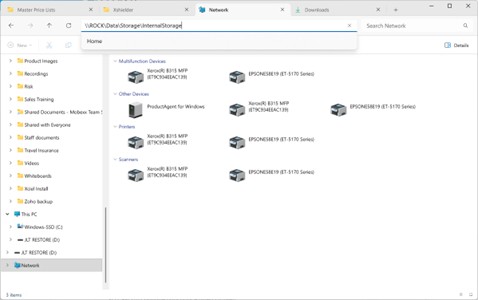
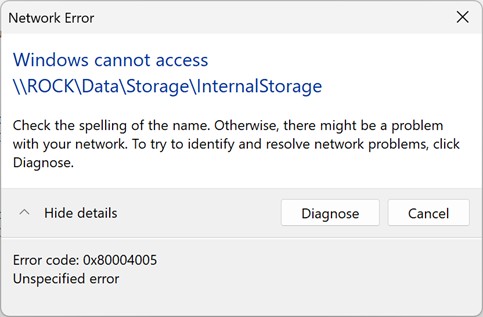
· I have installed Roon ROCK (Version 2.1 (build 271) production) on headless Intel PC (i7, 16GB RAM, 512GB SSD OS + 2TB SSD Storage). Installed fine and can access via app and browser, and library formatted and available. However I can't access library over network to add codecs and library. Network connection using \\rock\data returns error. Please advise how I can access to load library and codecs.
Tell us about your home network
· Asus AX3000 using wired ethernet to connect server and client.
Hi Alex
Changed settings to enable insecure login but it still won’t connect.
Win 11 Pro 25H2
Very frustrating and I’m sure when issue identified very obvious!
In the referenced article, the instructions for Windows Home users are correct, but those for Windows Pro/Enterprise users are wrong (missing a step). They should be:
Disable the SMB client signing requirement:
a. On the Start Menu search, type gpedit and start the Edit Group Policy app (i.e. Local Group Policy Editor).
b. In the console tree, select Computer Configuration > Windows Settings > Security Settings> Local Policies > Security Options.
c. Double-click Microsoft network client: Digitally sign communications (always).
d. Select Disabled > OK.
Disable the guest fallback protection:
a. On the Start Menu search, type gpedit and start the Edit Group Policy app (i.e. Local Group Policy Editor).
b. In the console tree, select Computer Configuration > Administrative Templates> Network > Lanman Workstation.
c. Double-click Enable insecure guest logons
d. Select Enabled > OK.
Maybe someone can finally fix the instructions in the KB, I think @Geoff_Coupe has reported this many times. Why add such a burden on the users, the support team and volunteers, when it would take a few minutes to fix it.