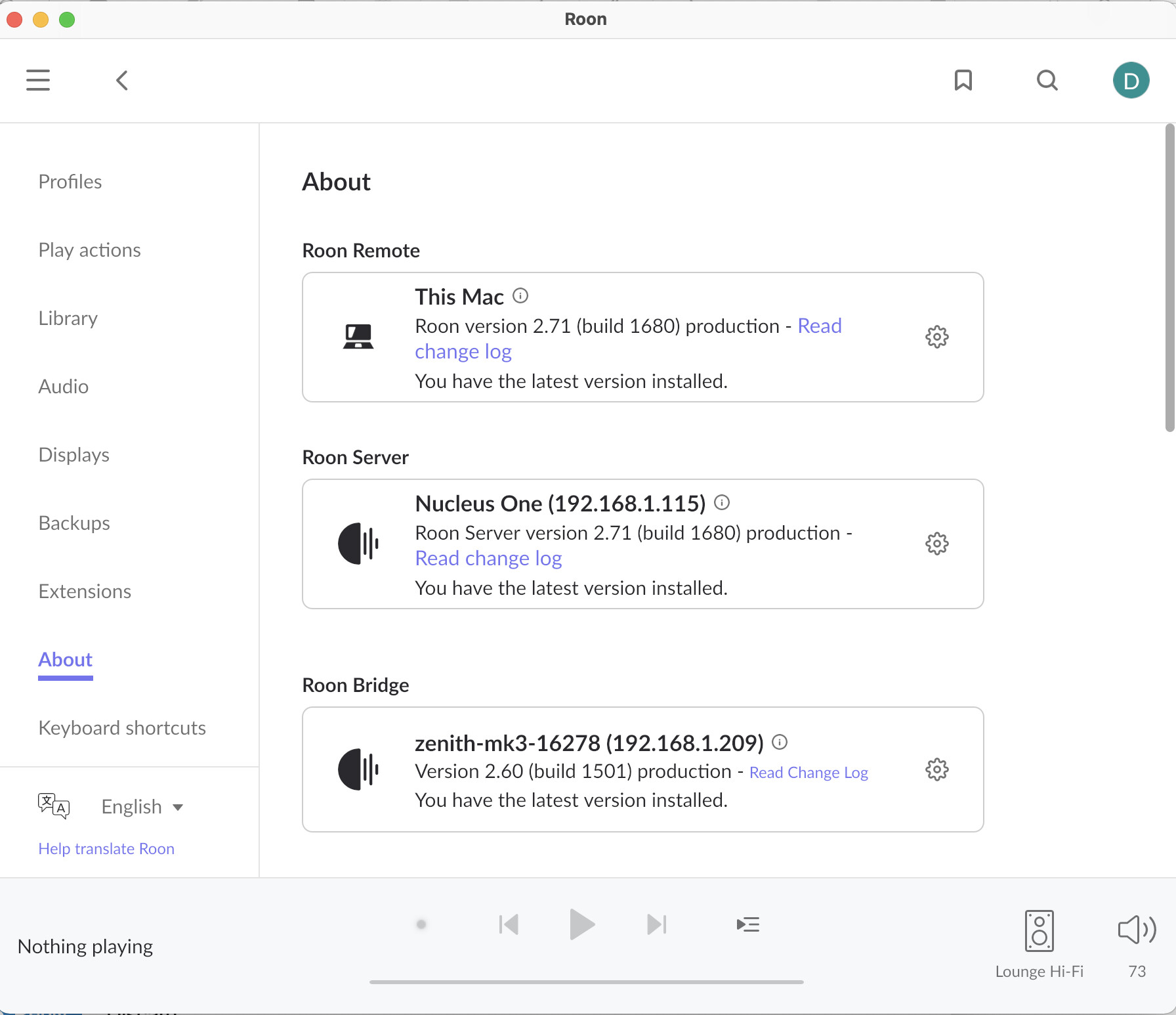
· Core Server Hardware: Roon Nucleus One Endpoint: Innuos Zenith Mk3 Control Device: Mac running Roon Desktop The Goal: I have successfully imported a text file playlist of nearly 10,000 local tracks. I need to bulk-favorite (Heart) all of the tracks in this playlist, but the interface disables bulk-favouriting inside the playlist view and 'Edit' or 'Playlists' options are missing from my Focus/3-dot menus.
Tell us about your home network
· EE SH35A router, SW35A Extender, Netgear ProSafe 5 Port Gigabit Switch
This has come up before, and there is a workaround that other users have used for exactly this situation.
Bulk favoriting is not available from inside the playlist view. The action lives in the Tracks browser instead, so the trick is to get the same set of tracks showing there. A tag is how you do that.
Open your playlist and select all the tracks in it.
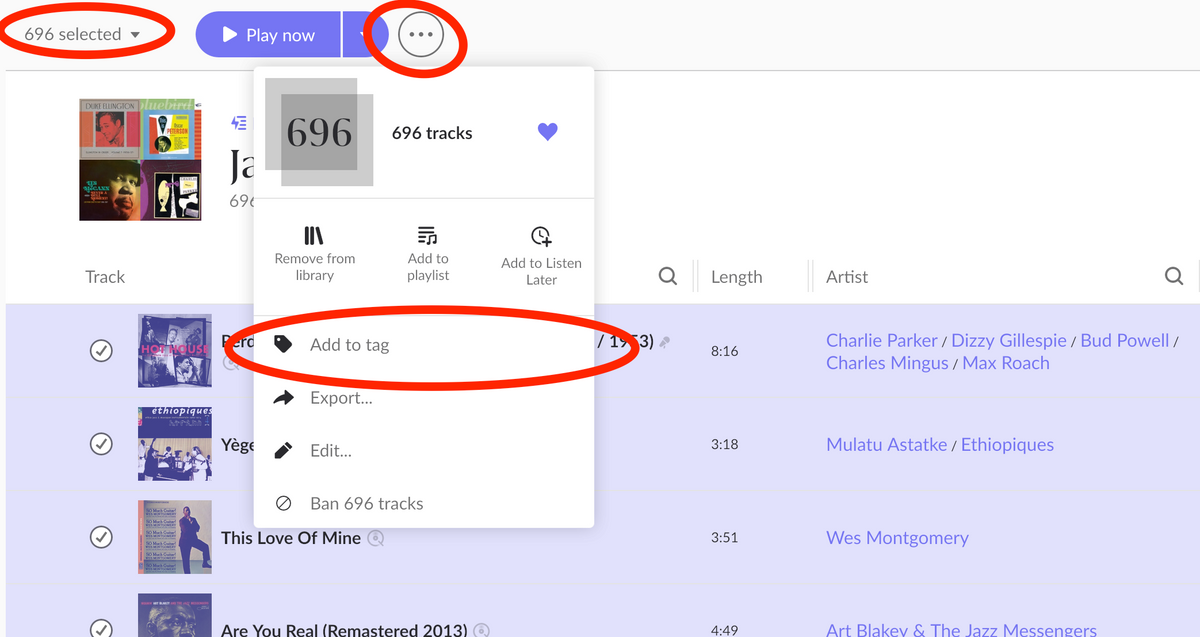
From the three dot menu, choose the option to add a tag, and create a new one, for example “Imported Playlist”.
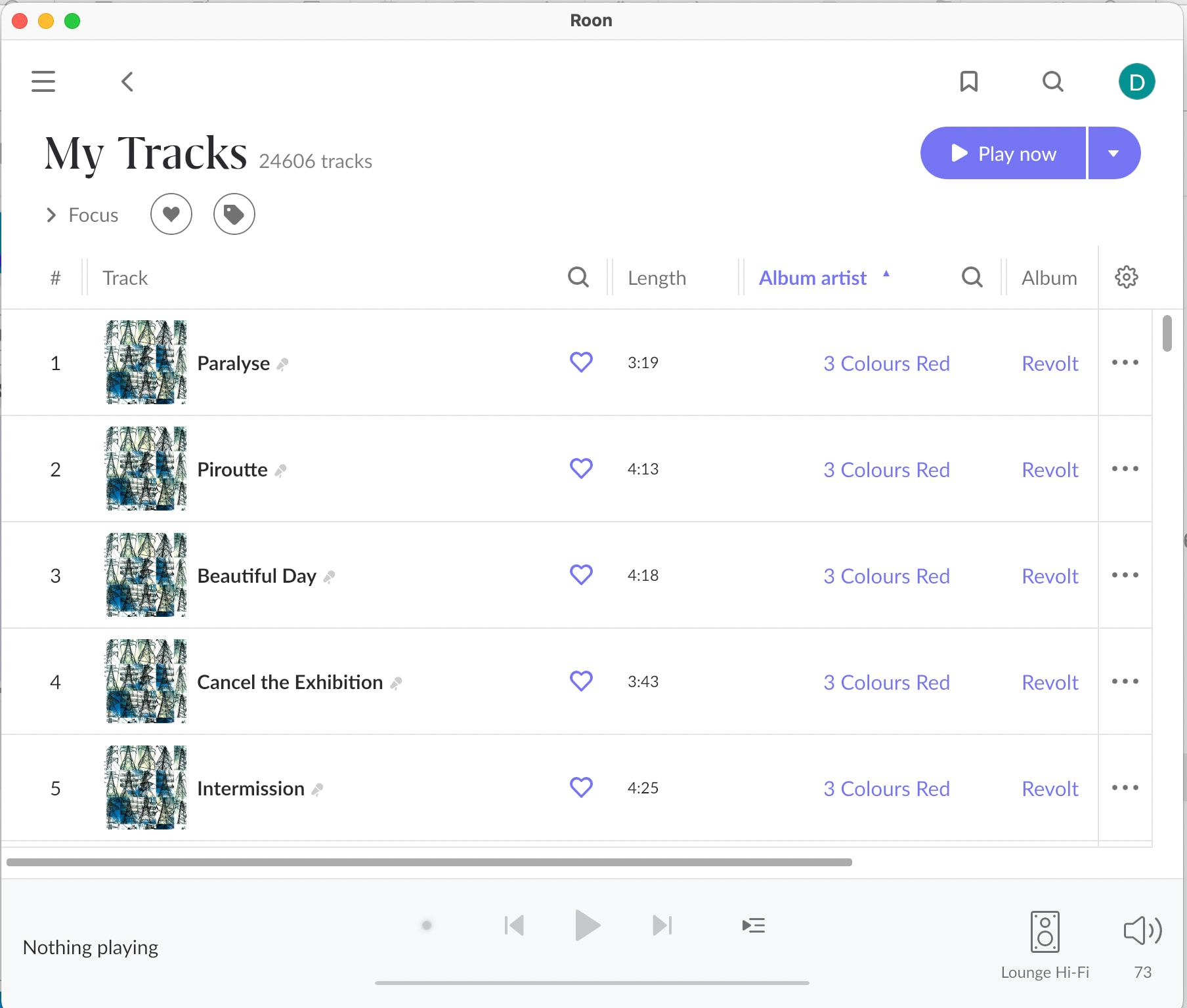
Go to Library, then Tracks.
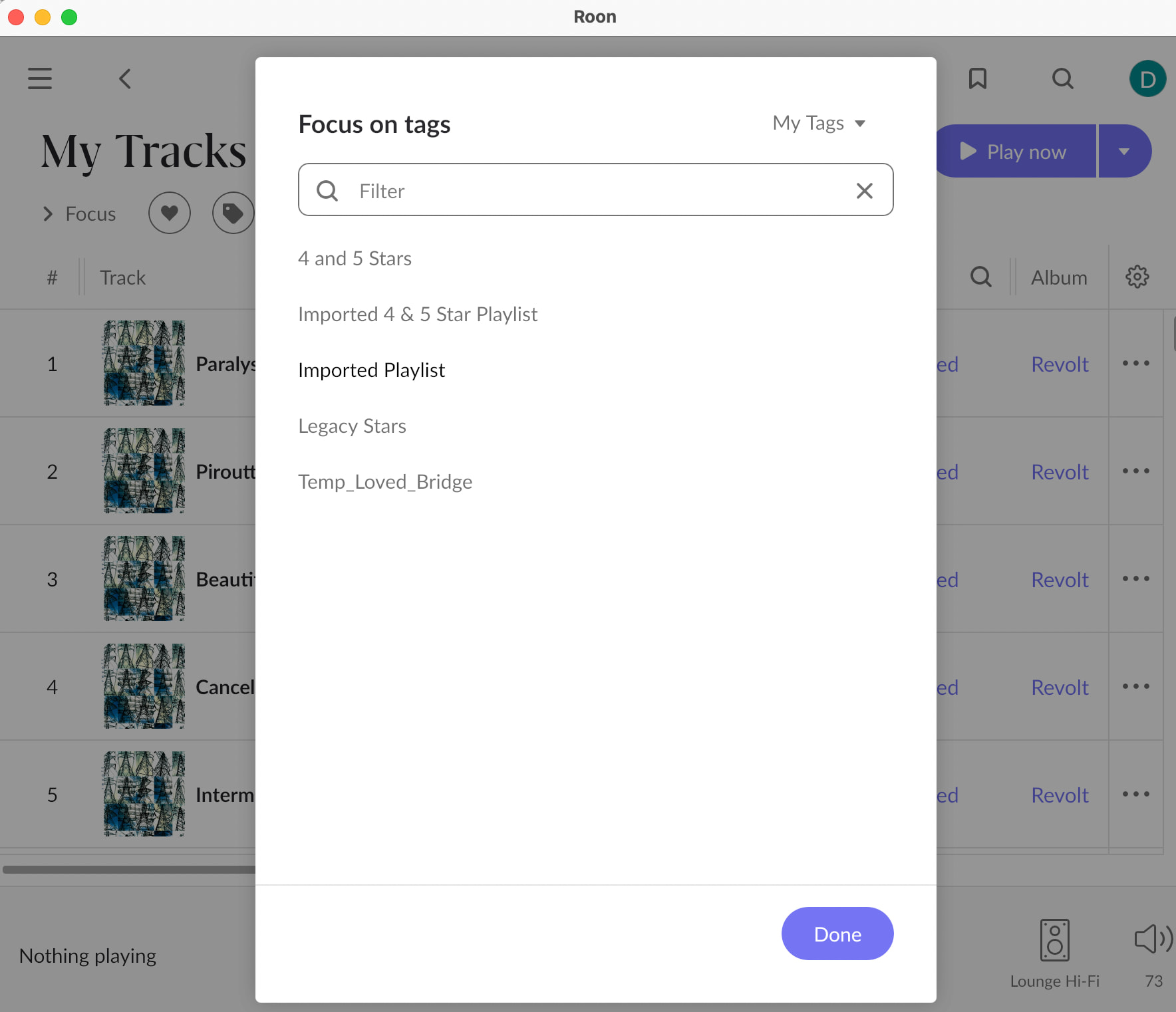
Open Focus and filter by that tag, so only those tracks are listed.
Select all the tracks in that filtered view.
From the three dot menu, click the heart.
That extra tag step is what makes the bulk action available, since Roon exposes it in the Tracks browser rather than in the playlist view.
Two things worth knowing. With close to 10,000 tracks this will take a moment to apply, so please give it time to finish. And once it is done you can delete the tag if you do not want to keep it, the favorites will stay.
The original discussion is here if you want to see it:
Please let us know if the menu options do not look the way they are described above, along with the Roon version you are running, and we will take another look.
Your suggested process failed at step 5 I’m afraid.
“Open your playlist and select all the tracks in it” - I did this ok.
“From the three dot menu, choose the option to add a tag, and create a new one, for example “Imported Playlist”.” - There were two three dot menus available … one at the top of the screen which didn’t have the add a tag option and one below it to the right., which did. I did “add to a new Tag” which I called Imported Playlist.
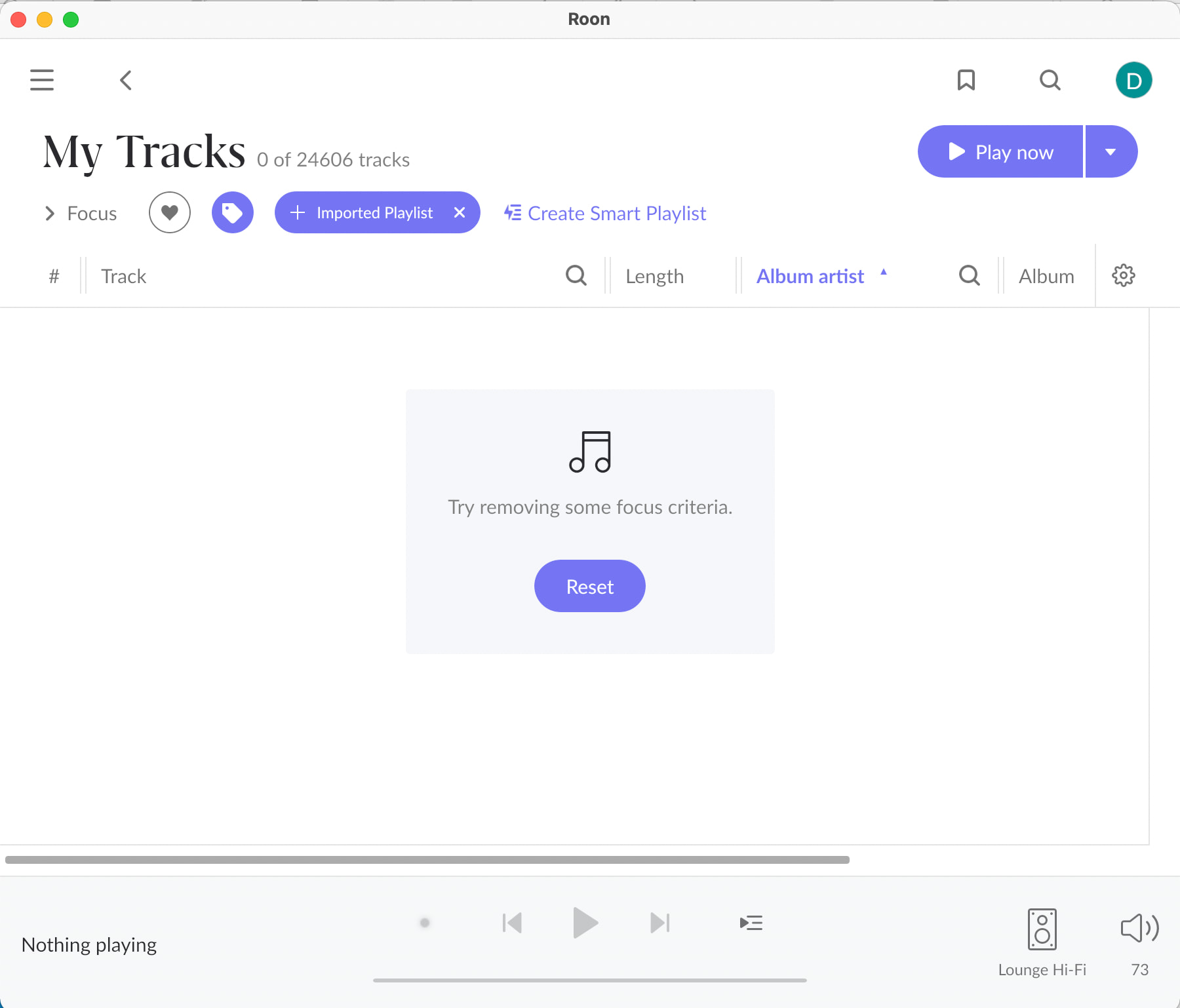
“Open Focus and filter by that tag, so only those tracks are listed” - I used the Tag button next to the Heart button where it says Focus (Tags wasn’t an option on the actual Focus dropdown).
“Select all the tracks in that filtered view.” - The filtered view did not show any tracks at all … just a message saying “Try removing dome focus criteria”
Sorry for the confusion. Let’s back up to step two.
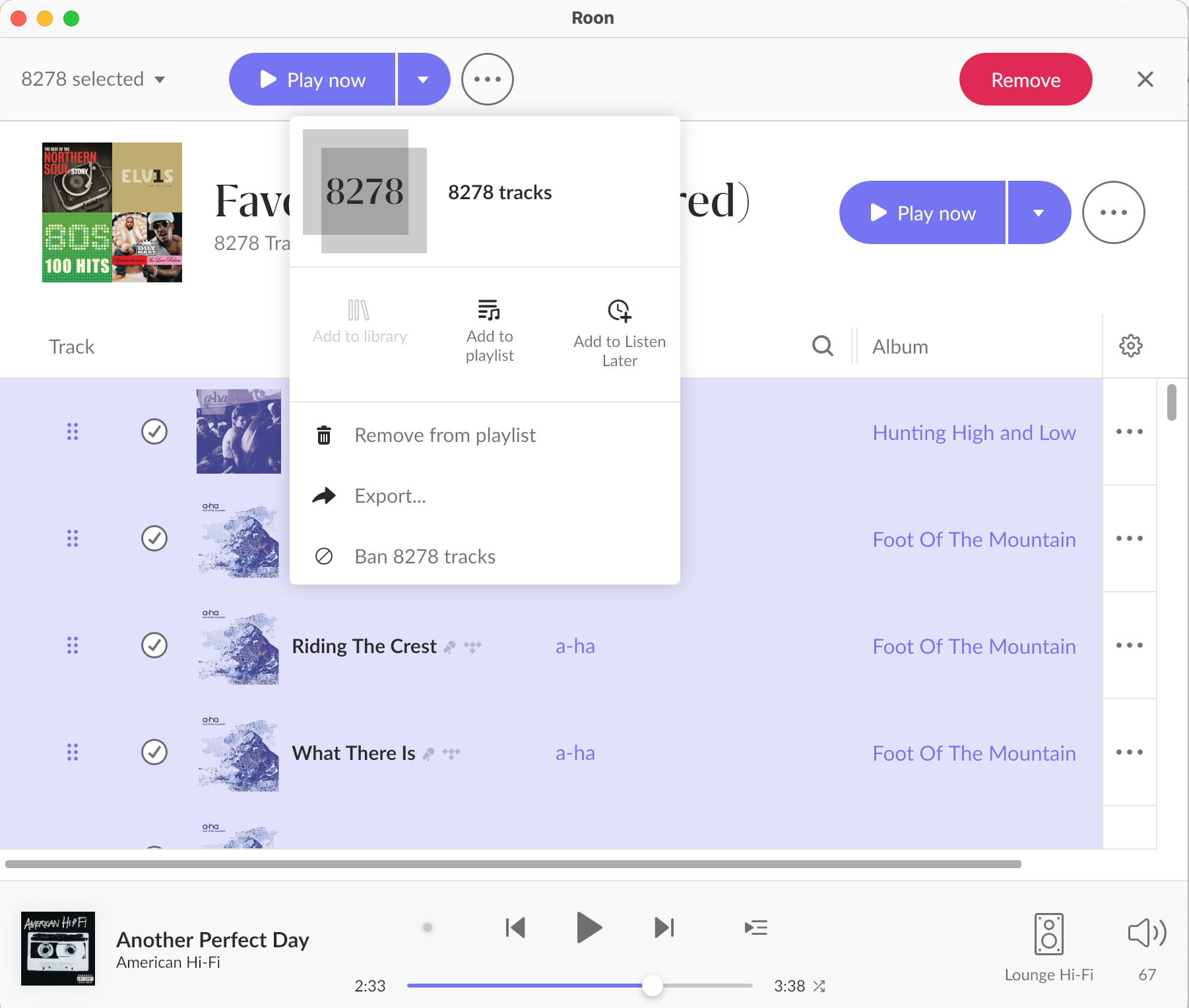
You’ll need to use the top three-dot menu next to “8278 selected” to apply the tag. This will apply the tag to the selection (the tracks) rather than the playlist object.
The Add to Tag option should be available in this dropdown. Do you not see it?
Thanks for the reply! It’s likely that some of the tracks in the playlist might not be added to your library.
An easy way to check this could be to select the cogwheel on the playlist, and enable the ‘date added’ field.
From there, you can scroll down your playlist and see what tracks have not yet been added to your Roon library (the date added would be blank, versus content that has an added date.) Once you add all the tracks, you should be able to access the ‘Add to tag’ option.
Glad you got there, and thanks for sticking with it through a few false starts.
Summarising what actually worked, in case you or anyone else needs it again:
Not every track in an imported playlist is necessarily in your library. Tracks that are only referenced by the playlist and not added to the library do not offer Add to Tag, which is why the option was missing. You can spot them by opening the cogwheel on the playlist and enabling the Date Added column: anything with a blank date is not in your library yet. Add those first.
There are two three-dot menus, and they act on different things. The one at the top, next to “N selected”, acts on the selected tracks. The one below it acts on the playlist itself. Tagging has to be done from the top one.
With the tracks tagged, go to Library → Tracks, filter to that tag, select all, and use the heart from the three-dot menu.
The tag can be deleted afterwards if you do not want to keep it. The favorites stay.
We are marking this resolved. If you hit something similar with another import, please start a new thread and link back to this one.