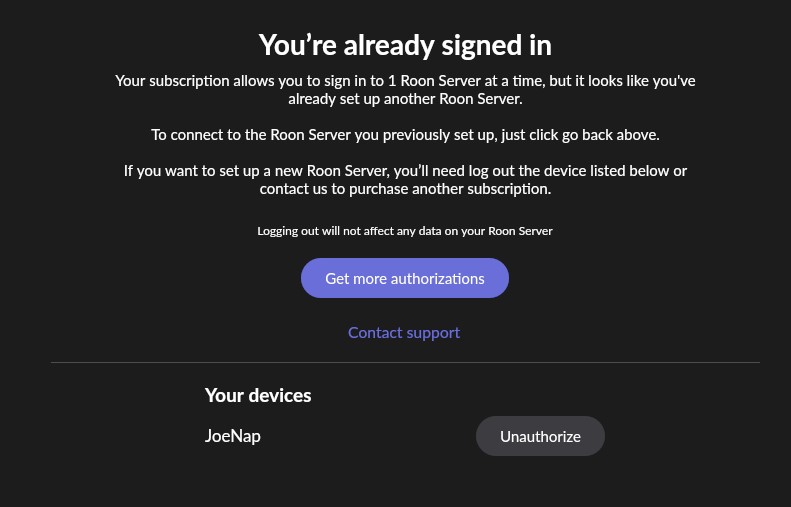
Hi, I use Roon on QNAP-251A with 8 Gb. Always worked well After latest update now my remote (iPad M4) cannot connect anymore.
It says that my subscription allows to sign in to 1 Roon Server at a time, but it looks like you've already setup another Roon Server. Which is not true obviously... I try to login to my usual Roon server
Thank you for contacting us. It looks like Roon is detecting the current install as a second server instance.
First, simply restart the RoonServer machine. This resolves the vast majority of cases. See if Roon automatically connects to the correct server instance.
Otherwise, unauthorize the old RoonServer, restart RoonServer, and try to connect. This won’t erase your library, but do double-check you have a Backup available for due diligence anyway.
Do you have a second RoonServer instance running within a docker on the QNAP? What about a latent RoonServer instance installed on your Windows Remote?
I have no second RoonServer instance. Never had one. All worked smoothly until the day before this last update.
I have a Backup available, but I’m a little bit scared about unauthorizing the Roon server. It sounds to me bit like trial&error… I’ve done tons of editing to my collection. Are you sure no other QNAP owner complained after this update and no fix is possible from your side?
If nothing works I’ll eventually try unauthorizing…