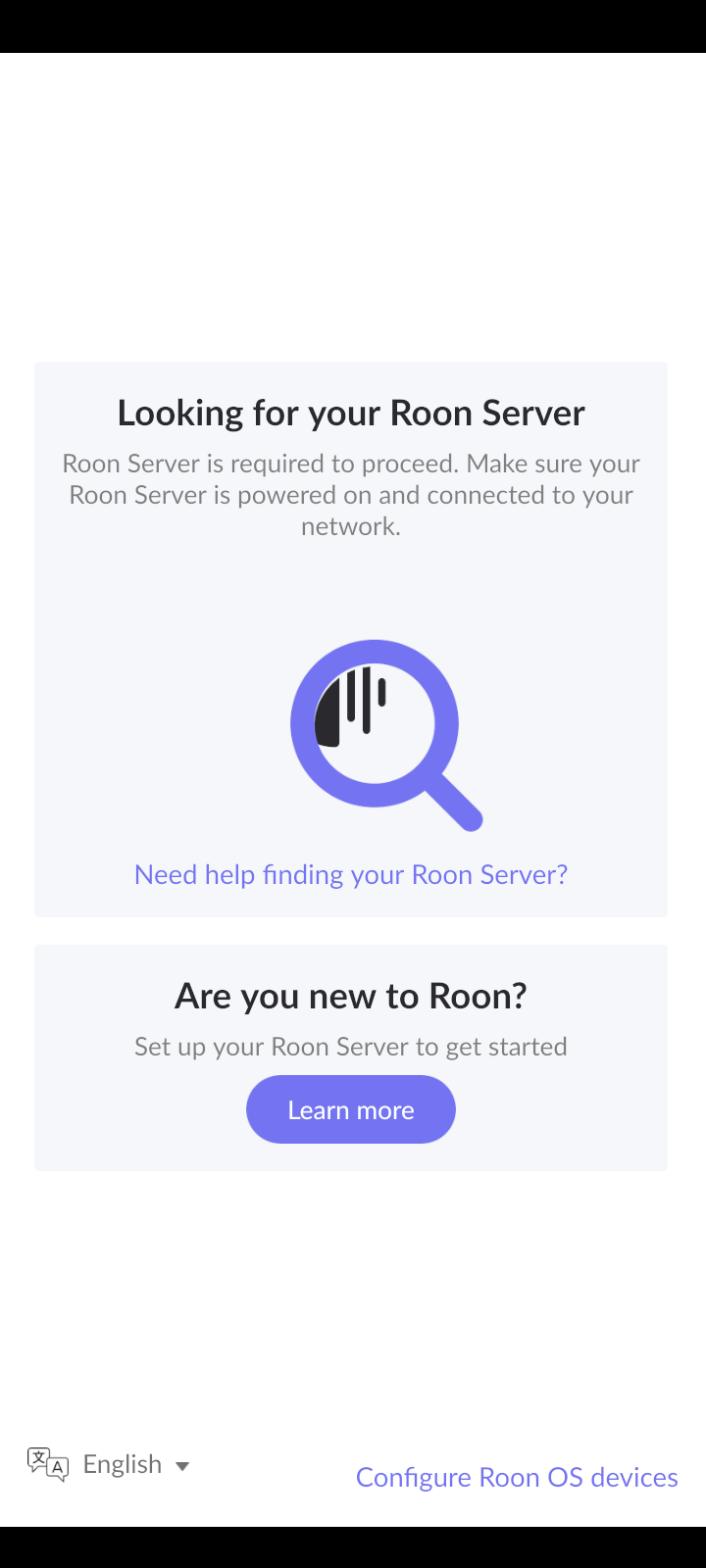
Unable to connect to Roon Server from Android devices (ref#YH97IK)

Is Roon Server running?

· Yes, Roon Server is turned on and running.

What do you see on your screen?

· "Waiting for your Roon Server"

What happens if you press the "Select a different Roon Server" button?

· I don't see Roon Server.

Please try to restart your network setup by unplugging, waiting 30 seconds and then replugging in your networking gear.

· No, the issue remains the same

Please select how you've connected your Roon Server to the internet

· Roon Server is connected by *Ethernet*

Have you checked your firewall settings to ensure that Roon is allowed through?

· Roon still won't connect even after checking this aspect

Have you verified that Roon Server is on the same subnet as your Remotes?

· My Remotes and Server are on the same subnet and I still can't connect

Sometimes the issues can be resolved with a reinstall of your Roon Remote app. Let's try to perform a reinstall and see if it helps.

· I've reinstalled the Roon Remote but it did not help

What is the operating system of your Roon Server host machine?

· *Roon Optimized Core Kit* (ROCK)

Select any of the following components that are present in your local network setup

· None of the above

Describe the issue

I can't connect to my roon server (ROCK) via Android devices. Remote works flawlessly on Windows.

Describe your network setup

Ethernet cable from a switch, which is connected to the router

Hello @jricardoguerreroo,

Thank you for the detailed breakdown — the fact that Roon Remote connects from Windows but not from Android strongly suggests the issue is not with ROCK itself, but with how Android devices are allowed to see the local network.

  1. Android “Local Network” permissions (most common cause)

Recent Android versions are very aggressive about network isolation.

Please check the following on each Android device:

  1. Go to Settings → Apps → Roon
  2. Open Permissions
  3. Make sure Nearby devices, Local network, or Network access is Allowed
  • Wording varies by Android vendor (Samsung / Pixel / Xiaomi / OnePlus)
  1. Also ensure Battery usage is set to Unrestricted
  • Settings → Apps → Roon → Battery → Unrestricted

After changing this, fully close Roon, reopen it, and test again.

  1. Wi-Fi isolation / AP isolation on the router

Even if everything is “on the same subnet”, Android devices are often the first to break when isolation is enabled.

Please verify in your router settings:

  • AP Isolation / Client Isolation is disabled
  • Guest Wi-Fi is not being used on Android
  • Android phones are connected to the same Wi-Fi SSID as the Windows machine (not a 2.4 GHz guest band)
  1. Private DNS / VPN / Ad-blocking on Android

These can silently block Roon discovery traffic (mDNS / multicast).

On each Android device, please temporarily disable:

  • Private DNS
    • Settings → Network → Private DNS → set to Automatic
  • VPNs
  • Ad-blockers / firewalls
    • AdGuard, Blokada, NextDNS, etc.

Then relaunch Roon and test.

  1. Multicast / mDNS handling on the network

Roon discovery relies heavily on multicast. Since Windows works, this is likely selectively blocked for Wi-Fi clients.

If your router has options like:

  • Multicast filtering
  • IGMP Snooping
  • mDNS repeater

Try:

  • Disabling multicast filtering
  • Enabling mDNS / multicast forwarding (if available)

Once you’ve gone through the steps above, let us know what you observe and we’ll narrow it down further.
You’re very close — this is almost certainly a network policy difference between Windows and Android, not a Roon Server failure.

Looking forward to your update.

Hi!

Thanks for the instructions. I tried resetting again the roon server software and then the ROCK device itself and the problem was solved. I had already tried that multiple times, but it didn’t work until yesterday.
This topic was automatically closed 24 hours after the last reply. New replies are no longer allowed.