First, double-check that RoonServer on MacOS has local network permissions in your System Settings → Privacy & Security → Local Network menu. MacOS and Roon updates tend to reset this setting to default, and we’ve received anecdotal reports that toggling access off and back on can even sometimes resolve this issue.
Next, try adding the network share again in Settings → Storage but relying on the IP address instead of the hostname.
These two steps should cover the most common causes for what you’re seeing (overzealous MacOS firewall and hostname failures).
Tried this and all settings were correct. I toggled them a few times and was still unable to connect.
Here’s what I did here.
I added a new folder that mapped to the IP address rather than the name. It added all the albums. The issue was that I lost my “Recent Activity” (Played/Added) and “Recent Listening”.
I removed the folder and restored a backup from 2 days ago, before I updated the MacOS.
Then I updated the current folder to map to the IP (instead of the name), and it worked. All albums are back in my library and displayed in “Recent Activity”.
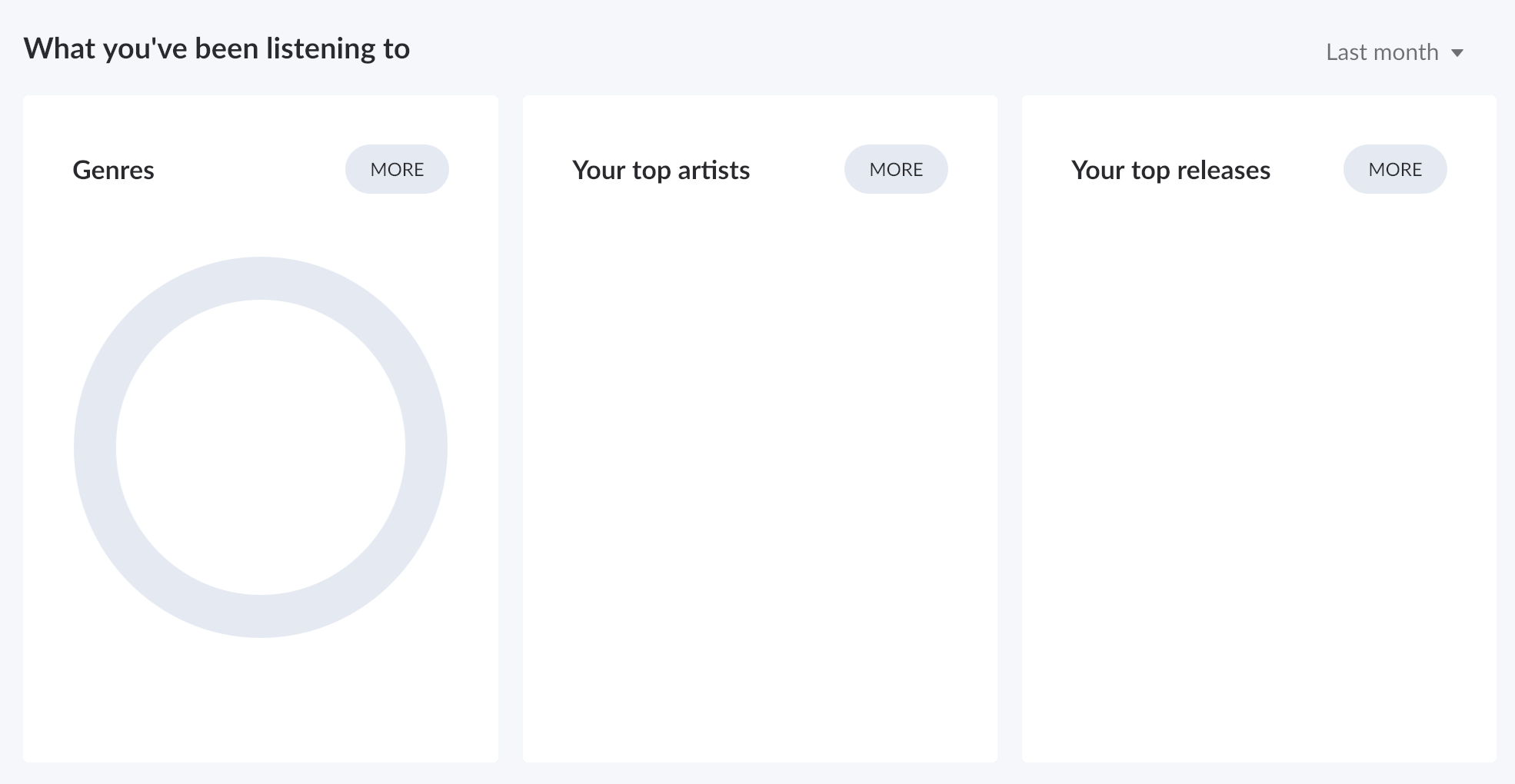
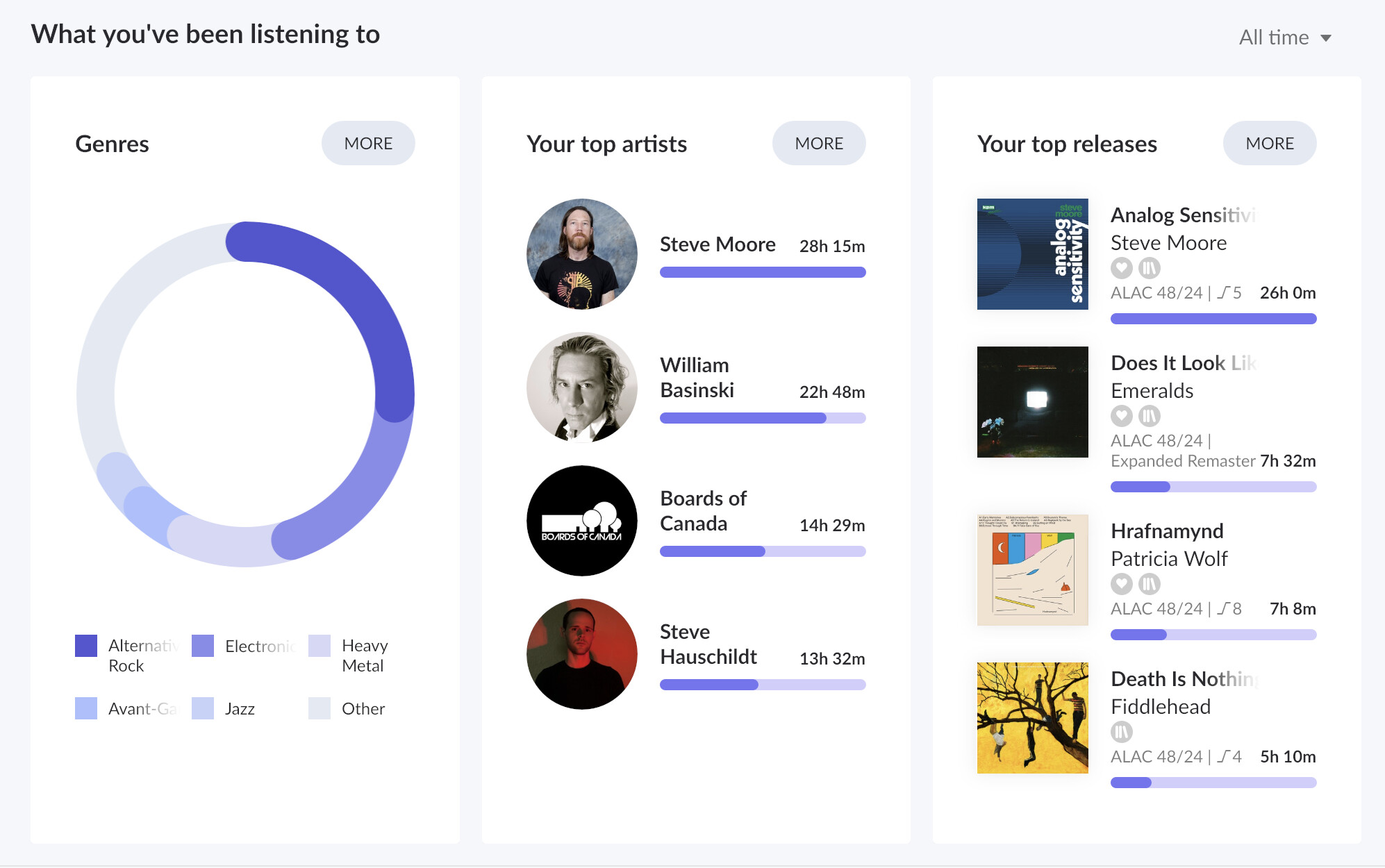
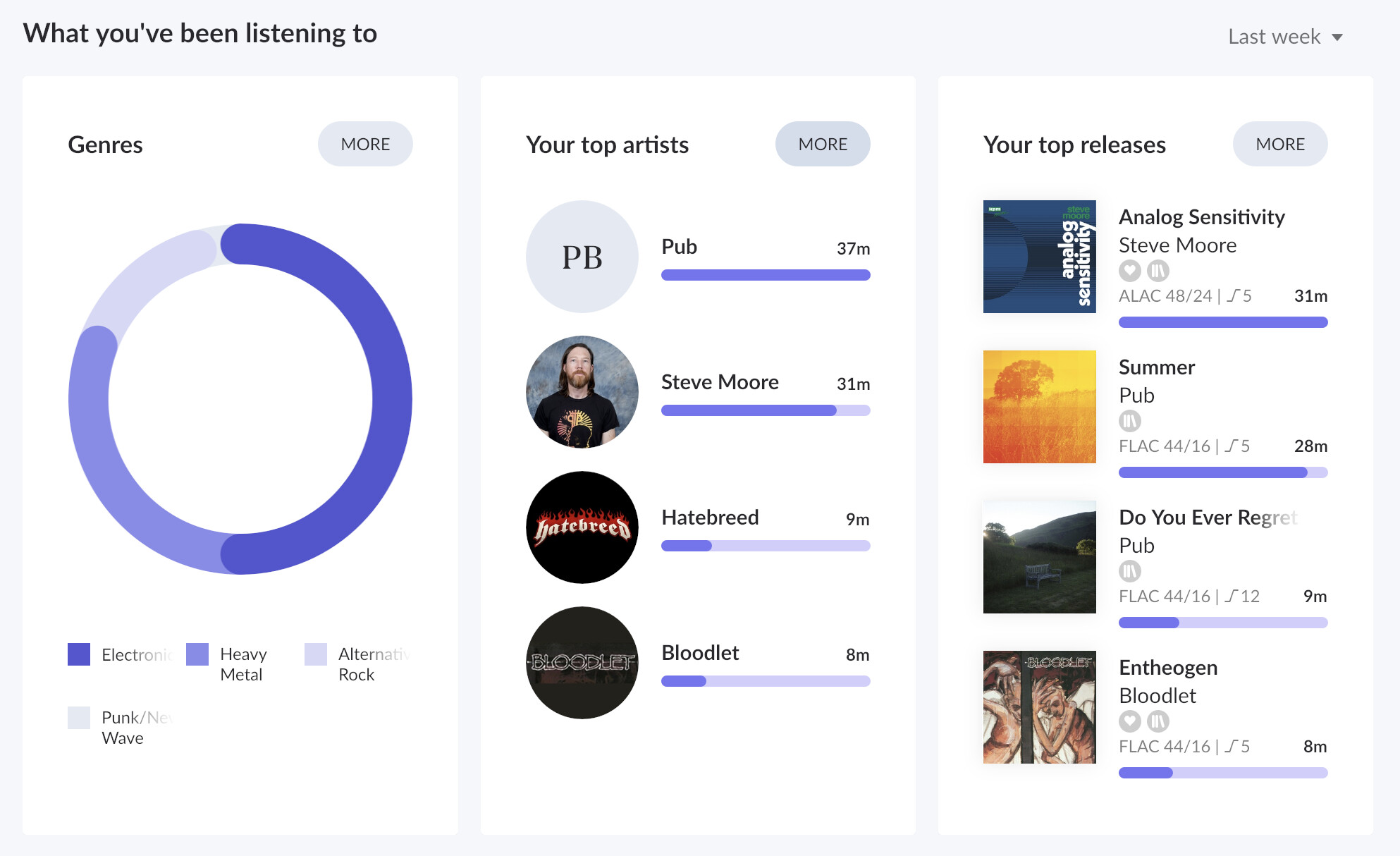
What I have lost is the “Listen Later” list and, oddly, the “What you’ve been listening to” for just the “Month” dropdown. See below.
I am so glad to hear that editing the storage path to the IP address and giving the Mac Mini a quick reboot brought all your albums, history, and Listen Later lists right back!
Regarding the new issue with Roon ARC showing “Offline” on your phone while the Roon settings show “Ready”: this frequently happens when the Roon Server undergoes a database restore or a network shift. The ARC app on your phone is likely holding onto stale connection data and looking for the old server state.
To clear this up and re-establish the handshake, please try the following steps:
Connect your iPhone to the exact same local Wi-Fi network as your Mac Mini.
Completely delete the Roon ARC app from your iPhone.
Reinstall Roon ARC from the App Store.
Open ARC while still connected to your local Wi-Fi and complete the initial setup to pair it with your server again.
Once it connects successfully on your home network, go ahead and turn off your iPhone’s Wi-Fi to test the connection over cellular data.
Please let us know if ARC is back online after the fresh install!