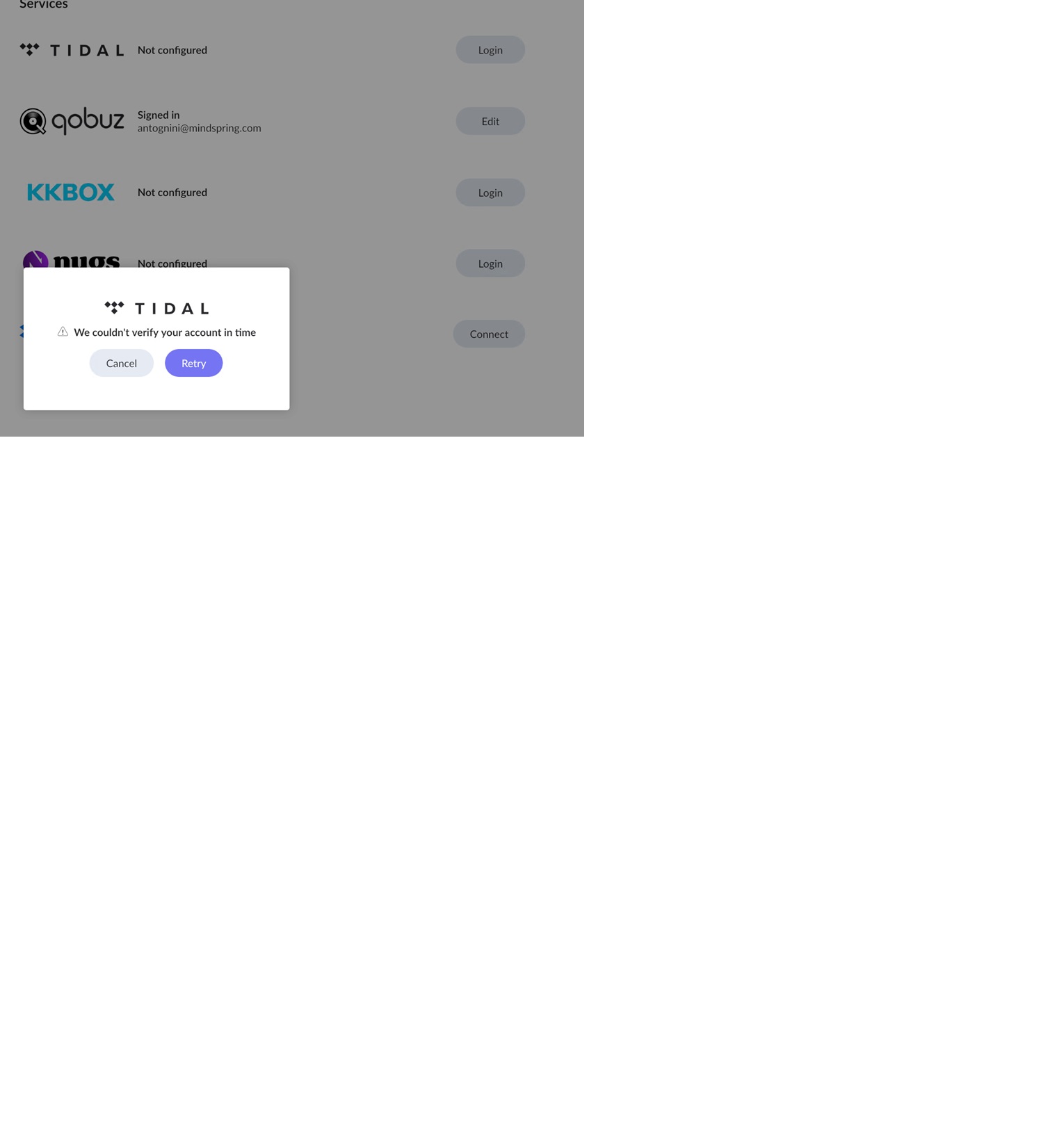
· Login to Tidal on Roon Server doesn't work ("We couldn't verify your account in time"). This is true even though Tidal says in Edge that I logged in. Server is on Win11 x64 Pro, is v2.66 build 1658.
Tell us about your home network
· Router is TP-Link AX11000 MU-MIMO Tri-Band Gaming Router
Please verify that you’ve whitelisted Roon in the Microsoft Defender firewall and any third-party network security you’ve enabled.
In the DNS section of your router settings admin, ensure reliable DNS server is assigned. We recommend Cloudflare (1.1.1.1). From there, disable any content blockers in your default browser temporarily as well, and reboot Roon Server.
Do you experience these timeouts if you login to the Tidal native player directly, or the web account page?
I created a dual-boot machine and installed a new Win11 x64 Pro. Then I installed Roon.
I started Roon Server on the new OS (via a desktop icon). Then I ran Roon client (another desktop icon) and managed to point Roon Server to my library.
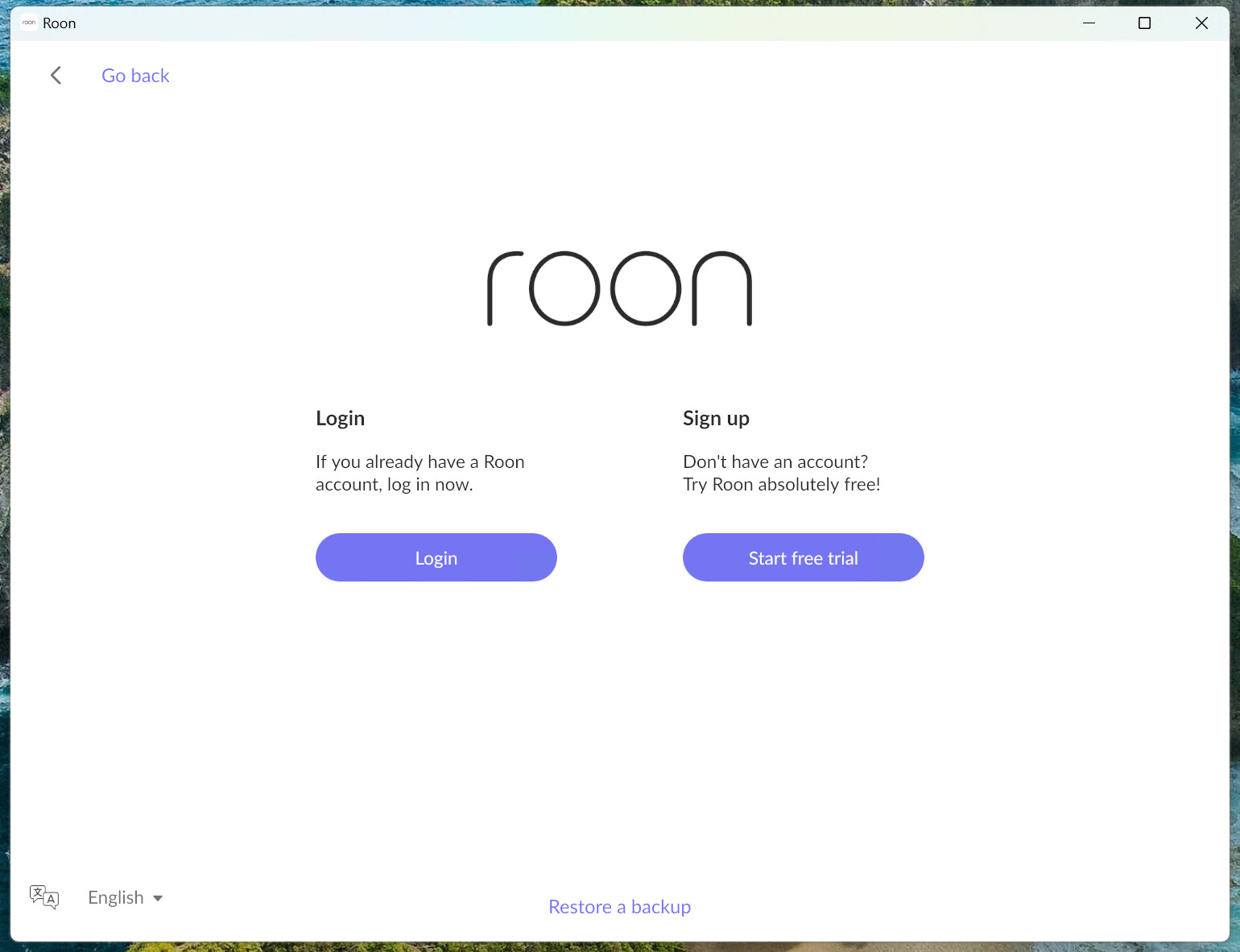
But now under Roon client, when I try to login via an existing account, I go through the login process and then come back to this:
I can choose to restore from a backup, but once that’s complete, I am back to the Roon app shown above. That is, I don’t – apparently – succeed in logging in.
After a lot of effort (repeatedly reverting to a clean backup of Windows and then installing Roon), I got things to work. I don’t know what I changed that made a difference.
Do you have content blockers installed in any of your browsers? These can sometimes intercept the URL redirect back to Roon, which would block both Tidal and Roon logins.
If this occurs again, try disabling adblockers. We’ll watch for your response in the meantime. Thank you.
I am glad to hear that you eventually got it working! While it feels like the system just decided to “start cooperating” after several attempts, there is actually a technical reason why this happens.
When you perform an authentication (whether for Tidal or your Roon account), you are interacting with automated security verification services (like reCAPTCHA or Cloudflare challenges) that run in the background. These systems analyze your browser “fingerprint,” network behavior, and session history to decide if you are a human or a bot.
In cases like yours, where you were using a fresh Windows install or a “clean” Edge environment, the security challenge sometimes flags the connection as “unknown” or “suspicious” because it lacks the typical browsing history that confirms you are a real person.
Each time you went through the login process, you were essentially “teaching” the security system that you are a legitimate user. Once the service collected enough data points to verify your identity, it stopped blocking the redirect back to the Roon app.
It wasn’t that the app was broken—it was the security challenge layer essentially performing a “background background check” on your new system. Now that your session is trusted, it should remain stable.