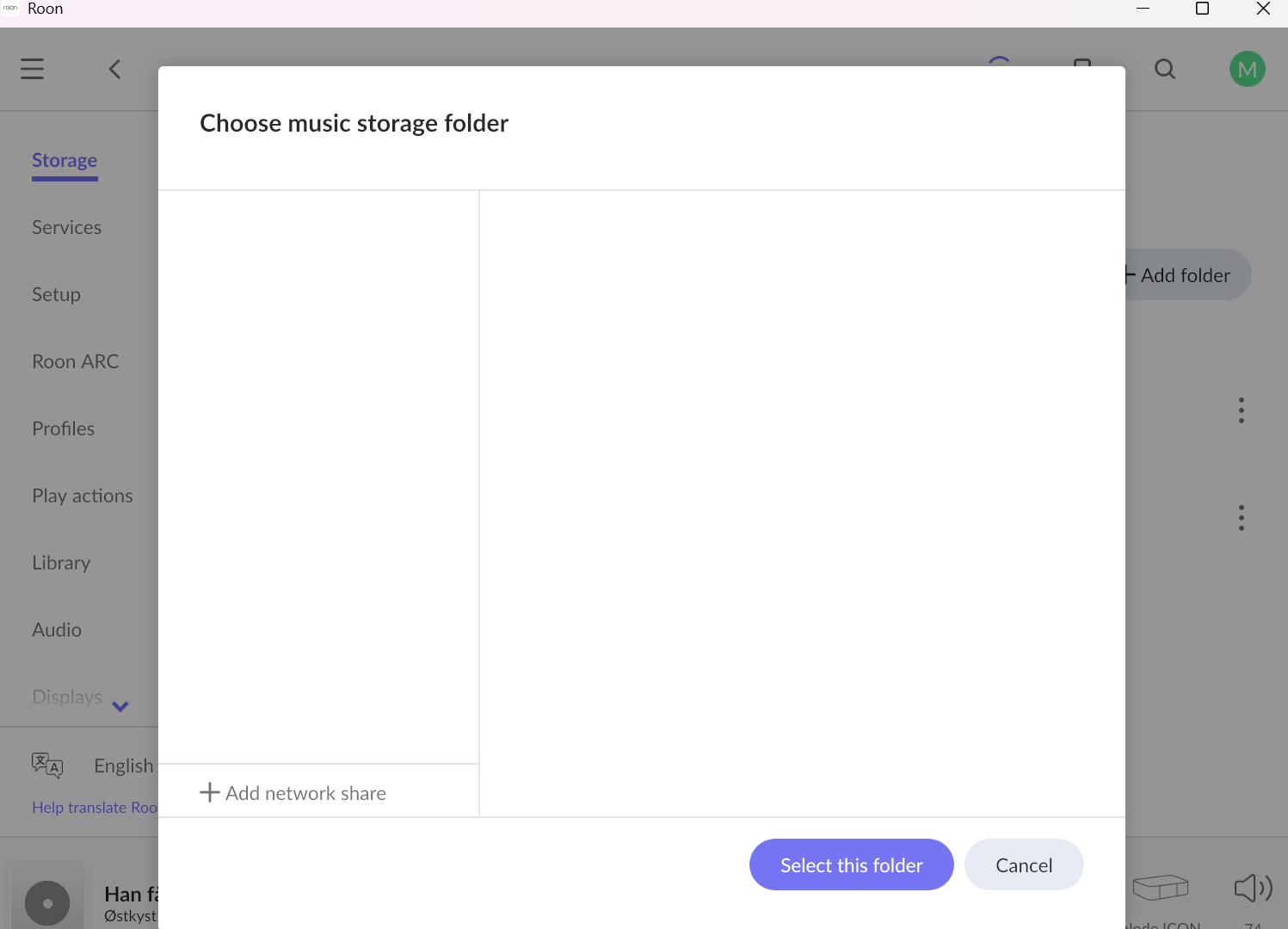
· Roon Nucleus one. I can't move files from external harddisk to the internal drive. When I click on the drive, I don't know how to point to my external drive. I can drag and drop, but this is very slow and stops around 845 tracks, and I have 12,000 tracks. I am on a Windows platform, but an old Macbook Air is also available. I added my external drive and within 1-2 hours the nucleus had all the files, but as external. I don't want my external harddisk attached.
Tell us about your home network
· The router is from my IT provider. No extenders. No VPN. The unit works fine with Tidal and my external drive
Then you “should” be able to copy and paste from one drive to the other.
I would recommend turn off the music server while do this copy paste so Roon does not try to identify the files and albums before they are all copied.
As @bearFNF has mentioned, this looks like a storage path issue on the Nucleus One rather than a library import problem.
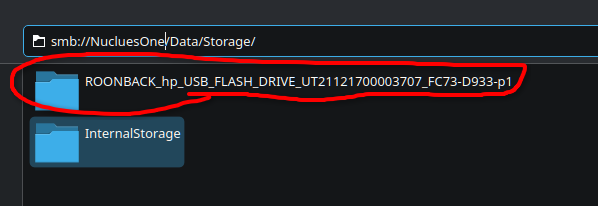
On a Nucleus, the internal drive is exposed over the network as \NUCLEUSONE\Data\Storage</strong>, so from Windows File Explorer you should be able to open the Nucleus and copy files directly into that folder. If the external drive is attached to the Nucleus, it should also appear separately as a USB volume, and you can copy from there into the internal storage.
Two things we would try first:
Make sure you are connecting to the Nucleus from Windows using File Explorer, then open the Storage folder and copy the files there instead of dragging them through Roon.
Temporarily stop Roon Server on the Nucleus while the copy is running, so it does not try to analyze partially copied files.
If you have not seen it yet, the [url=https://help.roonlabs.com/portal/en/kb/articles/nucleus-internal-storage]Nucleus internal storage[/url] article shows the expected folder structure and how the internal drive is presented on the network.
Share what you see when you browse to the Nucleus from Windows, and we can take the next step from there.
Hi both, thank you for helping out, highly appreciated. I will try later today, but first one thing. I have tried the previously mentioned things in the Roon user interface, and when I click on the interernal storage (a 2TB formatted ssd - the formatting went fine), nothing comes out. When I go through Windows 11 (home) on my Yoga (new) I can’t find the Roon at all. I am wondering if I am going the right way. I have chosen my Bluesound Icon as my player - should I choose my Yoga in stead. Sorry for these basic questions.
No need to apologize, these are good questions, and you’re closer than you think.
First, the player you pick (your Bluesound Icon) has nothing to do with copying files. That setting only chooses where the music comes out. So you can leave the Icon selected, switching to the Yoga won’t help with the transfer.
A couple of clarifications:
Why the internal storage looks empty in Roon, that’s expected right now. The 2TB SSD is formatted but still empty, so there’s nothing for Roon to show yet. It won’t have anything “come out” until you copy your music onto it.
Finding the Nucleus from Windows 11, it won’t always appear on its own under “Network.” The reliable way is to open File Explorer and type this directly into the address bar at the top:
\\NUCLEUSONE\Data\Storage\InternalStorage
Then press Enter. That should open the internal drive’s Storage folder. If Windows says it can’t find it, turn on Network discovery (Settings → Network & internet → Advanced network settings → Advanced sharing settings → turn on Network discovery and File sharing), then try the address again.
If that doesn’t help, run through the steps listed in the below KB:
Once that folder opens, you can copy your 12,000 tracks straight into it from your external drive, much faster and more reliable than dragging through Roon. As mentioned above, it’s worth stopping Roon Server while the copy runs so it doesn’t try to analyze half-copied files.
Let us know what you see when you type that address in.
Just checking in on this. Were you able to try opening the Nucleus directly in File Explorer with \\NUCLEUSONE\Data\Storage\InternalStorage, and if Windows could not find it, did turning on Network discovery and File sharing make a difference? If that folder opens, the next step is to copy your 12,000 tracks into the internal storage from the external drive, and it is best to stop Roon Server while the transfer runs so Roon does not start analyzing files before the copy is finished. Let us know what you see when you try that path.
Please note, if we don’t hear back from you this thread may close automatically soon. If the thread auto-closes and you need further assistance, please submit a reopen support request via the technical support help form below and specify that the issue should be reopened. Thank you.
Hi Benjamin and other good people helping me out - it works now, after using this procedure “Open Start Menu search and search for Windows PowerShell, right-click it, and Run as Administrator.” and taking it from there as instructed. I could now see the internal storage and move the file in a normal windows set-up.
Question: should I restore the settings on my Yoga/ is it now wide open for hackers/ viruses and if so, how do I do that?
Glad to hear the procedure worked. If you have finished copying content, you can turn the settings back off on your PC. If you need to add more content later, you can also use drag and drop instead of repeating the procedure, and that will copy it over as well.