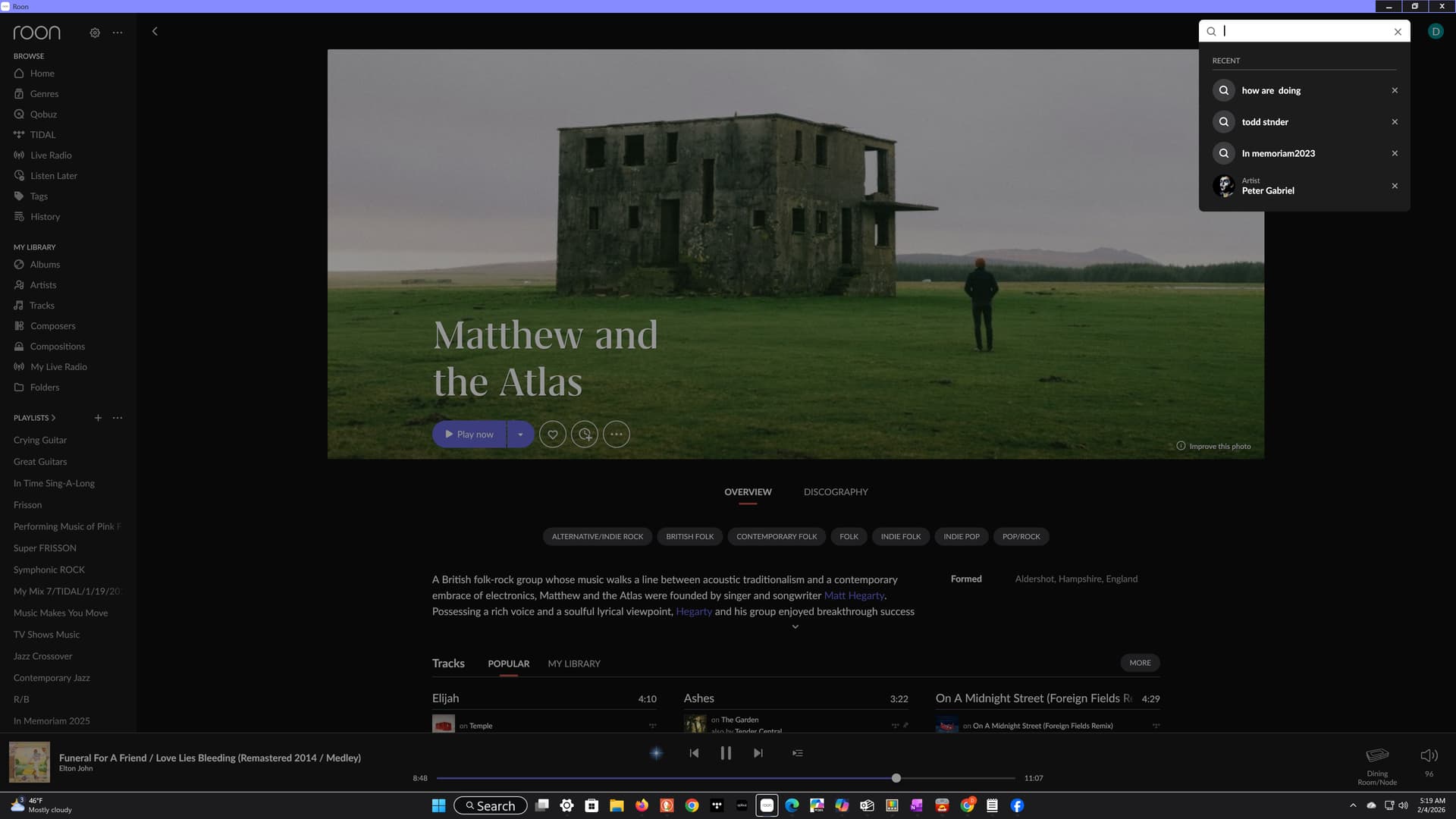
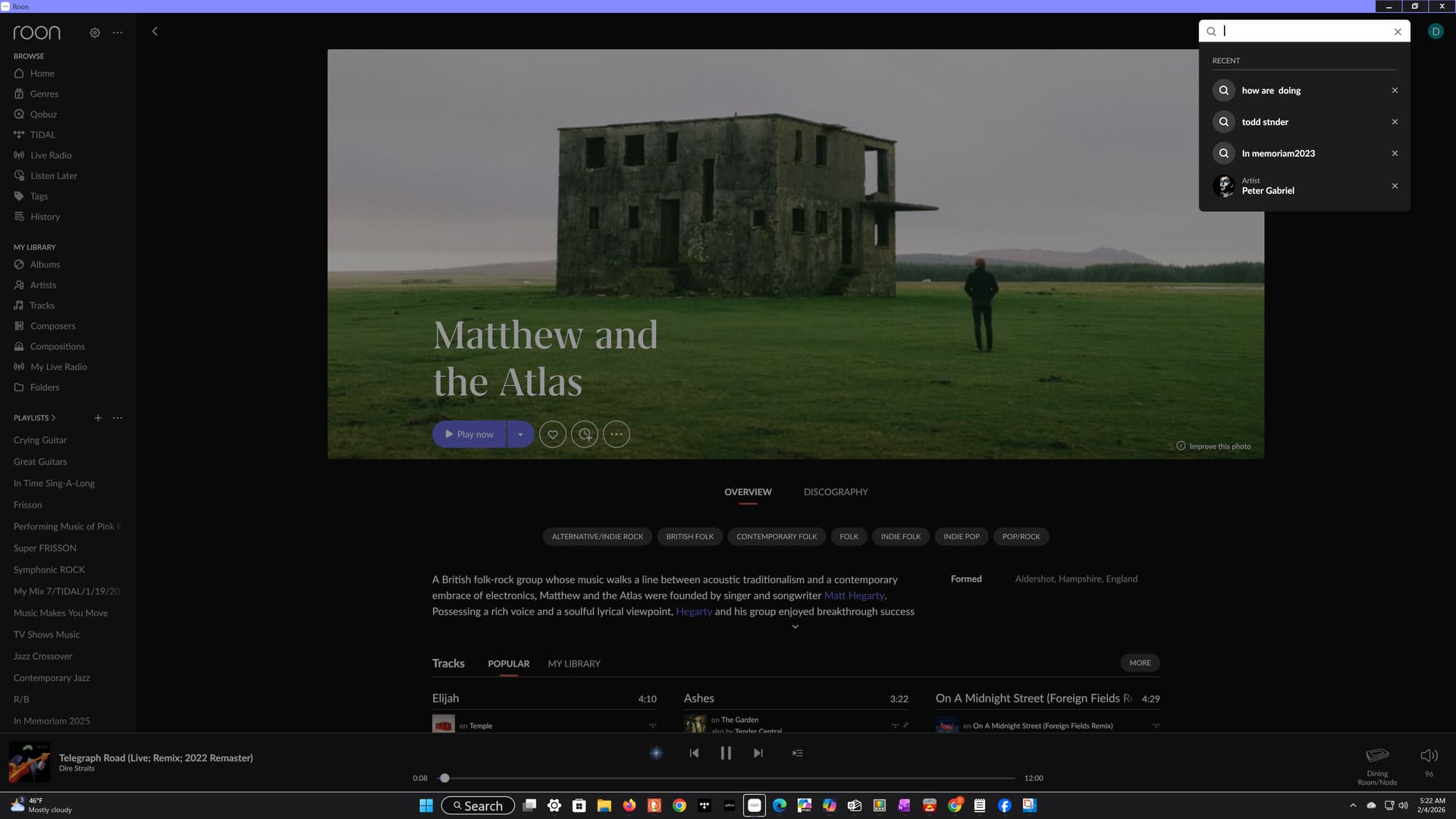
· Very Low Contrast in Search Box After Update (Roon 2.58 build 1608) Hi everyone — after updating to Roon 2.58 (build 1608) on Windows 11, the text inside the search box has become extremely low‑contrast. I can barely see what I’m typing, and this was not an issue before the update. I’ve tested this with: • default Windows themes • custom Windows dark themes • different Roon text sizes (Default / Large / Very Large) • different Windows text cursor thickness • ClearType calibration • Windows contrast and accessibility settings None of these have any effect on the search box. It appears to use fixed, hard‑coded colors that are now too soft to read. Below is a technical summary that describes the issue in detail and should help the team reproduce it.
Tell us about your home network
· Technical Summary Roon Version: 2.58 (build 1608) production (64‑bit) Platform: Windows 11 Display Mode: Dark Mode Issue: Search box text is extremely low‑contrast after the update. What changed The 2.58 update introduced a softer dark‑mode palette: • lighter gray text • softer gray background • reduced contrast • thinner text rendering This makes the search box text nearly invisible for users with visual sensitivity or darker system themes. What does NOT affect the search box The search box ignores: • Windows text color • Windows background color • Windows contrast settings • Windows dark/light mode • Windows theme customizations • Windows input field colors • Text cursor thickness • ClearType settings The only Roon setting that affects it is text size, and even “Large” is still difficult to read. Impact The search box becomes nearly unusable in dark mode because typed text is too faint to see. What would help • Higher‑contrast search box text • Slightly darker search box background • A user‑adjustable contrast option • Or restoring the previous search box rendering • Or adding UI Scaling to this build Thanks for taking a look — this is a small UI element, but it has a big impact on usability.
Do you have Windows installed on the NUC and are you running the Roon GUI app on the NUC, too?
If so, the issue linked by @Arlen doesn’t affect you because that’s limited to Windows on ARM platform like Microsoft’s new Surface devices. Plus, this issue has existed for a longer time already.
Which model exactly? They are available with Intel CPU and with Qualcomm Snapdragon CPU (ARM architecture), as far as I see online. The Intel version would not be affected by the issue linked by @Arlen, but the Snapdragon most likely is.
(Note that the Roon specifications specifically say Intel CPU for the remote, so using a Snapdragon at this point is chancing it. But in this case, let’s hope that Roon fixes it soon because Snapdragon machines become more and more frequent).
G9 work station, Device name HP
Processor Intel(R) Core™ i9-14900 (2.00 GHz)
Installed RAM 32.0 GB (31.7 GB usable)
Device ID FFB31EFA-94AB-4ACD-ACAF-D7275C5556B7
Product ID 00355-62059-35025-AAOEM
System type 64-bit operating system, x64-based processor
Pen and touch No pen or touch input is available for this display
Yes — my system is the Intel version, not the Qualcomm Snapdragon (ARM) model.
Processor: Intel(R) Core™ i9‑14900
This is a 14th‑generation Intel Core i9, which is an x86‑64 desktop CPU, not ARM.
System type: 64‑bit operating system, x64‑based processor
This confirms the machine is running the standard Intel/AMD architecture.
Model: HP G9 Workstation
HP’s G9 workstation line only ships with Intel or AMD CPUs — they do not offer Snapdragon/ARM options in this series.
So this system is fully Intel‑based and should not be affected by any ARM‑related issues.
Thank you for the detailed write-up — that’s very helpful, and we appreciate the time you took to narrow this down.
To help us reproduce and escalate this accurately, could you please share:
A couple of screenshots showing the search box with text entered (dark mode if possible)
One screenshot of the full Roon window, so we can see the surrounding UI context
You can upload the screenshots directly here in the thread.
We’ll pass this along to the QA/R&D team for review once we have visual confirmation. Thanks again for flagging this — we agree that search readability is critical, and we’ll follow up as soon as we have more to share.
Are you using any non-standard system zoom settings (125%, 150%, etc.)?
Please also try this:
Close Roon completely
Find and open the Roon folder in your system library ([url=https://help.roonlabs.com/portal/en/kb/articles/database-location#Windows]instructions[/url])