Probably you have the issue with the SMB v 1.0 ,which is not enabled You can follow the guide here:
In case you can’t find a network share, you can follow the guide here:
To access the data folder within your Nucleus/ROCK running Roon Server, follow the steps below. Be sure all instances of Roon and Roon Server are powered off before making any changes.
Connect To Roon OS - Roon OS exposes a shared network folder called Data. You can access this SMB share by following the instructions here, or review the steps below. We’ll share an example for accessing the Data folder within the Nucleus/ROCK file system :
Open File Explorer>Network on your Windows PC or Finder>Go>Connect to Server on Mac.
If you see Nucleus or ROCK, double-click to open it.
If your Nucleus/ROCK does not appear:
4.3a*. For PC enter ‘\Nucleus\data’ for Nucleus or ‘\rock\data’ for ROCK in the address bar (not the search box) and press Enter.
5.3b*. For Mac enter ‘smb://Nucleus’ for Nucleus or ‘smb://ROCK’ for ROCK
(Note - be sure to replace NUCLEUS with NUCLEUSPLUS if you have a Nucleus+, NUCLEUSONE if you have a Nucleus One, and NUCLEUSTITAN if you have a Nucleus Titan)
Or, you can enter: smb://[IP Address of your Nucleus/ROCK] (don’t include the brackets, only the IP address)
a. If prompted for a login, enter:

b. Username: **guest** Password: **guest**

c. If you receive an authorization error, [stop here and report the error to our Technical Support Team](https://account.roonlabs.com/en/contact/new-ts-request).
If successful, you should now see the Data directory of your Nucleus/ROCK.
Hello Geoff, I still get a login credential request after network mapping \rock\data. Is there a way to drop new music file direct via roon ? Thank you.
Hi @EnjoyTheMusic,
Are you still running into trouble? @Geoff_Coupe and @bearFNF’s suggestions should have helped with logging in, but let us know if you’re still stuck.
Hi Daniel, Yes, \roon\data\ is still invisible. I can use roon as normal yet can not add music files. (I purchase music - download only and do not use streaming services, so file exchange is very important to me.)
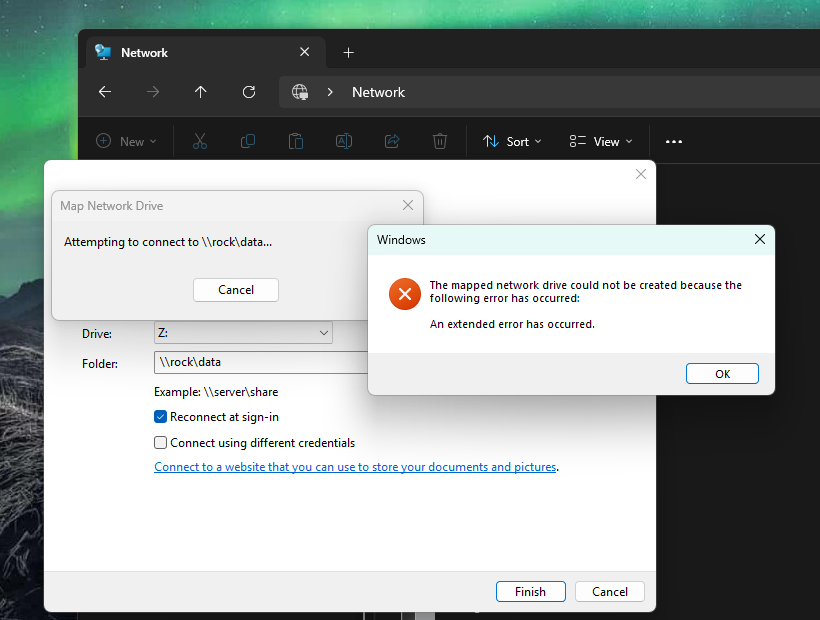
Well, yes, \\roon\data does not exist, that’s why it is “invisible”. What happens when you put \\rock\data\ into the address field of Windows File explorer (not the Search field)? A screenshot of what you see would be very helpful for further diagnosis by the support team.
This error is usually because the Windows security permissions have got messed up. I would doublecheck that you have followed the steps given in the article you referred to in your first post correctly.
Hello, I have followed the ‘Windows Security Permissions’ and all is correct. I have tried other settings and now am back to the screen shot image above. Very frustrating…
I can run Roon via a Windows 11 PC but can not map \rock\data to add my bought files!!
I can imagine - Microsoft doesn’t make it easy. It may be that some of the settings in the Registry are contradicting each other and causing this error. Searching for this error throws up a lot of possible solutions, but I don’t know for certain which are the good ones…