That’s the cloud metadata and such server, there is no cloud storage in Roon (at least not as far as users are directly concerned). I doubt this ongoing issue has anything to do with @Brad_Rockwood connecting his Roon on SGC to his local Synology NAS.
@Brad_Rockwood, please post screenshots of what you see when you try to set it up.
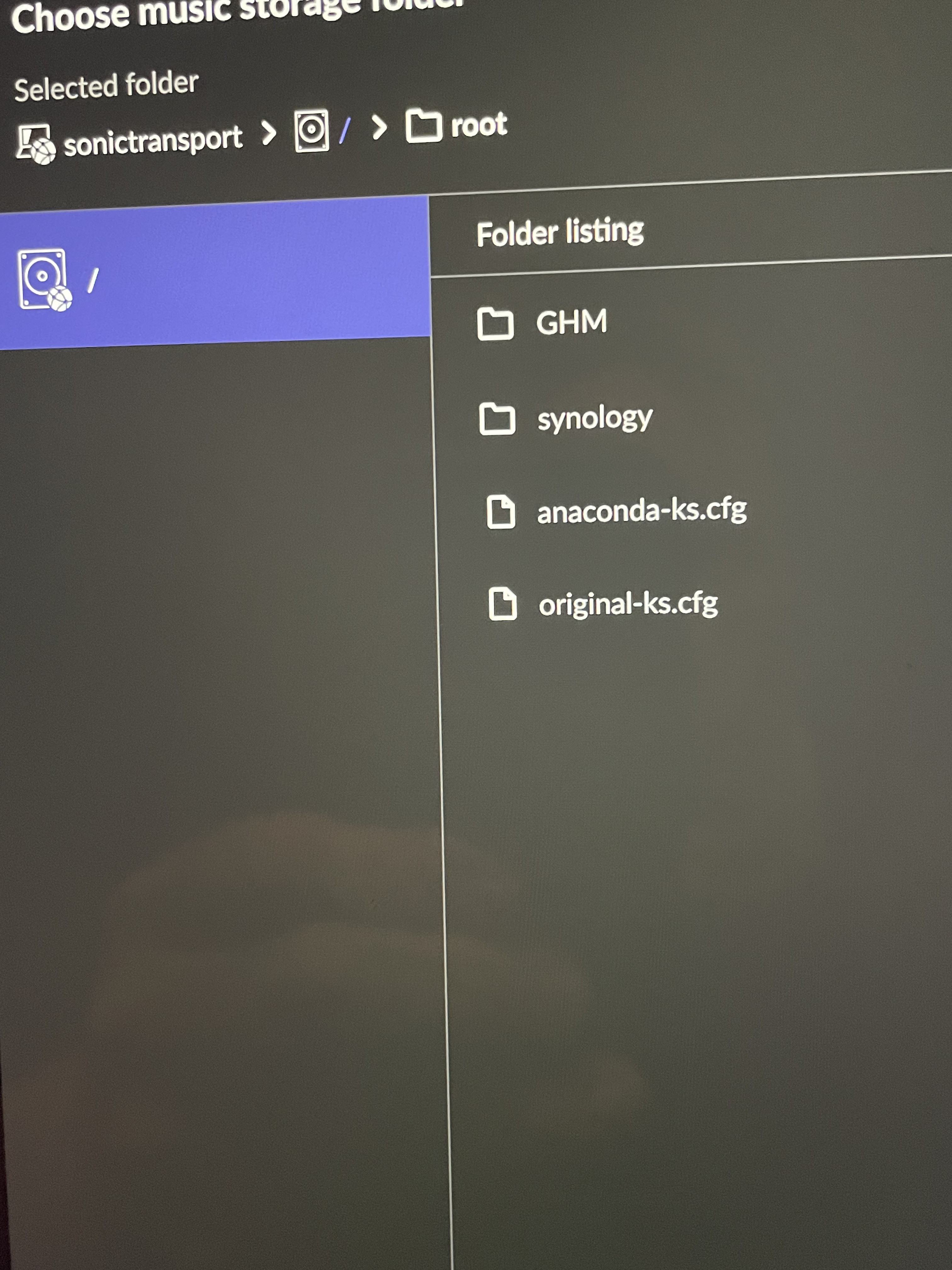
In the first screenshot, these are both local folders that are located on the Sonictransport. I thought you are trying to add the Synology as the music storage.
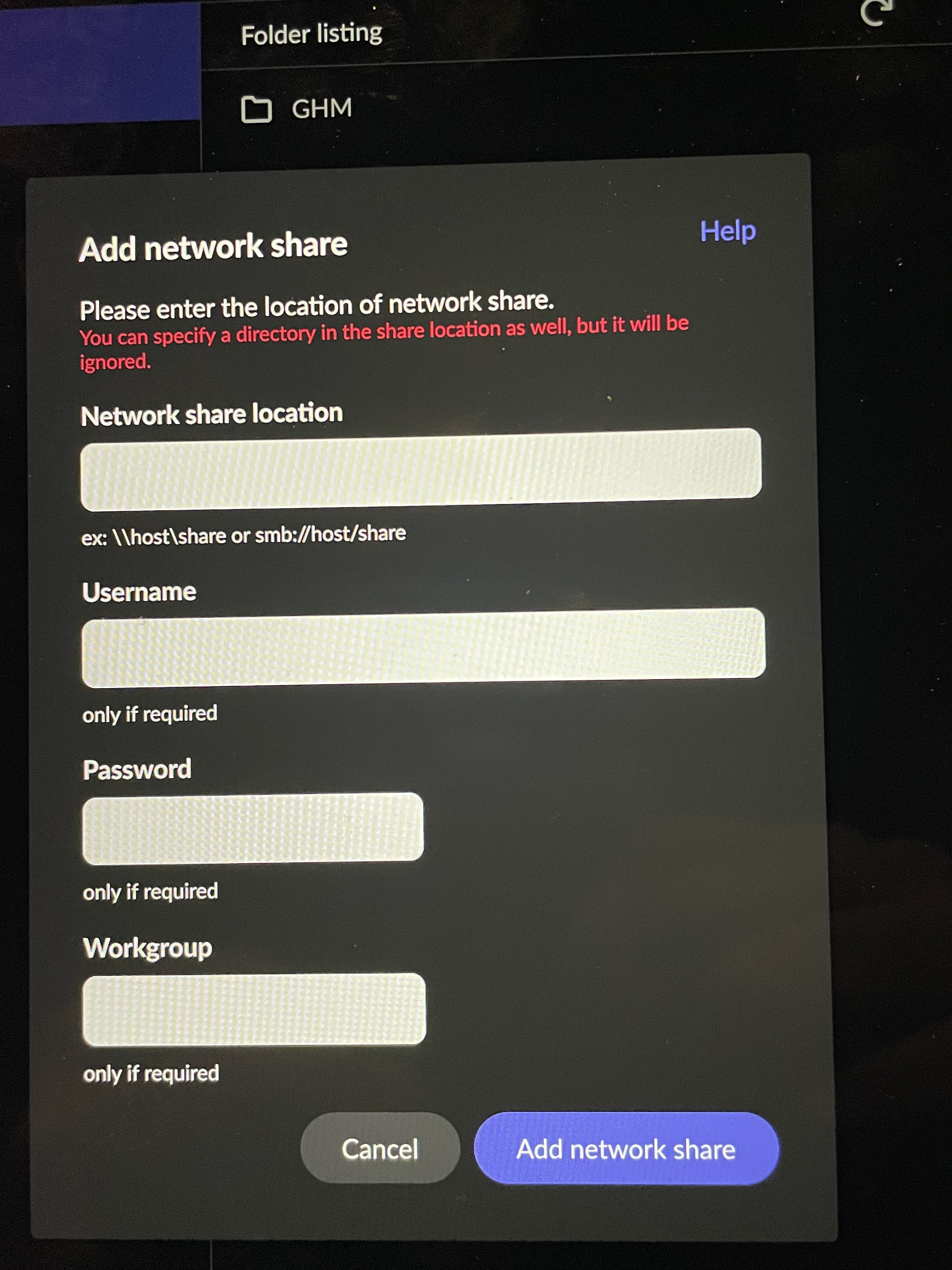
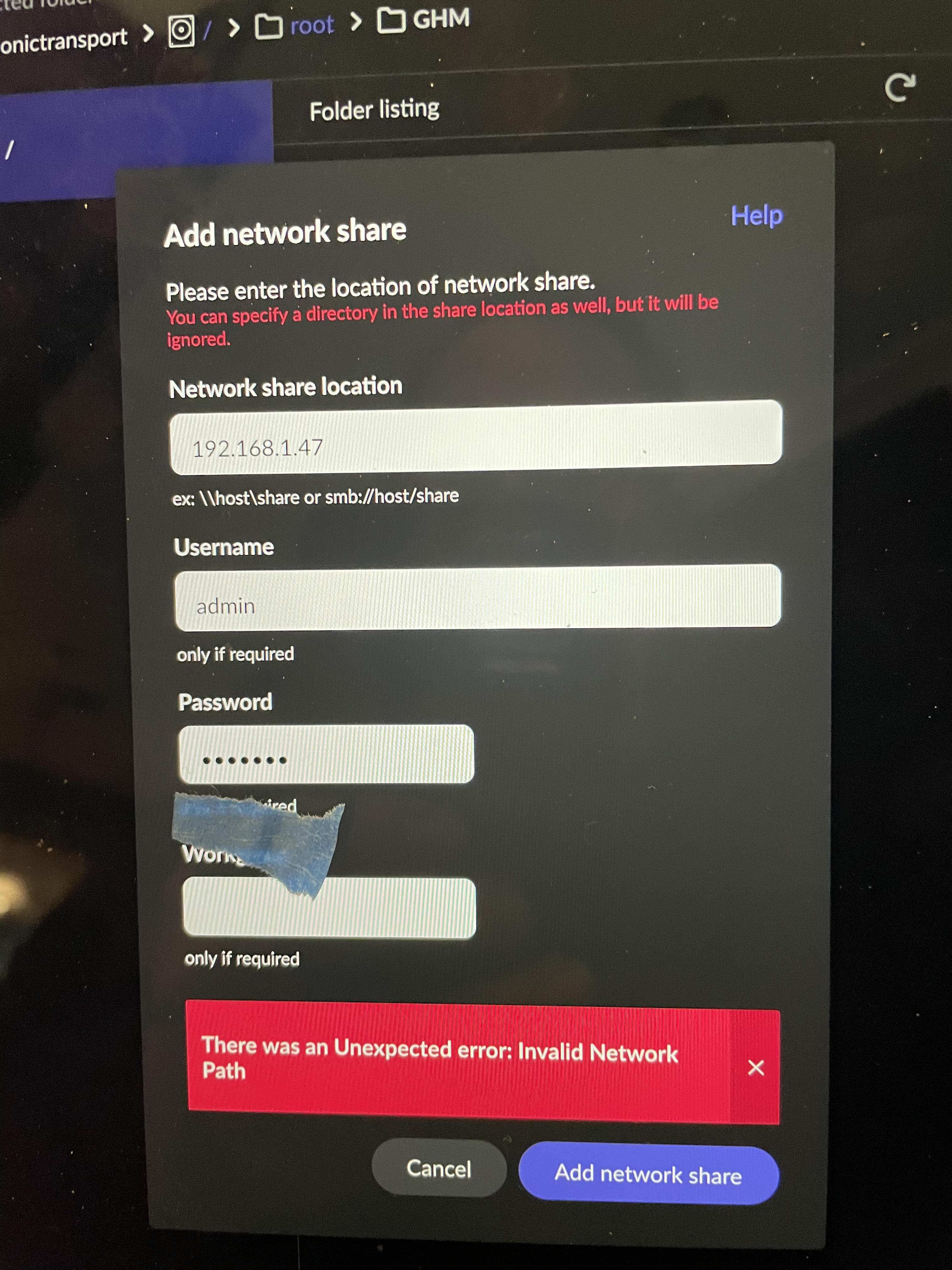
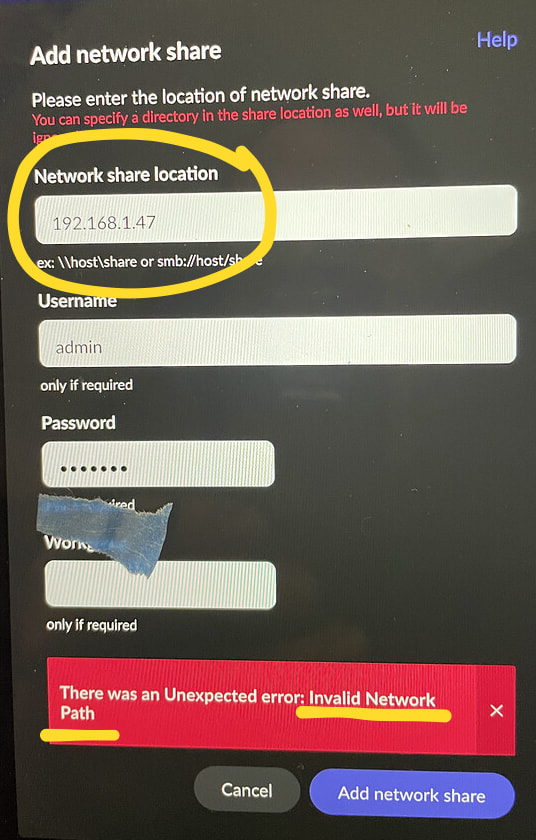
If so, you go to Roon > Storage and click Add Network Share. This will actually bring up what we see in your second screenshot:
Usually the network name is easier and more resilient (e.g. if your router changes the Synology’s IP), but for now it would be easier to use the IP, as it removes one point of complexity.
Note: You probably have done this in the past if you used the Synology for music storage, but just in case: You first have to set up the folder with your music on the Synology as a network share, which will give it a share name.
Then you enter this name as the <NAME_OF_SHARE_ON_SYNOLOGY> and use the Username/Password of the appropriate user account on the Synology.
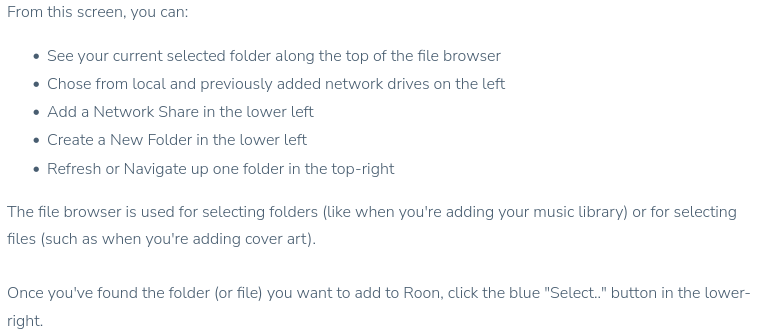
See Synology instructions for creating the share as follows, depending on the Synology version you have:
For Synology DSM 6.2:
For Synology DSM 7.3:
If you enter the network share location, user name, and password in the second screenshot and it does not work, it should show an error box in red. Please also make a screenshot with all of these things entered and the red error box.
And what didn’t work? You show us that GHM (and also synology) are already available. Just select one of the two as shared folder and you’re done, or not? Also please check if you can access / see the content of the folder(s) from the SGC’s OS.
Thanks. What is the name of share on the synology? By that I mean what creates that?
The equipment in the room is connected to a switch. The router is located 75’ away connected to the router via fiber. I know they talk but the router was changed 1 1/2 years ago without any changes to the music equipment.
So they are empty or what?
IIRC, but Andrew should know best, you need to add the share with the tools of the SGC’s OS and then use the local folder created - if needed at all - for Roon.
It’s specified when setting up the share on the Synology. You will find it there if you already did it in the past. From one of the links I posted above:
This shouldn’t matter if you use the IP that the Synology has currently. (or its name on the network under which it is known to the router. You find both in the list of devices on the network that the router has somewhere in its web admin interface)
Or that, possibly. In which case forget about adding the network share in Roon, as I described, and add it in SGC’s system and point Roon there (using a local folder, such as the ones in your first screenshot).
This is what Andrew suggested to connect my i9 to my Synology 1019+.
As I have said it doesn’t make sense to me.
#’s 1 and 2 are the questions I asked and below each is his response.
_________________________
1. Roon is operating the way it normally would. None of my playlists or music. Are there though.
As mentioned in #2 from my last email. you would need to restore your database back to get them back. Do you have a backup of your Roon database?
2. I’ve looked through all of the pages you suggested, and it doesn’t make enough sense to me to figure it out.
How did you add it last time?
What happens when you do this?
Adding a NAS to Roon involves navigating to Settings > Storage in the Roon app, selecting “Add Folder,” and choosing “Add Network Share” to input the NAS IP address/path (e.g.,smb://NASNAME/Music) and credentials.
So he did suggest the same thing as I did, Add Network Share from within Roon. So my best guess is to go back to what I wrote here and post a screenshot of what you see, including any red error box, after you fill out the host/share name, username and password, and try to connect:
The network path is invalid (there is none, just an IP) and hence the error message is “Invalid Network Path”. To clarify, the IP only tells it which machine to contact, and the “smb://” tells it which communication protocol it should use to do this. And finally, you also have to append the name of what is being shared on the machine. So you need to enter all three things.
Therefore, like I said earlier, follow the examples below the box:
Therefore, in your case enter this (at least for now - you might later consider using the Synology’s network name instead, but let’s first focus on using the IP address):
smb://192.168.1.47/share_name
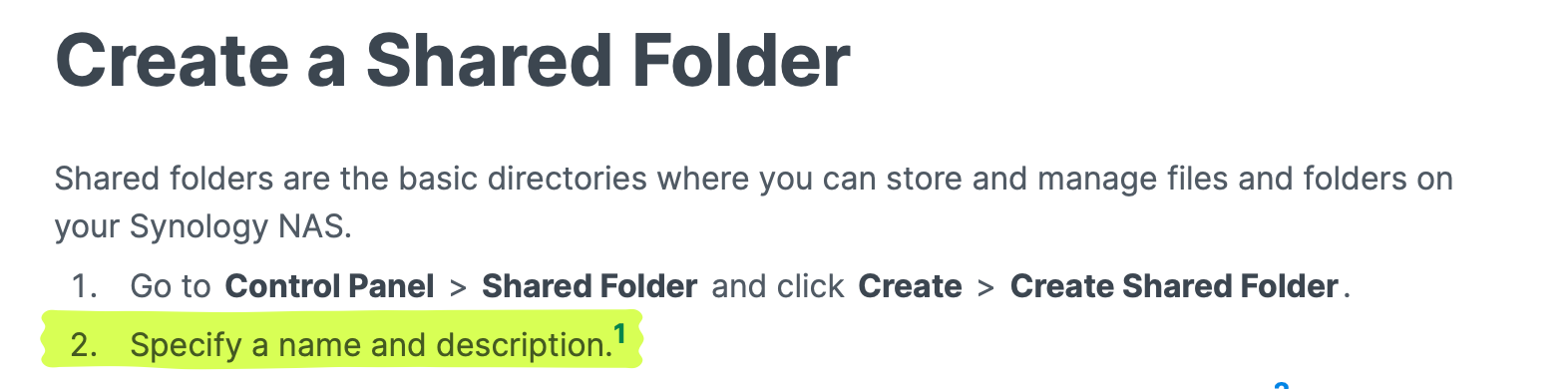
Where share_name is the name that the Synology uses to share your music folder. This name is assigned within the Synology. If you can’t remember it, you should find any shared folders and their names somewhere in the Synology Control Panel > Shared Folder.
It should look similar to these help pages, though they explain how to create a new shared folder, which you might not have to do if you did it before. Nevertheless, you should find existing shared folders and their share names somewhere in this vicinity. Depending on your Synology version: