Hi @Paul_Schulten,
Thanks for hanging in there. Your fresh logs came through, and we owe you a straight answer: the problem isn’t your router, your firewall, or port forwarding.
What’s likely wrong: Your account licenses one Roon Server at a time, and you have two running, the Nucleus One and your Windows PC. They’ve been fighting over that one slot. Since August 13, every license check from the PC has come back the same way:
{"status":"NeedsBump","bumps":[{"machinename":"Nucleus One", ...}]}
93 checks in a row, 23 days, no successes. The PC is asking to be your Roon Server and being told the Nucleus already holds that spot.
Everything else follows from that. ARC never even attempts its port test while the server is unauthorized, the log says not testing port opening because the broker is not loaded and ready. machine status: NeedsBump. Same cause behind the TIMEDOUT errors, 118 failed Qobuz syncs, and 659 refused remote connections. It also explains why it’s been so inconsistent: whichever server won the slot last is the one that works.
The good news: On August 11, when the PC briefly did hold the license, your network passed everything cleanly, UPnP mapped ARC’s port automatically, one router doing NAT (no double-NAT issue), external check Success, ARC Ready. Your Spectrum router and firewall are fine, and ARC should come back on its own once the conflict clears.
Two things that make this easier than it looks: your library is 100% Qobuz with no local watched folders, so there are no music files to move anywhere. And your Nucleus One is healthy, your PC connected to it yesterday.
What to do: Make the Nucleus One your only Roon Server. It’s built for this, and your PC won’t need to be awake for music to play.
- Back up. On the PC: Settings → Backups → Back Up Now, to a USB stick or folder. Saves playlists, favorites, history.
- Quit Roon Server from the PC. This is the step that ends the tug-of-war. Keep the regular Roon app if you want to control from the PC, it won’t compete for the license.
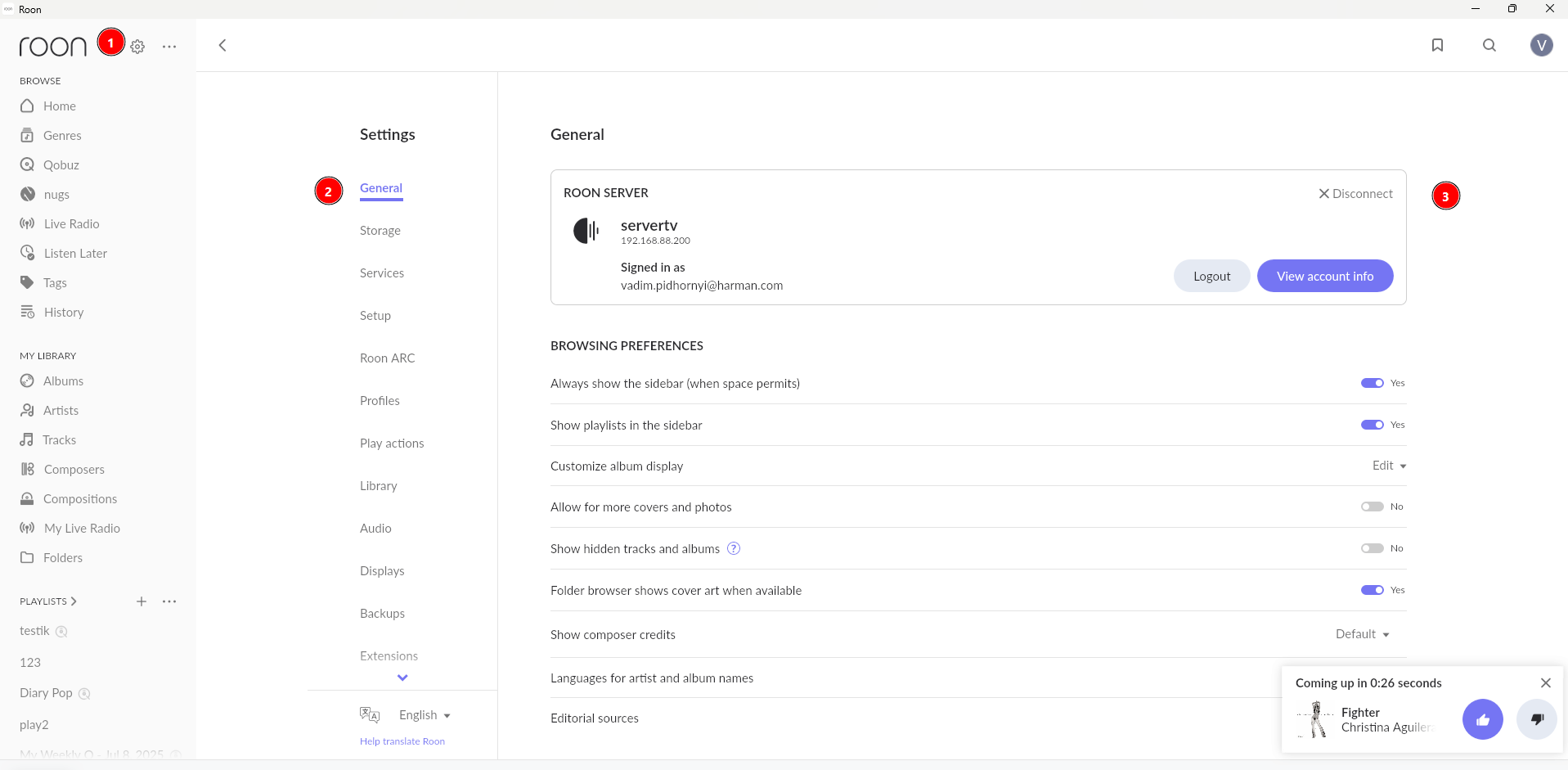
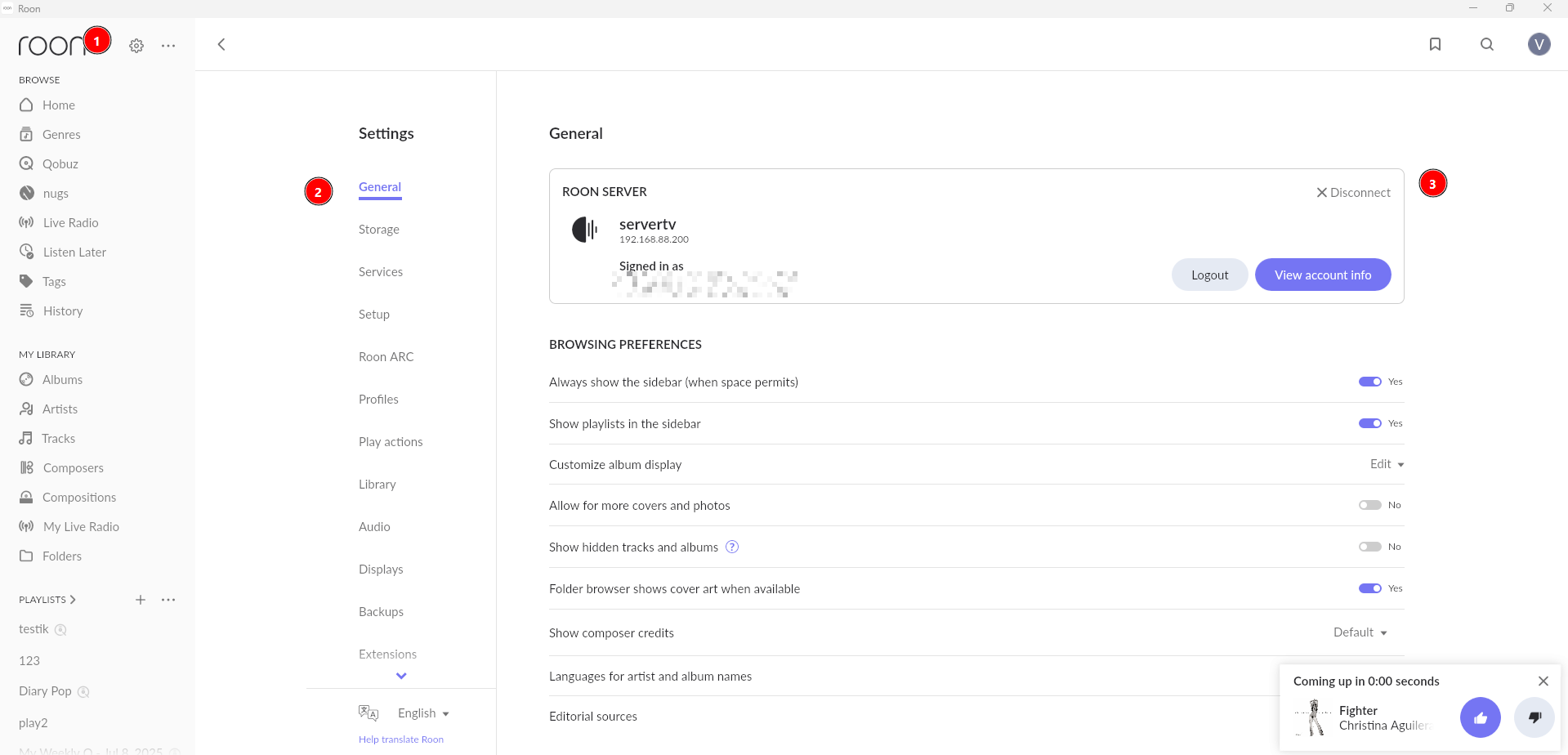
- Connect to the Nucleus. Roon → Settings → General → Disconnect → Select your Nucleus One from your available servers, then sign in.
- Restore your backup. Your Qobuz login comes back with it.
- Check ARC. Settings → Roon ARC. Give it a minute; it should read Ready.
If you’d rather keep the PC as your server, do the mirror image: power the Nucleus down and confirm the switch when Roon prompts you.
We’re here to help you through any issues you have! That said, our Technical Support team will unfortunately be away for the long weekend. Let us know how the above goes and we’ll be back next week to assist further.