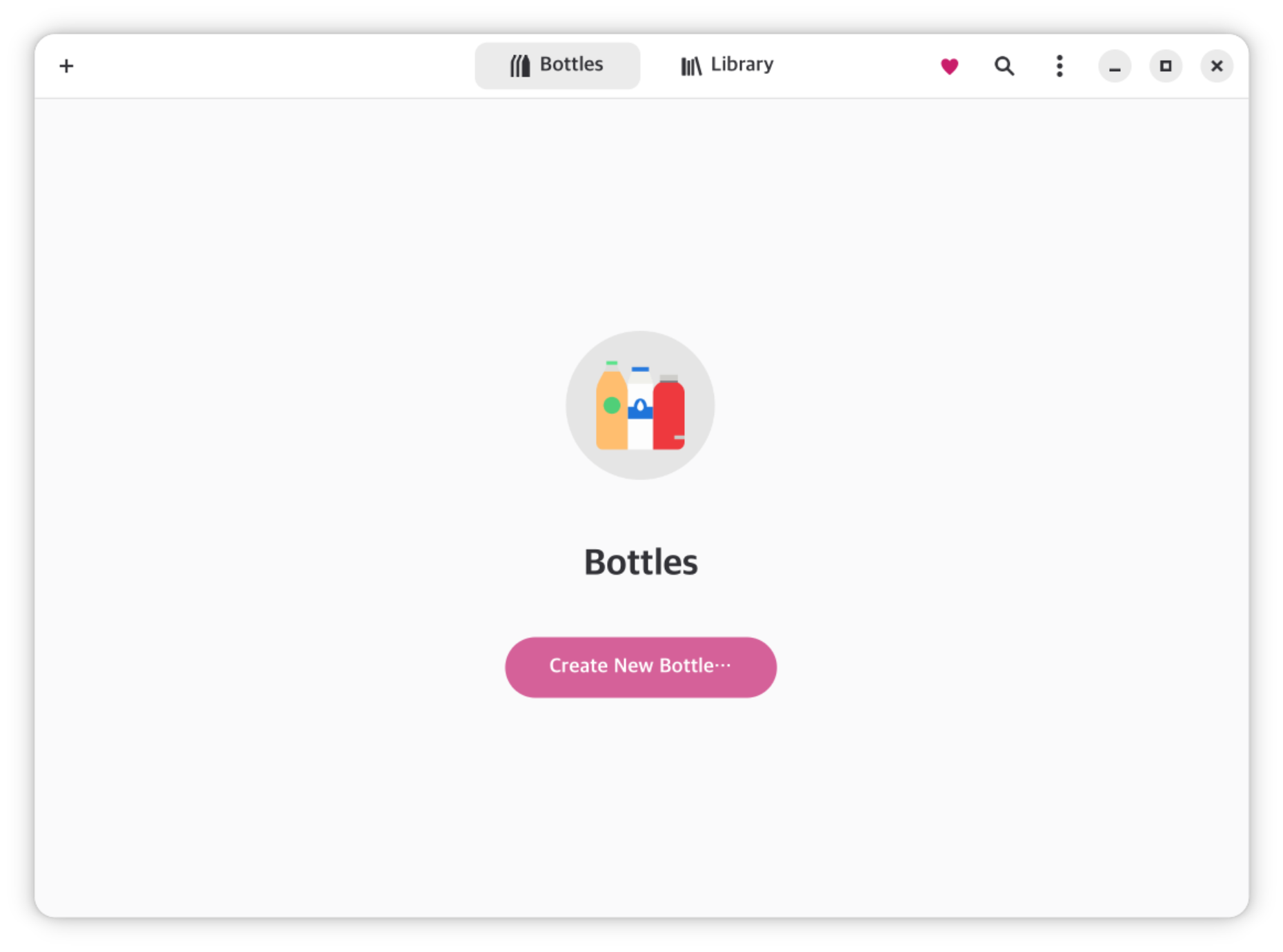
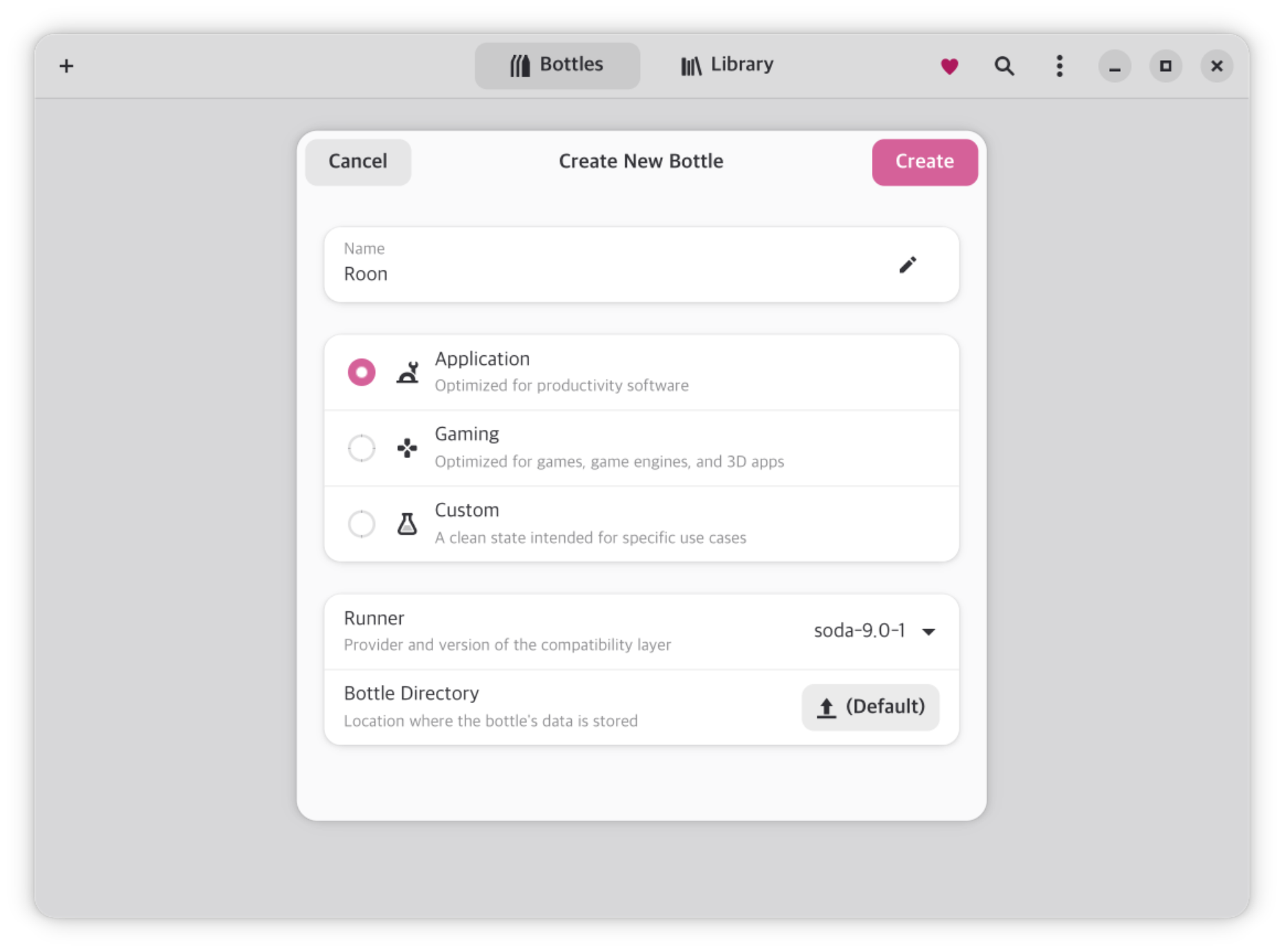
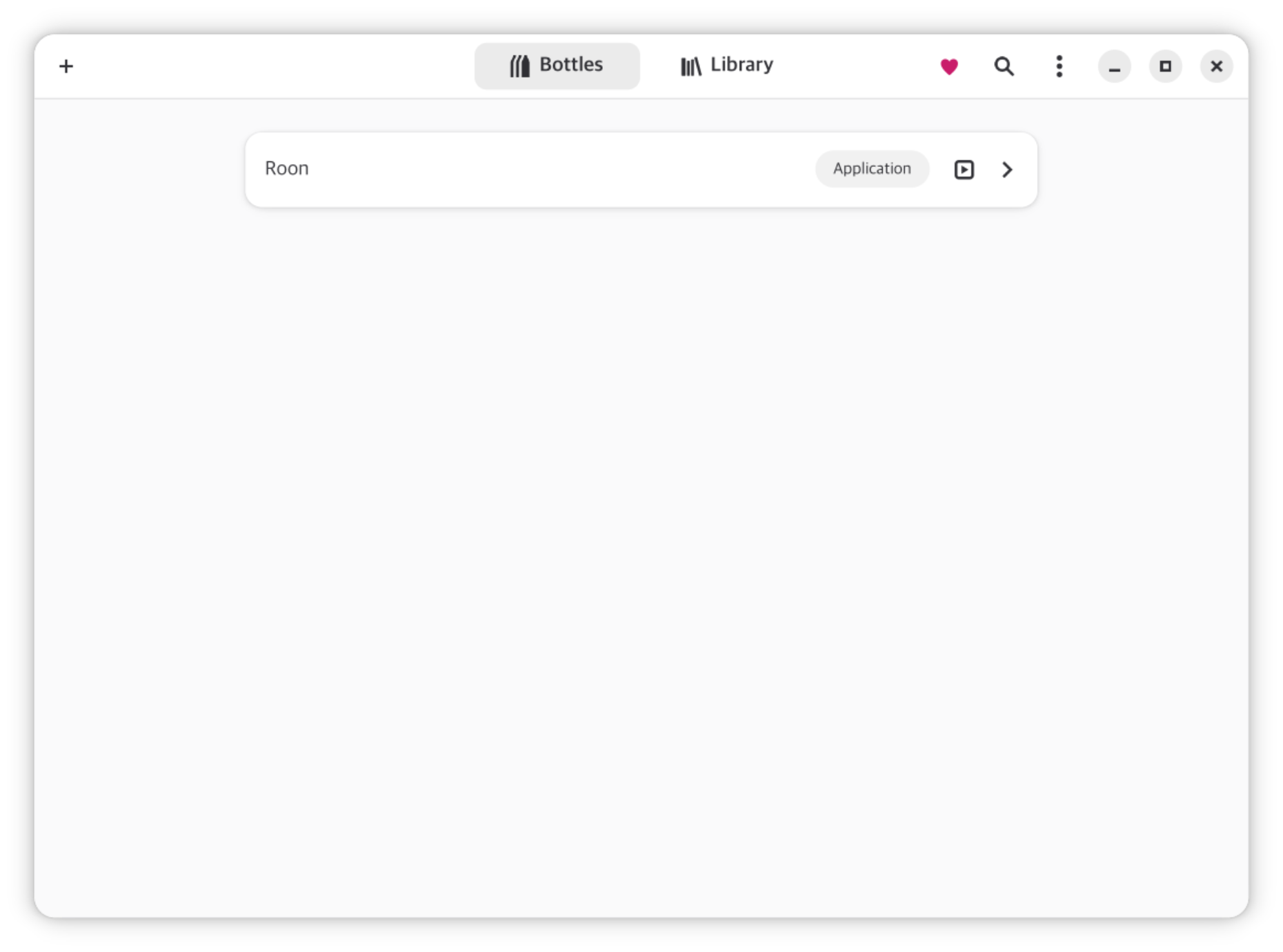
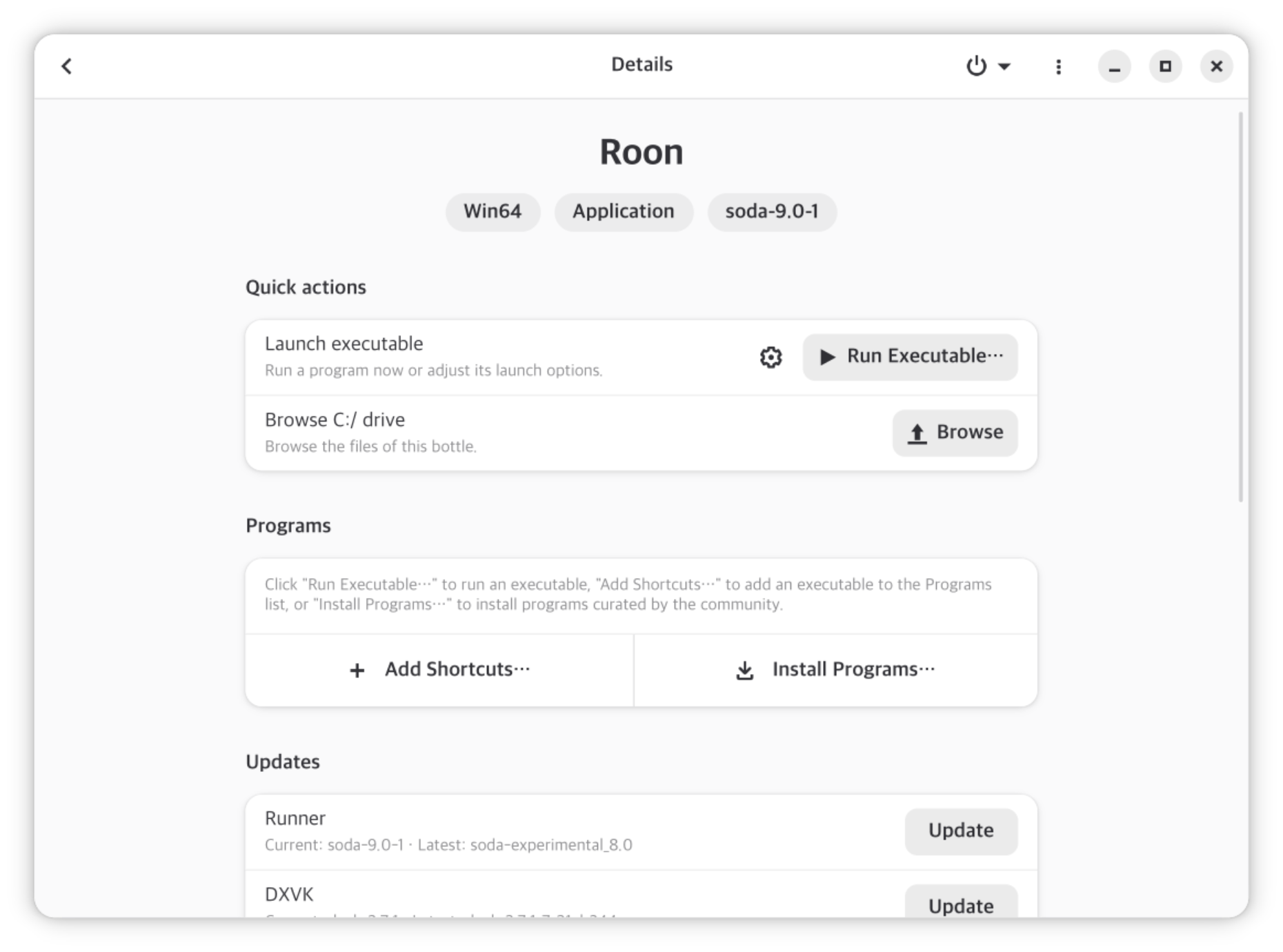
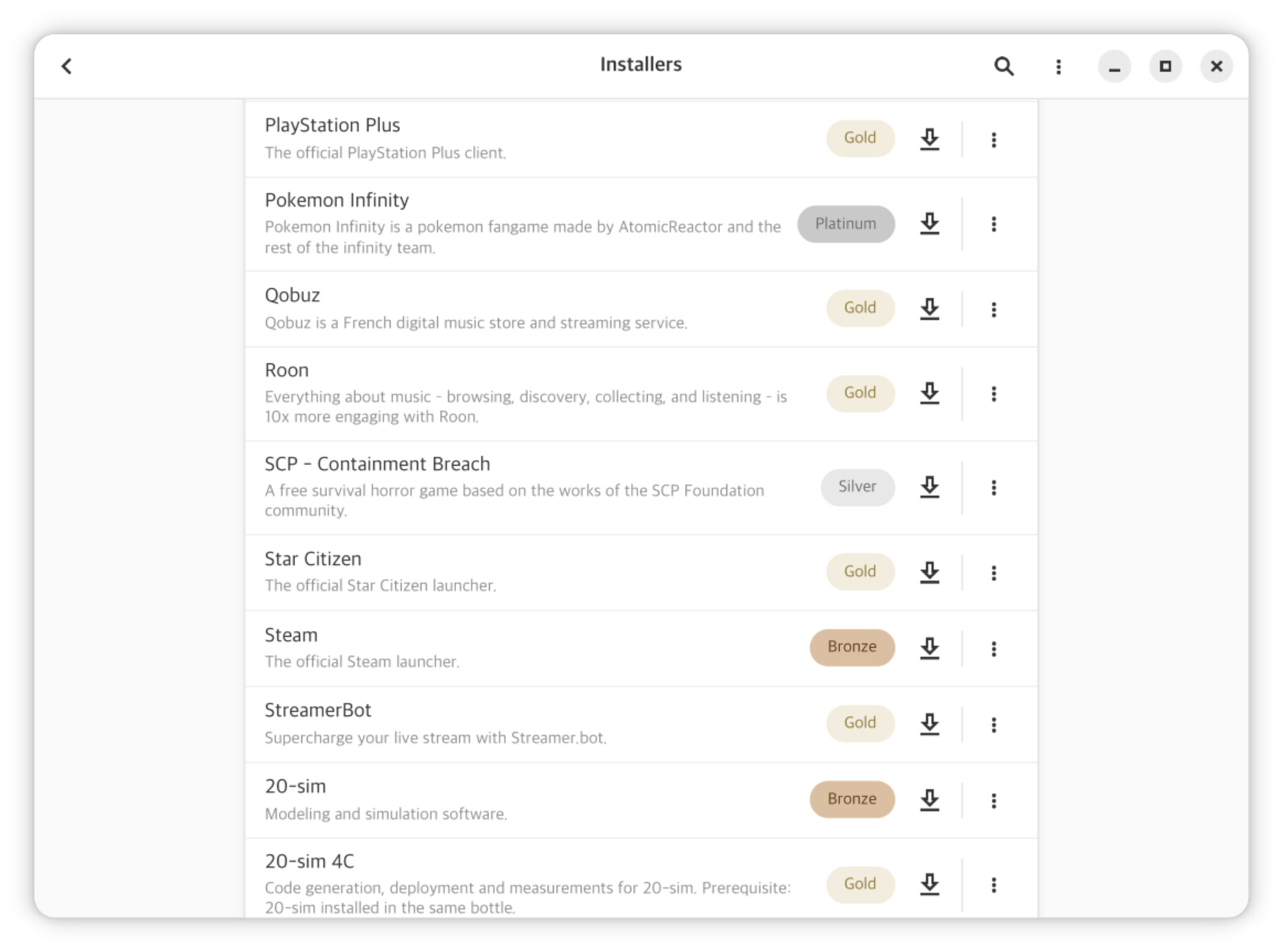
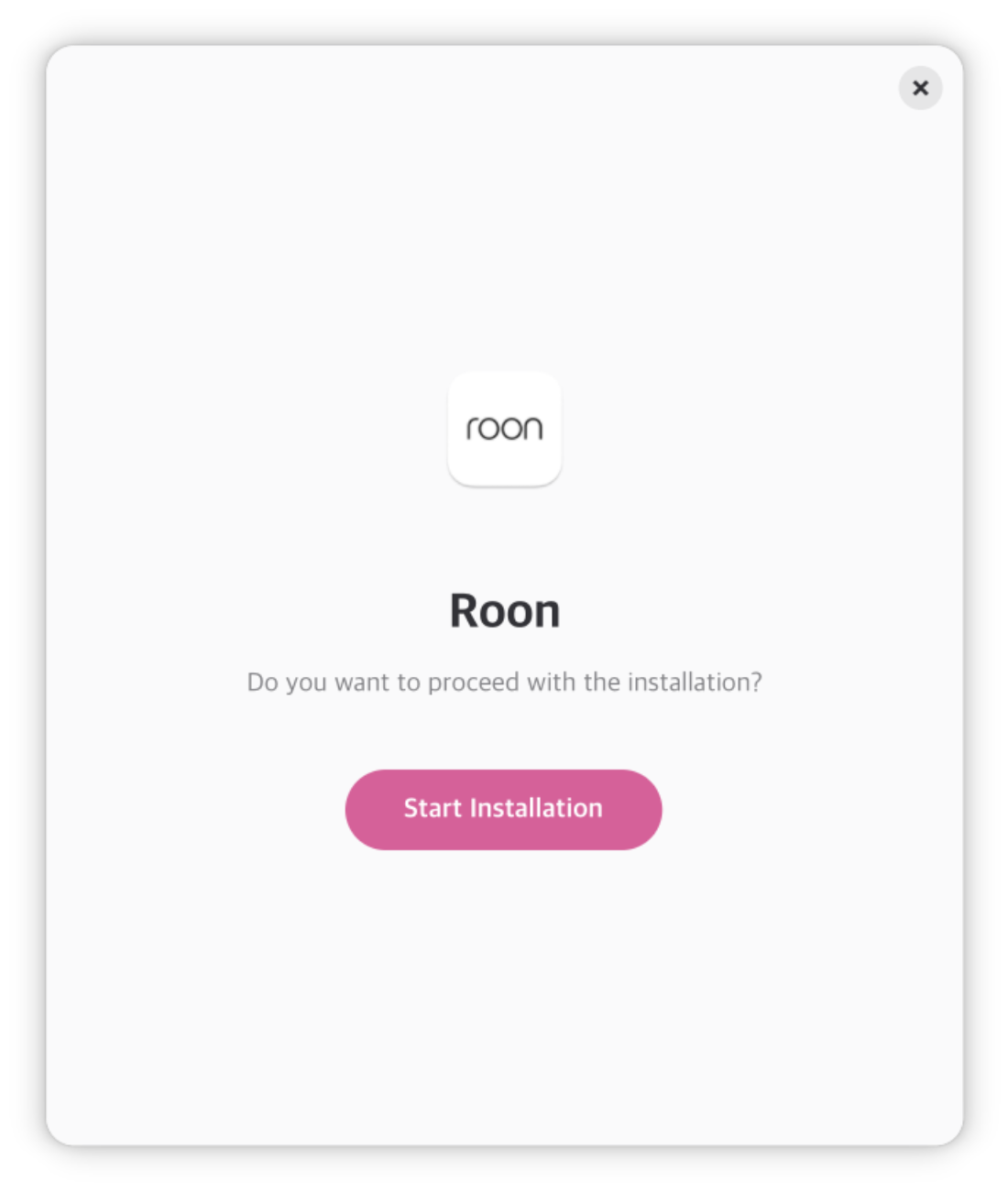
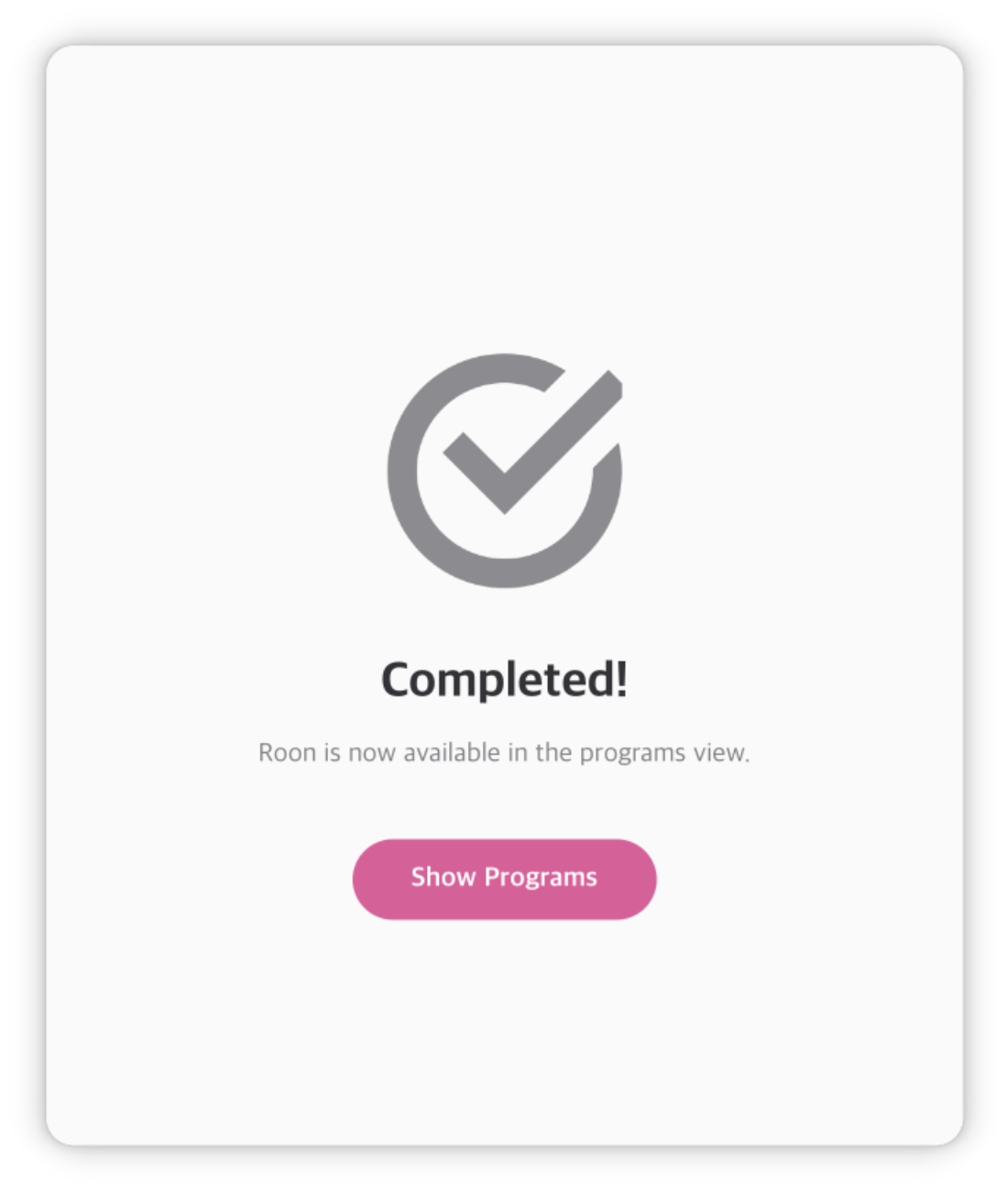
Press “Start Installation”, wait for a while, and press next button when Roon installer ask for it. DO NOT FORGET TO UNCHECK “Start Roon” CHECKBOX and click finish.
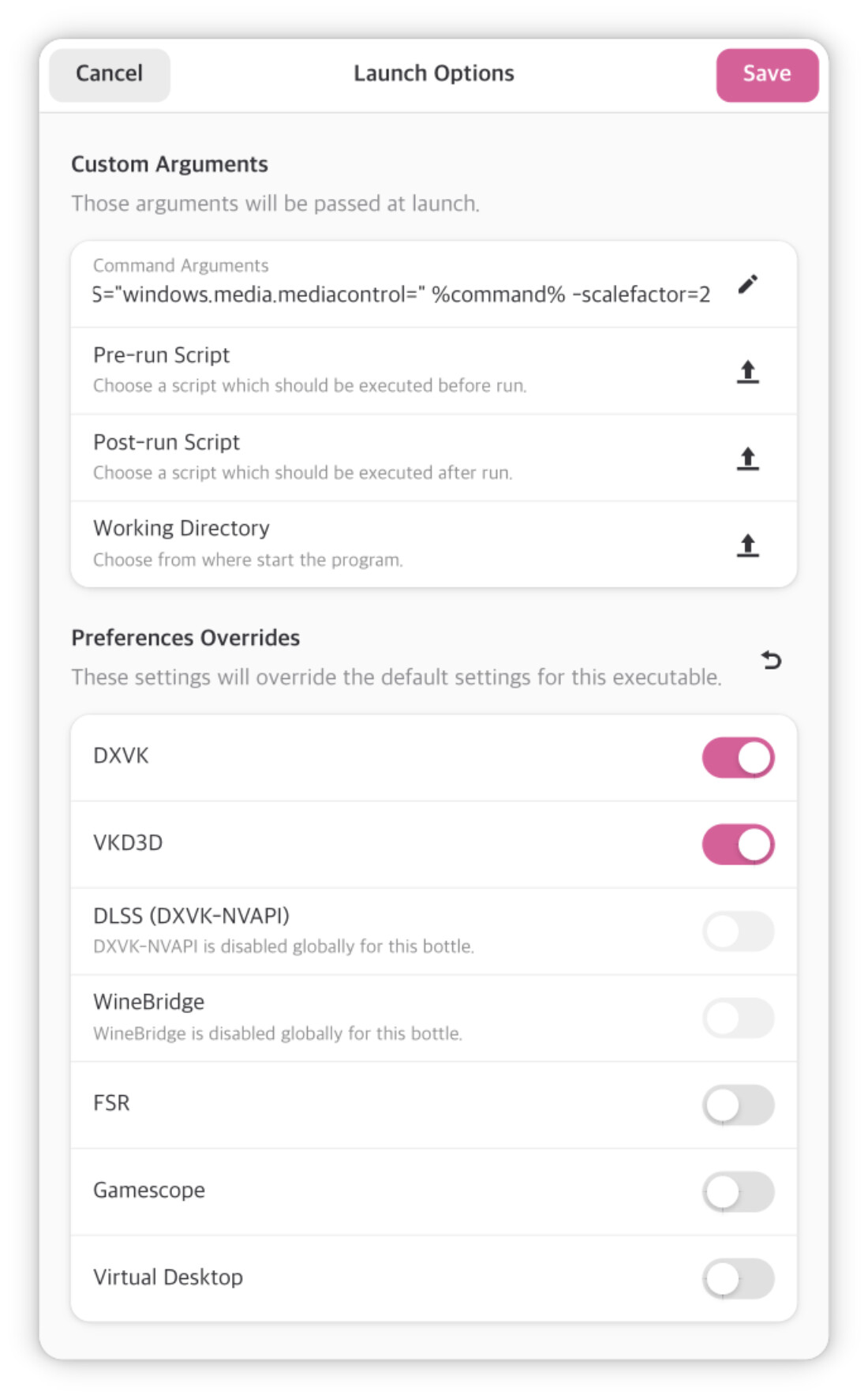
For HiDPI displays, press vertical “…” button on Roon, click “Change Launch Options,” add -scalefactor=2 (or other number that looks good for your screen) in “Command Arguments” AFTER everything already there, like the screenshot, and click “Save.”
I’ve got the server running on a headless Ubuntu server machine, but I needed the remote on my living room PC, which I’m migrating also to Linux and as far as I know there isn’t yet a Roon remote version for Linux.
On my old gen 4 nuc got an error, some problem with the mesa drivers.
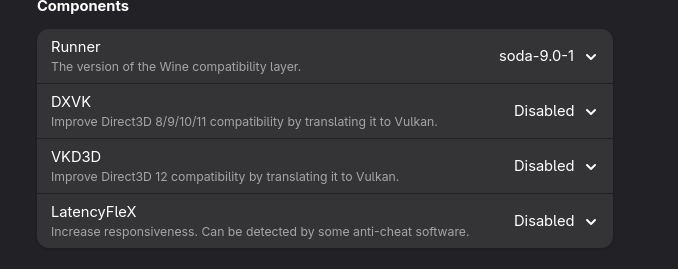
Works with DXVK disabled under settings.
There is a newer version soda-experimental_8.0, that one also fails.
Hi, I followed the instructions and Roon is running. I can’t select any options however. After a while a message pops up I have not created any backup, but even that message can’t be closed. Any tips would be appreciated.
Update: I deleted the bottle, added a new one and choose sys-wine-10.0 instead of soda-9.0-1 and now it all seems to work.
I tried this solution with high hopes on my Steam Deck but couldn’t get it to work. It’s the only machine where I haven’t managed to integrate my Roon system, and yet I’ve managed to force install or hack solutions on much older, obsolete or weirder hardware like a 2012 Kindle Touch, or an early 2000s CRT monitor via a Raspberry Pi..
Has anyone had an issue with the Bottle install not allowing them to log in? I can open the app just fine it seems but when I try to login it never redirects back to the roon app so I can’t move forward.
I’m on Fedora 43 (KDE) with Roon installed from the Bottles installer.
Ah ok, I was able to get it logged in using my phone with the app but now I don’t see any audio devices and I have the RoonBridge app installed on my pc.
I suppose roon bridge does not work in your desktop session since it requires an exclusive allocation of your sound device which is in use by your desktop audio.
I use squeezelite on my desktop instead, also fedora 43.
Use this to start as systemd user service (.config/systemd/user/squeezelite.service). It connects squeezelite to pipewire, so it does not conflict with other sources. You have to enable squeezelite in roon.
There is also a script installed with the package, this might work ootb (/usr/lib/systemd/user/squeezelite.service).