I switched my Zen WiFI AX to "AP Mode", which I believe is "Bridge Mode". Now that it is in "AP Mode", though, there is no setting to enable UPnP. That is under the "WAN Settings" but the WAN settings disappeared when I enabled "AP Mode". I called Asus and they were not able to help, suggesting that I undo "AP Mode". So, I am stuck.
Can you please help?
Describe your network setup
ISP is AT&T broadband. The modem is Arris BGW210. I called ATT and they put it into bridge mode for me.
My router is ZenWifi AX model T-8;
The two are linked to each other via ethernet cable.
The Roon Server is running on a Nuc with Windows (I think it is Windows 11).
@Steffan_Dye, if AT&T put the BGW210 into bridge mode, then your ASUS router needs to be placed back into the Wireless Router Mode in the Administration tab and then see if activating UPnP on the ASUS router corrects the ARC error message.
Thank you, @Robert_F, for your help. The reason I switched to AP Mode is because I was getting a multiple NAT message. If I tell the Asus to switch back to the default wireless router mode, it asks me to select from: Automatic IP, PPPoE, Static IP, DS-Lite - and there is a check box for DHCP Option. Do you know which of those I should select?
@Steffan_Dye, I am not sure what setting to use given the tiered nature of how you have configured your network and are using your VPN. For what it worth, I am using the Automatic IP setting for my network, which has an ISP router in front of my ASUS router, but in a much simpler configuration compared to your network. My ASUS router is set to be a router with a second AiMesh node attached to it, with all my home networking connected to the ASUS system on a separate subnet, and not the ISP router.
Given that error message I don’t believe AT&T is able to change the BGW210 into bridge mode (AT&T requires their home gateways to be connected as routers).
You will most likely need to deactivate UPnP on the ASUS router and create a series of port forwarding rules:
From the BGW210 to the IP address of the ASUS router using the ARC port number
And then from the ASUS router to the IP address of the computer running Roon Server, again using the same port number shown in Roon ARC.
Thank you, @Robert_F, for your help. Unfortunatley, your new suggestions are over my head. Could you help me with more detail about what to do.
I can deactivate UPnP on the router
You said I should create a port forwarding rule from the BGTW210 to the IP Address of the ASUS router using. I don’t know how to do this. Should I call AT&T and ask them for help on this part?
You said to create a port forwarding rule from the ASUS router to the IP address of the computer running Roon Server. How do I do that, exactly.
Apologies as I am not a networking expert (or computer expert, either.) I would like to get ARC to work, however.
Thanks for taking the time to write in about your issue, and thank you @Robert_F for providing excellent support so far!
Steffan, the first step you’ll want to take is to review the provided IP addresses for your BGTW210, your ASUS router, and the machine running Roon Server. Write down each IP on a note. You’ll also want to write down the port number that shows up in your Roon Settings>Roon Arc.
Then, access the ASUS network settings and add the first manual port forwarding rule: from your BGTW210 to the ASUS router (this is where you’ll input the specific IPs for each).
After you’ve completed that, follow the same procedure in creating another manual port forwarding rule, but this time using the IPs from your ASUS router, and the machine running Roon Server.
Let me know if that helps kickstart the process for you!
Thank you for your help. The BGTW210 lists two IP addresses. One says “Broadband IPv4 Address” and one says “Gateway IPv4 Address”. Which of those is the one I use?
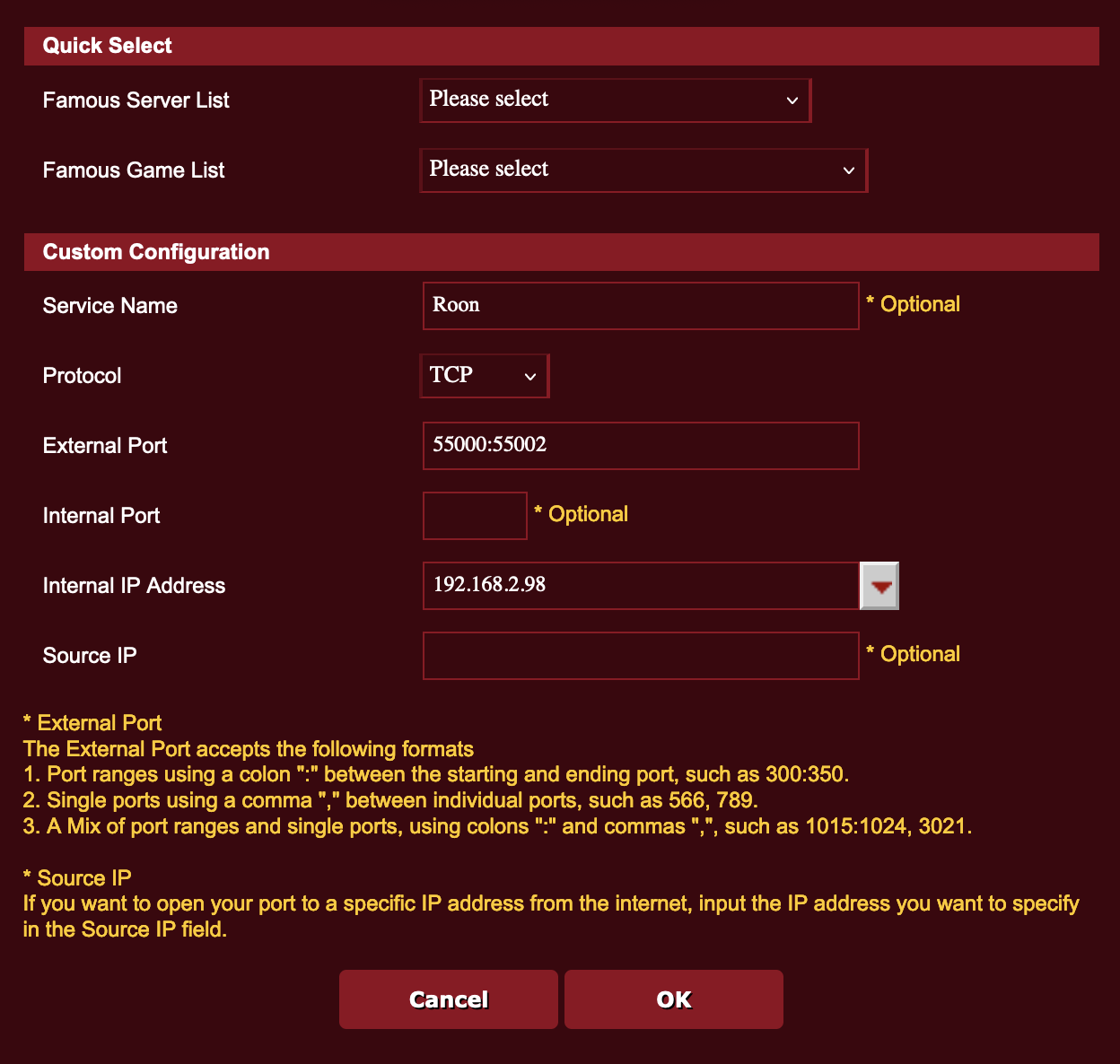
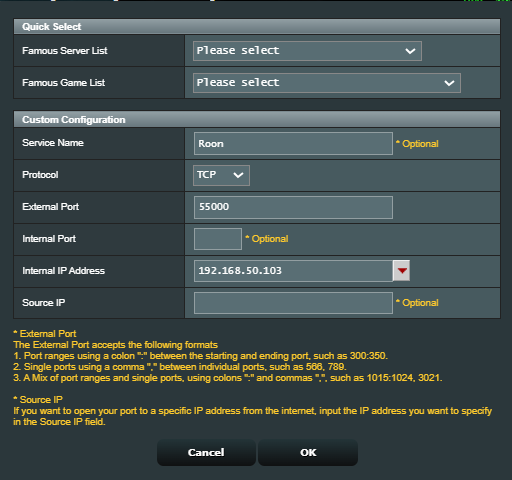
I found the port forwarding area in the Asus Router. For the first manual port forwarding rule you mentioned:
It asks me for a protocol: TCP, UDP, Both, or Other. What do I put there?
It has an optional field for “Service Name”. Do I put something there?
It has a field for “External Port”. Do I put the IP Address for the BGTW210 there?
It has an optional field for “internal port”. Do I put something there?
It has a field for “Internal IP Address”. This field has a drop down menu that shows different devices. Do I select one of the devices I see there?
It has an optional field called “source IP.” Do I put something there?
Then, I have all these same questions for your next suggestion, too, which was to create another port forwarding rule from the ASUS to the NUC that is running Roon Server.
Thank you for any help you can provide. I really would like to get this to work.
@Steffan_Dye, I am not familiar with the BGW210 interface, and I didn’t have to specify which IP address on it from which I was port forwarding, but most likely it will be the 192.168.1.254 address AT&T uses for their gateway.
TCP
I named mine Roon
This is the port number, not an IP address, shown in Roon ARC’s tab, typically 55000 or 55002. You will need to look this up on your Roon Server.
Leave it blank
This is the IP address of your Roon Server computer
@Steffan_Dye, the Asus page looks fine according to what information you have provided. And yes, you need another port forward rule from the BGW210 to the Asus router.
In this case, the TCP rule on the BGW210 will point to the Asus router’s IP address (assuming it to be 192.168.50.1), using the same Roon ARC port number of 55000 as shown above. Unfortunately, I do not have a BGW gateway but AT&T has a set of instructions here:
Ok. Now the message says, “Your Roon Server was automatically configured and has been confirmed to be securely accessible by Roon Arc.”
Seems good.
But. When I launch Roon Arc on my iPhone and try to login I get a spinning wheel with a " Seraching for Roon Server . . ." message. Below that it says, “This is taking longer than normal. Check that your Roon Server is on and connected. You may also want to confirm your network settings and firewall.”
Any thoughts or suggestions on what to do from here?
Glad it appears Roon ARC is now configured @Steffan_Dye. Does the ARC app work when you are on your WiFi network, or do you see the same error message? If the error message persists even on WiFi, stay on your WiFi network and go to the settings (gear icon) in the ARC app on your phone, and at the bottom of the page is an option to disconnect from your Roon Server. Try that and, again staying on WiFi, see if you reconnect to your Roon Server.
Thanks for the continued support! I turned off cellular on my phone and am at home connected to wifi. When i launch ARC, its says “Welcome Back” and lets me choose my account. When I choose my account, I get the message I noted before. There is not a gear icon in the ARC app on the phone as it isn’t getting to that in the app. It is never connecting to the Roon server, it is just searching for it and can’t find it.
The only option on the page is to go back or a “need help” button.
One last question. If you use the Roon Remote app on your phone (not the ARC app), can you connect to your Roon Server? If not, then there may be a WiFi issue needing to be addressed.
That is good. Have you deleted the ARC app and reinstalled it to see if that repairs the issue? You also may need to close the app and then restart it once you login to ARC (it’s an annoying quirk of ARC on some phones).
I deleted the app, restarted the phone, and reinstalled the app. On launch it acted differently this time. It said it was connecting to my machine that runs Roon Server. It was looking like it was going to work.
But then it got stuck again. Now the screen says the name of the machine that runs roon server and has a purple check box next to it with a check inside it.
Below that it says, “Something went wrong while syncing to your Roon Server”