Hey @Martin_Furrer,
Thanks for your patience, and for doing that extra testing, the log set you sent was exactly what we needed.
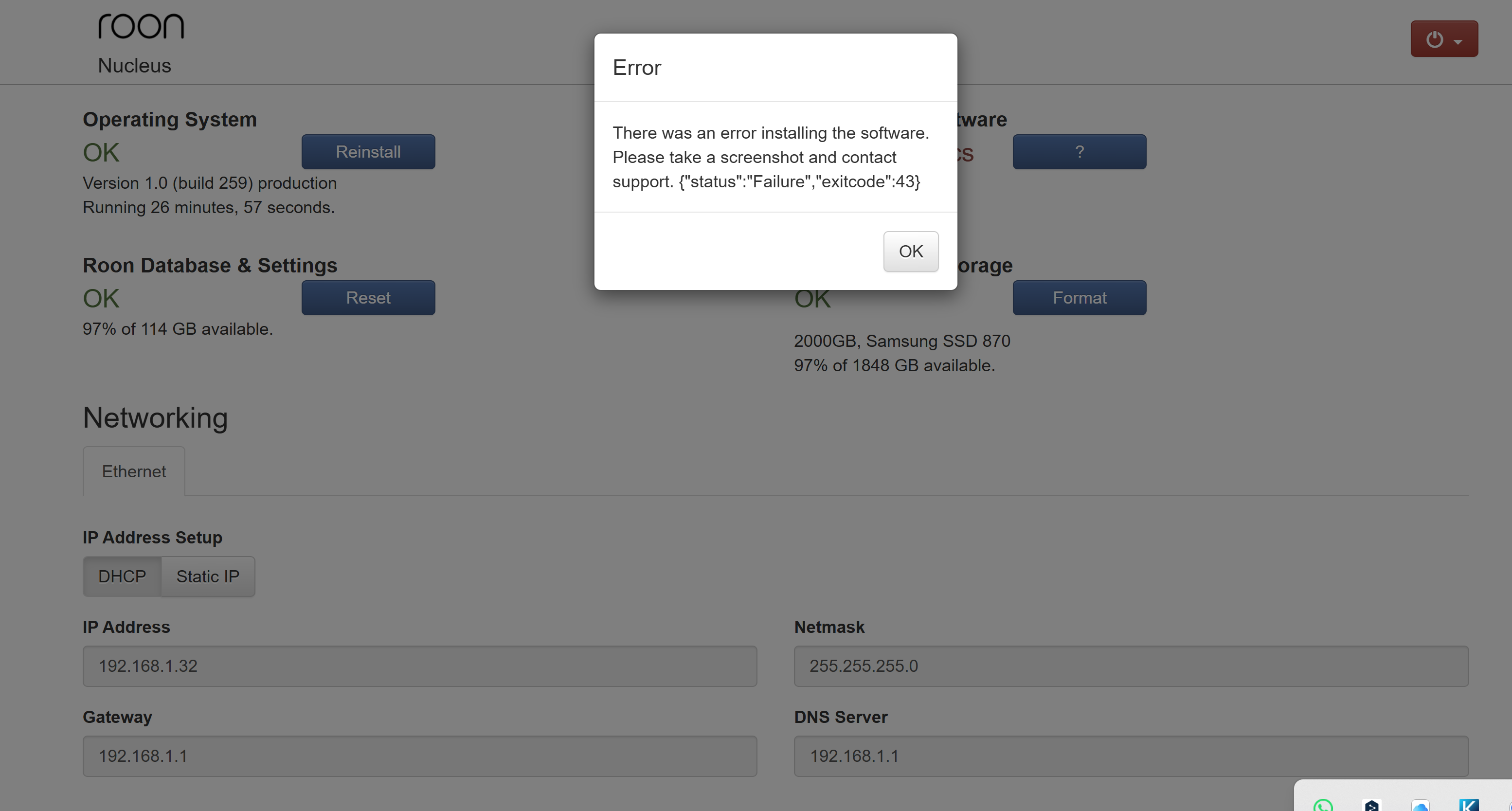
Your logs show the update failing at the same point every time. The Nucleus downloads the 2.71 package without any trouble, and then can’t unpack it. It made eight attempts between the 5th and 14th of August, and all eight failed in exactly the same way, across two different 2.71 builds.
The reassuring part is that this is not a failing drive. Your internal storage mounted normally on every startup, your database opened cleanly each time, and there are no read or write errors anywhere in the logs. Your test with the photo file was a good instinct, and it agrees with what we’re seeing.
What has happened since is why nothing starts now: the reinstall cleared out the Roon Server application files and then ran into that same unpacking problem, so it was left half-finished. That is what the “missing codecs” message is reporting. It also means pressing Reinstall again can’t get you out of it, the Nucleus no longer has a complete copy of the software to repair itself with.
How to get it running again
The fix is a RoonOS Recovery from a USB stick. Despite the name, this is the gentle option, it rewrites the operating system only and leaves your database, your settings and your music where they are.
You’ll need a spare USB stick (1 GB or larger), plus a monitor and keyboard you can connect to the Nucleus.
- First, check your backup. Open Dropbox and confirm your
RoonBackups folder is there. Your last successful backup ran on 8 August, so you’re covered, this is purely insurance before we touch anything.
- On another computer, download the recovery image. You can download the image from here. After the download, this file has an extension of “.img.gz” – you do not need to decompress/unzip it.
- Write it to the USB stick using Etcher (Windows, Mac or Linux) or Rufus on Windows. Select the
.img.gz file as the image and your USB stick as the destination.
- Shut the Nucleus down completely and unplug any external USB drives.
- Put the stick into the USB port on the Nucleus, and connect your monitor and keyboard.
- Power it on and immediately press F10 repeatedly until a boot menu appears. Select the USB stick from the list.
- In the menu that follows, choose Recover RoonOS. Please don’t pick the install or reinstall option, that one does erase your database and settings.
- When it completes, safely remove the stick and restart the Nucleus. Give it a few minutes to come up.
Then let us know how you got on. One small request: if it comes back and offers you the 2.71 update again, please hold off and check in with us first. We’d rather go through it with you than have it retry the same step on its own.
And if the recovery itself doesn’t complete, tell us what appears on the monitor, that would be genuinely useful, and it would change what we suggest next.
Thank you!