· Issue: Frequent playback interruptions occur with Qobuz's 192kHz/24-bit tracks.
Roon Server: Windows 11 24H2 Roon Server Version: 2.62 (build 1641) Roon Server PC Specs: CPU Ryzen 7 9800X3D / DRAM DDR5 32GB Ethernet Cable: Cat.6 / 1.5m Roon Ready: Linn Klimax DSM (2023 variant) Router: Tried both ISP-provided router and another manufacturer's router, but no improvement. Neither router has IGMP snooping enabled. Network configuration: Roon Server and Klimax DSM are directly connected to the router. No other network devices exist, wired or Wi-Fi. DNS Server: Tried both Google and Cloudflare with no improvement Google network speed test results: Download 300Mbps / Upload 500Mbps Windows Task Manager network speed measurement during track playback (average): Download 7Mbps / Upload 9Mbps Note: When connecting to a Windows 10 Roon Server, the download speed is around 35Mbps and playback is smooth without dropouts. Setting both the Klimax DSM unit and Roon's Qobuz device sample rate to 192kHz/24-bit did not improve the situation. I tried various NIC configuration changes in Device Manager, but it did not improve the situation. The chipset drivers, BIOS, and firmware on the PC running the Roon Server are up to date.
Thank you for your post. We’d like to examine logs from the affected Roon Server instance, but the machine has so far not responded to our automatic diagnostic requests.
At your convenience, please use the directions found here and to send a set of RoonServer logs to our File Uploader.
Please also share the name of a track that dropped out. We’ll use this to pinpoint the event in logs.
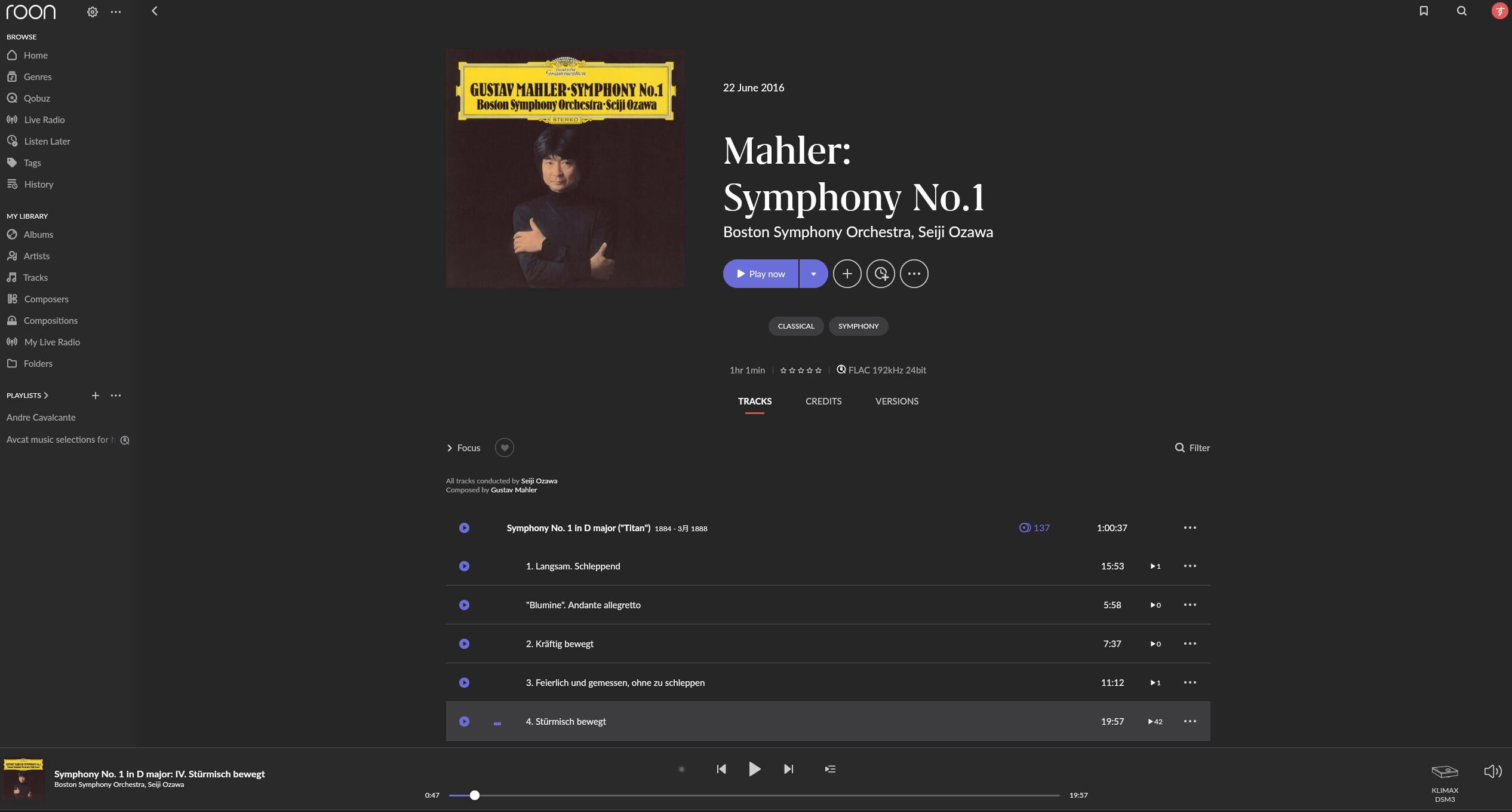
Please refer to the screenshot for track names.
Note that this intermittent playback interruption generally occurs not only with the tracks listed below, but also with any track exceeding 10 minutes in length.
Thank you for the incredibly detailed breakdown and the logs.
I took a deep dive into your RoonServer logs during the playback to your Linn Klimax DSM, and we can clearly see a severe, localized bandwidth bottleneck.
Specifically, to sustain a 24-bit/192kHz Qobuz FLAC stream without interrupting, Roon calculates a minimum required throughput of 7925 kbps. However, the Roon file fetcher is throwing continuous poor connection warnings because it is only managing to pull between 5830 and 6235 kbps from the Qobuz Content Delivery Network (CDN).
Because the download speed is strictly lower than the real-time playback bitrate, the audio buffer continuously drains until it starves. The audio engine then throws cascading [prebuffer] sleeping in read errors—meaning Roon is literally halting the playback thread to wait for the next TCP packet to arrive, which is exactly when your stream drops out.
Since your internet easily handles 300 Mbps, and your Windows 10 machine pulls 35 Mbps flawlessly on the exact same network, the bottleneck is entirely localized to the network stack on the Windows 11 machine.
Could you please test the following to bypass any OS-level throttling or routing issues?
Disable Network Optimization Bloatware: With a high-end Ryzen 9800X3D, your motherboard likely includes “packet prioritization” software (like Asus GameFirst, MSI LAN Manager, or Killer Intelligence Center). These natively hook into the Windows network stack and notoriously throttle background traffic like RoonServer.exe. Please disable their bandwidth control features or uninstall them entirely.
Test a VPN: To completely rule out an obscure routing or peering issue between this specific PC’s MAC/IP address and the Qobuz CDN, try running a temporary VPN on the Windows 11 machine. If the fetcher speeds instantly jump up, your ISP or local node may be routing this machine’s traffic poorly.
Disable IPv6: In your Windows Network Adapter properties, uncheck Internet Protocol Version 6 (TCP/IPv6) to force Roon to use IPv4, which often interacts more predictably with streaming CDNs.
Let us know if adjusting these utilities or testing a VPN allows the Qobuz fetcher speeds to jump back above that 8000 kbps threshold!
Same problem but the server is a Innuos Zen-mini mk3 .
And often cut before the end of the track and few second of silence before it jump to the next track.
We’ll require additional details to take troubleshooting action on your report, since the server operating system and network topology are the most significant variables involved in network-based dropouts.
・Network Optimization Bloatware
I have not installed any of these programs.
・Test a VPN
When I connected to a U.S. server using Proton VPN’s free plan, the download speed itself was around 30 Mbps, but due to intermittent downloads, the situation did not improve.
Even when using a VPN, the download speed when playing tracks directly through Qobuz is very good and smooth.
・Disable IPv6
The situation did not improve.
I have uninstalled the recently discussed Windows 11 update KB5077181. I also tried it on 25H2, but the situation did not improve.
I’ve been investigating and testing various things, but nothing has improved, and I’m exhausted.
I haven’t encountered any issues when playing tracks using streaming services other than Roon or when using Qobuz on its own.
Thanks for all the advice!
Disabling autotuninglevel and NetworkThrottlingIndex didn’t resolve the issue.
The EVO2.4 is my ISP’s router.
The EVO2.4 has four LAN ports, to which I’ve connected a Windows 11 machine running Roon Server and Roon Ready devices.
These are the only devices connected to the network.
Replacing the EVO2.4 with a PA-WX5400HP router did not resolve the issue.
I also have a Roon Server running on Windows 10, and switching to that instead of the Windows 11 Roon Server resolves the issue.
Thanks for the update! The fact that your Windows 10 machine works perfectly while the Windows 11 (24H2) machine, despite being a powerhouse with that Ryzen 9800X3D, struggles points directly to how Windows 11 is handling the network stack or power management.
Let’s see if the following may help:
Disable Receive Segment Coalescing (RSC)
This is a frequent culprit in Windows 11 high-performance networking issues. RSC merges multiple TCP segments into a larger one for efficiency, but it often causes latency and throughput issues with real-time media streams like Roon.
Open PowerShell as Administrator.
Check status: Get-NetAdapterRsc
Disable it for your ethernet adapter: Disable-NetAdapterRsc -Name "YourAdapterName"(Replace "YourAdapterName" with the name found in the previous step, usually "Ethernet")
Windows 11 24H2 has aggressive "Green" defaults that can throttle the NIC (Network Interface Card) when it perceives "low" traffic (like a 9Mbps audio stream).
Device Manager: Right-click your Ethernet Controller > Properties > Power Management. Uncheck "Allow the computer to turn off this device to save power."
Advanced Tab: Look for the following and set them to Disabled:
Energy Efficient Ethernet (EEE)
Green Ethernet
Gigabit Lite
Power Saving Mode
And lastly, if you haven’t yet: To rule out the router's handling of Windows 11's network packets entirely:
Connect the Windows 11 PC directly to the Linn Klimax DSM with a single Ethernet cable.
Assign a Static IP to both (e.g., 192.168.1.10 for the PC and 192.168.1.11 for the Linn).
If 192kHz plays perfectly here, the issue is how the router interacts with the Windows 11 network stack (likely an ARP or packet-timing issue).
Device Manager: Right-click your Ethernet Controller > Properties > Power Management. Uncheck “Allow the computer to turn off this device to save power.”
→This has already been done.
Advanced Tab: Look for the following and set them to Disabled:
Energy Efficient Ethernet (EEE)
Green Ethernet
Gigabit Lite
Power Saving Mode
→These have already been implemented.
Connect the Windows 11 PC directly to the Linn Klimax DSM with a single Ethernet cable.
→I don’t quite understand.
*Since it isn’t connected to a router, t won’t be connected to the internet.
How do I play 192 kHz audio files?
I’ve never done anything other than streaming, so could you please explain?*
My apologies @Shinya, I was referring to an Ethernet connection to your router in the above reply.
We’re also having a tough time connecting to your server to enable a fresh diagnostic report, are you able to send over another set of Roon Server logs after you’ve reproduced the issue again?