· I am unable to see all the tracks in my library on a specific composition page. To give you an example:
One recording of Beethoven's Symphony No. 5 appears on its composition page, but another recording of the same symphony does not.
This makes it difficult to compare performances by different artists on a single composition page, which is what I’m trying to do.
Does that make sense?
As additional information: Even when I right-click the track on the album page, the "Go to Composition" option (which should be there) does not appear.
Thanks for writing in and for sharing your report! The fact that “Go to Composition” is missing from the right-click menu is a good clue: it means Roon hasn’t officially recognized that specific track as part of a “Work.”
Roon relies on its cloud database to link tracks to global compositions. If your album is “Unidentified,” Roon treats the tracks as standalone files rather than parts of a masterpiece.
Go to the Album page.
Look for the "Unidentified" badge or check the 3-dot menu > Edit.
If it isn't identified, click Identify Album.
Follow the prompts to match your files with the correct version in Roon’s database. Once identified, the "Go to Composition" link usually magically reappears.
If the album is identified but the composition page is still broken, Roon might be struggling with your file tags. You’ll want to review Work Title and Part Title.
If these are blank, Roon doesn’t know these tracks belong together. You can manually type “Symphony No. 5 in C minor, Op. 67” into the Work field to force them to group.
Sometimes Roon identifies two different recordings as two slightly different compositions (e.g., one is “Symphony No. 5” and the other is “Beethoven: Symphony No. 5”).
Search for "Beethoven Symphony 5" in your general Roon search.
If you see two different "Composition" results, you can merge them.
Select both compositions > three dots > Edit> Group tracks
Or, if only one specific recording is missing:
Right-click the track.
Go to Edit > "Re-identify track." This forces Roon to ping the metadata servers again to see if it can find a match it missed the first time.
Let me know if any of the above help, thank you! 🙏
Thank you for your comments and advice.
Beethoven’s Symphony No. 5 wasn’t the best example since it usually consists of multiple tracks. Let me explain with the specific case I’m actually facing.
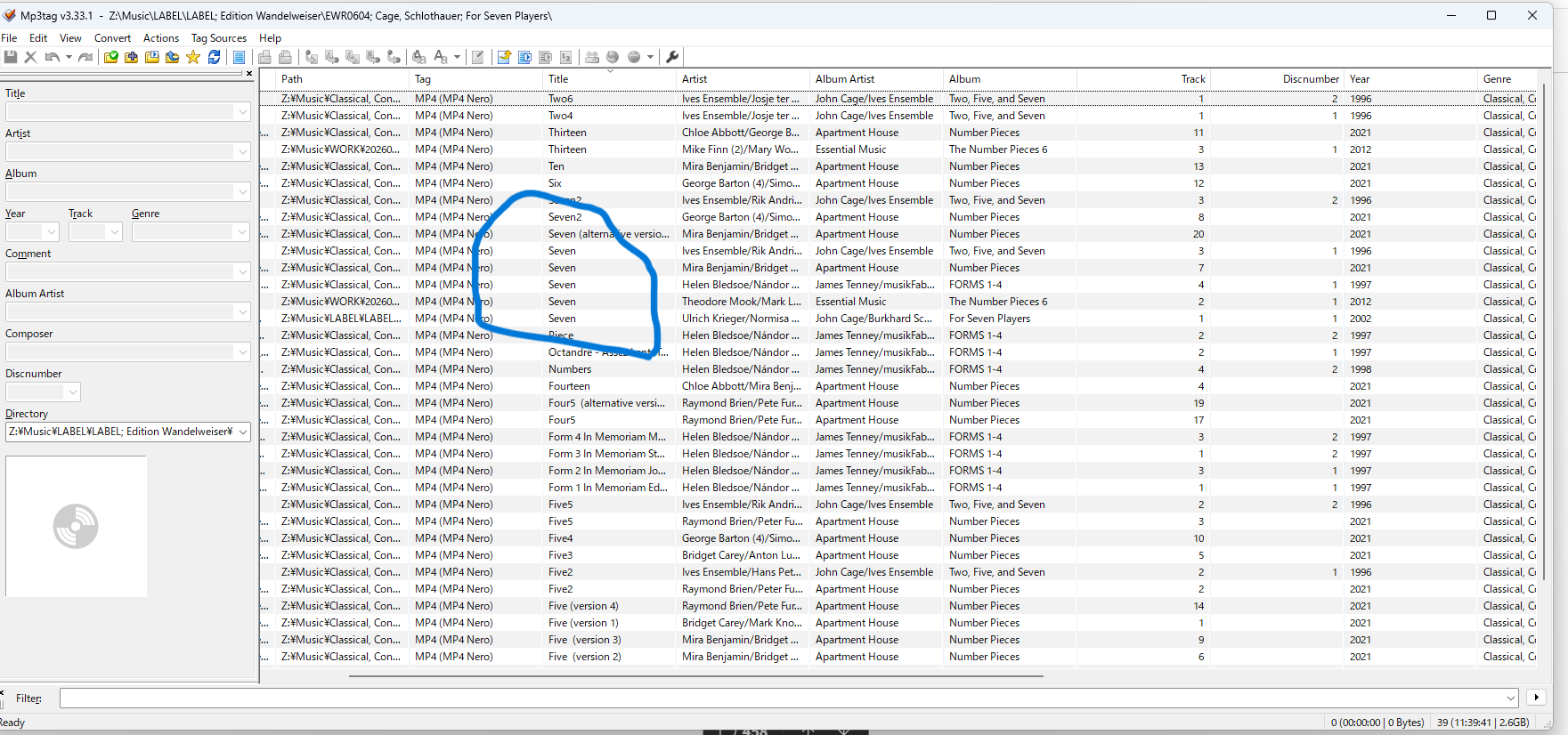
The piece is “Seven” by John Cage. It is a single-track composition and does not have multiple movements. I own four albums containing a total of five recordings of this piece (one album includes two different performances).
The four albums are as follows (the fourth one contains two versions of “Seven”):
Fortunately, all four albums have been identified.
However, on the Composition page for “Seven,” only the three tracks from the first three albums are displayed. The two tracks from the last album are missing. I thought it might be because the track names are listed as “Seven” and “Seven (Alternative Version),” but since even the one titled “Seven” doesn’t appear, that may not be the reason.
Could you please take another look and share your thoughts?
Thank you for the reminder @vadim , Also, my apologies to @benjamin for the oversight.
Title is all “Seven” and Part is none because the composition is not multipart.
(Where is “Part” tag in Mp3tag? I’m such a beginner that I have no idea what “Part tags” are.)
Here is the thread where described how to edit work and tag via the mp3tag
Here is how you can correctly add the Work and Part tags using Mp3tag and configure Roon to display them properly:
Step 1: Adding Tags in Mp3tag
The standard Mp3tag interface might not show these specific fields by default, so you need to add them manually using the extended tags feature:
Open your audio files in Mp3tag and select the tracks you want to edit.
Right-click the selected files and choose Extended Tags… (or simply press Alt+T).
In the window that appears, click the Add field button (the star icon).
In the Field box, type WORK (in all caps), and in the Value box, type the overall title of the composition (for example, Symphony No. 5). Click OK.
Click Add field again. In the Field box, type PART, and in the Value box, type the name of the specific movement (for example, I. Allegro con brio). Click OK.
Click OK one last time to save the changes to your files.
Step 2: Configuring Roon (Prefer File)
Once you have updated the files, it is crucial to change how Roon reads your metadata. Otherwise, the system will continue to use its cloud database and ignore your manual changes.
Open Roon and navigate to Settings > Library > Import Settings.
Scroll down to the Multi-Part Composition Grouping section (or the Work/Part settings).
Change the setting to Prefer File. (Note: You can also apply this setting locally to just one specific album by clicking the three dots on the album page > Edit > Metadata Preference).
After this, Roon will rescan the files and group them exactly as you specified in your tags.
For a more detailed walkthrough, you can check out these two helpful resources:
Official article on tagging best practices and the “Prefer File” setting: File Tag Best Practice
My library uses ALAC instead of FLAC. Does that change the process at all?
Since John Cage’s “Seven” is a single-movement work (one track) rather than having multiple movements, is it okay to leave the “Part Title” blank?
I haven’t actually done anything yet, so why are there two tracks already appearing correctly on the composition page?
I appreciate all the detailed guidance, but since I only have about ten of these compositions at most, I’m starting to think that simply creating a playlist might be a more straightforward approach.
Thanks for the follow-up! Let’s break down your points based on how Roon’s database logic handles these specific classical structures:
ALAC vs. FLAC
The file format (ALAC vs. FLAC) makes absolutely no difference to this process. Roon reads the metadata tags (WORK/PART) inside the files regardless of the container. As long as your tags are consistent, the result will be the same.
John Cage’s “Seven” and Part Titles
If a work consists of only a single movement/track, you can indeed leave the “Part Title” blank. Roon will recognize the “Work” tag as the overall composition. However, for the cleanest look in Roon’s browser, some users put the work name in both fields so it sits neatly in the hierarchy.
Why are two tracks already appearing?
This is the “magic” of Roon’s metadata cloud. Even if you haven’t manually tagged your files yet, Roon has likely identified them via “acoustic fingerprinting” or file lengths and matched them to its own internal database.
Regarding your specific question about why only some are appearing: Roon primarily relies on MusicBrainz as its core metadata source for these identifications. If a specific performance or edition hasn’t been tagged or “linked” on MusicBrainz yet, Roon won’t automatically group it. That is why your manual tagging is the only way to ensure 100% consistency across your 10 compositions.
Playlist vs. Composition View
You’ve hit on a very practical point. If you only have a handful of these, a Playlist is definitely the “path of least resistance.”
Thank you so much for your kind and detailed response.
I think I’ll try adding WORK TITLEs to my ALAC files later, just for the experience. However, for my other compositions, I’ll probably take the “path of least resistance” and just stick with playlists! (-_-
There is one thing that still puzzles me, though. It’s the difference in how Roon displays “Seven” in the Composition List. For clarity, let’s call the ones that appear “Type A” (2 tracks in my library) and the ones that don’t “Type B” (4 tracks in my library).
Type A:
The album is identified. When viewing the album, “Seven” shows the composition year as 1988.
When I right-click the track, “Go to composition” is available. Clicking it takes me to the composition page, where the track is correctly listed. (This is exactly the behavior I expect.)
Type B:
The album is also identified. When viewing the album, “Seven” still shows the composition year as 1988.
When I right-click the track, “Go to composition” is available. However, when I click it and go to the composition page, the track is not displayed there. The page simply says “2 Recordings.”
Roon clearly “knows” that this track belongs to that composition! And yet, it doesn’t show up on the page.
All my other Type A and Type B tracks show this same behavior.
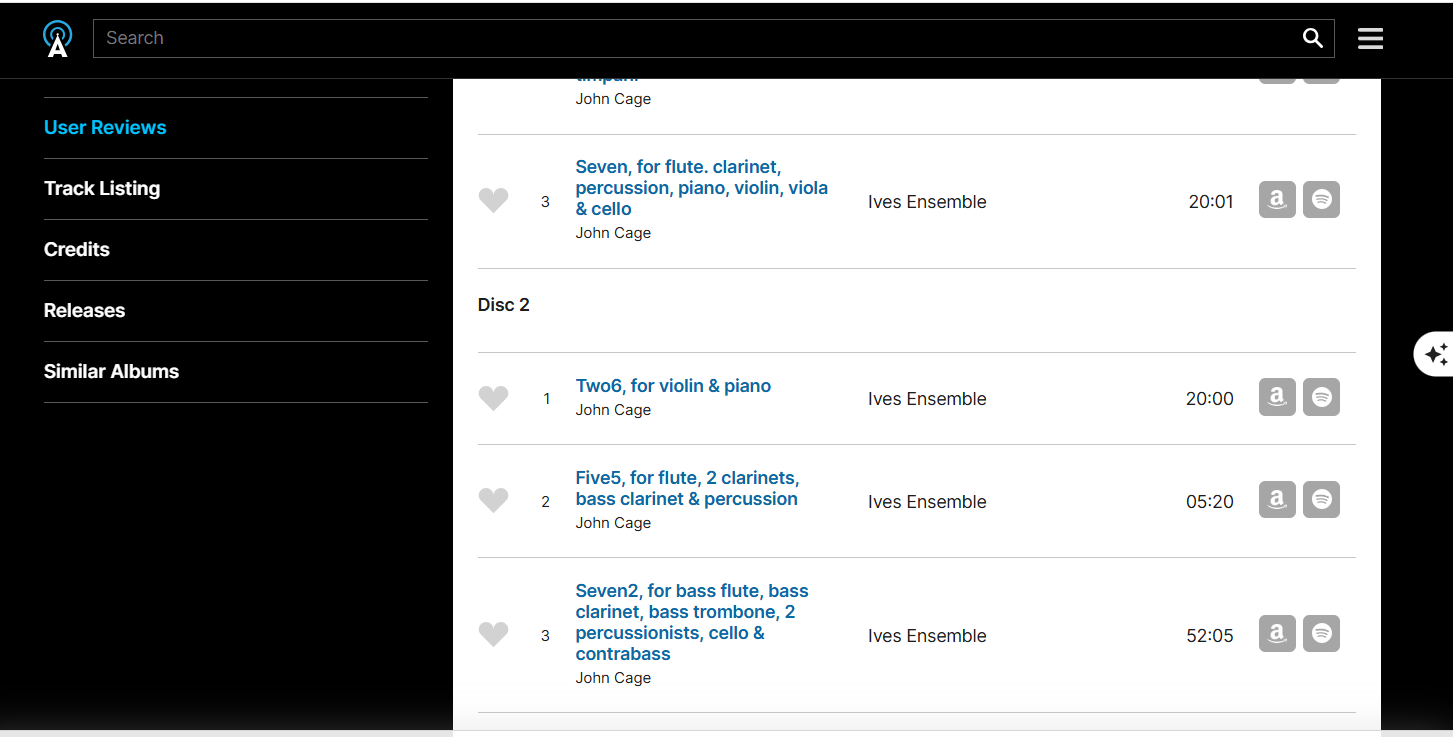
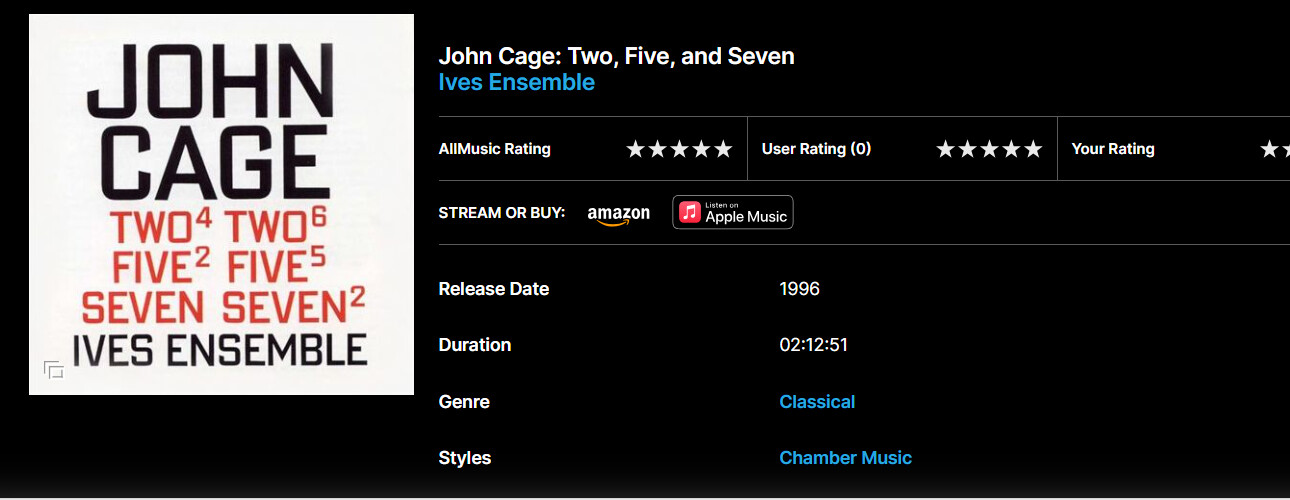
You have picked an unfortunate example with John Cage. You will find that roon struggles with Classical composers not following straightforward naming or catalogue conventions. Those two “Seven”s are two different compositions. Cage just added superscipts to differentiate, so one is Seven and the other is Seven2 . Roon does not follow this naming convention, instead it uses the naming convention of Tivo, one of its metadata suppliers, so its Seven and Seven2. You can find the WORK titles roon is trying to match against on allmusic.com which also uses Tivo:
In order to sort things out you need to cut and paste the exact work titles from allmusic into the WORK field in your tags. You will also find you need to go into the Compositions view, and highlight unmatched compositions and “merge” them with matched ones. If you have alot of modern Classical music that is poorly tagged in public databases you will likely need to do a lot of manual editing. Roon does not maintain its own metadata so if the standard is poor in the sources it is drawing on you will experience the issues you are describing.
, and entering the full composition names into the WORK tags, I was finally able to get everything to display correctly in the Composition view. Thank you both!
However, to be honest, this level of manual editing is a bit too tedious for me. I think I’ll stick with my plan to just pick the tracks I want and manage them via playlists.
I truly appreciate everyone sharing their knowledge with me.
P.S. Just for the record—I did know that Seven and Seven² are different works!