Yes, it does so very nicely…
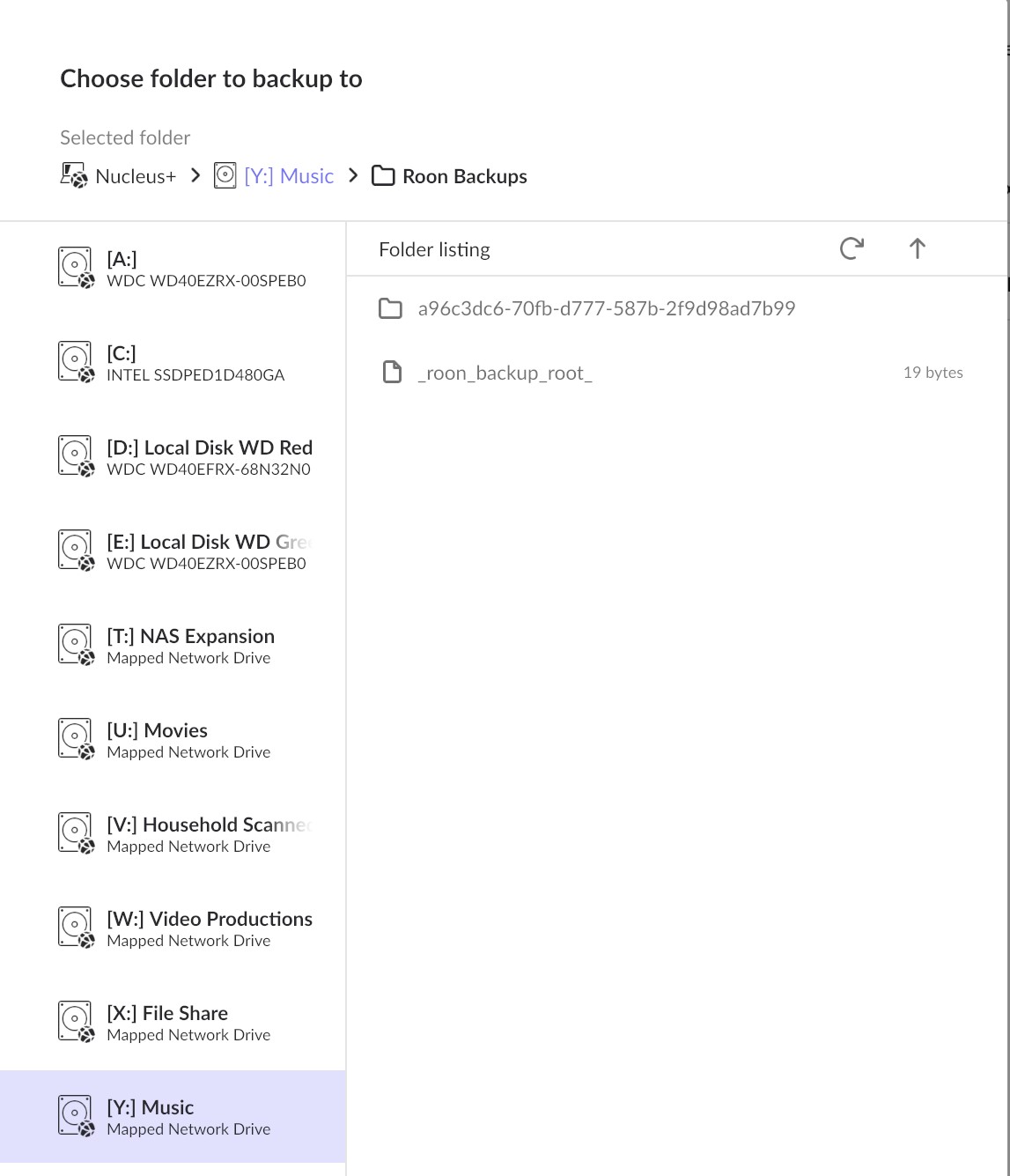
But it produces an error on attempts to backup - scheduled or forced.
It will load an existing backup from that file location but it will not load new backups to that location.
Surely people have migrated from Nucleus to PC/NUC in the past, how is this a new issue I’m wondering?
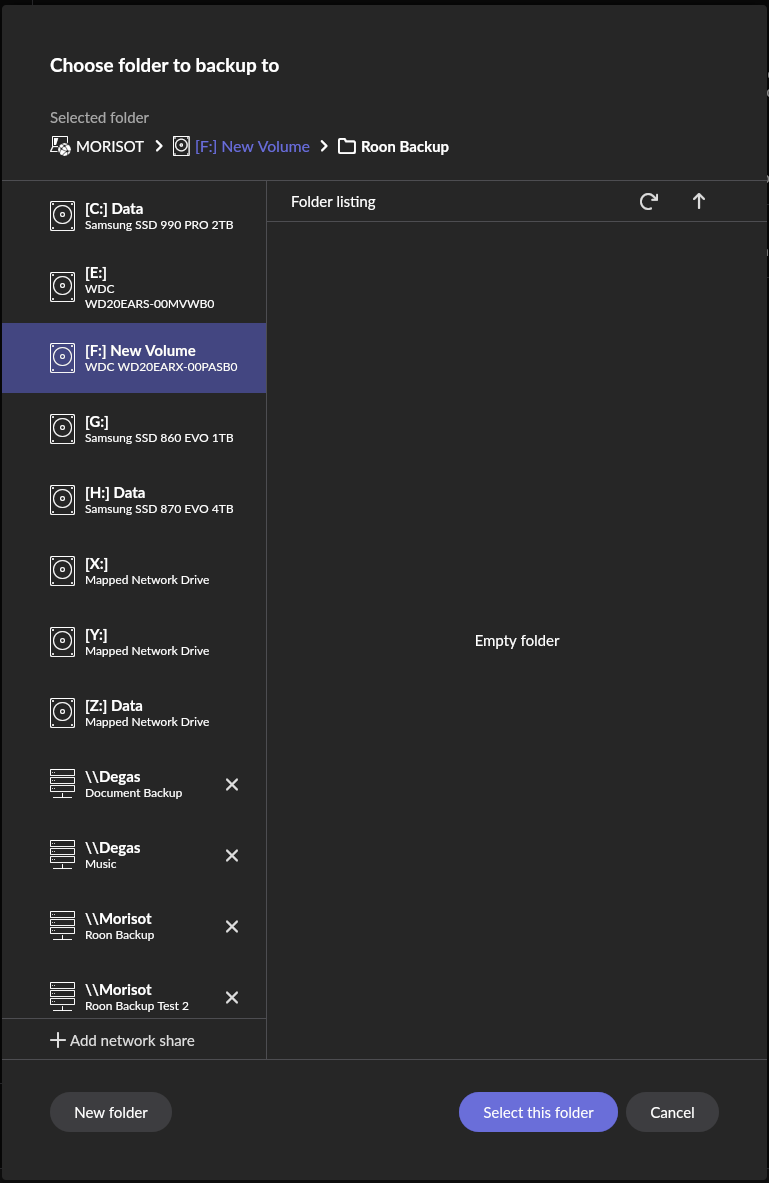
So why aren’t you setting up a new Roon Backup Folder on your PC? You appear to be still trying to use the previous filepath set up for your Nucleus, which clearly won’t work…
For example…
Thanks Geoff, I can change the Roon Backup folder ad naseum but it will always fail during a scheduled or forced backup, seemingly because of the the “Nucleus +” at the beginning of the folder reference.
The “Nucleus +” is the only part of the backup file reference that I cannot change.
“Y” Music > Roon Backups is completely valid as a folder reference and it doesn’t matter where I route the backup location to. When it comes time to actually do a scheduled or force a backup, Roon produces the message “Backup failed at (time) / Backup directory not available”. I assume that this is because of the “Nucleus +” wording at the beginning of the path.
In fact, as I mentioned above, Roon WILL LOAD a back up file from “Nucleus + > Y: Music > Roon Backups” but it WILL NOT SAVE a backup file to exactly the same location.
This is what I don’t understand. You say that you have switched your Roon Server to a PC, so the “root” on that screen should be your PC’s name (as mine is showing “Morisot”, which is my PC’s name)…
Yep, me too…
What is the name of your PC?
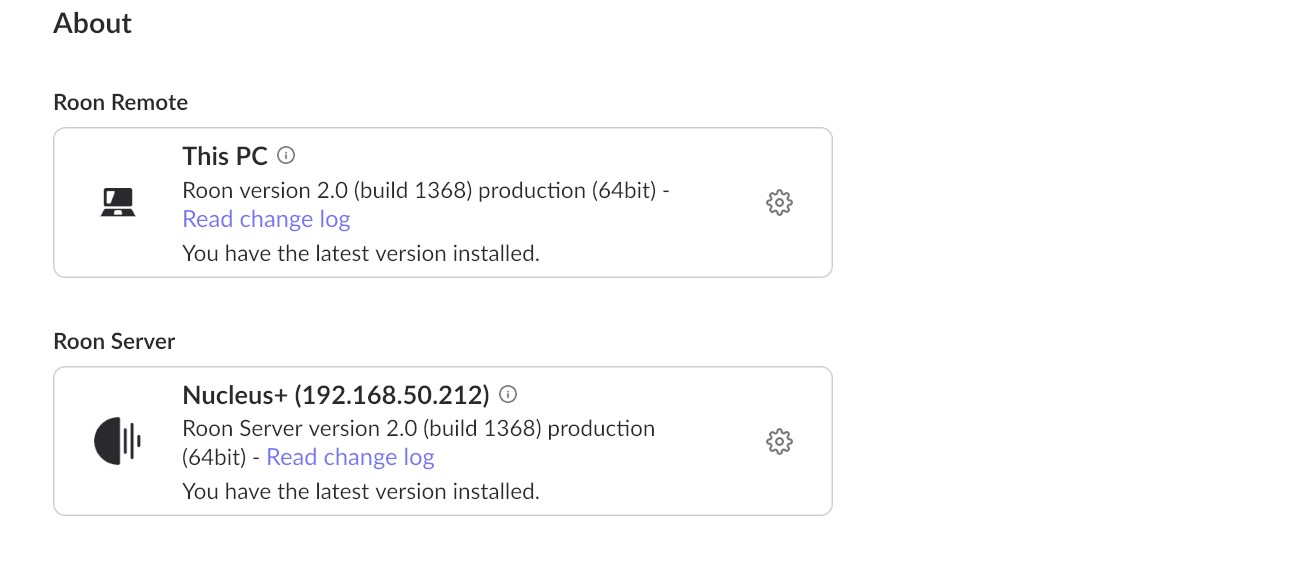
And can you post a screenshot of the Settings > About screen in Roon?
Sure, here’s a screen shot from a remote PC
This is getting hilarious - the Roon Server PC is named Movies-MusicX29. But guess what? When I login to the Movies-MusicX29 and try to open Roon, it cannot find a Roon server and yet, the Roon server is installed on that PC.
It’s 1 AM for me, off to bed.
I give up for now, will uninstall Roon server tomorrow and start anew.
You are still connected to your Nucleus…
You need to go to Settings > General and click the Disconnect button to uncouple the Roon client from the Roon Server in the Nucleus.
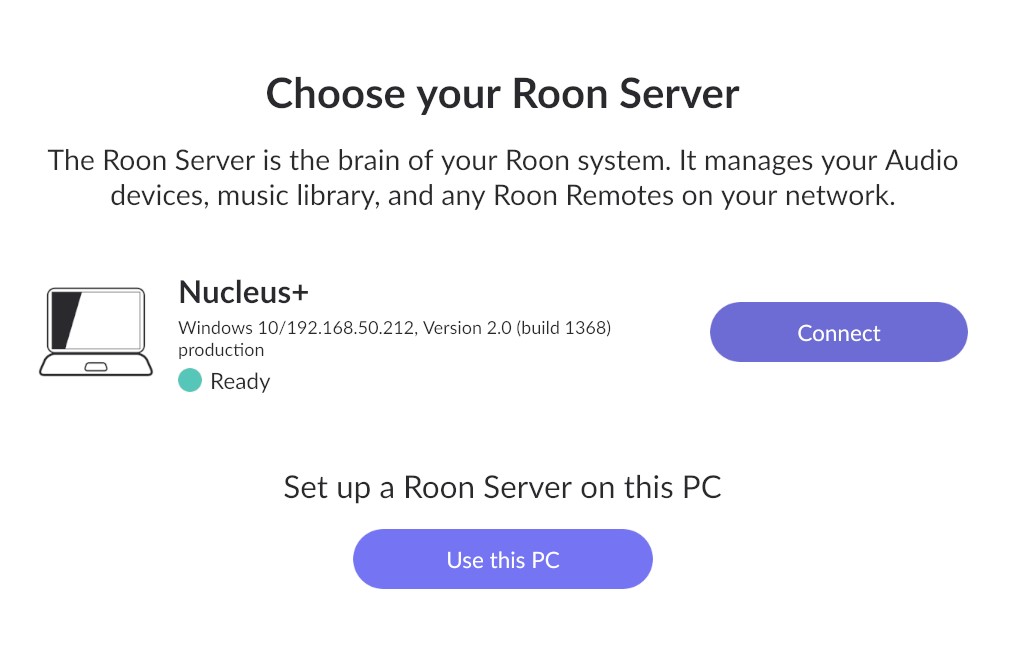
Then you should get a screen showing all the available (running) Roon Servers in your home network, for example:
If you are not seeing the Roon Server on your PC in this screen, then make sure that you have started it by, for example, double-clicking the Roon Server shortcut on your PC’s desktop:
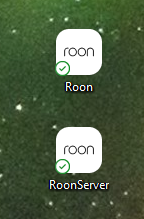
Then make sure you have the “Launch at startup” option enabled.
So, on the remote PC I disconnected from the Nucleus+ and searched for a new Server. Here is what is presented. Note - there is no physical Nucleus hanging anywhere on my network.
Now, prior to that I had reinstalled Server on my Server PC.
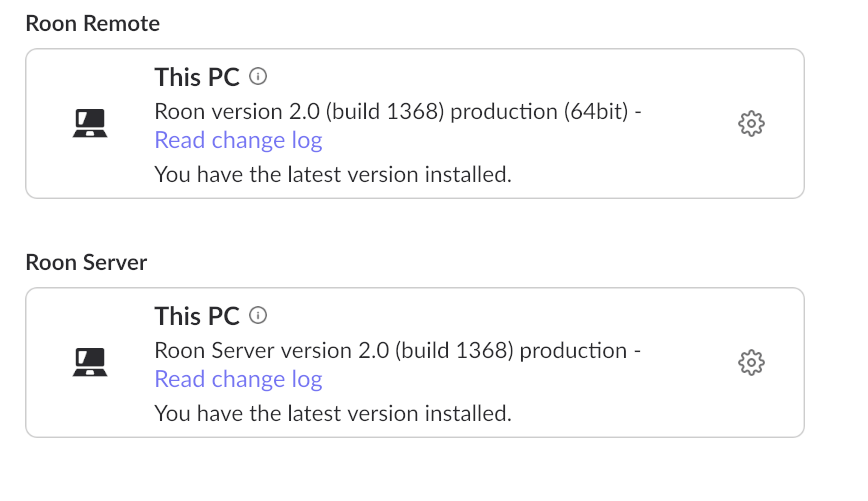
Here’s what that looks like:
You will noted the differences in detail between the “about” on the remote PC and the “about” on the server PC.
The information about library, artists and track currently being played are the same on both the remote and the server but even more interesting:
The remote will play Roon even without Roon running on the server PC. The server must be running but Roon does not have to running on the server for the remote to be able to control it.
In fact - I am listening to Roon right now without a single remote or server open anywhere on my network.
It looks like Roon thinks my PC is a Nucleus device.
It’s not clear to me where or when the screenshots have been made. Are you using several Roon Remotes (on different PCs)?
Each Roon Remote can be set up to connect to a different Roon Server…
I know, this is confusing as heck.
So - for purposes of this I have one PC acting as server and one PC as remote.
This is a screen shot from the remote:
As discussed, I disconnected the remote from the Nucleus+ shown in that screen shot. I then looked for a new Roon Server and here is what I’m presented with"
So, I only have one choice for server; a Nucleus that doesn’t exist and is also running Windows apparently.
Now here’s a screen shot of the “about” from the PC running Roon Server:
So, the remote PC sees the server as a Nucleus and the server PC sees the server as “This PC”.
I’m not sure if the server PC should also appear as a Roon Remote?
I suspect the name of the server running on the PC was taken from the restored backup that came from your Nucleus+ backups?
If you start the Roon app on the PC running the server in Settings/About under “This PC” What does it show?
On the PC running the server in the settings/General it will probably say Nucleus+ in the “Roon Server” area. You might try disconnecting and logging out on the settings\general page in Roon then restarting the server?
Only other option I can think of is to reset the database and delete the backup location with the Nucleus+ name and create a new backup location. Unfortunately, this basically starts you from scratch…
And all the PCs are sitting in the same subnet?
(what happens if you Disconnect using the Roon Remote running on your Roon Server PC?)
OK People - It’s official - I am a goober!
I uninstalled my server and remotes and reinstalled everything again, starting with the server which is on a PC named “Music-Movies”.
I then installed the remote PC, it found the “Music-Movies” server just fine.
Now, I tried to set a backup schedule in “Music-Movies” - this was the original problem. It would not accept my backup path.
DUH!!! In the NAS I had the read/right access set to “read only” for my “Music-Movies” PC!
Ok, fixed that - I can now back-up.
So, I then loaded my last Backup file created before the Nucleus + died - my most recent backup.
The backup loaded fine to the server.
Then when I went back to the remote PC, it could no longer find the “Music-Movies” server. Looking for other servers, it immediately finds a “Nucleus+” Roon server. Which of course, actually is “Music-Movies”.
Long confusing story - I couldn’t care less if my remotes want to call my server Nucleus +, all I wanted is the ability to perform scheduled backups and that I now have simply by fixing my NAS permissions!
Sorry, and thanks for all your help.
Glad it’s sorted. You can go to Settings > Setup in Roon and put in the correct name for your Roon Server…
This topic was automatically closed 36 hours after the last reply. New replies are no longer allowed.