· The Nucleus boots up and I can connect to it in the Roon app without issue, but I have a question about configuration/storage/attached devices
Describe the issue
I have just installed my Nucleus One, previously my PC was the server. I use an iPad to control Roon. Having gone through the set up process I find that I can see my history and I can play anything which is in my history and I can play anything which is in my library, I do not mean my attached storage which I have now disconnected.
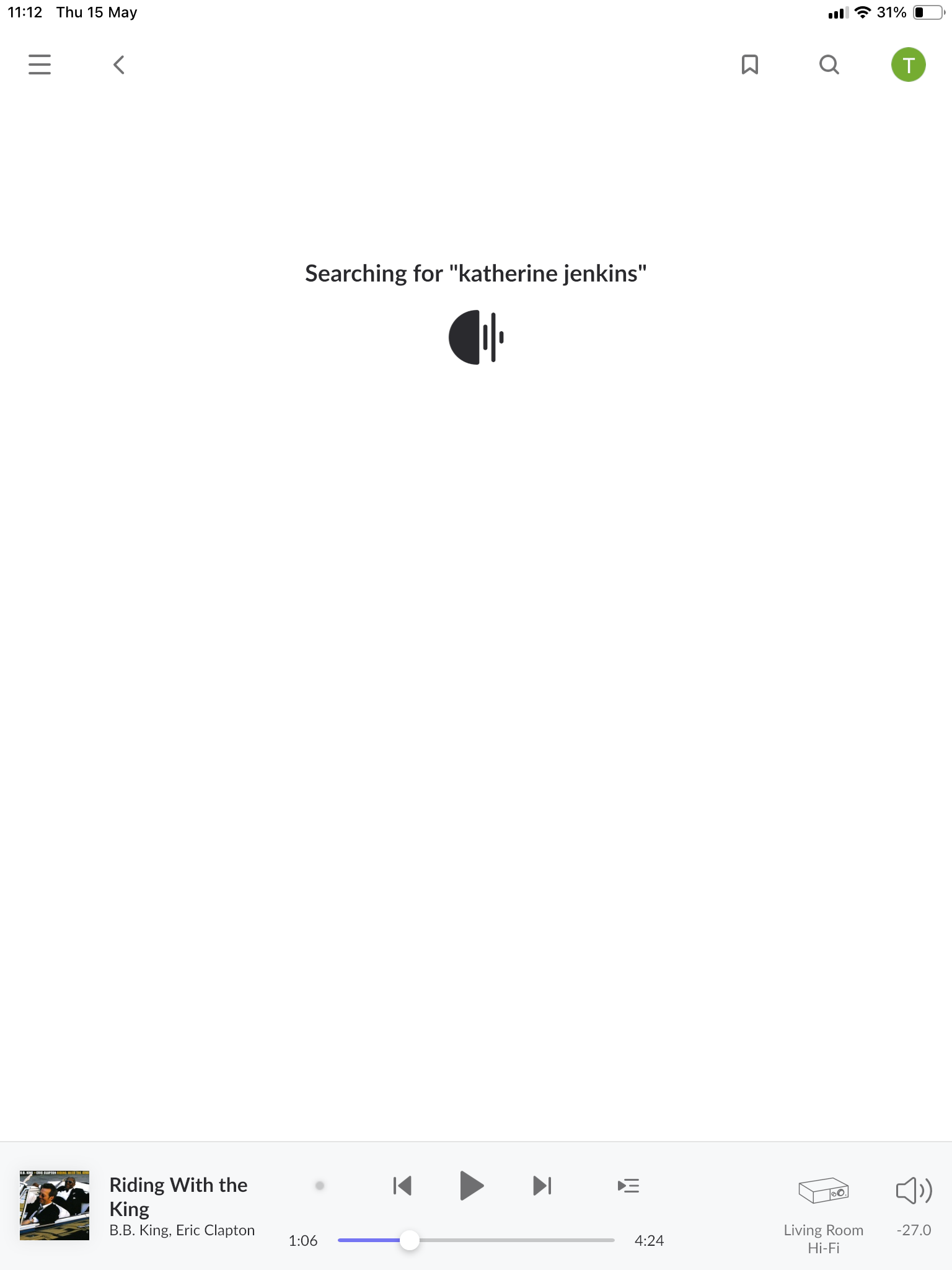
My problem is that I cannot search, at least I can enter an album or artist to search on but then it just endlessly searches with no result. My streamer is a Lyngdorf TDAI-1120 and my streaming service is Qobuz, do I need to change anything in these apps? Would it be anything to do with a changed IP address?
I have gone ahead and enabled diagnostics mode for your account, and I’ve been keeping an eye on our servers, waiting for the aforementioned diagnostics report.
For some reason, it is not reaching our servers, even after I tried re-enabling diagnostics on your account. I also ran a quick test,t and I was able to submit a similar report from my setup here, so something else is going on.
So we can move forward, I was hoping that now you could use the directions found here and send them to our Logs Uploader Service and let us know after, thanks!
Thank you for the update. On the Nucleus server, backups are located in the Data folder, not the backup folder
Nucleus Server
Be sure to replace NUCLEUS with NUCLEUSPLUS if you have a Nucleus+, NUCLEUSONE if you have a Nucleus One, and NUCLEUSTITAN if you have a Nucleus Titan.
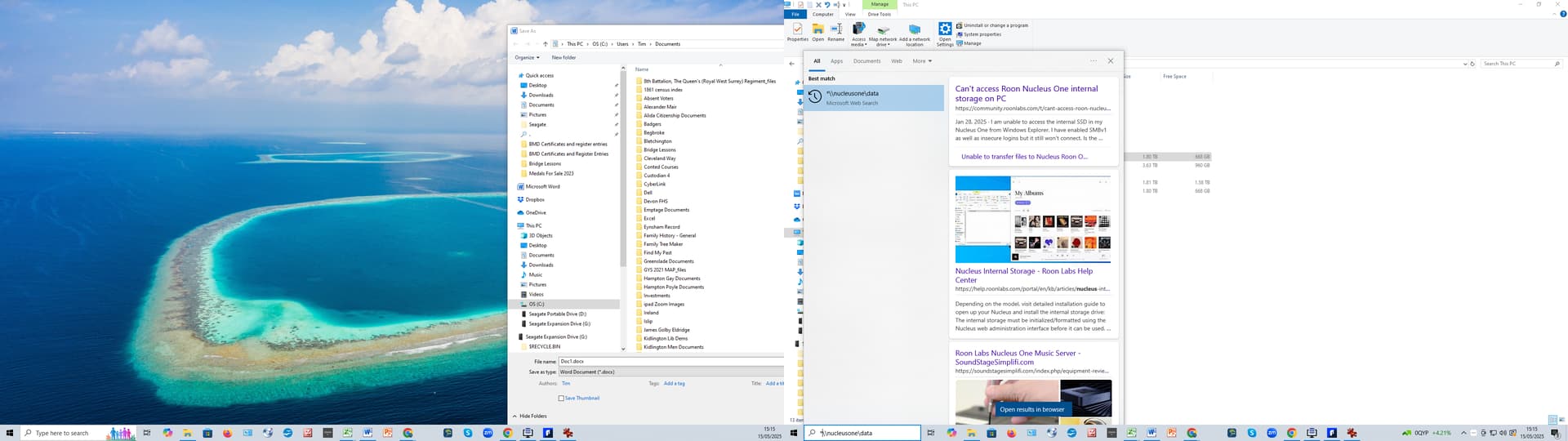
Using a Windows machine, open File Explorer and navigate to \NUCLEUS\Data and use Guest as the username and password. You should then see the RoonServer folder.
Using a Mac, open Finder and navigate to smb://NUCLEUS/Data and use Guest as the username and password. You should then see the RoonServer folder.
Obviously not, your Nucleus One is a separate device. But you can use your computer to access data on the Nucleus One – which is what you were requested to do. You do that as written in the guides by typing \\nucleusone\data into the address bar of Windows File Explorer.
Note: You may have to undertake additional steps to be able actually access the data.
Thanks for following up and sending over a set of logs @Tim_Emptage, does this issue occur no matter the Roon remote device you perform the search with?
We’re seeing some connection issues on your iPad around the time you’re performing searches, and I’m wondering if that may be part of the problem.
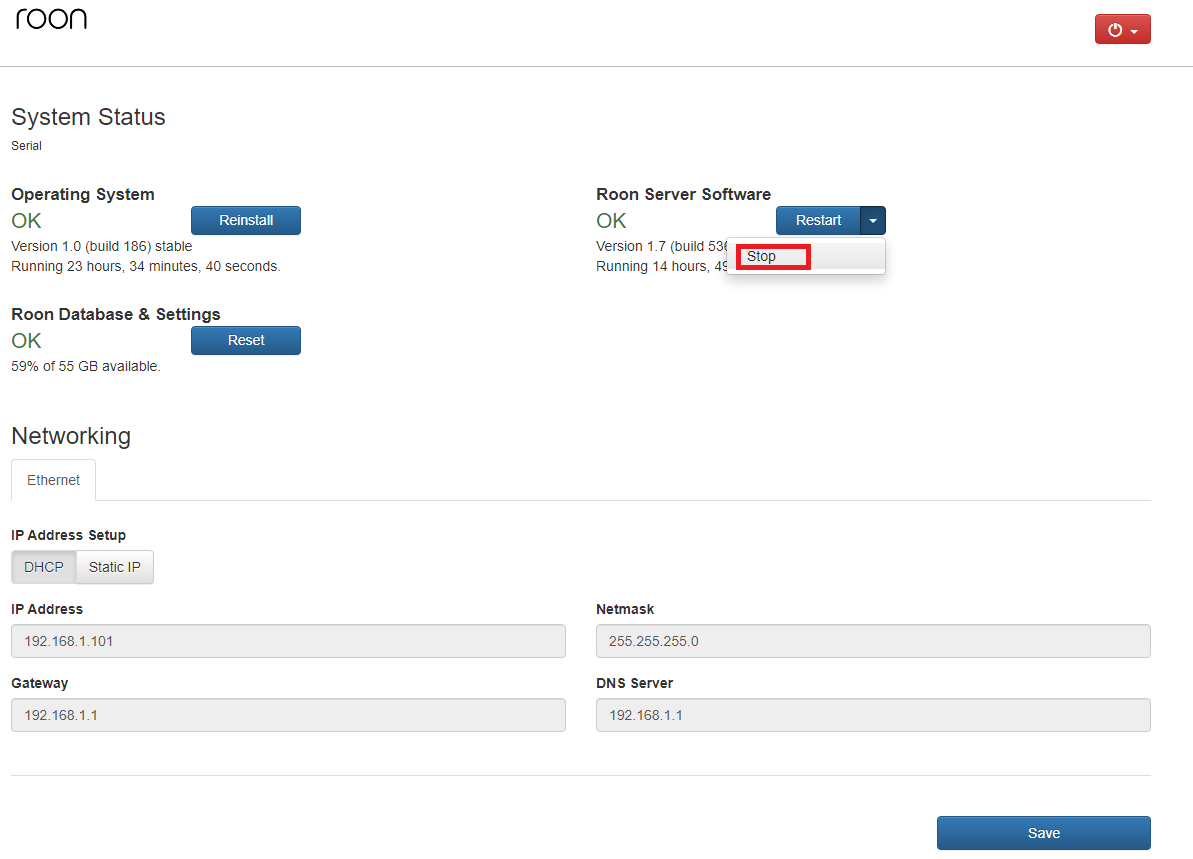
If you could, please safely stop Roon Server on your Nucleus, then power down both your Nucleus and your router, as well as your iPad, and see if you run into the same issue.
No worries at all! To access the webUI of your Nucleus:
Accessing the Web Interface from a Desktop and Tablet:
In Settings, on the Setup Tab
Accessing the Web Interface from a Mobile Device
In Settings, on the Setup Tab select Find:
You will then see a screen showing the network address of your Roon OS device. For example, something like this:
This IP address is a link . Click or press it and your web browser will open up the web administration tool. This will route you to the webUI (just like the screenshot above .)
From there, take another look at the screenshot Noris shared above - you can click the small blue arrow next to ‘Restart’ to select ‘Stop’ - and you’ve safely stopped Roon Server