Is the Nucleus showing up after pressing the Configure RoonOS button?
· No
Please try to reboot your Nucleus
· false
Please try rebooting your network equipment
· false
Nucleus Factory Reset
· false
The Nucleus HDMI output can provide very useful diagnostic information. This process will involve connecting the Nucleus via HDMI to a TV or monitor and then checking to see what is being displayed.
· Yes, I am willing to try the HDMI test
When you plug in the HDMI cable to the TV or Monitor, is there something being displayed on the screen?
· true
On the Nucleus HDMI output, what do you see?
· "Roon OS Web UI can be directly accessed at [https://xxx.xxx.xxx.xxx/](https://xxx.xxx.xxx.xxx/)" and the address is NOT http://169.254.XX.YY/
In the Roon app, please try to click on the "Select a different Roon Server" button. Are you able to reconnect to Nucleus from the list?
·
Describe the issue
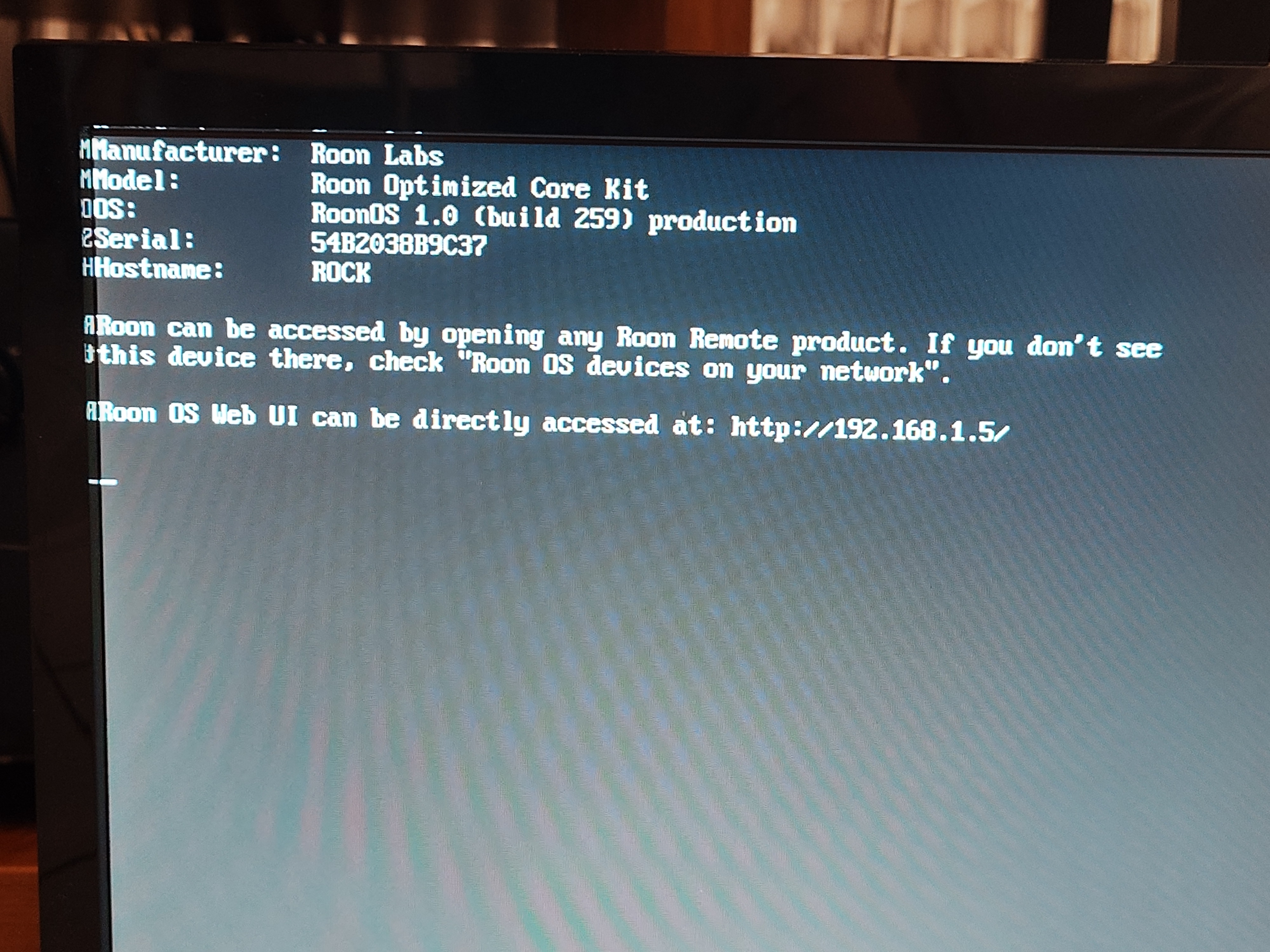
Hello, I'm trying to reach my nucleus (Rev B) web settings the wifi router and the screen connected via hdmi gives me an IP address that doesn't lead me to a valid web page.. i don't understand if it's a network problem cause the nucleus it's effectively connected. any kind of help wuld be awesome thx
To reset the network settings on a Roon Nucleus, connect it to a monitor and keyboard, then use the “resetnetwork” command. This is useful if the Nucleus has an inaccessible static IP address.
Steps to reset network settings:
Connect: Attach the Nucleus to a monitor (using HDMI) and a USB keyboard.
Power on: Turn on the Nucleus and allow it to boot.
Access the command prompt: Press ENTER on the keyboard to access the command prompt.
Enter the command: Type resetnetwork and press ENTER again.
Confirm: The network settings will be reset.
This procedure will reset all network settings on the Nucleus, including any static IP address assignments.
As a final step, reboot the server. It should now pickup a new IP address that you should be able to access the webUI and also detect with you Roon client devices.
Please try the suggestion above - based on the latest information in our diagnostic servers for your account, this Nucleus is not receiving an address from the DHCP server for your network.
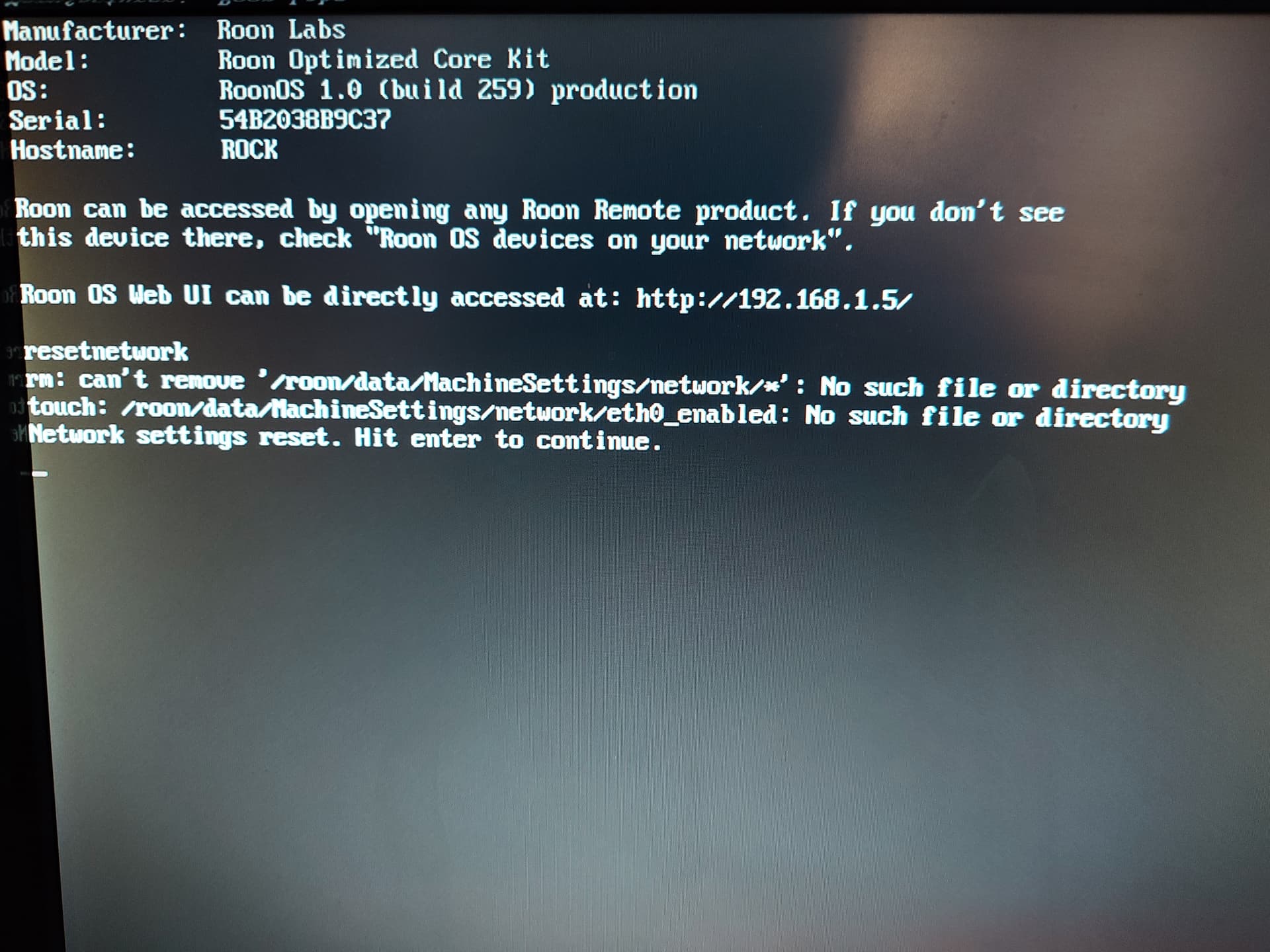
I’ve tried as you said connecting a monitor and a keyboard directly to the Nucleus device, but when I tried to enter the resetnetwork command the system replied as per attached pic, not leading me to a new IP address but with the same old one which it still gives me a not valid website
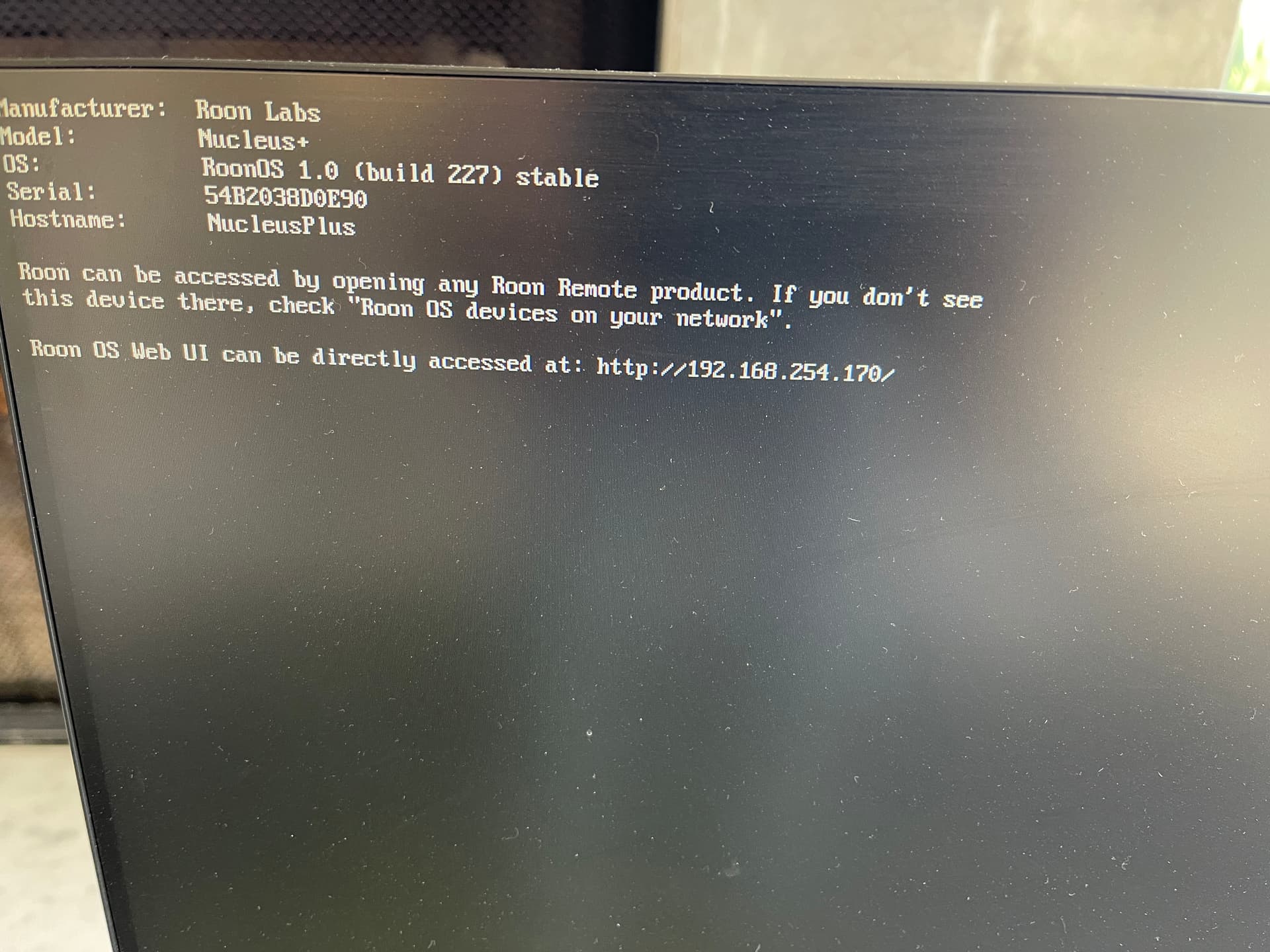
The Model field should be showing Nucleus (or Nucleus+, if your model is a Nucleus+) and the Hostname should be Nucleus (or NucleusPlus if your model is a Nucleus+).
Here’s an example of what you would see for a Nucleus+…
The fact that your model is showing ROCK information is usually a sign that the m.2 SSD is faulty. I expect that @connor will follow up with you after the weekend break.
Would you kindly let us know what makes you think that the IP address is invalid? From what we see in the diagnostic data, all your remotes are located in the same 192.168.1.0/24
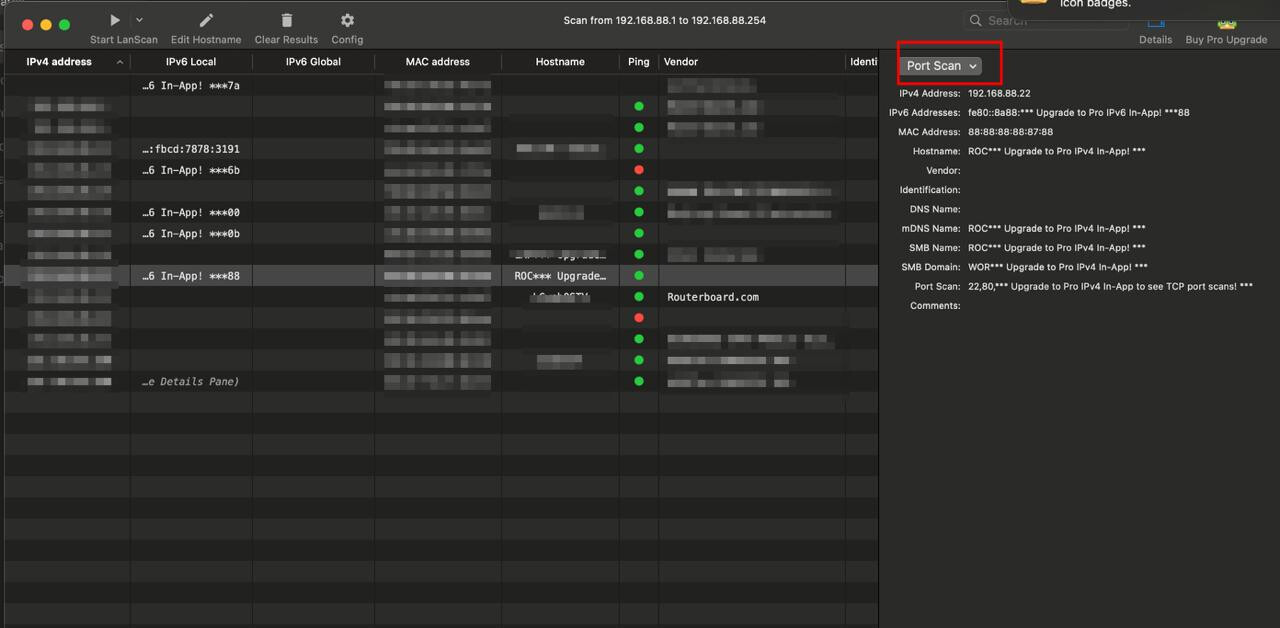
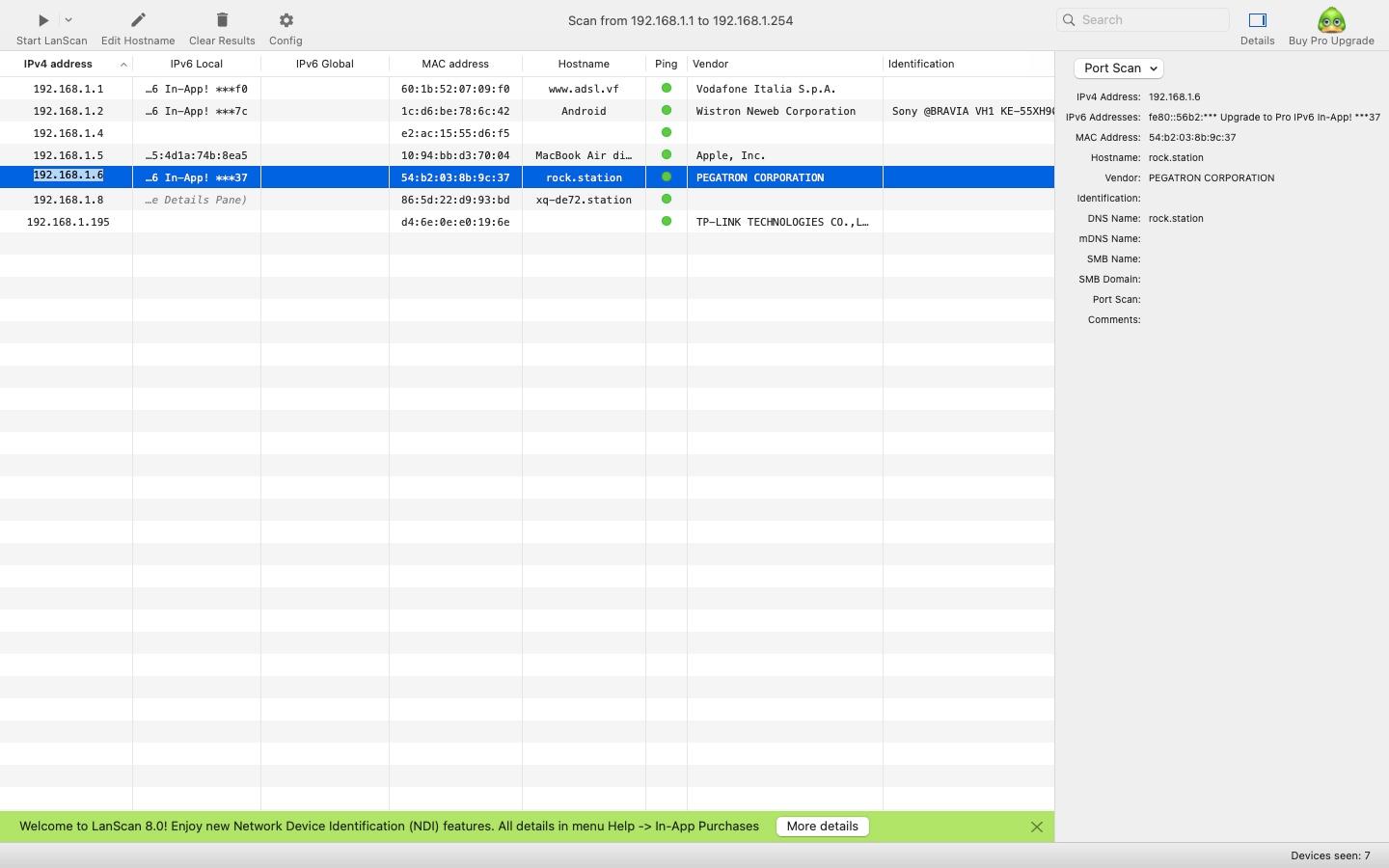
Would you kindly run the Advanced IP scanner on Windows or LanScan for macOS and provide us with the screenshot of the results? In the LanScan, please make sure to scan the ports available for the Nucleus.
Hi everyone, I tried to scan the correct IP address, you can see the attached picture, by saying “not a valid IP address” I mean, as per screenshot attached, the address lead me to a site that can be reached
I believe @Geoff_Coupe is correct in that you may be suffering from SSD failure on the Nucleus.
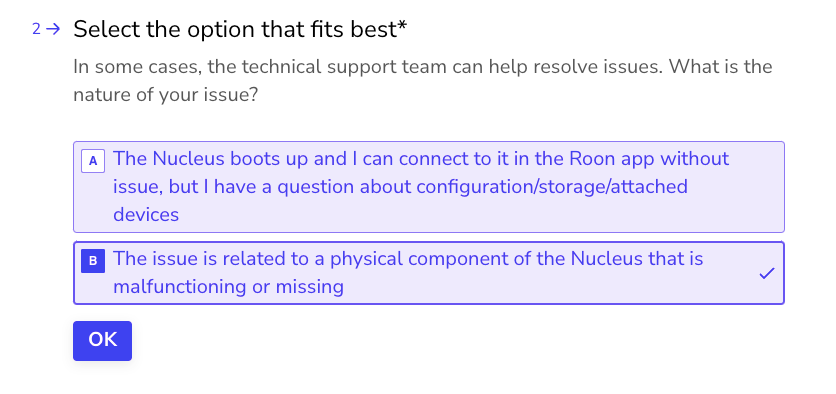
The best next step here is to get in touch with our RMA department directly, as they’re in charge of all hardware-related Nucleus issues. To do so, open the Typeform link below and select ‘Other’ followed by 'This issue is related to a physical component".