Well, I have everything loaded into the NUC and it’s showing up as a new core on the screen. If I can get this next issue solved I think I will be good to go. So, I have my MacBook Pro running with the old cores on it. Now I am trying to run/open/get my Mac to recognize the new Rock. Also, the rock is NOT showing up on my LAN SCAN when I run it checking for an IP address. I am getting flashing green lights on the back of my NUC and the other end of my Ethernet connection on my router. I’m getting a message on the NUC screen that it is not connecting properly.
Good afternoon. After not being able to get the Nuc recognized yesterday, I decided to start all over again from the beginning.
I am where I was last night with the NUC searching for an IP address.
Earlier this morning, through a LAN scan, I was able to see the NUC, but it had a red icon and was obviously not seen. At the same time I had my Macintosh on searching the ROCK.
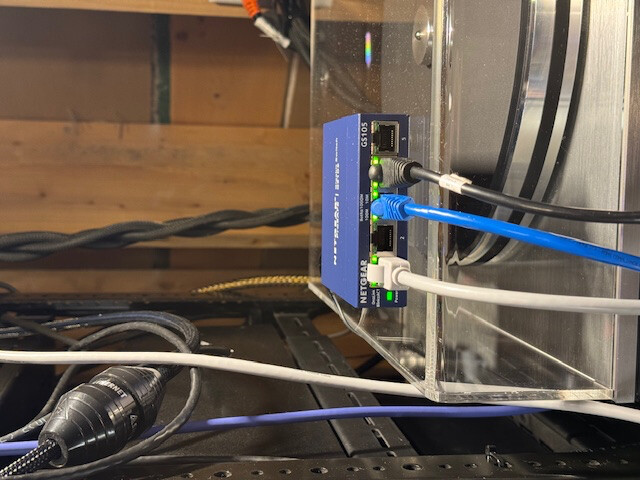
I switched cables; I hooked directly up to the router with a separate cable going only to my Mac and the NUC, and it still couldn’t find it.
The really great news is that I was able to get this far with your help, so I’m looking for some additional tips to get me up and running.
For reference, I am only trying to get this up and running to test some audio equipment, as I have a Grimm MU1 that is running well.
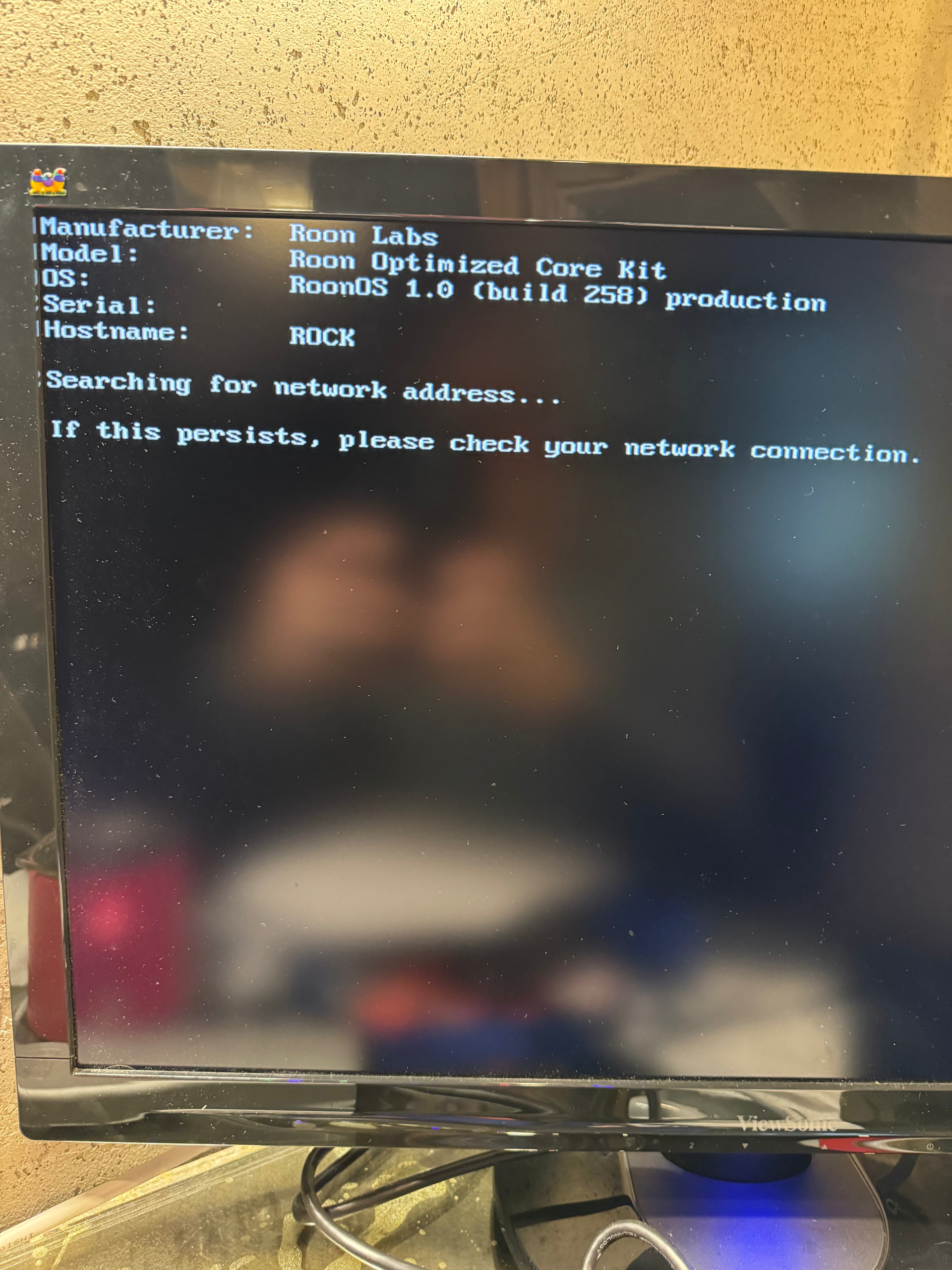
Looking at that screenshot, I see two issues that need to be addressed:
- It does not have a network address, so for some reason, the DHCP server in your router has not issued a network address to your ROCK/NUC. Try switching cables and/or router ports?
- It shows RoonOS 1.0 - an early version. Once you have solved the network issue, you must upgrade your ROCK/NUC to the latest version by following all the points in step 6 of the ROCK Install Guide.
@Geoff_Coupe @bearFNF @Suedkiez @vadim
Wanted to update everyone on my NUC status. My Luxul Switch and Router are both working properly and the DHCP has the proper settings. I spent 50 minutes on a screen share and performed various tests with Luxul support confirming this and I appreciate Geoff pointing this out so we can rule everything out.
@Geoff_Coupe @vadim @Suedkiez @bearFNF @benjamin
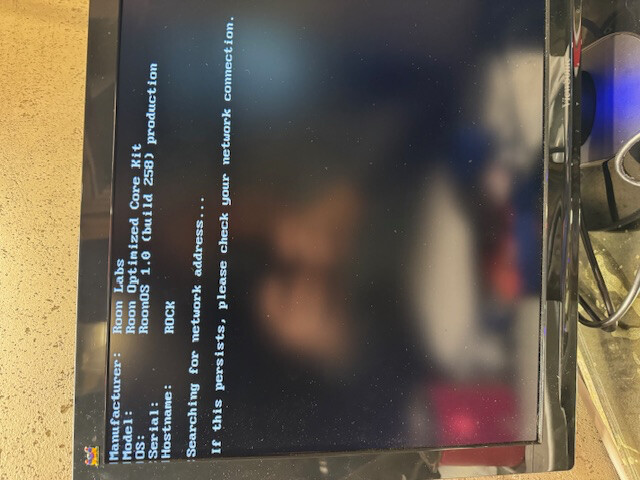
Wanted to provide an update since I have spent several hours trying to solve this issue of not being able to connect after everything loads. I purchased another New ASUS 14 NUC and spent another 2 hours with Tech Support from ASUS and they could not figure out why the NUC, despite have lights on on the back of the NUC LAN connection and on my mini switch why it will not connect. I am receiving the same error message I was getting last Friday when I wrote. I spent more time on the phone with tech support from Legrand/Luxul and the switch and router are working and giving off the DHCP properly and every other item we tested, even a couple devices that were new got ip addresses. Surely, somewhere we are missing something. So, after nearly 5 hours of dedicated tech support from these two companies and coming up with the same problem with 2 different NUCs it is about time for me to “punt the ball” Hopefully, someone has experienced this before in some other groups and if so please direct me to those people.
Best regards, Mark Wooters
See also:
Thank you for that information. Very much appreciated. I wasn’t aware of that. Wish someone from the Roon team would have told me last week when I was languishing. Ha Ha! Also, the ASUS people thought it was supported as well. Well I guess when 14 comes out I will be able to trouble shoot!!
Best! Mark
I think the NUC14 should work with some BIOS settings changes, see this thread:
Does look to me like ROCK is already installed - so not the issue. The issue seems to be that ROCK doesn’t have a driver for the network chip in the undisclosed type of NUC 14 of the OP (I assume it is a NUC 14 Essential with Realtek Ethernet controller).
NUC 14 Pro and Pro+ both come with Intel Ethernet controller, IIRC same as the older and supported (for ROCK) NUC’s, so i would assume that with one of those models the ROCK would get an IP-Address via DHCP on an active link.
@Suedkiez @Geoff_Coupe @bearFNF @vadim
Could you tell me if Intel NUC 12 PRO WSH i3/i5/i7 are compatible OR is it only Intel NUC 12 WSH i3/i5/i7 that are compatible? I’m having difficulty finding a 12 that is NOT a PRO with the WSH model numbers in it. Thanks.
Yes @BlackJack that is the item. The Essentials. The only thing I couldn’t do was get an IP address via DHCP. I consulted with my Router and Switch company and they verified that everything was set on my end for my network to work properly.Ironically, I was able able to get on the internet with the 14 Essentials just not with Roon. Mark
Hi @Mark_Wooters,
Both are compatible, you should be fine in this case!
@benjamin I’m going to try to do the NUC this am. When will you be working again for potential questions? Thank you! Mark Wooters
Hi @Mark_Wooters,
How have the last few days been? Our team is available Monday through Friday 9 am-5 pm, both in EST and PST. 
Thank you benjamin, I appreciate you getting back to me. So, a quick update is that neither of the ASUS 14’s I bought were able to get an ip from my system. I ended up purchasing an Intel 12 Pro NUC with 16 GB Ram and 512 GB storage and I was able to get an IP almost immediately. It was disappointing to me that I could not get the 14 to work after so many hours of labor, and I have heard people say that they have gotten 15’s to work recently as well. I would love to be able to troubleshoot that, but I’m still honing my skills and happy to say that I built my own Nuc. I have it all set up, and Wednesday or Thursday of this week I will pull my Grimm MU1 offline and “go live” with my NUC. Let me know if there is anything I should be aware of. I downloaded the latest software and updates. Thanks for being here benjamin!!
@BlackJack I was able to get the 12 Pro working and receiving an IP address. I downloaded the latest software and updates. I will test it Wednesday or Thursday and pull my Grimm MU1 offline. You should also know that I have heard from several people that have gotten 14’s to work as well as someone who got an ASUS 15 working also. Best, Mark
Hi @Mark_Wooters,
It’s great to hear that your NUC12 is working well! If you’re considering getting the other units up and running, I would suggest trying a Linux-compatible USB to Ethernet adapter to see if the issue persists, these are quite cheap nowadays. This can help determine whether the on-board Ethernet might be the source of the problem. Also, please make sure that IPv6 is disabled on your router, as this can sometimes affect connectivity. If the NUC12 setup meets your needs perfectly, there’s no pressure to test further. Let us know how you’d like to proceed, or if you have any questions!
Hi @Mark_Wooters,
Just circling back on this. Have you had a chance to try a Linux-compatible USB to Ethernet adapter on the other units to see whether the onboard Ethernet is part of the problem, and to confirm that IPv6 is disabled on your router? If the NUC12 is covering everything you need, that is completely fine too, just let us know which way you’d like to go.
Noris, thank you for reaching out. I have successfully built the NUC and have it connected via Ethernet. When I go on my MacBook Pro, I am able to see it, and the IP address is popping up on my screen where the NUC is connected. As far as hooking it up, I must admit I am a bit nervous. My system currently consists of a Grimm MU1, a Synology NAS, and I’m using a Master Fidelity NADAC DAC + Clock. I built the NUC to properly test the NADAC DAC because the DAC requires a USB connection, and my Grimm only outputs AES and SPDIF. I don’t want to mess up my Grimm connection or my NAS if it doesn’t work out and I have to switch back to my other connection with the Grimm. Let me know of any safeguards you can think of.
Hi @Mark_Wooters,
Completely understandable that you’re nervous. High end setups like yours are carefully tuned and no one wants to break a perfectly working system.
The great news is that testing the NUC is 100% reversible and Roon is designed to make this safe. Your ultimate safeguard here is a Database Backup. Here is how to safely transition without risking your current Grimm/NAS setup:
- Create a Backup
- While still connected to your Grimm MU1, go to Settings > Backups in the Roon app and click Backup Now. Save this backup to a USB stick or a dedicated folder on your Synology NAS.
- Once the backup is complete, go to Settings > General and click Disconnect (this just unpairs your Roon Remote app from the Grimm Core; it doesn't delete or change anything on the Grimm).
- Connect your new NUC to your Master Fidelity NADAC via USB.
- Connect your Roon Remote (on your MacBook) to the new NUC Core.
- When prompted, choose "Restore a Backup" (do not set it up as a new Core) and select the backup file you just made.
- Your NAS is protected: Roon only reads your music files from the Synology NAS. It cannot alter, delete, or reorganize your actual audio files.
- Your Grimm remains untouched: Making a backup and disconnecting the app does not change the Grimm's internal state. If the NUC test fails or you simply prefer your old setup, just turn off the NUC, open Roon, and reconnect to the Grimm Core. It will be exactly as you left it.