· I use Roon to listen to music on my PC. Today, like many other times, I ran an update, and then Roon disappeared from my PC. I downloaded and reinstalled the program, which appears on the desktop with two shortcuts: Roon and Roon Server. But neither of them launches. I checked the Windows Task Manager to make sure there are no Roon processes running. I tried checking the Windows Security settings under "Virus & threat protection" -> "Protection history," but there's nothing in the protection history. Not even any blocked actions or items. I also tried temporarily disabling the following in Windows settings: antivirus, real-time protection, and folder access control. Still, to no avail.
Tell us about your home network
· The router is the one provided by the telephone company. I don't use a switch or extender because I connect my PC directly to the DAC via USB. I don't use a VPN on my PC for music. I listen from my private archive and not via streaming.
I had ChatGPT analyze the crash log .WER file.
Its analysis is as follows:
This is the crash:
App: Roon.exe
Error module: KERNELBASE.dll
Exception code: 0x80131506
Handled .NET runtime error (CLR exception)
In essence:
Roon is crashing before it even starts because the .NET runtime is broken/missing/incompatible.
The code: 0x80131506 is not random → it’s typical of:
.NET runtime not working
corrupt installation
version mismatch
And it perfectly explains your “I click and nothing happens” error.
The analysis you got from ChatGPT is spot on. That 0x80131506 code is a “Fatal Execution Engine Error”—it means the .NET runtime itself is essentially tripping over its own feet before Roon can even finish its morning coffee.
Since you’ve already tried the database refresh and a basic reinstall, we need to go a level deeper into the Windows environment. Here is how to get the engine running again:
1. Repair or Update the .NET Runtime
Roon relies heavily on the .NET framework. Even if it looks installed, the specific update might have corrupted a shared library.
Additionally: Ensure you have the latest .NET Desktop Runtime installed (Roon in 2026 generally utilizes .NET 10 or higher). You can find the latest version on Microsoft’s official site.
2. Update Graphics Drivers
It sounds strange, but Roon’s interface uses OpenGL. If your graphics drivers (Intel, NVIDIA, or AMD) had a hiccup during a Windows update, the .NET runtime will crash immediately while trying to initialize the GUI.
The Fix: Go directly to the manufacturer’s website (e.g., NVIDIA.com or AMD.com) to download the latest driver. Do not rely on Windows Update for this, as it often provides a generic version.
3. Check for Antivirus “Ghost” Blocks
You mentioned disabling your antivirus, but some security suites (like Bitdefender or Sophos) keep their “active injection” drivers running even when “disabled.”
The Fix: Instead of disabling it, try adding the Roon installation folder as an Exclusion in your antivirus settings.
The path is usually: C:\Users\[YourUsername]\AppData\Local\Roon
4. Perform a “Clean” App Reinstall
Sometimes a simple reinstall leaves behind corrupted binaries in the application folder.
Uninstall Roon via the Control Panel.
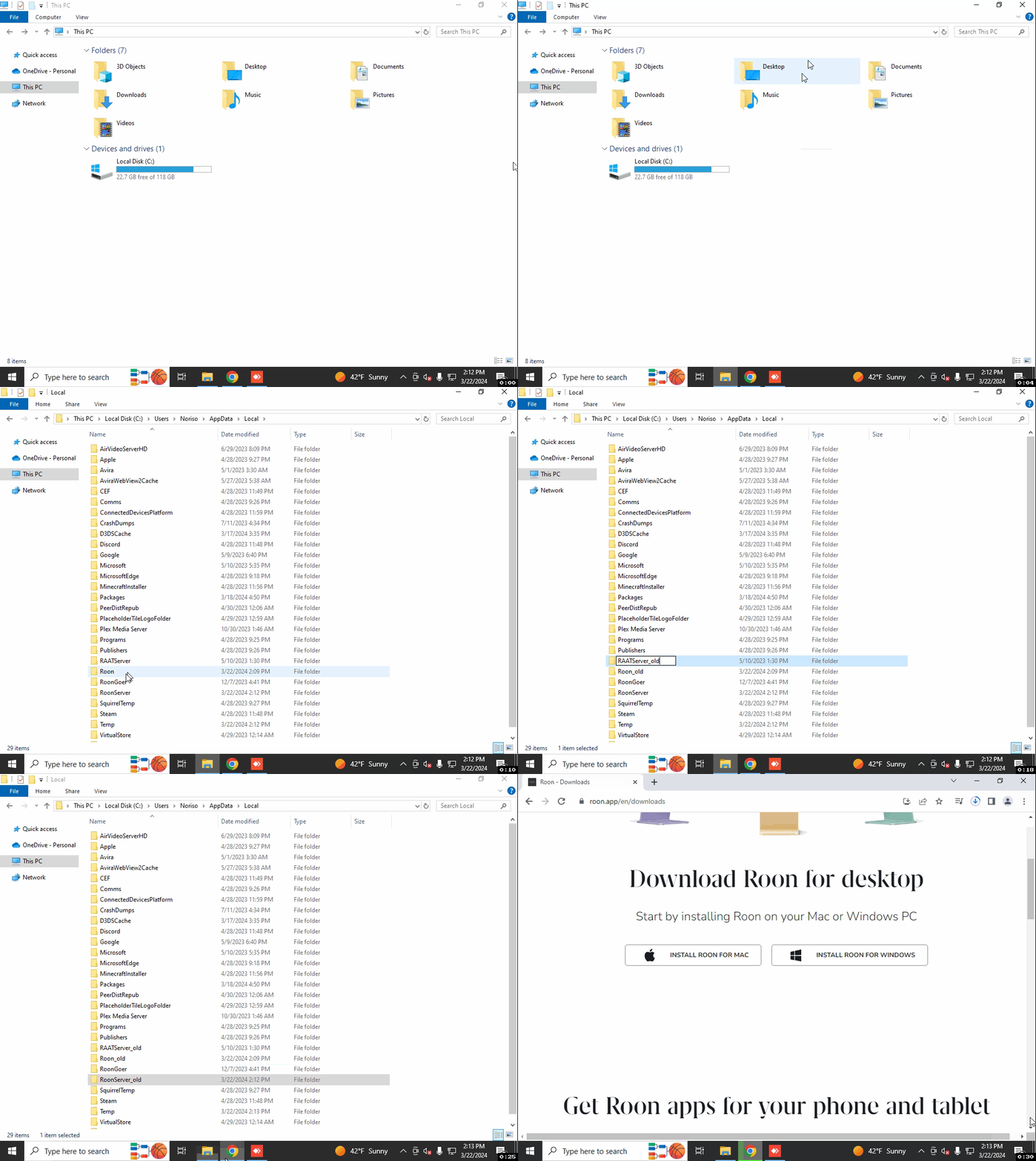
Manually rename the Roon and RoonServer folders in AppData\Local to “XXXXX_old”
Restart your PC.
Download a fresh installer and try again.
If it still won’t budge after these steps, please check your Windows Event Viewer (under Windows Logs > Application) for any new “Error” entries right at the moment you try to launch. Those logs are the smoking gun we need.
Hi Vadim.
First I updated the .NET Desktop Runtime, then I installed the Microsoft .NET Framework Repair Tool.
After that, I updated my video card drivers.
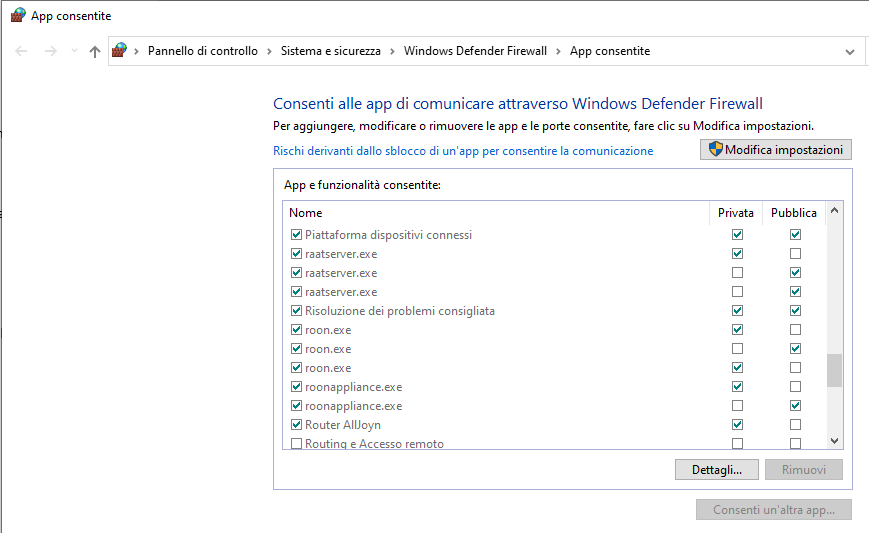
I don’t have antivirus software on my PC; I only use it for listening to music.
Then I uninstalled, rebooted, and reinstalled Roon. Still nothing starts.
Where can I find the Windows Logs? Because in the operating system memory it only finds a CDF-MS file from 2022.
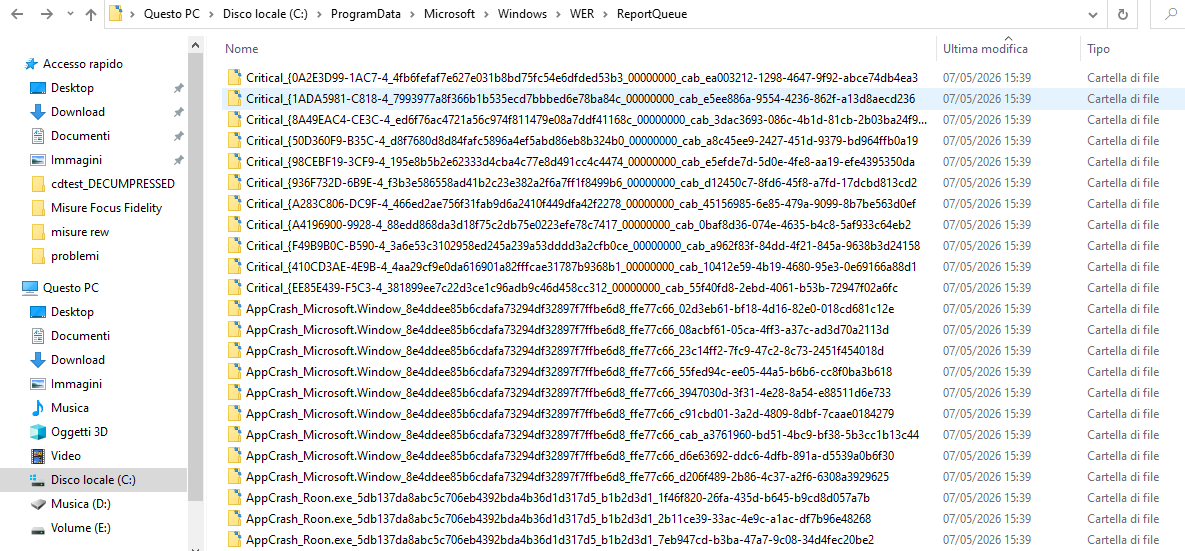
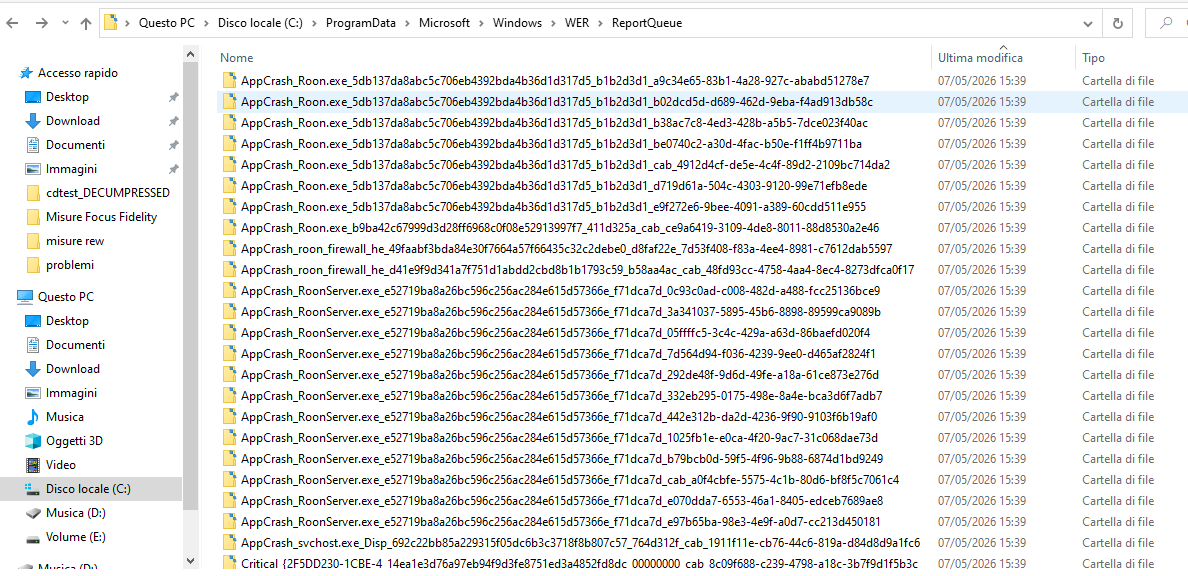
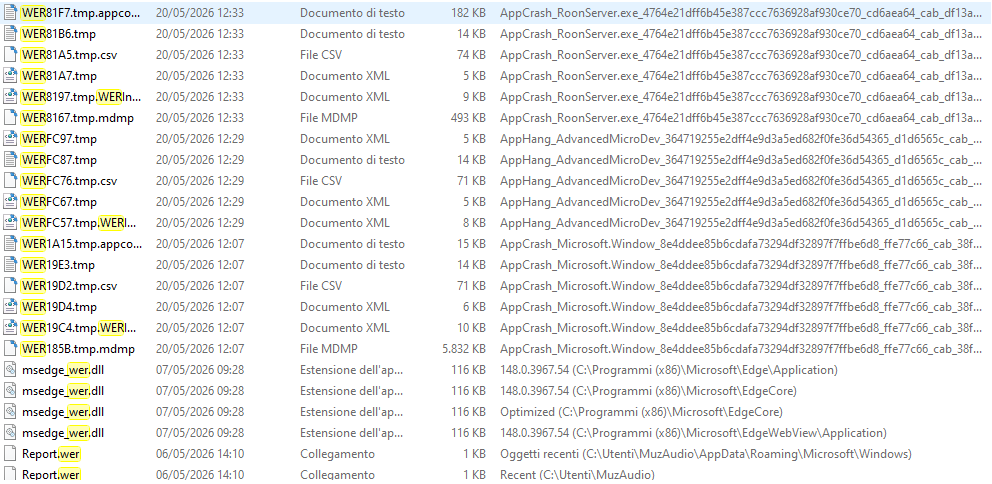
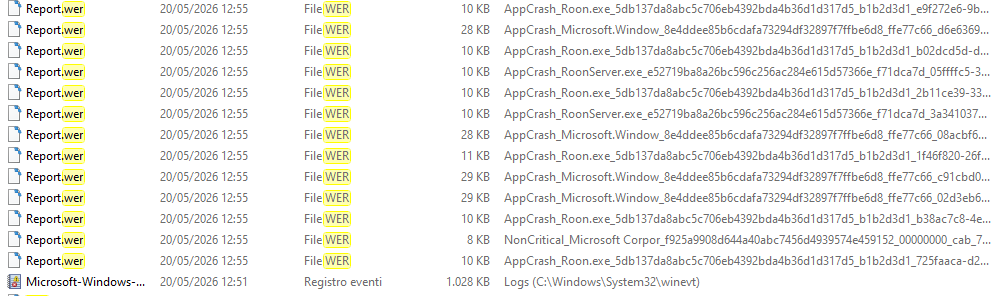
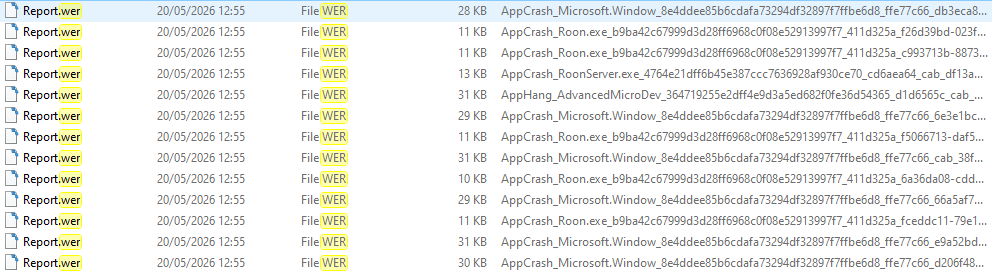
I am attaching the screenshots of the WER reports.
But isn’t there an email address for technical support? I can’t find it on the website. It would be faster and more efficient. I haven’t been able to use Roon for almost two months.