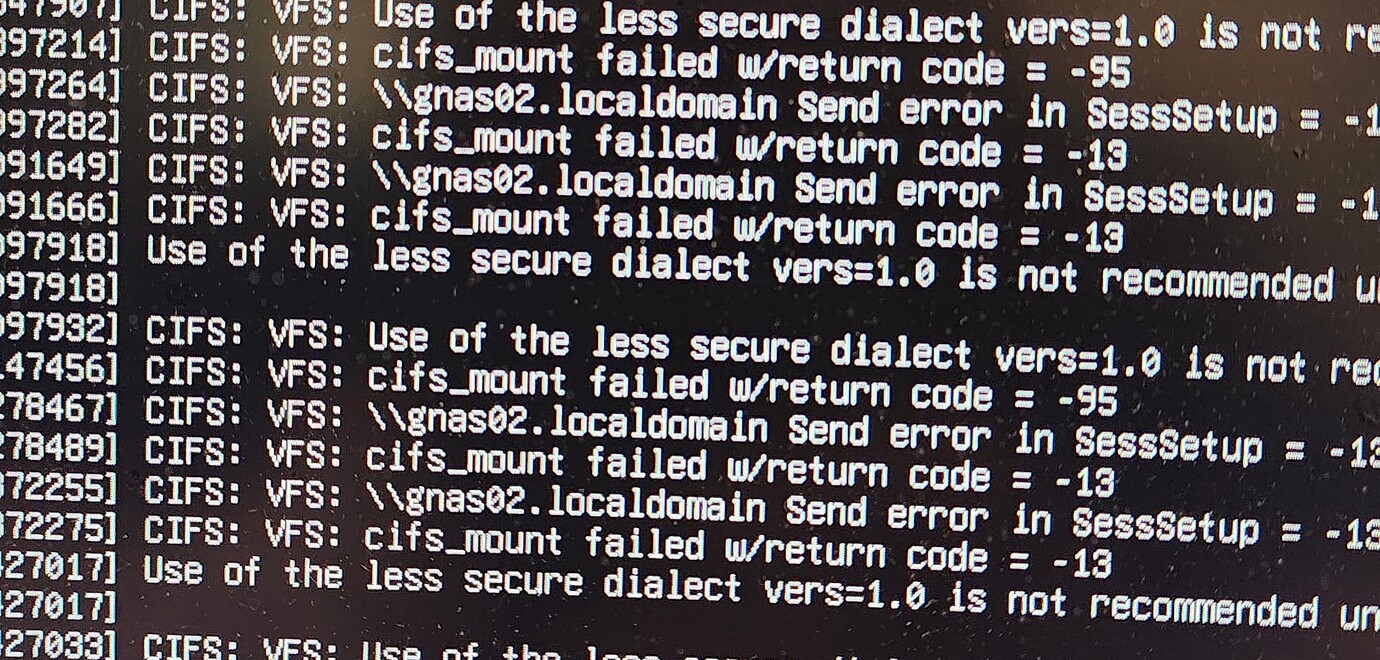
This issue was originally brought up by @Michael_Galusha in this thread (the screenshot originates from
The issue wasn’t picked up and addressed by Roon yet, so making it an official support request is in order.
You will find some information on the issue in the thread linked above.
Below are my findings findings:
—————
Connecting to NAS shares from within the Roon application no longer works and triggers the above shown error codes on the console display.
My NAS (Synology, DSM 7.3) only allows for SMB v2 and v3 connections which worked fine in the past with Bookworm.
So for debugging purposes, I re-enabled SMB v1 on the NAS, but still no luck connecting to the NAS. This indicates that the SMB v1 connection is already refused on the client side by the updated CIFS version of trixie and not on the server side.
Making connections manually through the operating system (either using mount commands or dietpi-drive_manager) works fine though, even without specifying a version in the mount options (see EDIT below!), and shows SMB v3 being used.
Most likely reason for this behavior is that Roon uses “vers=1.0” as default in the mount options when trying to make connections which has been tolerated by the Host Linux OS up to Bookworm, but no more with Trixie.
Time for Roon to update their code as this problem will affect more and more users with ongoing updates from bookworm to Trixie!
EDIT:
According to the man page, CIFS defaults to SMB v2.1 or higher, if no “vers=xy” attribute is passed.
To verify this, I tried a simple mount command from the console without specifying a version string, which was successful and shows no errors on the console and “SMB3” as protocol being used.
EDIT2:
Strangely enough, when enabling SMB v1 on the Server and manually mounting the share via the command line with “vers=1.0” you get the warning on the console (error code 95), but the connection is established with SMB1.
Same thing still doesn’t work when trying to add the network share via the Roon App with error code 13 (authentication failed). So SMBv1 works if it forced and isn’t blocked on client side by Trixie after all.
So Roon must be doing something more in the mount options that causes authentication to fail. Maybe forcing NTLMv1 password hashing in security attributes or something else that is no longer supported by modern OS’es?
Means that there is something wrong with the provided Username / Password combination (or none was given at all). Please troubleshoot and fix this. Note: SMB v2 and newer requires authentication (Username / Password). See also:
I don’t think that Roon will force SMB v1. SMB v1 is insecure and deprecated, even by Microsoft, its use should be avoided.
Of course i double checked that user name and password provided were correct. Using the same user name and password for making manual connections on OS level ( mount.cifs ….) works without issue.
Also i‘m not sure what roon does with SMB version, but every single time when trying to make a connection from within the roon app the warning message regarding smb v1 pops up on the console which indicates that a smb v1 connection was requested.
Well, let‘s see what Roon support comes up with after the holidays. This issue shouldn‘t be too difficult to reproduce and might affect a large number of users running Roon on debian based linux.
mjw
(Father! Father! Resist not! Let us destroy the core! Set us free!)
6
Most likely an issue with the server configuration that previously worked but is now locked down in Trixie. Therefore, posting output of testparm -s would be helpful.
Trixie is being used on the client side, not the server side regarding SMB connections. The client is hosting Roonserver, trying to connect to an SMB share on the server for database backups.
Roonserver machine (SMB Client):
GMKTec G3plus mini PC
OS: Dietpi 9.20 (Debian Trixie)
NAS (SMB Server):
Synology DS218+
OS: DSM 7.3
Issue:
Adding an network share hosted on the NAS (SMB Server) from within the RoonApp doesn‘t work anymore after updating the Roonserver machine (SMB Client) from Bookworm to Trixie.
Network shares that have been added previously to the OS update don‘t work anymore either,
Mounting the same network shares manually from the command line or using the DietPi drive manager works fine as expected, even when forcing SMB v1.
Nothing changed on the NAS (SMB Server). Also Roonserver (SMB Client) is able to make SMB conections to the NAS (SMB Server) running on DietPi 9.19 (Debian Bookworm).
So i don‘t understand why running testparm on the SMB Client should be of any help. Runing it on the server (NAS) might be of the right place, but i‘m not sure, if this command is even available on the NAS when logging in via SSH. After all, the smb.conf on the NAS is administered by the OS and not directly editeable by the user.
Also, the above efforts show, that there‘s nothing wrong both on the server side (NAS) and the Client side (Roonserver machine), as manual connections work fine on OS level even for SMB v1, if allowed on Server side.
The issue must be with an unknown incompatibility between how the roon appliance (Client) handles SMB connections and changes in Debian Trixie.
mjw
(Father! Father! Resist not! Let us destroy the core! Set us free!)
8
No, there’s no misunderstanging. I’m asking for output from the server not the client: “Most likely an issue with the server configuration”.
Let’s see the server config. It’s an authentication issue, which may have surfaced with the client upgrade.
testparm actually works on DSM via ssh, here’s the output:
[global]
passdb backend = smbpasswd
printcap name = cups
realm = *
security = USER
server min protocol = SMB2
server signing = if_required
smb2 leases = Yes
winbind enum groups = Yes
winbind enum users = Yes
winbind expand groups = 1
workgroup = HOME
notify:synotify = yes
rpc_server:msftewds = external
rpc_daemon:wspd = fork
fruit:locking = none
rpc_server:mdssvc = external
rpc_daemon:mdssd = fork
tdb_hashsize:netsamlogon_cache.tdb = 768
tdb_hashsize:smbprofile.tdb = 1536
tdb_hashsize:leases.tdb = 10007
tdb_hashsize:smbxsrv_open_global.tdb = 10007
tdb_hashsize:locking.tdb = 10007
tdb_hashsize:smbxsrv_tcon_global.tdb = 768
tdb_hashsize:smbxsrv_session_global.tdb = 768
idmap config * : backend = syno
durable handles = No
include = /var/tmp/nginx/smb.netbios.aliases.conf
strict sync = No
[RoonBackup]
comment = “”
edit synoacl = Yes
guest ok = Yes
hide unreadable = Yes
invalid users = nobody,nobody
path = /volume1/RoonBackup
read list = nobody,nobody
read only = No
service exist = Yes
skip smb perm = Yes
syno fstype = 2
valid users = nobody,nobody
win share = Yes
write list = nobody,nobody
But again, I don’t think this is the right place to search. There’s no general problem in connecting to the NAS from any machine, even not from the RoonServer machine when making connections on the OS level.
It’s just the Roon appliance, that can’t connect anymore.
My best guess would be, that roon uses a credentials file instead of “-o username=xxx,password=yyyy” as you would use on manual mounts and something in this credentials file isn’t correctly read or juts not supported anymore by Trixie over Bookworm on the Client side.
mjw
(Father! Father! Resist not! Let us destroy the core! Set us free!)
10
You have issues in smb.conf that need to be resolved, i.e., guest ok = Yes, and then invalid users = nobody,nobody and valid users = nobody,nobody. The comment appears to include invalid characters, too.
During my adventures with Roon restores and operations, I bumped into a “backup over share” issue on Dietpi (which was installed with Trixie, not Bookworm). I could not for the life of me get a share to work from within the Roon UI for backups (constant authorization failures), which had previously been working very well under Rock.
However, I was successful in mounting outside of Roon, via Dietpi drive_manager and using that external mount point as a backup location (same location, same user, same password, no auth issue). I will note that I had gone through various experiments mounting with different SMB versions, etc., all to no avail via the UI, though.
For this particular use case (backups), my current method is working without issue. I have not, however, diagnosed what Dietpi might be doing differently with its mount operation to be successful, such that it could assist other use cases e.g. music shares, nor with Trixie “not Dietpi”.
1 Like
Torben_Rick
(Torben - A Dane living in Hamburg - Roon Lifer)
12
Thanks
I am running Dietpi (Trixie) and everything is updated (SW). But I do get:
root@DietPi:~# testparm -s
Load smb config files from /etc/samba/smb.conf
lpcfg_do_global_parameter: WARNING: The "syslog only" option is deprecated
lpcfg_do_global_parameter: WARNING: The "syslog" option is deprecated
lpcfg_do_global_parameter: WARNING: The "encrypt passwords" option is deprecated
Loaded services file OK.
Weak crypto is allowed by GnuTLS (e.g. NTLM as a compatibility fallback)
Below /etc/samba/smb.conf
[global]

	workgroup = WORKGROUP
	server string = %h server
	dns proxy = no
	log file = /var/log/samba/log.%m
	max log size = 1000
	syslog only = no
	syslog = 0

	panic action = /usr/share/samba/panic-action %d

	security = user
	encrypt passwords = true
	passdb backend = tdbsam
	obey pam restrictions = yes
	unix password sync = yes

	passwd program = /usr/bin/passwd %u
	passwd chat = *Enter\snew\s*\spassword:* %n\n *Retype\snew\s*\spassword:* %n\n *password\supdated\ssuccessfully* .
	pam password change = yes
	map to guest = bad user

	load printers = no
	printcap name = /dev/null
	disable spoolss = yes

[DietPi]
	comment = DietPi Share
	path = /mnt/dietpi_userdata
	browseable = yes
	create mask = 0664
	directory mask = 0775
	valid users = root
	writeable = yes
max connections = 32
I did a quick search and found this info that might help:
For the syslog warning:
The syslog and syslog only options in smb.conf are deprecated and may be removed in a future release of Samba. They have been replaced by the more powerful and granular logging parameter.
Resolution
To resolve the deprecation warning, you should remove the old syslog or syslog only entries from the [global] section of your smb.conf file (typically located at /etc/samba/smb.conf) and replace them with the logging parameter.
Here are some common configurations using the logging parameter:
To log to a specific file and send messages to syslog with a default threshold (level 1):
This sends log messages to both the system logger and separate files per machine (%m).
For the encrypt passwords warning:
The encrypt passwords option in the Samba configuration file (smb.conf ) has been deprecated because encrypted passwords have been the default behavior since Samba 3.0.0. Modern Samba versions and Windows clients use secure authentication protocols (NTLM, NTLMv2, and Kerberos) that inherently require encryption, making the explicit parameter redundant and associated with the insecure, obsolete SMB Version 1 (SMBv1) protocol.
Action Required: If you see a warning in your logs or when running testparm that “The ‘encrypt passwords’ option is deprecated”, you can safely remove the line from your smb.conf file.
Once again, this is the smb.conf of the NAS Server (OS: Synology DSM) which is not meant to be modified by the user but instead is administered by the OS itself based on permission and security settings done by the user in the GUI.
All share configurations look this way by default. My guess is that this is the way Synology handles permissions in order to avoid double configurations for OS users and SMB users, i.e. allow guest access, skip smb permissions and handle permissions outside SMB using ACLs.
In my case, user “roonbkp” is the only user that has access to the share. Guest access is not permitted and not possible. This is working perfectly fine in all Client OS configurations (Windows, MacOS, Linux, RoonOS(ROCK)) except for the above outlined issue for Roonserver running on Debian Trixie and in this case even only of the roon appliance, not the Linux OS itself.
I’m not going to brick my NAS by making changes to smb.conf! This is the wrong place to look for the issue.
Instead Roon needs to investigate what has changed in CIFS-utils between debian bookworm and debian trixie that prevents roon appliance from making SMB connections. Again, mounting SMB shares manually through command line works just fine as @mookr also pointed out.
Hi @Torben_Rick ,
this is the output of smb.conf file on the DietPi machine (client) which is not relevant in this case.
On client side, CIFS-utils are used to mount smb shares on other smb servers on the network, which doesn’t work anymore in debian Trixie when configured through the roon appliance but still works, when manually configured through the command line or diet pi-drive_manager.
Here’s what roon logs show on trying to mount a SMB share through the roon appliance:
12/28 09:27:31 Trace: [roon/cifs] [roon/cifs] Got exception trying to create mount directory, retrying with sudo mkdir. Exception message: System.UnauthorizedAccessException: Access to the path ‘/mnt/RoonStorage_7d10b9e474fd784cc039ec9eab9c5bb5bf389023’ is denied.
—> System.IO.IOException: Permission denied
— End of inner exception stack trace —
at System.IO.FileSystem.CreateDirectory(String fullPath)
at System.IO.Directory.CreateDirectory(String path)
at Roon.CIFS.CIFSUtil._CreateDirectory(String s)
So the permission error seems not to be with the SMB server but with to local folder in /mnt created by roon appliance as a mount point for the SMB share. Indeed permissions for the directory created are “755” instead of “775” which would be needed to write to the folder.
Seems like we have been looking in the wrong spot all the time.
mjw
(Father! Father! Resist not! Let us destroy the core! Set us free!)
17
As I said, look at the server config since there is an authentication issue, i.e., mount error, permission denied.
Again, you’re wrong.
See my post above with excerpts from the roon log. The permission error is with creating the mount point folder in the “/mnt” folder on the Client machine, not with server side permissions.
mjw
(Father! Father! Resist not! Let us destroy the core! Set us free!)
19
Permissions are defined by the Samba user set in the server config. chmod 775 (or 777 for that matter) is not the correct way to solve the issue. But I’ll bow out now.
I agree, that manually modifying access rights via chmod won’t solve the issue. The mount point folder needs to be created with sufficient access rights in the first place.
To make it clear: the roon GUI doesn’t show “authentication error”, but “unexpected error” as error message. The authentication error (-13) only pops up on the console.
Below my findings on the differences in ownership and access rights of the mount point folder when created by roon appliance and manually created on OS level.
A) Mount point folder created by roon appliance (/mnt/RoonStorage_…):
owner:group: root:root
mode: 755 (owner: r/w, Group: read, everybody: read)
This makes sense, as per the roon log the folder “/mnt/RoonStorage_…” was created with “sudo mkdir”.
So the user “roonserver” cannot write to the folder, which however is needed for backup purposes.
Consequently, adding the shared folder fails.
Even adding user “roonserver” to the group “root” (which cannot be recommended for safety reasons) shouldn’t work, because of missing write permissions for the group “root”.
B) Mount point folder created by diet pi-drive_manager (/mnt/roonbackup)
owner:group: root:dietpi
mode: 770 (owner: r/w, Group: r/w, everybody: no acces)
The user “roonserver” is member of the group “dietpi” so it can access the folder for r/w when pointed to it through the roon gui without issue.
I think, this should be enough information for the Roon support team to dive into this issue after the holidays.
What user “roonserver”. Roon Server as distributed by Roon Labs is installed and expected to be run as user “root”. Maybe Roon Sever for DietPi got distributed and installed by a preconfigured package (install script)? Then you should probably contact the package maintainer to discuss a solution. See also: