I’ve recently upgraded my router to an Eero Pro 6E from the Verizon provided equipment. At first, I wondered why Roon could no longer find the Nucleus+ even though everything is hard-wired, but then I found the posting about connecting a monitor via HDMI, a USB keyboard, and using resetnetwork command. That got me back online.
Now I’m working on the two remaining errors: Tidal login and internet connection errors.
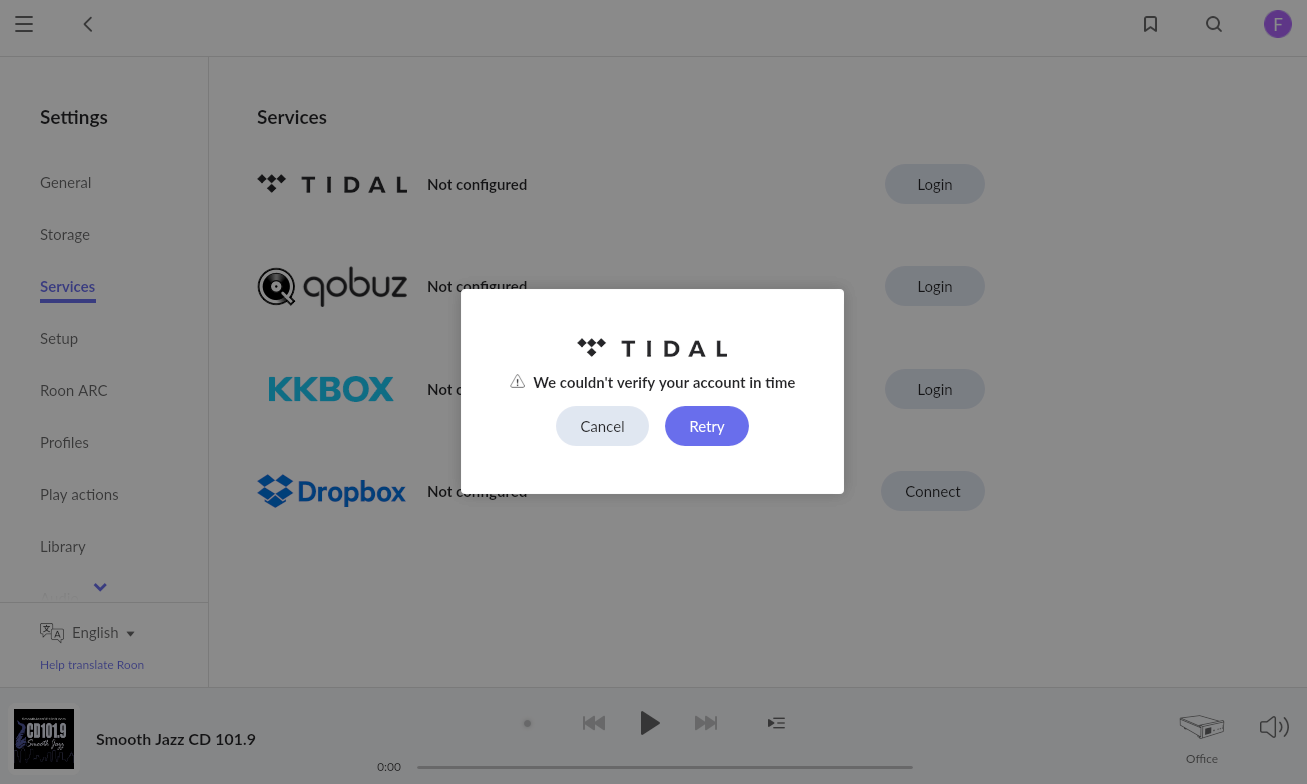
Tidal doesn’t complete the login process, no matter how many times I follow the login link from the Services screen, or how long I wait; it always ends in the pictured “We couldn’t verify your account in time” error. I should say that Roon does indeed still play music from Tidal despite the login error.
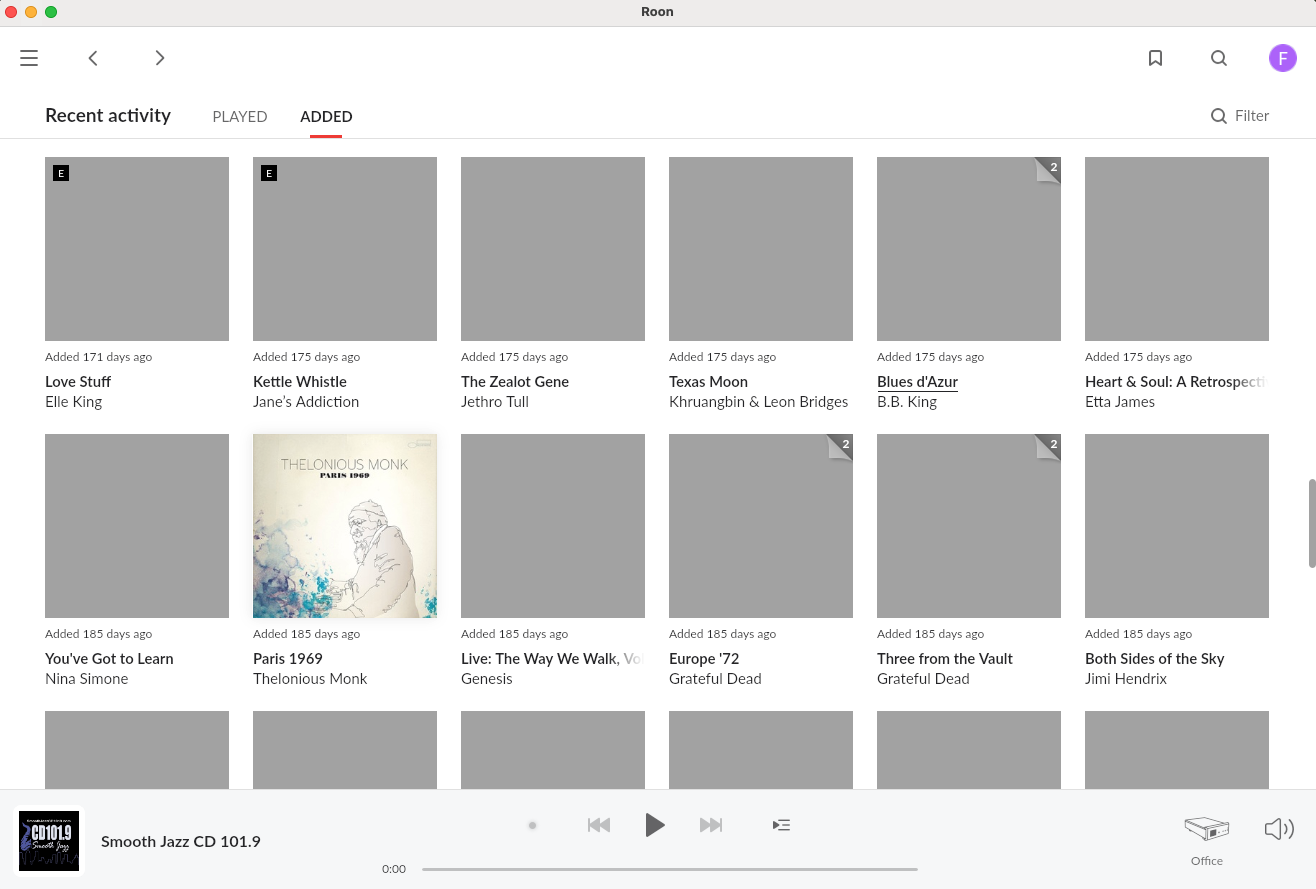
I’d assumed the Tidal not properly connecting issue was affecting the album art because Clear image cache option in the Setup tab in Settings did not resolve, but then I noticed that many local albums no longer display the art. The albums shown are about 50/50 Tidal/local in the screenshot with the greyed-out images.
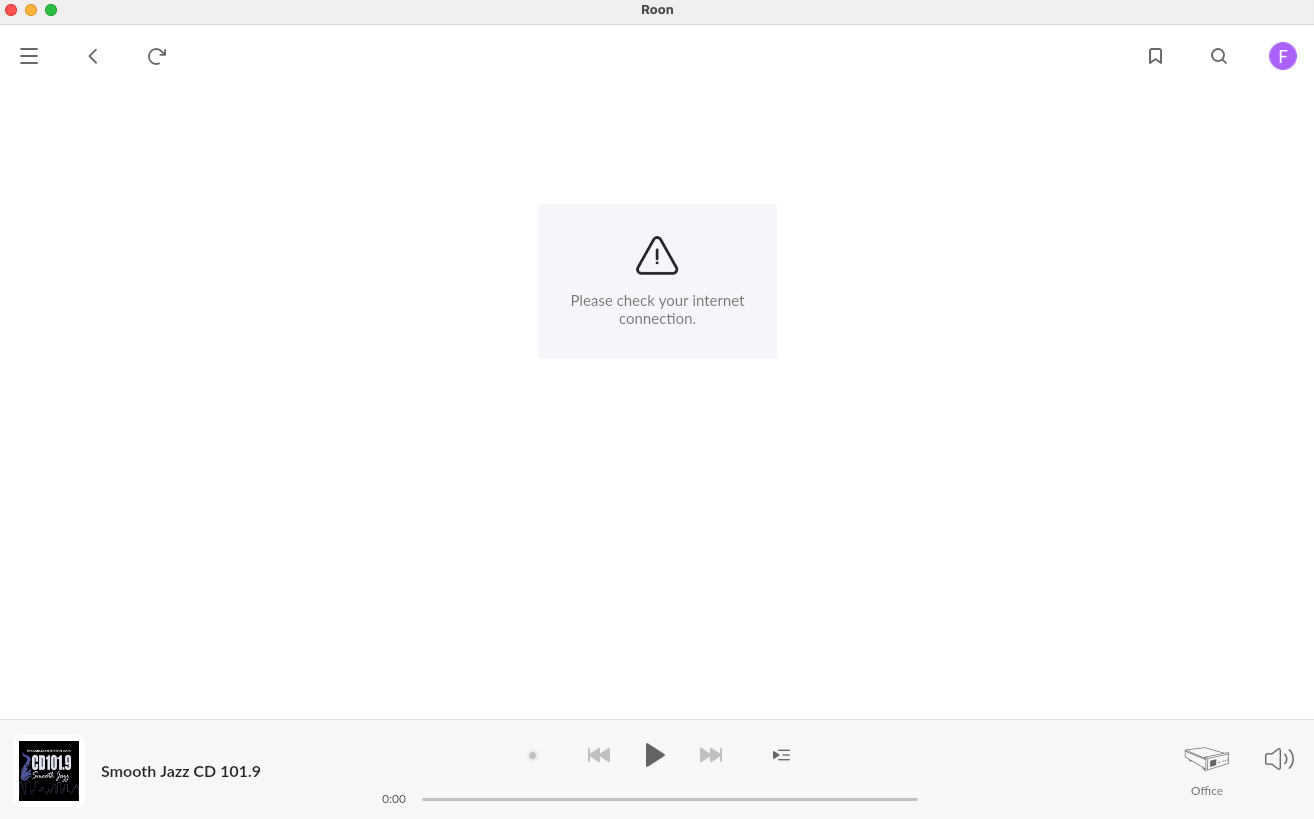
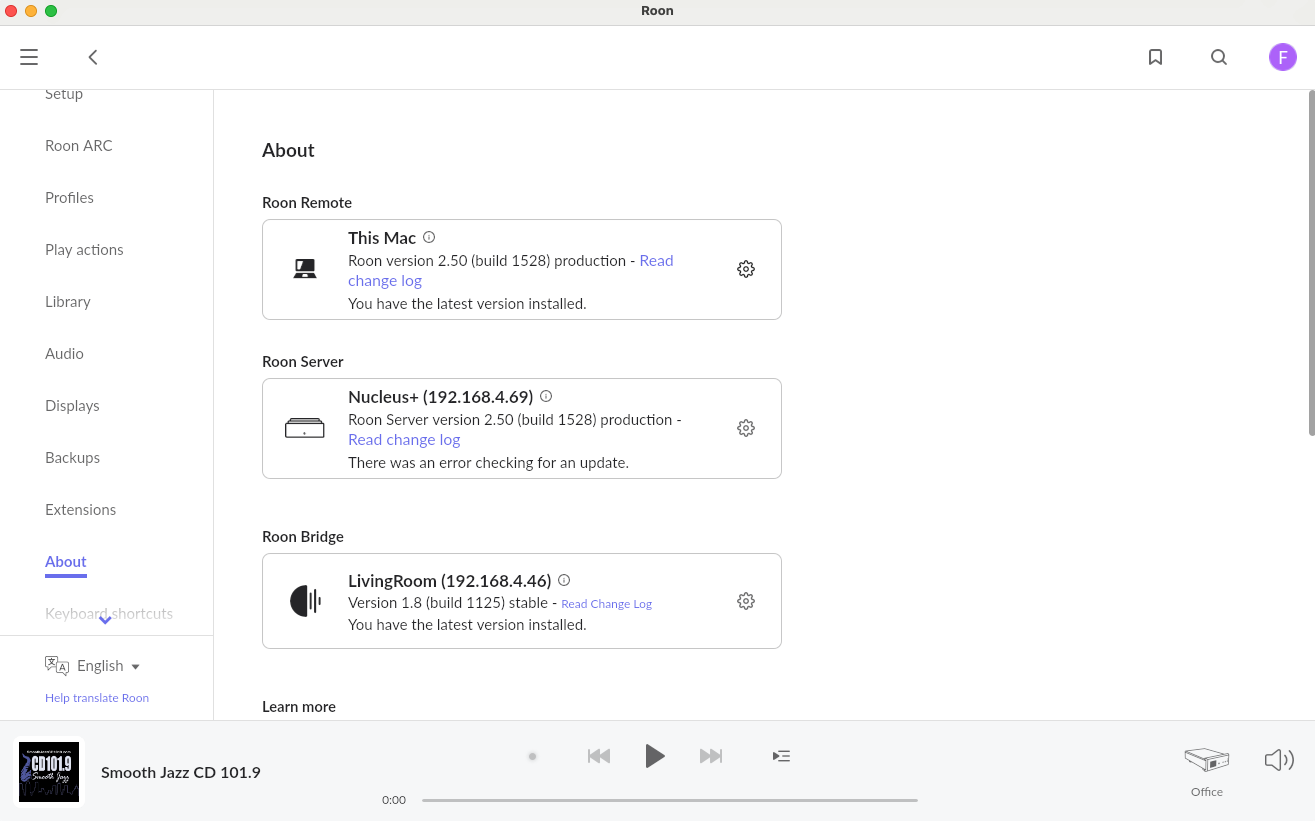
Then there’s the internet connection issue as shown in the “there was an error checking for an update” and the “please check your internet connection” screenshots. I thought it was only the Live Radio sections that were affected, but apparently there’s an issue checking for updates as well.
I can’t help with your Tidal and cover art issues but I can make one observation that may be of use to you in the future:
The likely cause of this is that, at some time in the past, you set your Nucleus Plus to use a static ip address and that ip address was outside of the subnet managed by your new router. For example, if your old router provided a 192.168.1.0/24 subnet (ip address ranges from 192.168.1.0 to 192.168.1.255) and you set a static ip address on your Nucleus of 192.168.1.100, then, if your new Eero router provided a 192.168.0.0/24 subnet (ip addresses from 192.168.0.0 to 192.168.0.255) which I believe is the default for Eero routers, the statically assigned ip address of the Nucleus (192.168.1.100) would be outside of that subnet and thus unreacheable - at least with the default setup of a new router.
A better way to ensure that your Nucleus Plus is always on the same ip address (should you want to - I don’t think it is strictly necessary in a well behaved network where you can use the ‘NucleusPlus’ hostname to address the Nucleus unless you are using port forwarding for Roon ARC), is to use a DHCP ip address reservation setting in your router. From https://support.eero.com/hc/en-us/articles/207613326-What-advanced-features-does-eero-support (emphasis is mine):
Reservations & Port Forwarding: Under this Advanced setting, you can assign IP reservations and port forwarding rules for devices on your eero network. Port forwarding allows you to manually open an Internet port for a single client, to let traffic pass directly through to that machine. For example, if you wanted to run a FTP server on your laptop with IP address of X.X.X.X, you might create a port-forward on port 21 that directs TCP traffic to that IP address through your eero. Check out our detailed directions on how to set up port forwarding.
With this in place, the Nucleus is left to get an ip address from DHCP (as it does by default - and when the ‘resetnetwork’ is employed) - but it always gets the ip address that you assigned to it in the router. Compared to using a static ip address, this has the advantage that, should you replace the router again such that a different subnet is offered, the Nucleus will automatically pick up a new ip address in the new subnet and will remain accessible.
Edit: I’ve since read that the Eero router has a default ip address of 192.168.4.1 and a default subnet of 255.255.252.0 (ie a 192.168.4.0/22 subnet with address ranges from 192.168.4.0 through to 192.168.7.255). Thus, in my example above, the ‘new’ ip address range may not be what you see. However, the logic still applies because the 192.168.1.100 ip address is still outside of the subnet offered by the Eero router.
Thanks for reaching out. In addition to what @Wade_Oram suggested, I would also suggest looking over your DNS settings on the Eero.
We have seen users have a better experience in the past if they change their Router’s DNS servers from the ISP provided ones to Cloudflare DNS, Quad9 or Google DNS. Can you please give this a try and let me know if it helps? Thanks!