· I have been running Roon core on my iMac for several years, but a few months ago bought a nucleus and I am now using that. However the instructions for Nucleus ignored the possibility of existing customers buying one and so all my historic data is absent. I made some backups on my iMac and, since roon still seems to be running on my computer, managed to create a backup in Box but this turns out to be from the nucleus. So how can I make either make a backup from the iMac, or get one of the previous ones transferred (and ideally see when that dates from because all the folder dates seem to be from when it started) and get it into the nucleus so that the number of places for example is roughly correct. As a general comment I am totally fed up with the poor amount of explanation or information or instructions available. Thank you in anticipation
Tell us about your home network
· It's a virgin router and there are extenders but the network works just fine
I understand the frustration regarding the migration process. Moving your existing library, edits, and history from your iMac to a new Nucleus requires a specific manual backup and restore sequence.
Important Note: Roon databases cannot be merged. When you restore your iMac backup to the Nucleus, it will completely overwrite and replace the current database on the Nucleus. Both servers must also be logged into the exact same Roon account.
To transfer your data correctly, perform the following steps:
Reconnect to the iMac Server: In your Roon Remote app, go to Settings > General and click Disconnect to leave the Nucleus. On the “Choose your Roon Server” screen, select your iMac and log in.
Create a Manual Backup: Connect a USB flash drive to your iMac. Go to Settings > Backups, click Backup Now, create a folder, and choose the USB drive as the destination folder.
Restore to the Nucleus: In your Roon Remote, disconnect from the iMac and reconnect to your Nucleus. Go to Settings > Backups, click Find Backups, browse to the USB drive (or your SMB share/local folder), select the backup folder you just created, and choose Restore.
For detailed instructions and visual references on these processes, please consult our official documentation:
Hi Vadim further to your reply of 4 May 2026, at 16:50, at long last I’ve finally got around to trying to do this and have not got very far. I could disconnect the nucleus using the remote but it did not produce the choose your roon server screen you mention, although there was something that sounded similar, but the iMac was not there. After disconnecting the nucleus, the remote did not seem to do much. So I then went to the iMac and disconnected from there to use the iMac as the server and tried to create a backup but that said it was unauthorised and would not work. I tried creating folders when prompted but that didn’t work either. It is not a brand-new external drive and has about 16 kB of space available. I tried to back up to desktop but that wouldn’t work either. I do have a historic backup which shows a lot of folders but these all date from October and November in 2023 although I’m sure I did some subsequent to that.
In your instructions you mention that it will also transfer over the library which I do not want to transfer to the nucleus since I stream all my music from Qobuz. The library is on my iMac to provide a soundtrack source for videos et cetera. So I assume if I get that far I can presumably untick or similar that option.
One other thing I noticed is that is the room occupies 5.5 GB on my iPad. 4.95 GB of that is documents and data. It was more than double that but I removed the album covers cache. But I do wonder what all that is and if I can lose some of it as the iPad is filling up. I do not need this ARC thing so it should not be that.
It would be really helpful if roon provided a proper customer helpline support in the way that Apple does.
Thank you for hanging in there and working through this. I completely see how frustrating it is to feel stuck at the very first steps, but the details you shared give us a very clear picture of why the backup is failing and why the iMac isn’t showing up.
Let’s break these issues down one by one to get you moving forward.
1. The Backup Failure: Drive Space & Mac Permissions
There are two distinct reasons your backup attempts on the iMac are failing:
The USB Drive is Full: You mentioned the external drive has about 16 kB (kilobytes) of space available. A Roon database backup contains all your historical history, edits, and artwork caches, meaning it typically requires anywhere from 2 GB to 10 GB (gigabytes) of free space. 16 kB is virtually empty space—the drive is completely full, which is why Roon is giving you an error. You will need to use a different USB drive with plenty of free space, or erase files off this one first.
The Mac Desktop Restriction: When you tried backing up directly to the iMac Desktop, macOS security likely blocked Roon from writing files there. Modern macOS releases require explicit permission for apps to save files to the Desktop or Documents folders.
The Fix: Find a USB flash drive or external drive with at free space. Plug it into the iMac, make sure it is completely empty or has enough room, and select that drive directly as the backup destination inside Roon.
2. Will this Transfer Your Local Music Files? (No)
Please don’t worry—a Roon backup does not copy or transfer your actual music files. A Roon backup only contains your database “text” data—things like your playlists, play history, track ratings, and your saved Qobuz streaming links. Your local music library (the video soundtrack sources) will stay safely on your iMac and will not be copied over to the Nucleus internal storage. Once the backup is restored on the Nucleus, it will simply look at your Qobuz account and restore your history exactly as it was.
3. iPad Storage: Why is Roon Occupying 5.5 GB?
The “Documents and Data” space that Roon occupies on your iPad is the local database and image cache. To make browsing your library smooth and instantaneous, the iPad app caches artist photos, album covers, and bio data locally.
If your iPad is running out of space, the cleanest way to clear this out is to delete the Roon app entirely from your iPad and reinstall it from the App Store. This will instantly wipe that 5.5 GB down to nearly zero. Note that as you browse your Qobuz library over the coming weeks, the app will slowly cache images again to keep the app performing quickly, but a fresh install is a great way to reset it.
Next Steps
To get back on track, please focus strictly on getting that iMac backup completed first:
Ensure Roon is running on the iMac.
Plug in a USB drive with at least 10 GB of free space.
Run the manual backup directly to that USB drive from the iMac interface.
Let me know how the backup goes once you have a drive with more space, and we will take it from there!
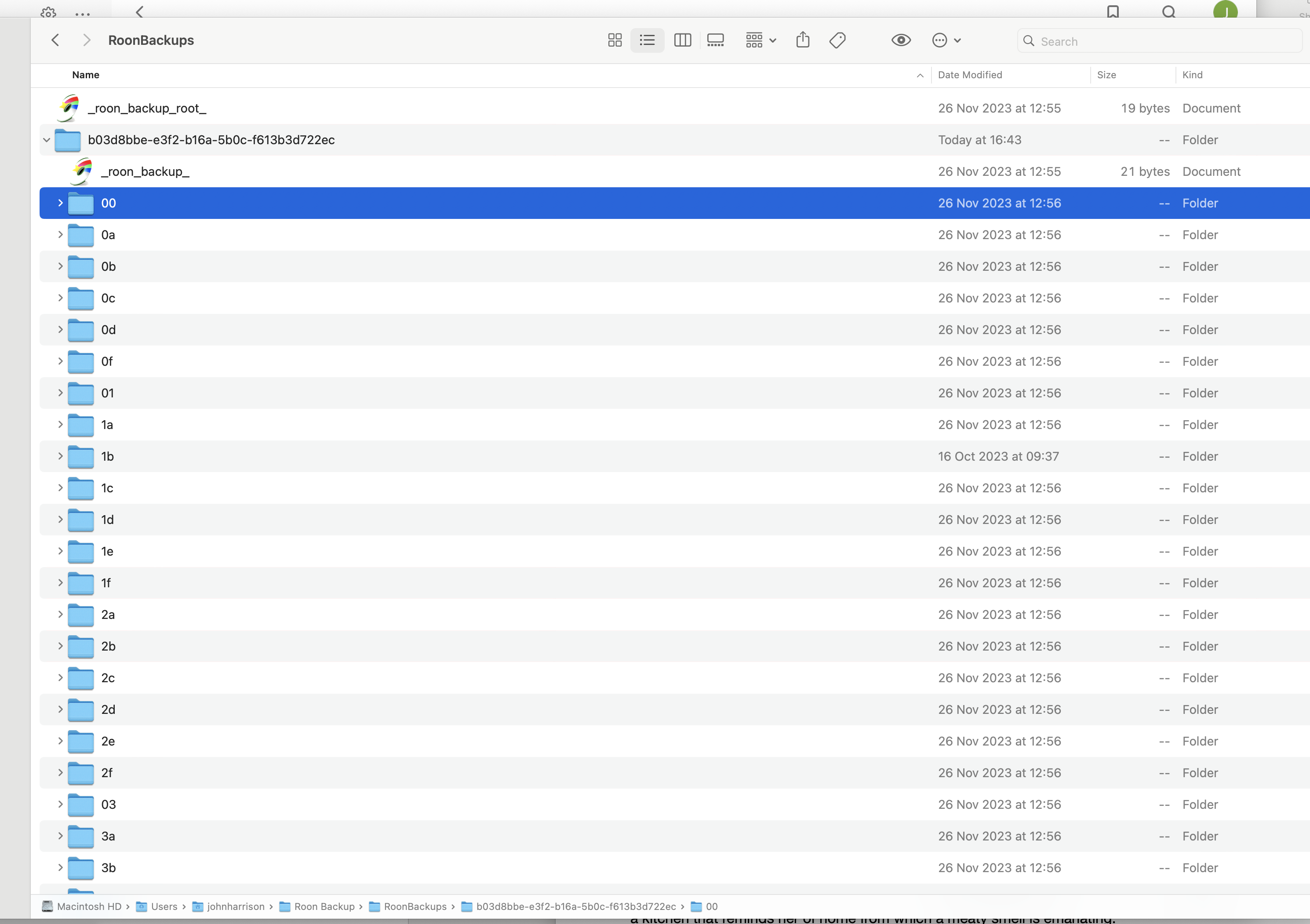
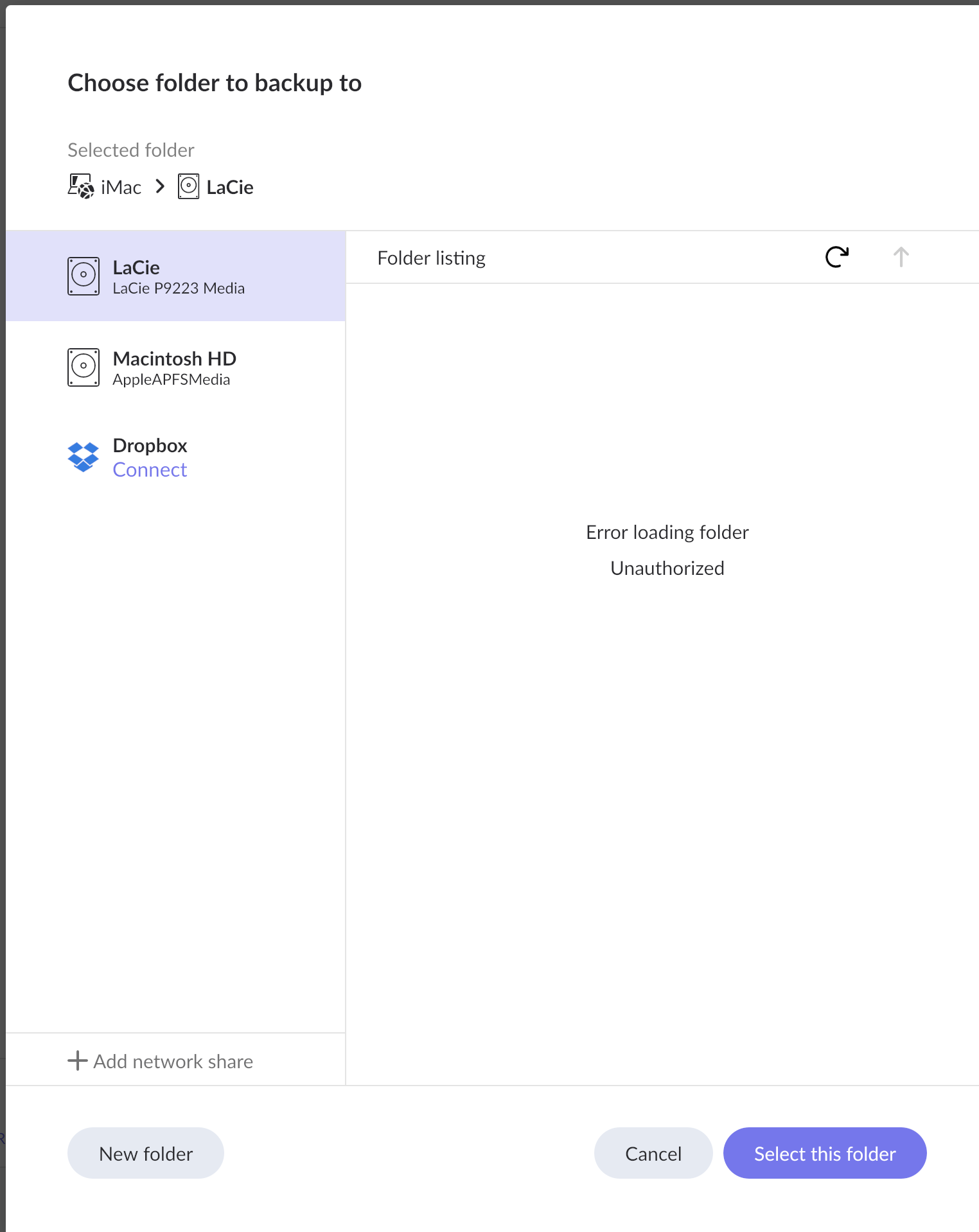
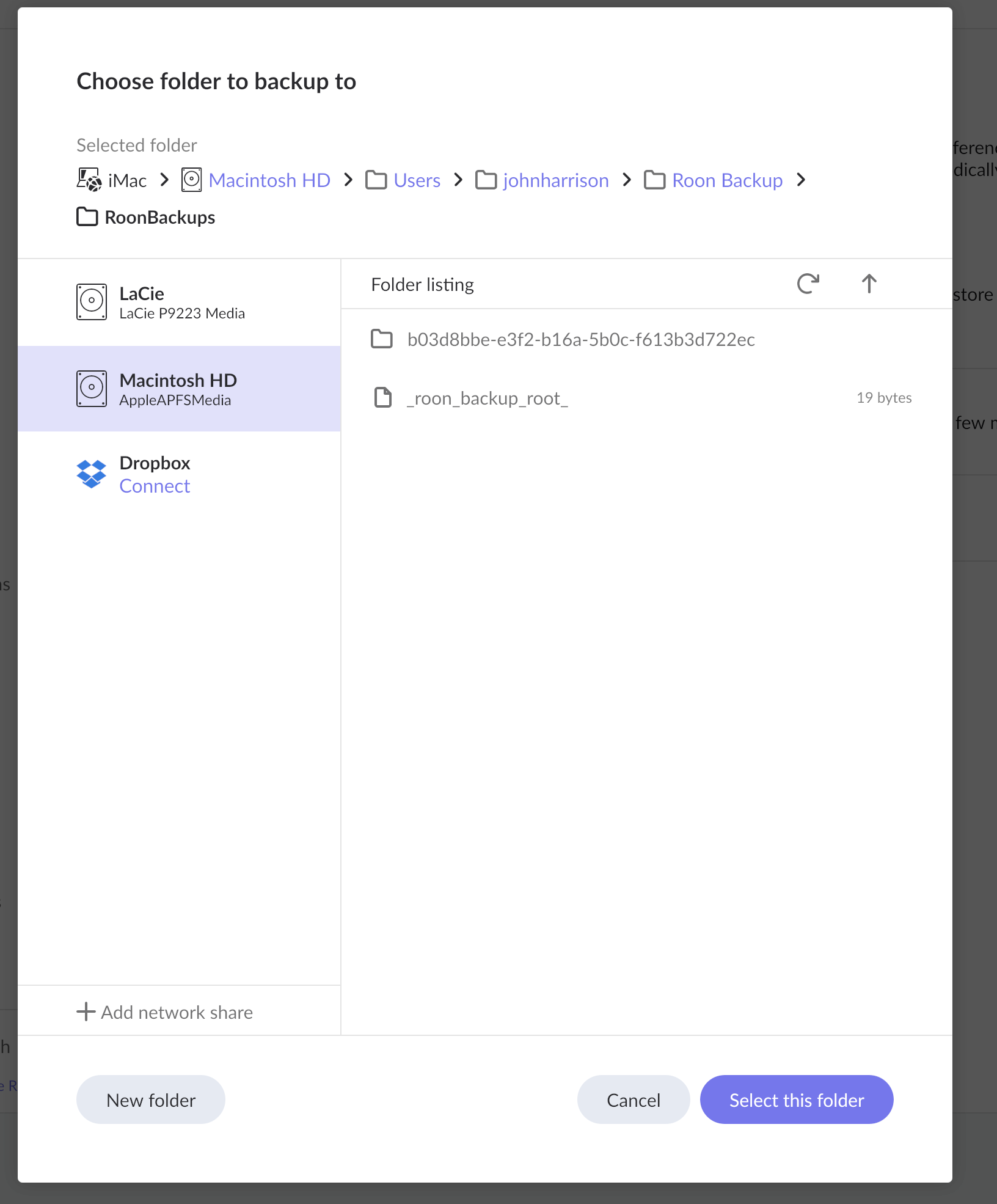
Thank you but it will not back up to an external drive with plenty of space. See screenshot and a second screenshot showing the backup folder on the computers internal hard drive. When it comes to the new roon coreI have bought, it does not have much storage so where does it back up to and why, as I will I only need a back up if I have to replace that.
Thanks for the screenshots - these make things very clear.
The good news is that you already have a valid Roon backup. Looking at the second screenshot, there is a backup saved on your Macintosh HD at /Users/johnharrison/Roon Backup/RoonBackups. You can use this to restore on your Nucleus.
As for the LaCie drive showing “Error loading folder / Unauthorized” - this is a macOS permissions issue. To fix it, go to System Settings → Privacy & Security → Files and Folders (or Full Disk Access) and make sure Roon has permission to access external drives. Once granted, the LaCie should become accessible for future backups.
For now though, the backup on Macintosh HD is all you need to proceed with the Nucleus restore.
Here is the guide how to proceed with the restoration process:
Please let us know if you have trouble with the steps above.
At the moment roon will not open at all on the Mac, it just hangs there. What you have sent me sounds desperately complicated and in particula there are a lot of ‘if this doesn’t work try thats’. It says make sure you know the address of your NAS but I don’t even know what that means but I don’t really want to have to learn all this crap. It’s supposed to be a piece of consumer electronics not some hobbyist indulgence. I’m just left wondering why I bothered to buy the nucleus when it was working perfectly well on the Mac in the first place.
One thing I don’t understand is whether or not the nucleus is backing up somewhere internally. If I manage to transfer across the road the old back up where would it be stored long-term. It’s currently 827 MB. When I look at the play count I’m often surprised that it seems very low so I’m wondering if the nucleus is correctly recording usage data.
Apologies but this is very frustrating and would not be necessary if the nucleus and in particular the instructions you get when buying one made it easy for people who were already long-suffering customers.
And now a few hours later when I try using the iPad access Roon to play music on the hi-fi system there is the same problem of the logo jiggling about and nothing happening. After I rebooted the iPad for a millisecond a screen appeared that was probably asking me to select a RoonServer but it disappeared before I could see it properly. And the text that I’m putting here keeps deleting itself which is frustrating. Earlier on the computer invited me to take out a second subscription. Maybe it thinks I am or I’m trying to login twice. And I keep having to re-write this. Importantly Quobuz will the longer work from my iPad, something about a password. Fortunately the DCS app will still stream from Qobuz so there is not really a problem there. What the hell is going on with Roon
Vadim, after a couple of hours frustration I have managed to get back to where I was before using the new nucleus and its database. When I rebooted the nucleus I discovered I was already using the iMac as the server although its audit wasn’t working. So I had the option to restore from backup and started to do this from the computer but it wasn’t clear see screenshot which talked about the previous server which is the iMac although what it meant was the most recent one because I’ve jumped back-and-forth half a dozen times between the two so I gave up at that point.
Why does everything keep deleting itself from this ridiculous system.
Every time I write something then gets deleted from this window. I have wasted so much time and achieved absolutely nothing. If you had offered me a free nucleus and I had known it would be no better than what I had and involved all this effort I would not of had it even if it was free. Why is it designed with a crinkly top that simply traps dirt/
It also talks alarmingly about having to do various things to make sure that there are not two competing databases running. Is that what I have now since I haven’t deleted anything.
If I had a nice simple clear instructions of what to do I might try transferring over the previous data from a back up but otherwise it will be easier to do it manually although that will involve disconnecting the nucleus and risking opening up the old one on the computer because of course even if I switch the computer on just look I can’t see the old data e.g. what tags I created and what music I attached to them. Thank you for your patience. Roon certainly knows how to try mine.
screenshot i mentioned. It sounds clear in retrospect to you I’m sure but I’m afraid to meet you, and English is my first language, it is ambiguous because it doesn’t adequately fit my circumstances.
Suedkiez thank you for that. I tried to follow the link from the email on my iPad but it only took me to the main start page rather than this thread. I did not update the program on my computer of course and now to do so I need to switch servers. Having asked for updates it seems very ungracious of me not to install them. We shall have to see if I can summon the energy to start again.
In the not-up-date version, you just have to click the Unauthorize button. Ignore the scary message that it will show and answer „Yes“. Then you should be able to select your Nucleus as the server
According to our diagnostics, it looks like the Nucleus has been updated to the latest version. Have you been able to log in and use it properly, or are you still having issues? If you are still having issues, please let us know where things stand, thank you.
Yes, the nucleus is working satisfactory thanks so I am back to where I was. The question is whether I try again to move the data over from the computer that previously operated as the core, frequency of playing, tags and DSP settings or whether I just do those latter 2 from scratch and forget about the former which is increasing into getting out of date anyway.
That is up to you! Depending on how much custom edits your previous Backups hold, it might not take you as long as you think to re-create your previous settings.
That said, if it’s substantial, then perhaps restoring from a backup would be worth the time saved.
Just checking in on this, and wanted to see whether you’ve decided to restore the backup from your previous Roon Server or rebuild the frequency of playing, tags, and DSP settings from scratch. If you went the backup route, was it worth the time saved, or did you decide the newer settings were easier to recreate? Let us know what you ended up doing, thanks.

 Thank you.