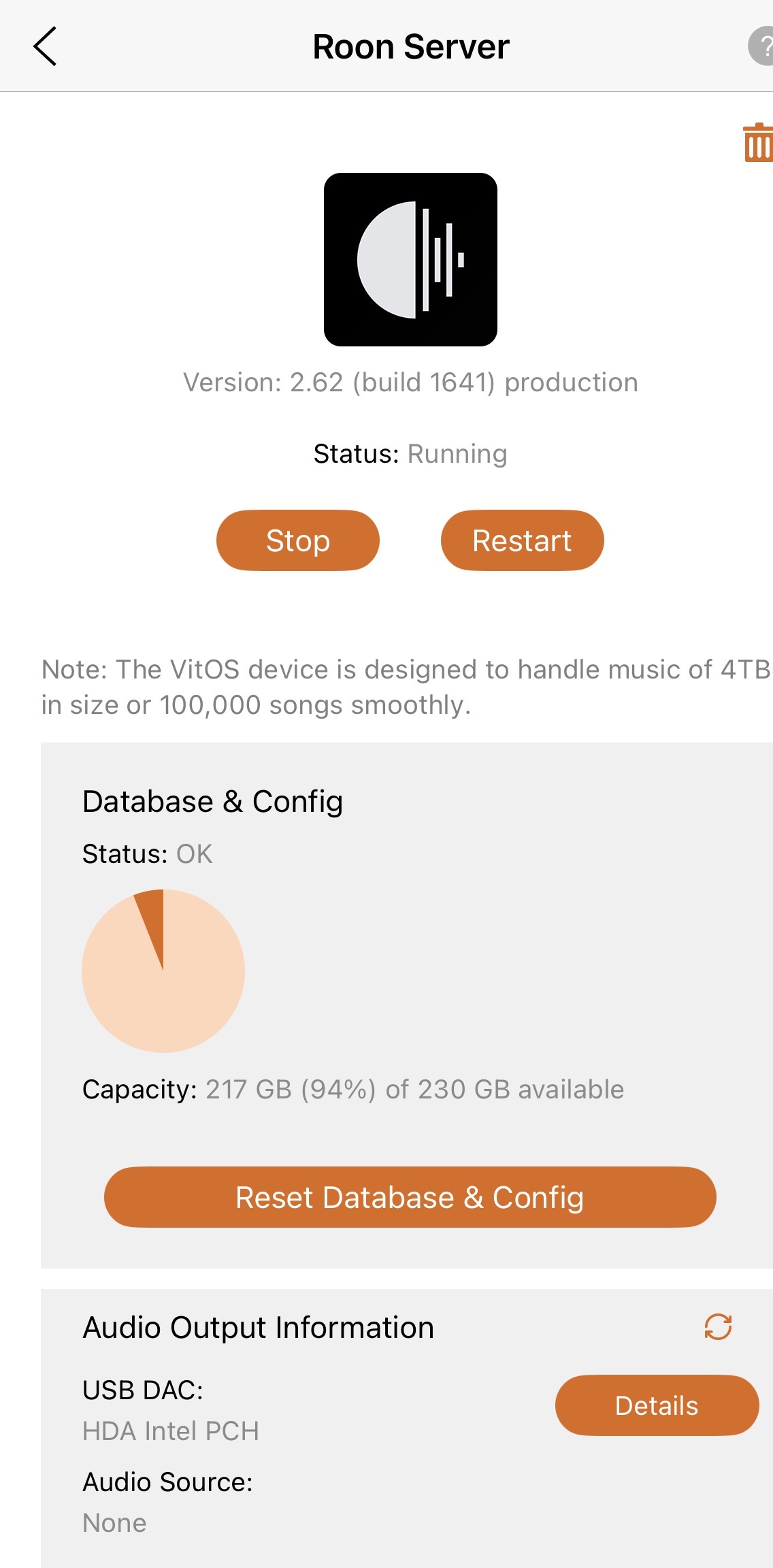
· Unable to reach Roon any longer I have been a happy Roon customer for more than 5 years now. My configuration has not changed at all during all of this time. The Roon server is installed on a Rhein Z1 Silent Angel. That piece of hardware is directly connected with my home wired network. I interact with Roon from either a Mac Studio desktop (also hard wired into the same home network) or from my iPhone (via WiFi to the same network). Even though my configuration has never changed I have had many periods over these 5 years in which the communication seriously slowed down. Often taking minutes before I can connect with the server. But now, a few days after I installed the latest Roon software upgrade, I cannot connect to the server at all anymore! I have rebooted everything multiple times but the problem remains. I cannot even check what the latest software version is that I am running because I simply can no longer connect with the server! I am desperate to fix this problem but have no idea what else I can do. I am not much of the IT person so please provide me with some simple instructions. With kind regards, Jos
Tell us about your home network
· Internet arrives at my house wirelessly via a TP link router. This is connected to hard wired ethernet in combination with mesh WiFi outlets all over the house.
Thank you for being a Roon user for over 5 years! I completely understand how frustrating it is when a reliable setup suddenly stops working, especially right after an update. Since you mentioned you aren’t much of an IT person, please don’t worry—we will keep the troubleshooting steps as simple and straightforward as possible.
We took a look at your server’s diagnostic data on our end. We can confirm that your Rhein Z1 has been completely offline for over a day. We also noticed something interesting: the diagnostics show it is running a custom version of Linux, rather than our official Roon Optimized Core Kit (ROCK).
Since you’ve had this running for 5 years, do you recall if you purchased the Rhein Z1 pre-configured by a dealer, or if someone helped you install the operating system back then? (Often, these devices run a custom software called VitOS).
Because it is running a custom operating system and has completely disappeared from your network, the easiest way to figure out what is going wrong is to physically plug a screen into it so we can see its error messages.
Could you please try the following simple steps?
The Physical Screen Check
Gather your equipment: You will need a standard computer monitor (or a TV) and an HDMI cable.
Connect the cable: Plug one end of the HDMI cable into the HDMI port on the back of your Rhein Z1, and the other end into the monitor or TV.
Power it on: Make sure the monitor is turned on and set to the correct HDMI input channel. Then, reboot your Rhein Z1 by turning it off and back on.
Take a photo: Let the Rhein Z1 start up. It will likely run through some black screens with white text. Once it stops on a specific screen, error message, or logo, please take a clear photo of the entire screen using your phone.
Could you upload that photo here in your reply? Once we can actually see what the Rhein Z1 is “thinking” and what operating system is loading, we will know exactly how to get your music back up and running!
Indeed my supplier installed the VitOS software on this devise before shipping it to me. I also have a VitOS app on my iPhone and that app also does no longer connect with the server.
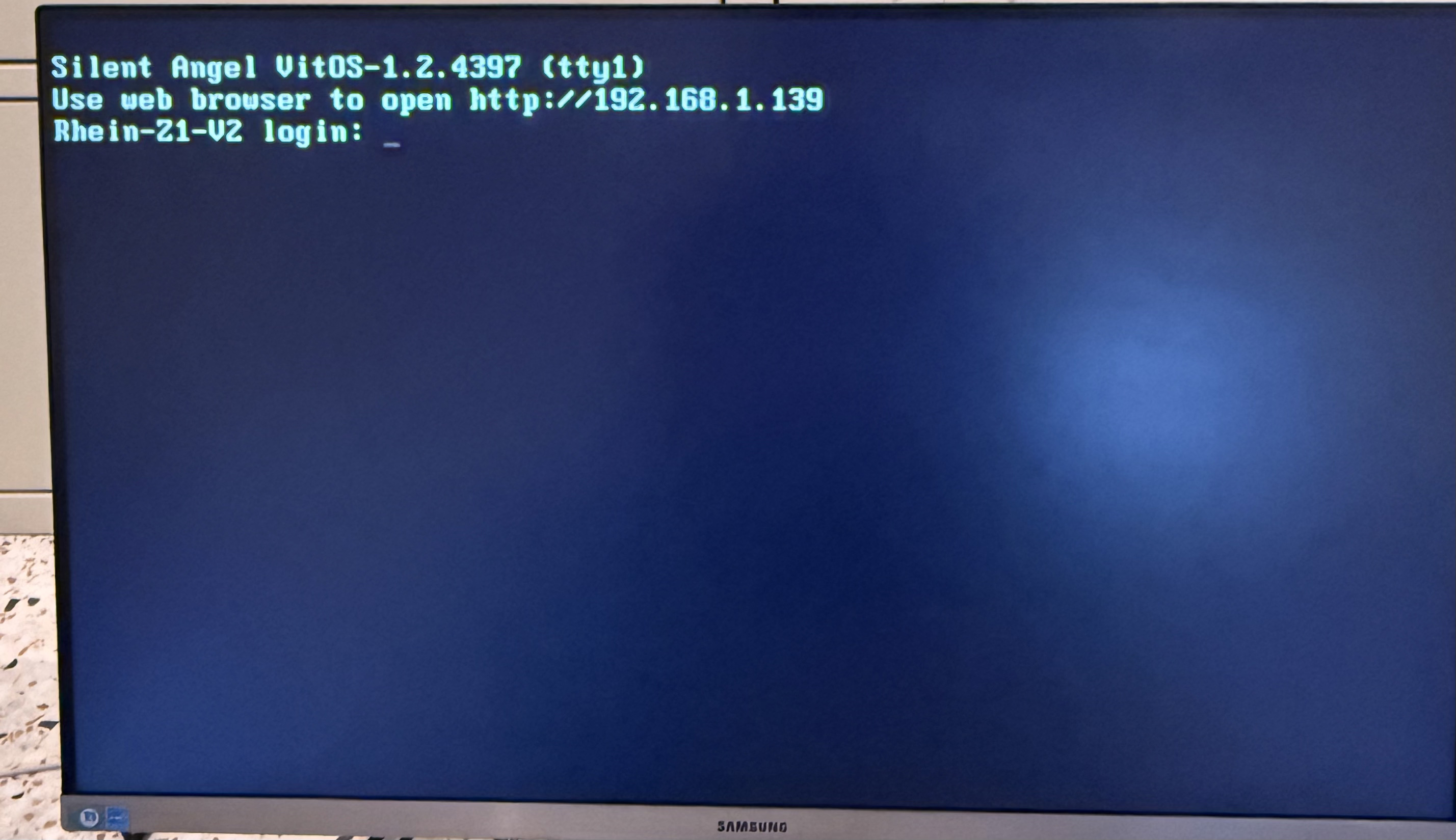
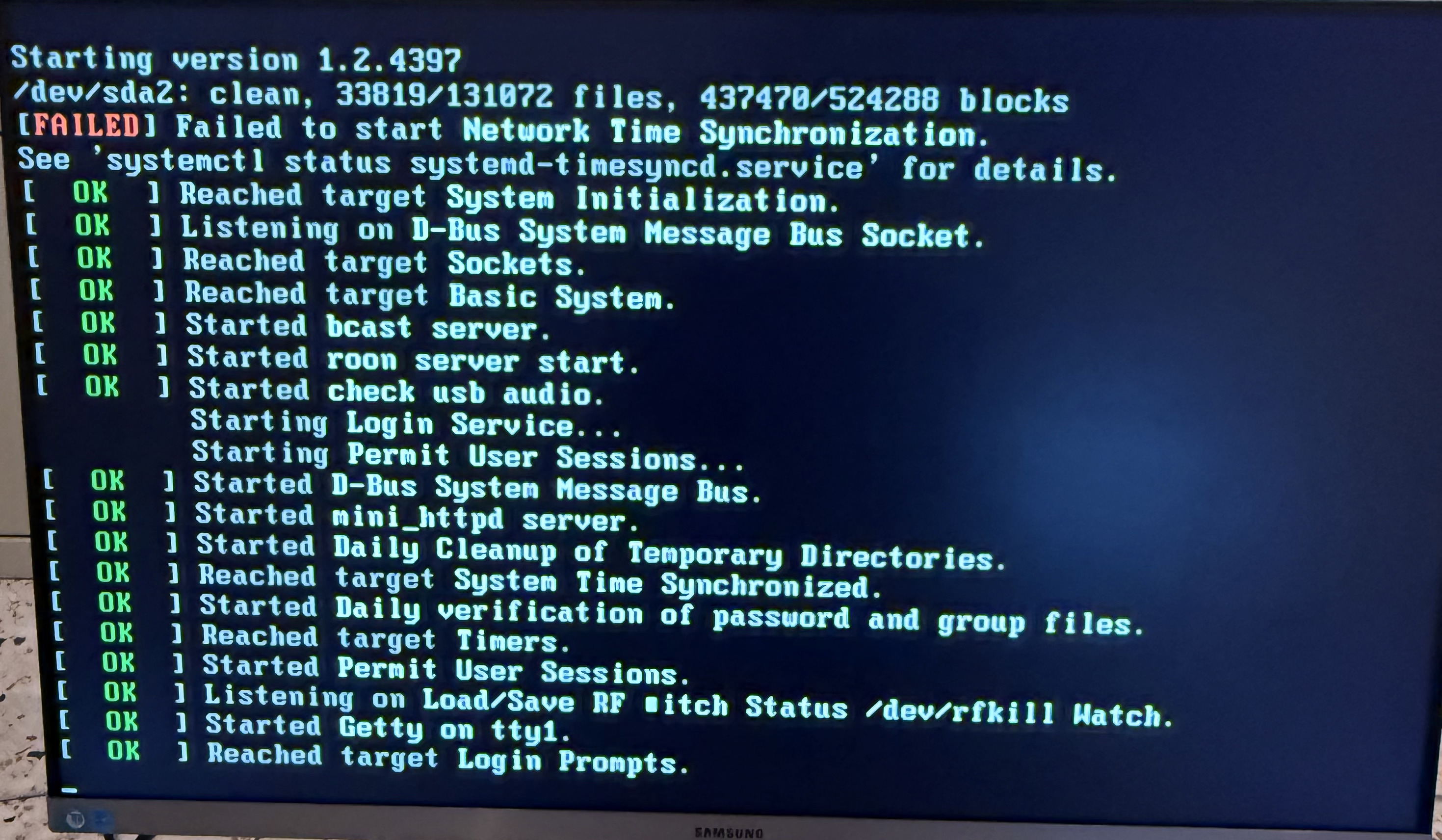
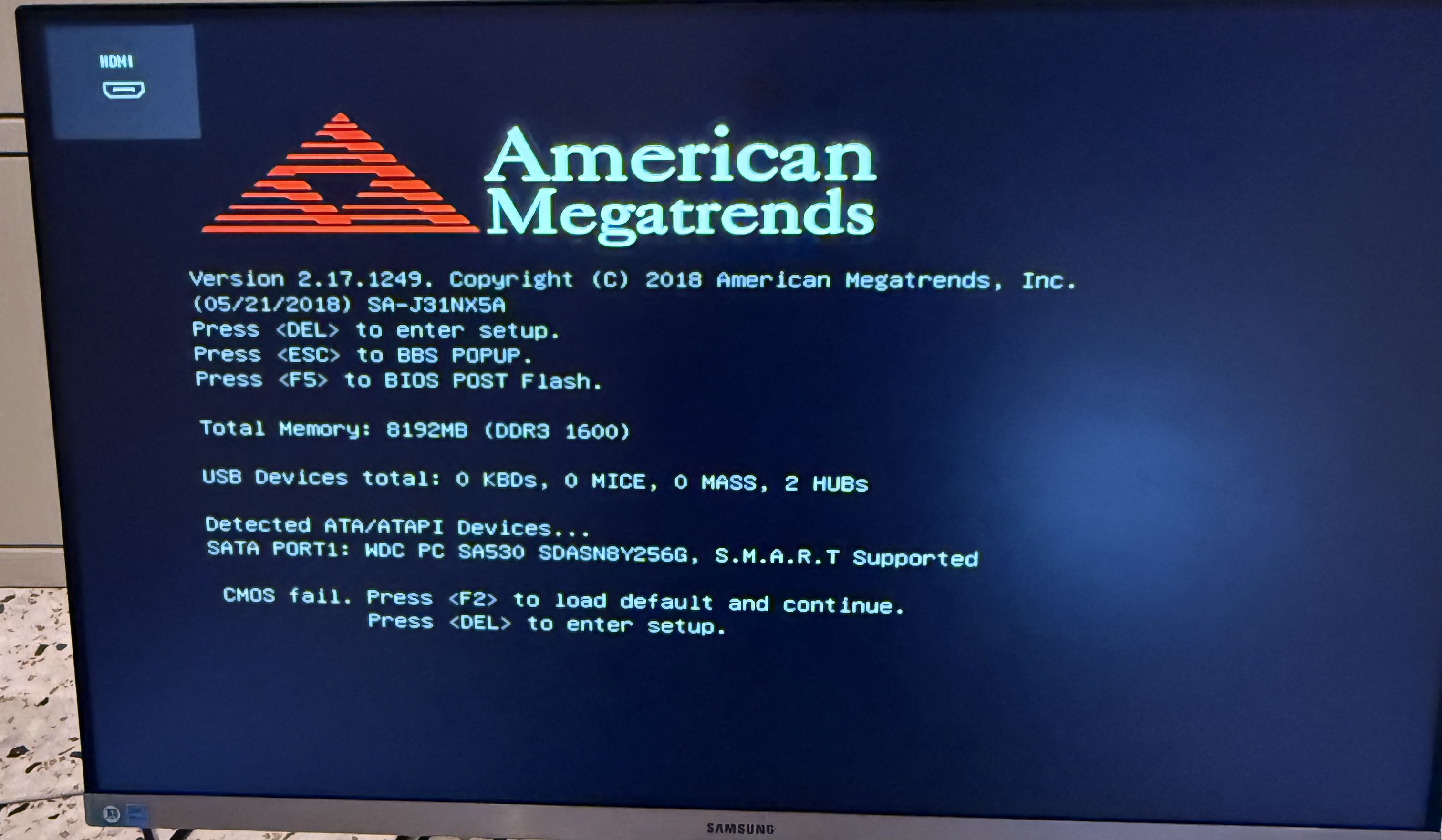
I have followed your instructions and made the following three pics (uploaded in reverse order):
Thank you so much for taking those photos! They were exactly what we needed, and they tell us a very clear story.
I have great news: your Rhein Z1 is not broken, your software is fine, and the Roon update was actually just a coincidence.
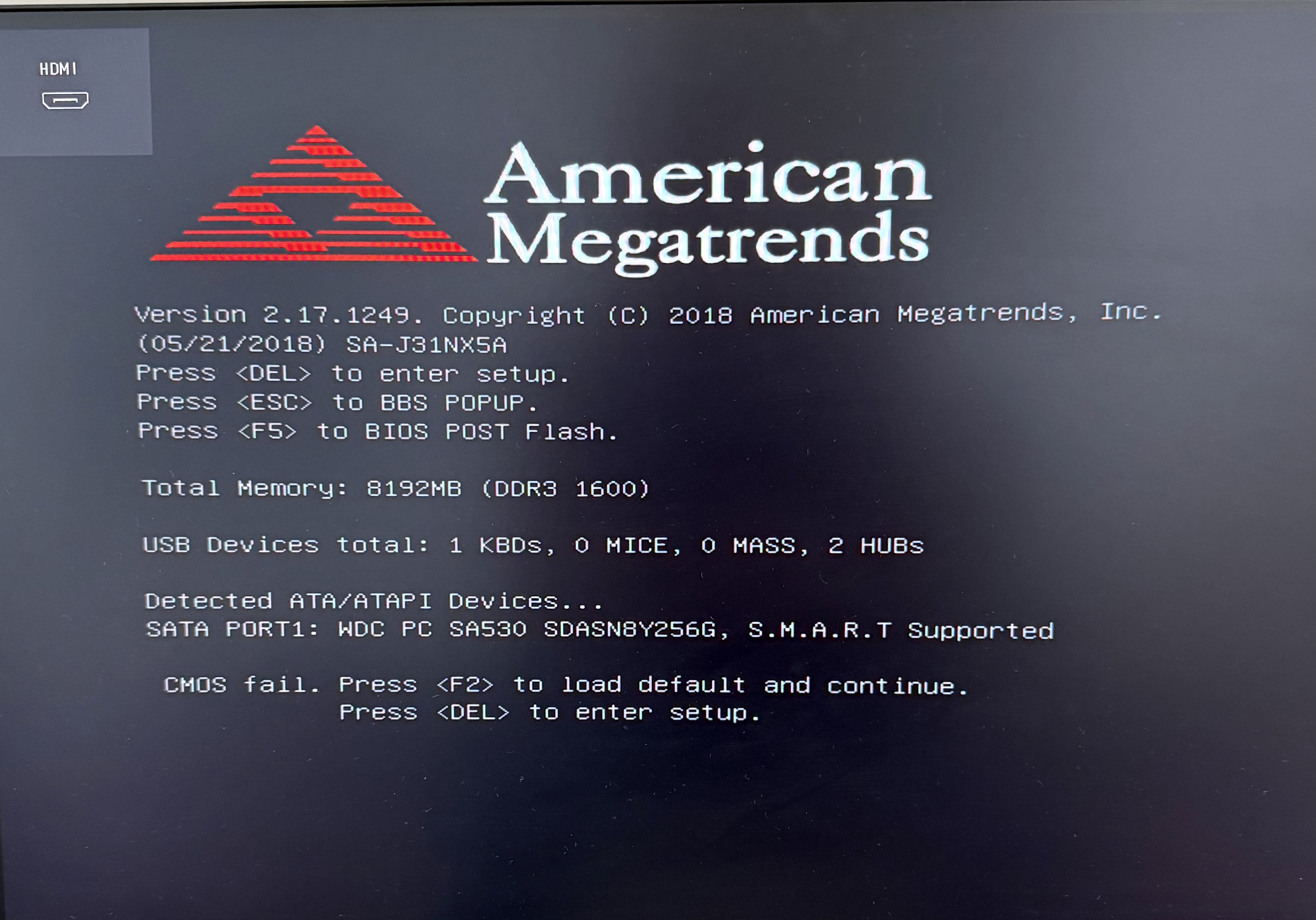
If you look at the very first photo you uploaded (the American Megatrends screen), there is a message at the bottom that says “CMOS fail.” In the second photo, the text shows “Failed to start Network Time Synchronization.”
Inside every computer (including the Rhein Z1), there is a small, inexpensive watch battery that keeps the internal hardware clock ticking even when the machine is turned off. After 5 years of continuous use, your battery has simply run out of power.
When this battery dies, the computer forgets the current date and time and resets to a factory date (likely sometime in 2018). Both Roon and the VitOS app rely on strict internet security certificates to communicate over your network. If your server thinks the year is 2018, it will reject all modern network connections as “insecure,” which is why it completely disappeared from your phone and Mac.
How to Fix It
To get everything working again, you just need to replace the battery and correct the clock:
Replace the Battery: You will need to open the outer casing of the Rhein Z1. On the main circuit board, you will see a small, round, silver coin battery. It is almost certainly a standard CR2032 battery, which you can buy at any supermarket or pharmacy. Pop the old one out and put a new one in.
Connect a Keyboard: Since you already have a monitor connected, plug a standard USB computer keyboard into one of the USB ports on the back of the Rhein Z1.
Set the Clock: Turn the machine on. When you see that first “American Megatrends” screen, press the or key on your keyboard to enter the system setup menu (BIOS). Find the Date and Time settings and update them to today’s actual date and time.
Save and Exit: Save your changes (usually by pressing F10 on the keyboard) and let the machine restart normally.
Once the Rhein Z1 boots up knowing the correct year and time, it should instantly reappear on your network, and Roon will connect right away.
Would you feel comfortable opening the case to swap out that battery, or would you prefer to have a local PC repair shop do it for you?
Great news! I am comfortable switching the battery myself and will do this tomorrow.
However, I just noticed without doing anything further that the Rhein is already back up and running and the VitOS app on my phone connects to it again too Did you do something on your end to make that happen?
Also, since you noticed that I am running the VitOS software instead of your preferred Rock software, do you recommend that I switch over? If yes, is that a complicated thing? Will I loose all my personal saved music files in that case?
I very much appreciate the way you quickly solved my problem! Really impressive as far as I am concerned.
I am so glad to hear you are comfortable swapping out the battery yourself! It is a very satisfying, quick fix. Let’s tackle your excellent questions.
We absolutely did not! Roon Labs does not have remote access to any user’s server. We cannot remotely access or control our own official RoonOS systems, let alone a third-party operating system like VitOS from Silent Angel.
Here is exactly what happened: your operating system has a background service that constantly tries to sync its clock with internet time servers. Even though it failed during the initial startup sequence (as we saw in your photo), it kept trying in the background. It finally managed to reach a server, pulled the correct date and time, and instantly—like magic—your security certificates validated and your system came back online.
Important note: Because the physical battery is still dead, this is only a temporary software fix. The very next time the Rhein Z1 loses power or is rebooted, it will forget the time again. Replacing the battery tomorrow is still the permanent cure!
I recommend staying exactly as you are with VitOS.
Silent Angel specifically designed and tuned VitOS for the exact hardware components inside your Rhein Z1. Furthermore, installing our ROCK operating system is a destructive process—it requires completely formatting the internal storage drive. If you have any personal music files saved directly on the Rhein Z1’s internal storage, they would be permanently erased during a ROCK installation. The music will be in place if you have two separate drives where the OS is installed and music is stored.
Since VitOS has served you flawlessly for 5 years, there is no need to fix what isn’t broken or risk losing your music. Once that $2 coin battery is replaced, you will be set for another 5 years of happy listening.
Would you like me to keep this thread open so you can confirm everything boots up perfectly after your battery surgery tomorrow?
Today I was finally able to replace the battery inside the Rhein Z1. It was quite hard to open up the bottom plate of the device but eventually I was able to do it.
The mchaine is back up and running but I have not been able to access the clock following the way that you described it. When you say “press the or key”, what does that mean? I am not able to stop the window on that first screen.
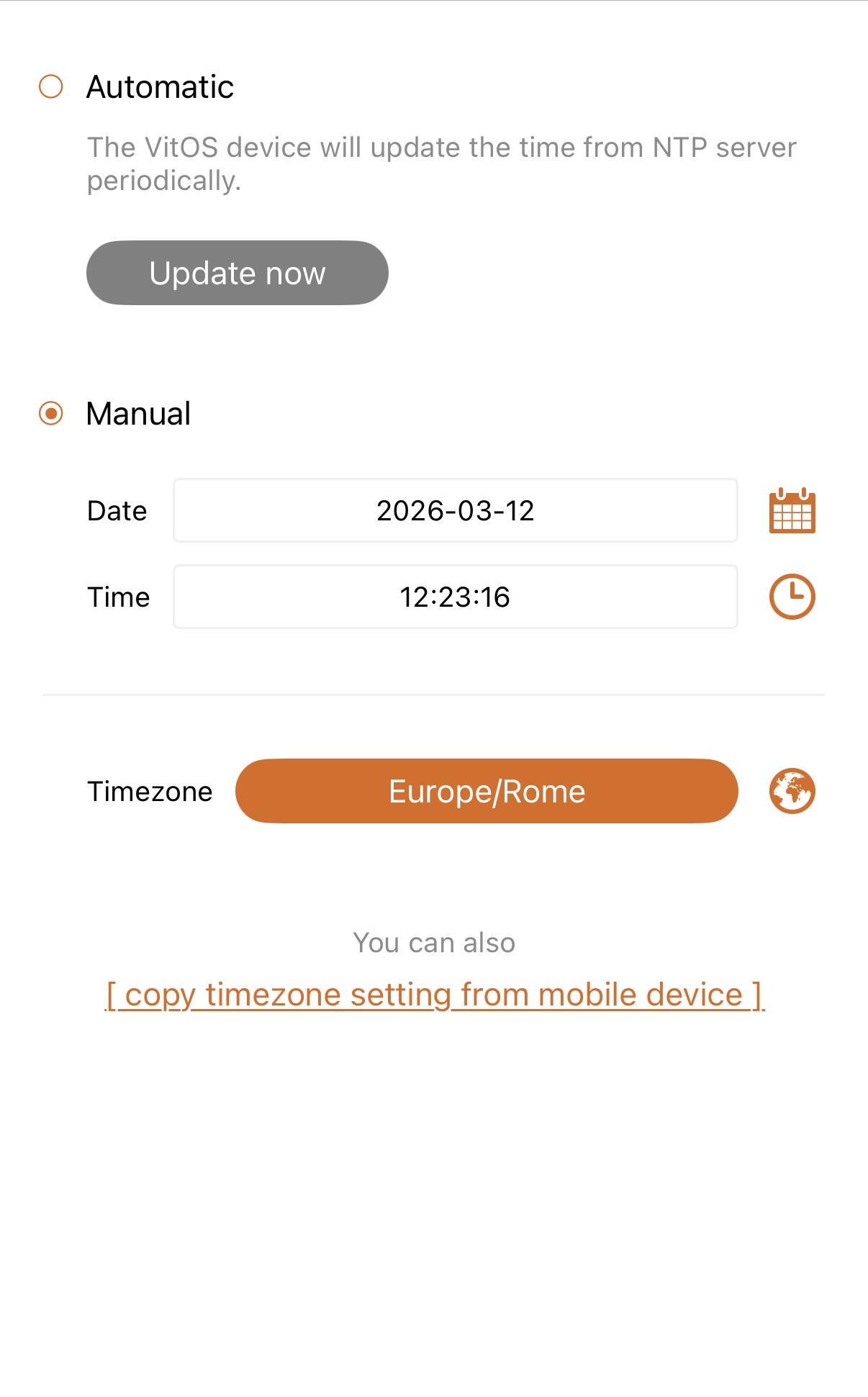
Meanwhile I discovered that the VitOS app also contains a timer. See uploaded picture. I manually changed the time in the app as indicated. Is that perhaps an alternative way to update the clock?
Thanks for the follow up! You should press the F2 key. If that doesn’t yield restults, try the Delete key.
Timing is everything: You need to tap the key repeatedly as soon as you see the “American Megatrends” logo appear on the screen. If you wait too long and the operating system starts to load, you’ll need to restart and try again.
The Save Key: As your instructions noted, F10 is the industry standard for "Save and Exit," but always check the legend at the bottom of the BIOS screen just to be sure!
I have tried both the F2 and the Del keys at least 10 times but to no avail. I also checked with another computer that my keyboard indeed works normally. However, I am not able to stop the computer at that first screen and enter the setup to change the clock setting.
Can you perhaps comment on the timer in the iPhone app VitOS of which I included a screenshot in my last message? Is that clock the same clock as for the Rhein Z1? In other words, have I already achieved the goal of updating that clock or not?
If not, please make another suggestion how I can change the clock in the Rhein.
No worries, I am indeed using old fashioned USB wire connection to the Rhein.
I am getting worried that my keyboard is perhaps not compatible with the OS on the Rhein because absolutely zero result for trying to get into set-up window.
Thanks for the updates, it’s incredibly frustrating to have the hardware physically ready but be stuck at a digital gatekeeper.
I’m curious, when you have the keyboard plugged in, and you reach the screen similar to the one you’ve shared above - the ‘American Megatrends’ screen:
Notice how earlier, before you had any keyboards plugged in, it reads “USB Devices total:”, it shows “0 KBDs”
Now that you have a keyboard plugged in, does it show 1 KBDs?
On specialized audio servers like the Rhein Z1, not all USB ports are created equal. Some ports are “high-fidelity” ports intended only for DACs and may not be active during the initial startup (POST) phase.
Try a different USB port: If you are plugged into a port labeled "USB Audio" or a specific high-end output, move the keyboard to a standard USB port (usually the ones closer to the network/Ethernet port).
Plug in BEFORE powering on: Ensure the keyboard is plugged in while the device is completely off, then press the power button.
Regarding the VitOS App Clock, to answer your question: No, the VitOS app timer will not fix this.
The VitOS app communicates with the software once the machine has fully turned on and loaded its operating system. Right now, your Rhein Z1 is stuck at the hardware level (the BIOS). It’s like the machine is stuck in the “lobby” of a building and hasn’t even entered the “office” where VitOS lives. You must clear this “CMOS fail” screen before the VitOS app can even talk to the device.
So right now, some next steps are:
Check the USB Port: Move your wired keyboard to every available USB slot on the back of the Rhein Z1, restarting the machine each time to see if the "0 KBDs" changes to "1 KBDs".
The "One-Key" Fix: Once the screen finally shows "1 KBDs", you don't even need to go into the complex setup. Just tap F2.
Tapping F2 tells the machine: "I know the settings were lost, just use the factory defaults and keep going."
This should allow the machine to bypass this screen and finally boot into VitOS.
Check the VitOS App later: Once the machine boots and you can see it in the VitOS app again, then you can check the time/date. The most important thing is just getting past that American Megatrends screen.
I can confirm that the Rhein sees the keyboard (see uploaded screenshot below).
While I am not able to stop the rebooting process at the American Megatrends screen with the Delete key in order to set the clock, I can confirm that the Rhein appears to work “normally” and that also Roon works as typical for me in my home.
Finally, the VitOS app on my phone can see the Rhein (see attached screenshot below). Does this mean that I am out of the fire now?
Just to be sure, you have literally less than a second to register the keypress in some fast boot machines. As others have said, you need to begin quickly tapping the key PRIOR to the Megatrends screen appearing. Sometimes even doing so, it may take several tries to catch it.
I am getting very desperate now. I have tried this now close to a hundred times over one week and I am unable to stop the rebooting process with the DELETE key on that first screen.
Is there really no other way to reset this computer clock?
(fortunately, Roon functions OK during all of this)
As mentioned, you are clicking the del key from the second you start the reboot, well before that screen appears? Also. You will have a bit more time booting from off rather than a reboot.
And by clicking I mean tapping nonstop continously as fast as you can.