Failed Roon backup on Nucleus using exFAT thumb drive (ref#35CAKJ)

Hello again, @benjamin - and thanks for getting back to me!

I follow your thinking here; and concur!

The very fact that I can complete SMB/Ethernet-based backups every day and that I’ve only ever formatted these external thumb drives via Disk Utility and they have both failed does suggest that the exFAT format may not be fully compatible with RoonOS, doesn’t it? Or has become incompatible after an update of some sort?

I’ve researched other ways to format these drives under macOS (15.5 now). But can’t find one.

Do you have any ideas, please?

The other salient factor is that (exFAT-format) thumb drives have worked for 18 months until relatively recently… when I opened this ticket.

What is the size of my database on Titan, please?

Hey @Mark_Sealey ,

exFAT should still be fully compatible with RoonOS.

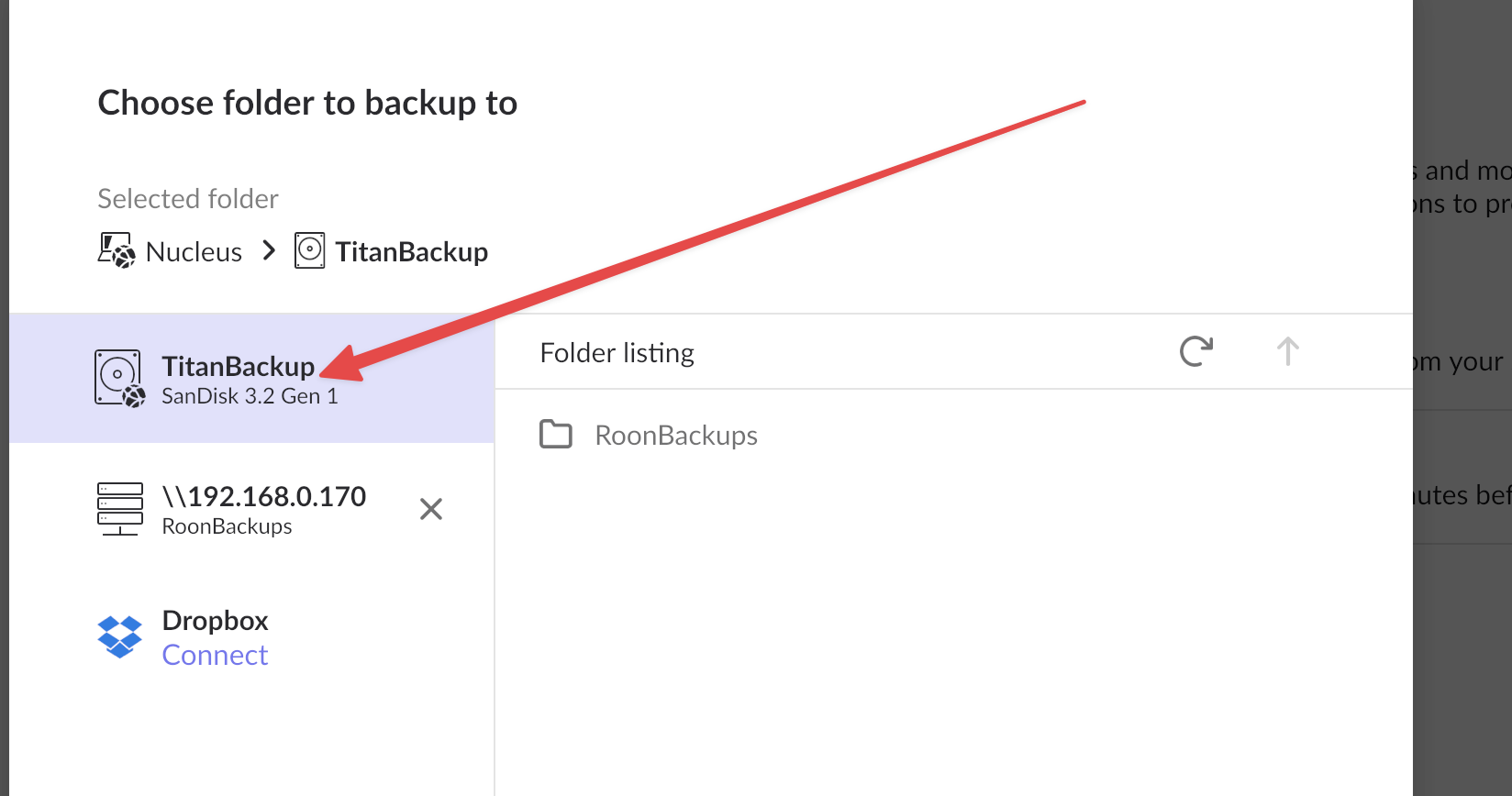
If you access your Titan via SMB and view the size of the RoonServer folder, it should show you this info.

I was doing some digging, but you are correct, it seems that Disk Utilities is the standard one to use on MacOS. Do any of these suggestions by any chance help?

@noris - very many thanks for continuing to pursue this!

Yes; I thought, expected and hoped so. As far as you can see, doesn’t that rule out actual incompatibility as such in filesystems between the two devices: the two thumb drives and Titan?

Thanks. Yes. Got it. I wasn’t sure which parent directory.

In fact what shows up as /Volumes/Data/RoonServer is under 5 GB!

3.12 GB in fact. Again, that’s what I would expect. It also definitely eliminates database size from being the cause of failures on a 64 GB and a 128 GB drive.

Thanks. I looked at those.

As I’ve said, though, what’s most puzzling to me is that - after a failure in Roon itself - each disk has (subsequently: they both worked at first!) become totally unreadable (won’t mount) on macOS (I’ve tried with both my desktop and laptop machines).

Obviously Roon can see it/them.

Could that be because, as @vadim suggests, something sets it/them to ReadOnly? So they’re kind of “locked” to other systems?

What did @vadim discover from the two attempts at mounting drives at a time we all knew so that he could cross-reference this with the logs?

I can report that my backups - performed in Roon - from Titan to my iMac (using SMB of course) do not fail, which makes me wonder whether something has changed in Roon’s backup routine when it tries to backup to an exFAT-formatted thumb drive, albeit one large enough to contain the database many times over.

What of the corrupt files which have been identified?

How can we pursue this, please?

Thanks @Mark_Sealey,

It shouldn’t be locked from the Mac side - which is odd, if anything, it would depict that Roon wouldn’t have access to the drive, which doesn’t seem to be the case.

We’ve shared your case with our development team who are going to take a closer look this week. We should have more information to share soon! Thank you for your patience in the meantime! :pray:

Thanks very much to you - and the wider team - Benjamin!

Standing by to trial anything that you/they suggest :slight_smile:

That seems to be true, doesn’t it.

Hi @Mark_Sealey,

Our development team took a closer look at the situation, and while we couldn’t get a detailed breakdown of what went wrong, its clear the usb drive thinks its removed before the sync completes. After that, the system mounts the drives read-only so they show up and act normally until they are attempted to be written to.

They have suggested reformatting the drives via Disk Utility on the Mac, alas, you’re not able to get the drives recognized on the Mac. Is this true even when opening Disk Utility itself?

We know you’re a thorough tester when it comes to issues, so I ask this assuming the answer is yes, but have you tested different ports / cables as well?

With one of the drives connected, test out restarting your Mac and see if one of them appears (again only if you haven’t tried this already :slightly_smiling_face:)

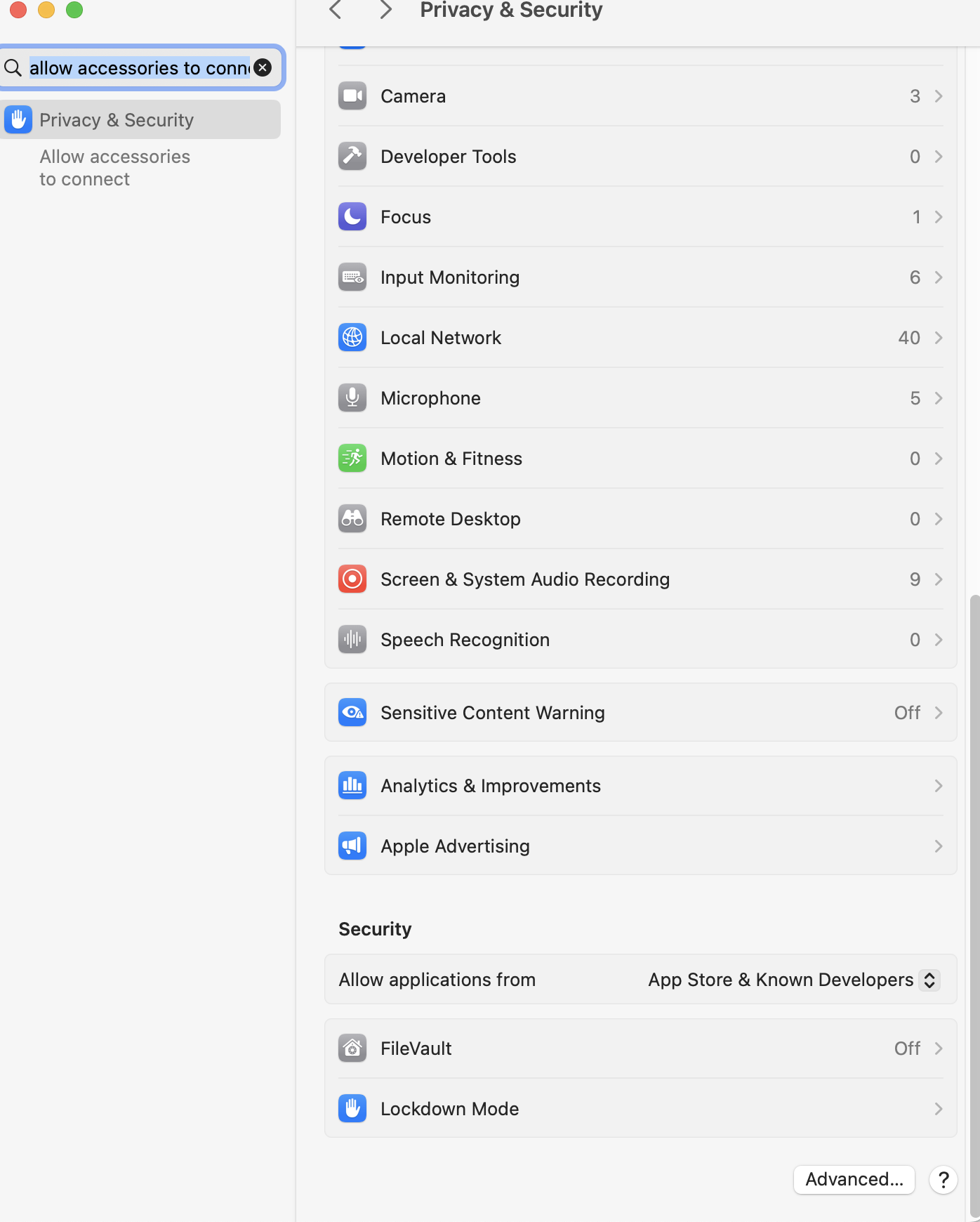
If you adjust the below settings, and try again, do either drive pop up properly?

  1. On your Mac, access your System Settings, then click Privacy & Security in the sidebar. (You may need to scroll down.)
  2. Click the pop-up menu next to “Allow accessories to connect,” then choose either Automatically When Unlocked or Always to allow accessories to always connect without manual approval.

Another area to test for drive recognition: On your Mac, press and hold the Option key, then choose Apple menu > System Information. Review the USB tab and see if either drive is available.

Thanks Mark!

Hello again, @benjamin - and thanks for following up!

Did they manage to determine anything about the corrupted files which you identified?

which is a kind of step forward, isn’t it!

Perhaps it doesn’t need saying, but I should: each drive is firmly inserted and rested with its cable on a flat surface. I invariably waited (when this worked) until I had shut Titan down via the web GUI before extracting it.

That’s a specific, defined process, is it? Odd - because, once the fault occurs (as far as we can tell), each drive has become permanently invisible!

That’s correct. I tried again just now - both mounting on my desktop so via macOS (15.5). And connected via each USB port to Titan itself.

Nothing!

Although Roon can see it as a potential backup target device when I run Roon’s own backup routine.

I agree, that’s a good question. Yes. Two sets of cables to each Titan port and inserted directly into each on the front of the Titan. Same result each time.

Another good idea. I know from bitter experience that my iMac can fail even to start if the boot sequence - when scanning the USB bus - finds a damaged or corrupt device. Unfortunately, no difference here though :frowning: .

Again, alas: No :frowning: .

I should add that I have a good dozen USB thumb drives and they all always work. But they are formatted APFS.

May that be for an older version of macOS and/or for laptops and Silicon only: I don’t see it:

Another good idea. No. Nowhere in any USB bus.

Thanks for keeping on trying!

Hi Mark,

Are you willing to make a bootable Ubuntu thumb drive and start it up to reformat the corrupt thumb drives? I can help walk you through it.

1 Like

Paul, certainly - assuming this fits in with @benjamin’s plans.

Many thanks!

Presumably I would need to buy another SANDisk or similar, say 32 GB?

Ok, let’s do this. I work with Ben and ran it by him first so he’s cool with it.

Any usb stick is fine. The stick that gets Ubuntu copied on it will get wiped so you’ll want to copy whatever is on it over to another drive. They recommend 12 GB or larger usb stick. It’s up to you if you want to use an existing drive or get a new one. Once you boot with the usb stick, we won’t actually install Ubuntu, so if you end up booting it, make sure on the 5th step that you select Try and not Install.

The current Ubuntu desktop image is here and grab the 24.04.2 image. Let me know if you use a different image.

Here’s a decent walk through of copying the Ubuntu image to the usb stick from the command line.

https://help.ubuntu.com/community/How%20to%20install%20Ubuntu%20on%20MacBook%20using%20USB%20Stick

Or you can install https://etcher.balena.io/ and use the GUI to copy the image to the usb stick. You may have to enable ‘App Store and identified developers’ in the ‘Security & Privacy’ pane of System Preferences or something similar. I’m not sure if Etcher is signed or what macOS 15.5 has though.

Later tonight I’ll post the next installment of booting the usb stick from the boot manager and the commands to run in Ubuntu to reformat the disk.

1 Like

Thanks again, Paul. Have Messaged you…

A Mac with T2 security chips will probably need to temporarily allow booting from an external usb drive. That’s controlled from the Startup Security Utility which is accessed before the OS loads by pressing Command-R. Select Allow booting from external or removable media. After the back up disks are formatted you can put it back to disallow booting from external media. About Startup Security Utility.

Next, insert the usb stick with the Ubuntu image. Power down the computer. More info: Change startup disk

  • For Apple silicon you’ll need to turn on the Mac and continue to hold the power button and release when you see the startup options screen. Select the external usb drive.

  • For Intel, press and hold Option (⌥) or Alt as you press the power button to start up to Startup Manager and select the external usb drive.

Once it starts to boot Ubuntu, you might see a console based boot menu with GNU GRUB at the top, select “Try or Install Ubuntu” with the enter key. After that it should boot to the Welcome to Ubuntu GUI. Select language, any accessibility needs, keyboard layout, we’ll need the internet option to install exFAT utils on the usb stick, skip the update though, finally, select “Try Ubuntu” and then the green close button. You should see the Ubuntu desktop now. Leave the Ubuntu usb drive plugged in and plug in the corrupt usb stick as well. Clicking on the bottom left circle icon with three dots brings up the applications available, mainly Terminal and GParted.

From here we have two options, try and repair the file system on the usb stick or reformat it. My thought is that since you’re not seeing any errors about the database being corrupted, format the new usb stick to be safe and start with a fresh backup state. The Roon Server process checks the validity of the database before doing the backup each time so you would get notified. Only the manifest file for the backup (metadata covering the backup) is corrupt since it didn’t get written out completely.

Get the /dev/sdXN path to the exFAT partition

Look in the /dev/disk/by-id/ folder to see how the usb stick is assigned, it’ll start with ‘usb-’ and we want to pay attention to the ../../sdXN part (the ../.. is relative so it’s located at /dev/sdXN). For me, the disk itself would be /dev/sdb and the partition the file system lives in would be /dev/sdb1. If more partitions show up, we can use lsblk to get sizes and filesystems to see which are the ones we care about.

$ ls -l /dev/disk/by-id/
total 0
... internal HDD listed as well ...
lrwxrwxrwx 1 root root  9 May 23 23:45 usb-Kingston_DataTraveler_Max_BFB8357EA880718B04DE-0:0 -> ../../sdb
lrwxrwxrwx 1 root root 10 May 24 01:11 usb-Kingston_DataTraveler_Max_BFB8357EA880718B04DE-0:0-part1 -> ../../sdb1
lrwxrwxrwx 1 root root  9 May 23 15:35 usb-Lexar_USB_Flash_Drive_AAY9SZH5CYYFYA6E-0:0 -> ../../sda
lrwxrwxrwx 1 root root 10 May 23 15:35 usb-Lexar_USB_Flash_Drive_AAY9SZH5CYYFYA6E-0:0-part1 -> ../../sda1
lrwxrwxrwx 1 root root 10 May 23 15:35 usb-Lexar_USB_Flash_Drive_AAY9SZH5CYYFYA6E-0:0-part2 -> ../../sda2
lrwxrwxrwx 1 root root 10 May 23 15:35 usb-Lexar_USB_Flash_Drive_AAY9SZH5CYYFYA6E-0:0-part3 -> ../../sda3

$ lsblk -o NAME,SIZE,FSTYPE | grep "\(NAME\|sd\)"
NAME          SIZE FSTYPE
sda          59.6G iso9660
├─sda1        5.9G iso9660
├─sda2          5M vfat
└─sda3        300K 
sdb         238.5G 
└─sdb1      238.5G exfat

Option 1, Repair

Repairing the file system requires exfatprogs program to be installed from the terminal with sudo apt update && sudo apt install exfatprogs then sudo fsck.exfat -p -s /dev/sdXN

$ sudo apt update && sudo apt install exfatprogs
Hit:1 http://security.ubuntu.com/ubuntu noble-security InRelease
... Bunch of other hits ...
Reading state information... Done
The following NEW packages will be installed:
  exfatprogs
... More info about the process ...
Processing triggers for man-db (2.12.0-4build2) ...

$ sudo umount /dev/sdb1 # it may or may not be mounted

$ sudo fsck.exfat -r -s /dev/sdb1
exfatprogs version : 1.2.2
/dev/sdb1: clean. directories 1, files 0

At this point it might be repaired and can be used normally again.

Option 2, Reformat

Formatting the file system requires exfatprogs program to be installed from the terminal with sudo apt update && sudo apt install exfatprogs then sudo mkfs.exfat

$ sudo apt update && sudo apt install exfatprogs
Hit:1 http://security.ubuntu.com/ubuntu noble-security InRelease
... Bunch of other hits ...
Reading state information... Done
The following NEW packages will be installed:
  exfatprogs
... More info about the process ...
Processing triggers for man-db (2.12.0-4build2) ...

$ sudo umount /dev/sdb1 # it may or may not be mounted

$ sudo mkfs.exfat -n ROONBACKUP /dev/sdXN # replace X and N with what yours are
exfatprogs version : 1.2.2
Creating exFAT filesystem(/dev/sdb1, cluster size=131072)

Writing volume boot record: done
Writing backup volume boot record: done
Fat table creation: done
Allocation bitmap creation: done
Upcase table creation: done
Writing root directory entry: done
Synchronizing...

exFAT format complete!

$ sudo umount /dev/sdb1 # just to make sure it didn't auto-mount

Top right is the shutdown menu. Let us know how it goes and if you need help clearing the usb stick of the Ubuntu image and getting it back to the way it was.

1 Like

Hey @Mark_Sealey,

I wanted to follow up here to also let you know our development team is continuing to investigate potential causes of the issue, alongside testing out running Ubuntu to reformat your thumb drives.

No immediate new information to share quite yet, but we’ll keep you in the loop as the investigation progresses. Thank you!

1 Like

Thank you, Benjamin!

I now have a test USB thumb drive on which to install Ubuntu.

As soon as I hear back from Paul (thanks so much for your part in adding him to the help I’m getting) about how I should format it, I can try the routines which he (Paul) has kindly written up for me :slight_smile: .

Hi @Mark_Sealey,

Great, thanks for the update. I hope your testing with Ubuntu goes smoothly — let us know how it turns out!

Thanks, @daniel!

Paul has helped immensely, thanks. I have now performed a successful backup from Titan using a reformatted ExFAT thumb drive. We’re going to keep an eye on things. He can relay to you and your team the specifics and his plans for the immediate future.

Hi @Mark_Sealey,
That’s great to hear! I’m glad Paul was able to help you out. Let us know if anything else comes up — we’re happy to assist.

Thanks, @daniel - and how!

There is one unrelated case, please, where the thread has closed and the team is still working on it. I wonder whether there’s an update or some sort of news, if possible?

TIA!

This topic was automatically closed 36 hours after the last reply. New replies are no longer allowed.