• Netgear R8000 Nighthawk X6 AC3200 Tri-band Gigabit Router
• Netgear DOCSIS 3.1 Gigabit Cable Modem
PC on network via WiFi
Nucleus connected to router via Ethernet
Description of Issue
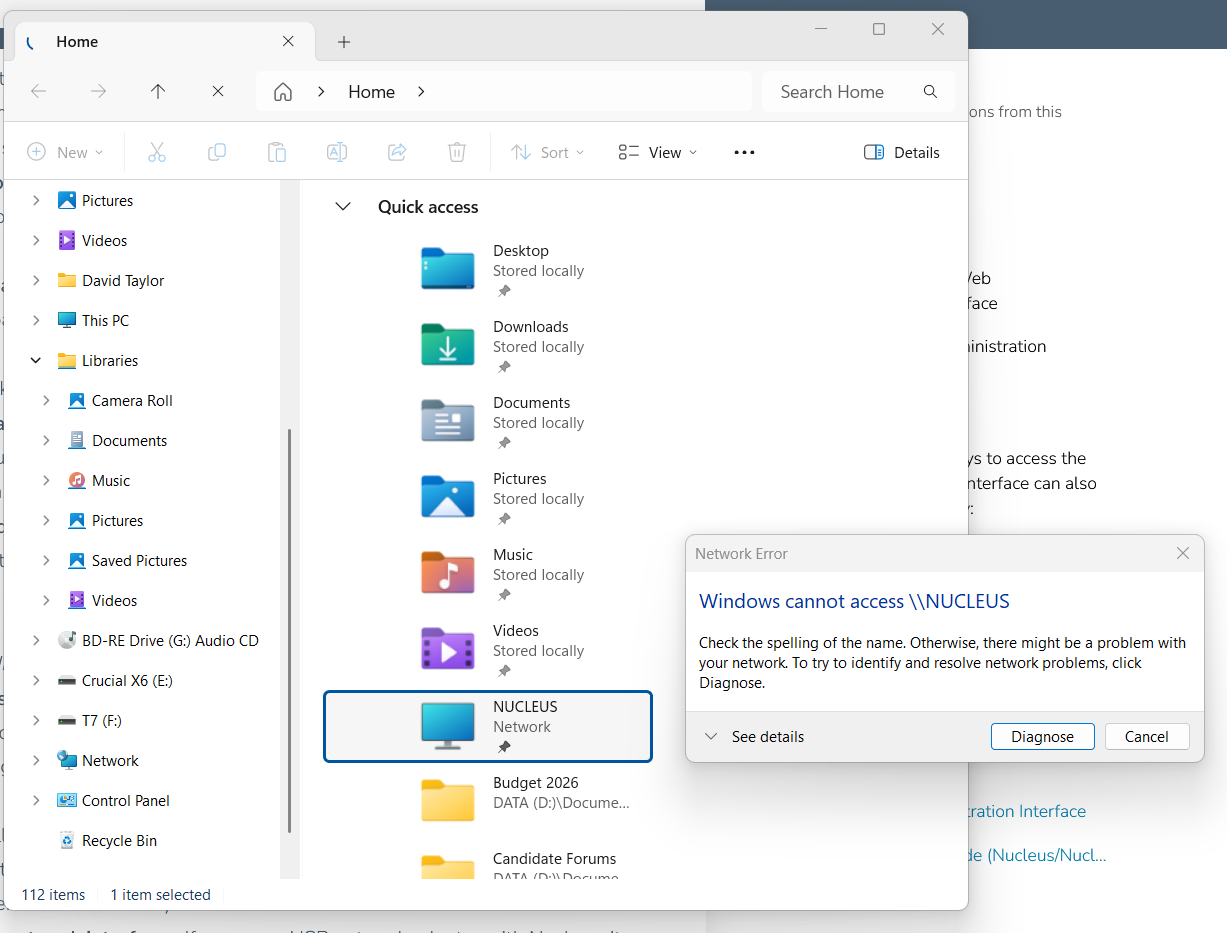
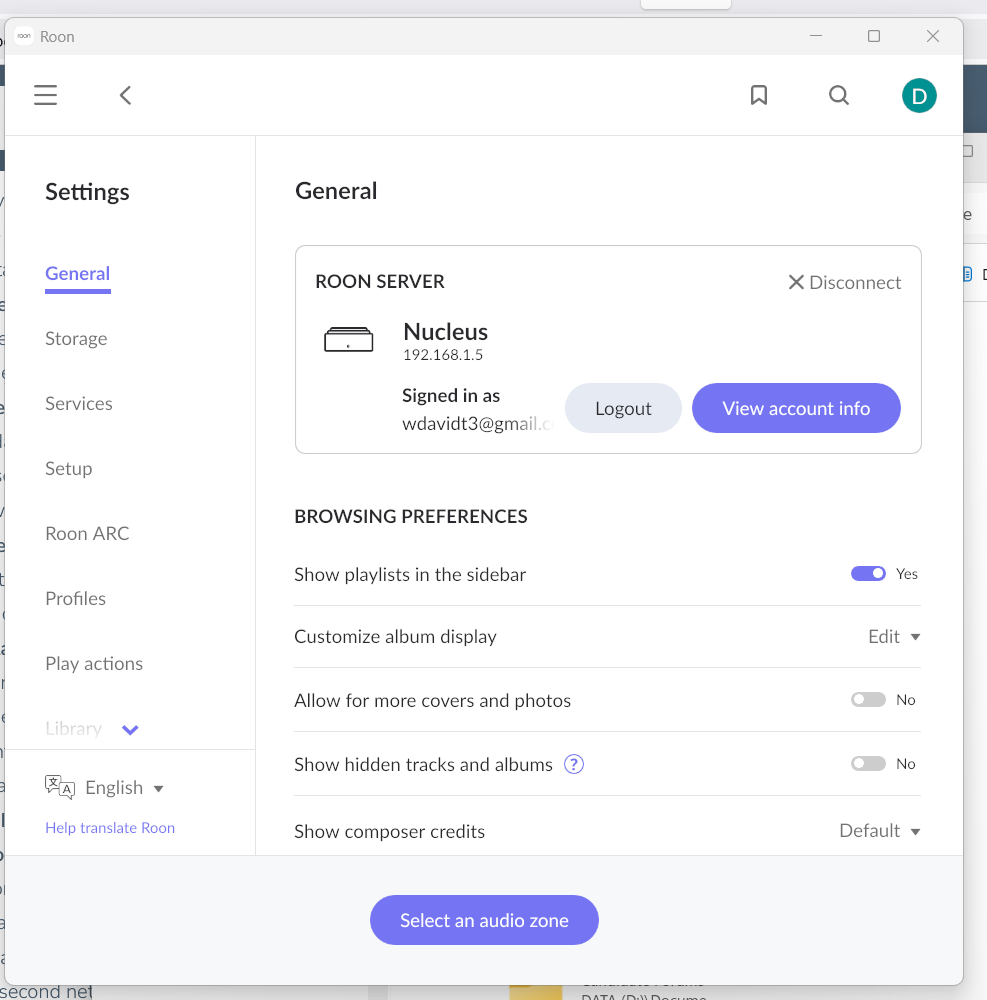
I suddenly cannot rip CD tracks from my PC (using dBpoweramp CD Ripper) to my Nucleus internal storage, which was working just 2-3 weeks ago. Windows Explorer cannot see my Nucleus, either addressed as \Nucleus\Storage\Data\InternalStorage, or as \192.168.68.5
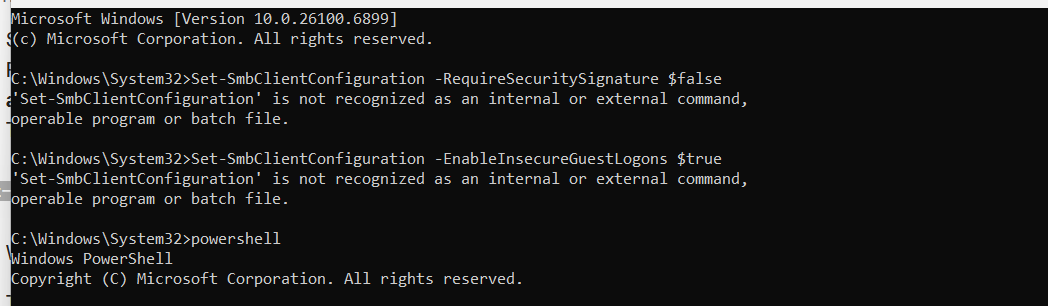
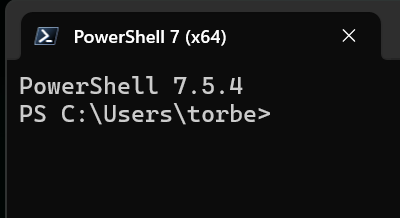
I tried following instructions in an earlier thread named Windows 11 Network cant see Roon Nucleus. It said to use PowerShell to disable the SMB signing requirement, and disable guest fallback. But I do not get the powershell app screens shown in that thread. I’ve attached screenshots of what I see when I try that. Nothing works that way.
Thanks for reaching out. It looks like you are on the correct path, but you opened Command Prompt instead of Windows Powershell. If you seach for “Powershell” in the Windows taskbar area, it should open the correct app. Then, please follow the instructions from the KB that @Geoff_Coupe provided, also copied below for easier access:
Since Group Policy Editor is not available by default, you’ll need to use PowerShell:
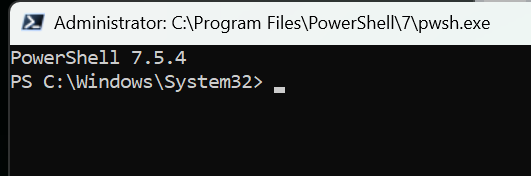
Press Start, type powershell, right-click Windows PowerShell, and choose Run as administrator. Accept the prompt.
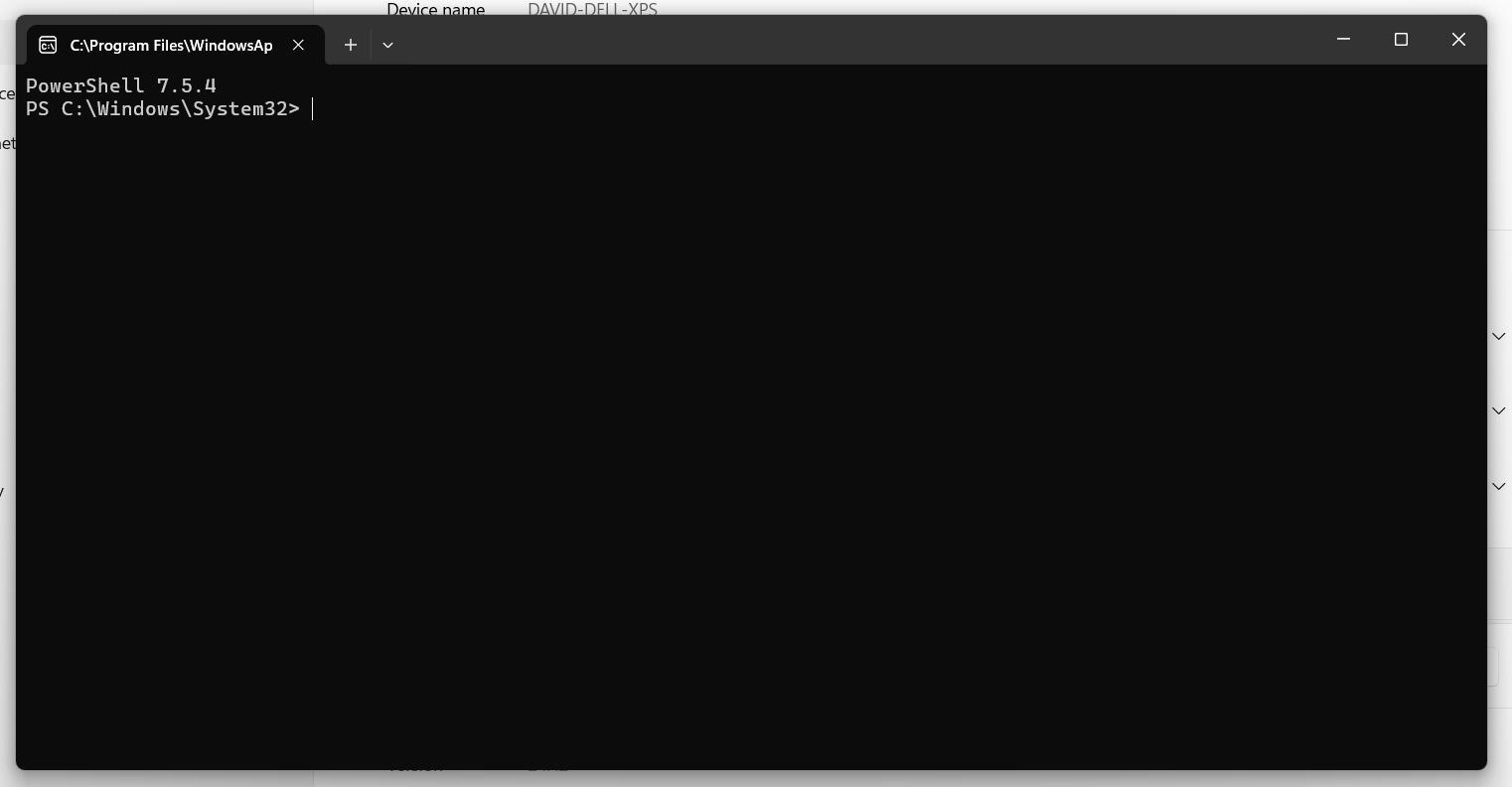
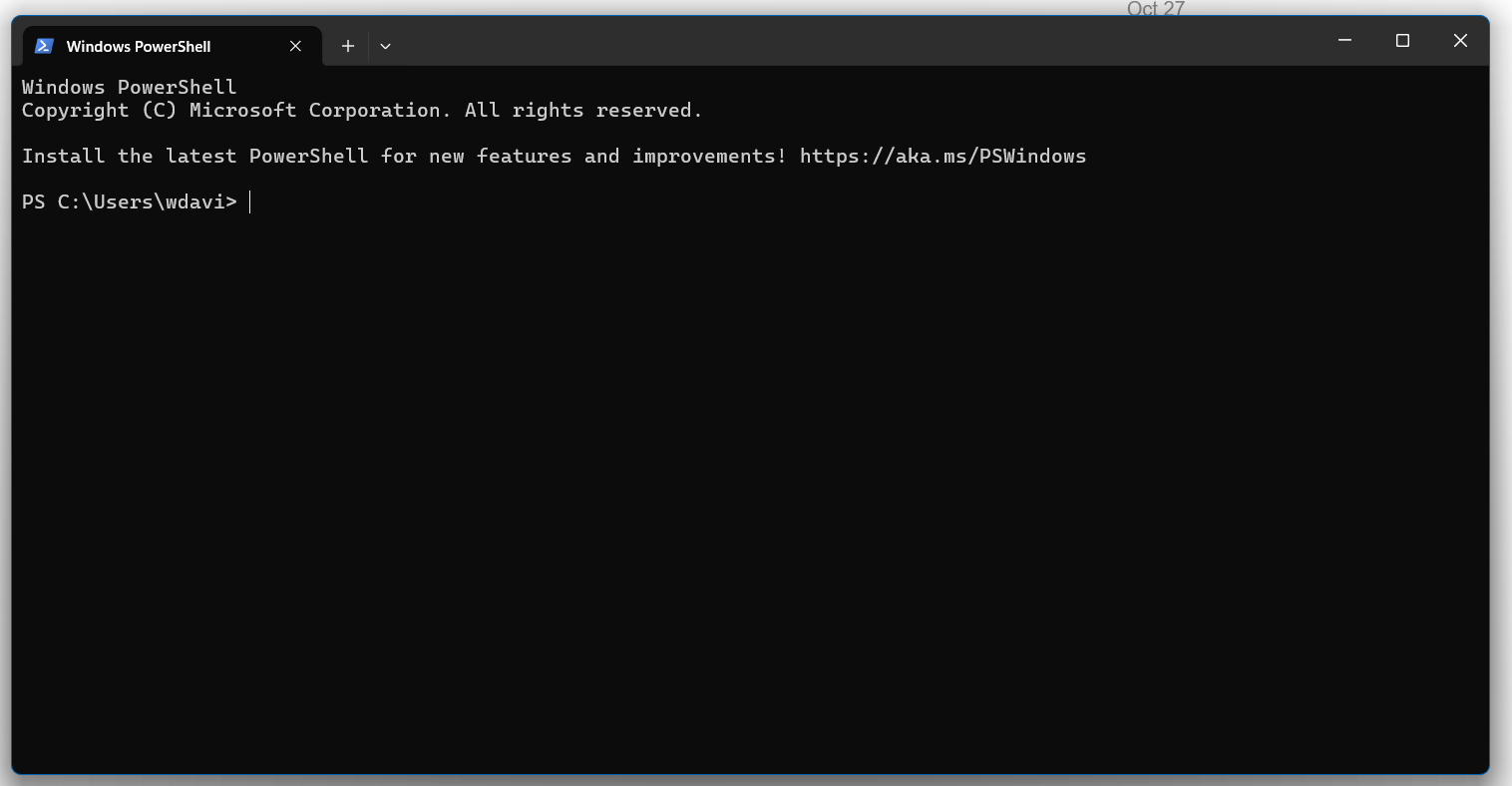
Thanks for the reply. Unfortunately, when I search in the Windows taskbar search area for Powershell, the Powershell app does not appear. He is what I get:
You screenshot shows that you are in fact running PowerShell. Ignore the message about getting the latest version and just enter the steps shown in the article…
If I hit the Start window at the bottom left of the taskbar, and type Powershell into the search bar at the top of the list of applications, here is what I get:
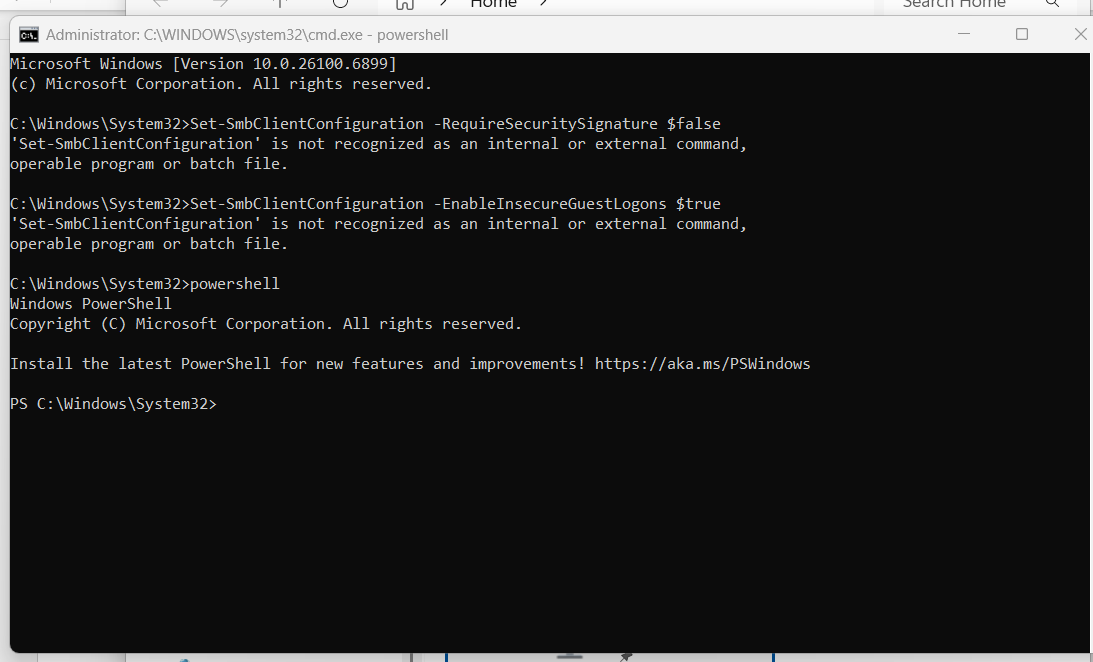
When I do that in the Powershell black command window, the commands don’t work:
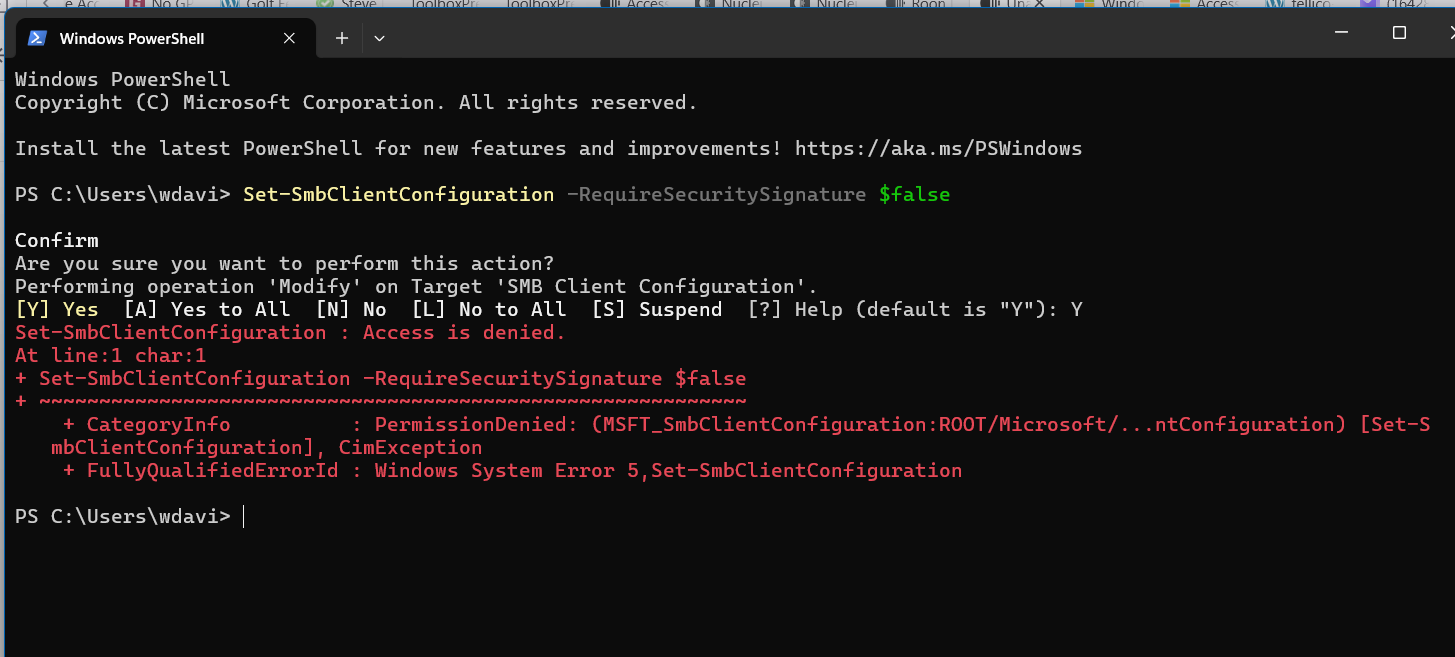
I hit the Windows Start symbol at the far left of the taskbar, then searched for Powershell, then right-clicked on Powershell and selected Run As Administrator. When I then entered the command " ```
Set-SmbClientConfiguration -RequireSecuritySignature $false", this is what I got: