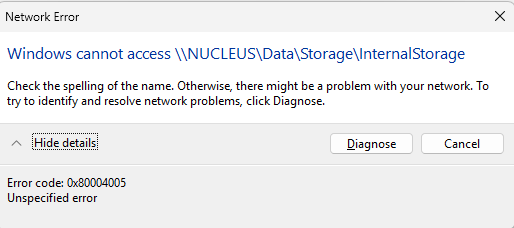
Trying to do some Internal Storage file maintenance and I can’t get my file explorer in Windows 11 to pull up in the “Network”. when I search for \\NUCLEUS\Data\Storage\InternalStorage the file explorer can’t find any matches. I have my nucleus connected via ethernet to my Netgear nighthawk router.
in my windows 10 based laptop, all I had to do was type in \Nucleus… and it would appear and I had access to my SSD to do file maintenance.
when I try to search windows 11 wants “Network Credentials” and had the following verbiage in the dialogue box " you can’t access this shared folder because your organization’s security policies block unauthenticated guest access. These policies help protect your |PC from unsafe or malicious devices on the network"
not sure what settings need to be changed in windows 11 to “allow” me to have access to the internal SSD.
Any assistance in this matter would be greatly appreciated
new hp desktop net gear RAX Router and a roon nucleus. tried going through microsoft support they are telling me that i should map the drive and use “guest” as username and password “blank” pc does not like that. i went onto the netgear router page and have the IP address tried having file explorer look for that address with no success
“… 8. If you’re running Windows 11 Home edition, the guest fallback option is still enabled by default, so you’re probably not reading this blog post. But if for some reason it is on, or you need to turn off SMB signing due to some third-party NAS, you will need to use PowerShell to configure your machine because there is no gpedit tool by default. To do this:
a. On the Start Menu search, type powershell then under the Windows PowerShell app, click Run as administrator. Accept the elevation prompt.
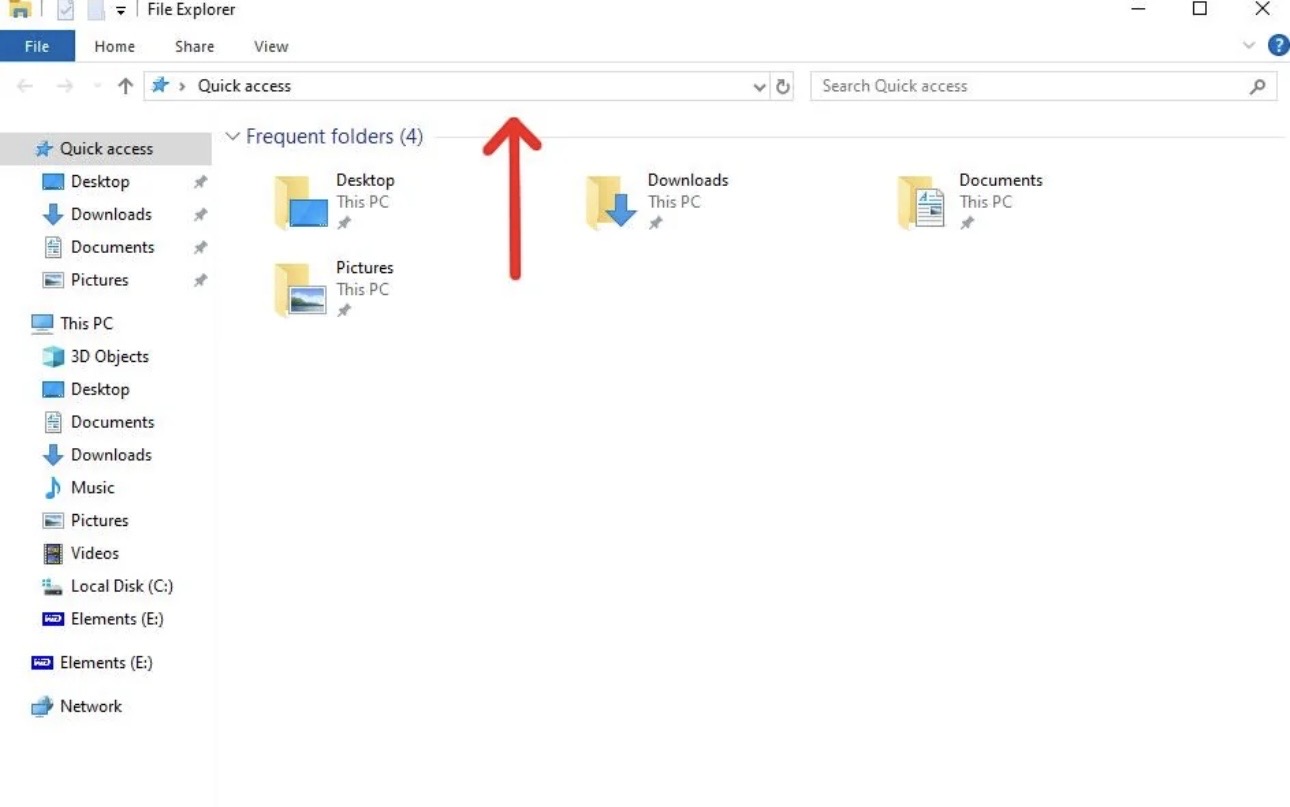
And you don’t „search“ for this address, i.e., you don’t enter it into the search box of the File Explorer. You enter it into the address bar, like here:
I have Windows 11 Pro My|File Explorer screen DOES NOT look like that. Been going back and forth for several hours with microsoft co pilot to diagnose and still cant get to see . |It was so easy on my windows 10 based laptop…
Yes, it’s the Win 10 version, I found it faster. It looks 99% the same and I suppose you didn’t start using computers with Windows 11.
Most importantly it has an address bar field (red arrow) and a smaller search box.
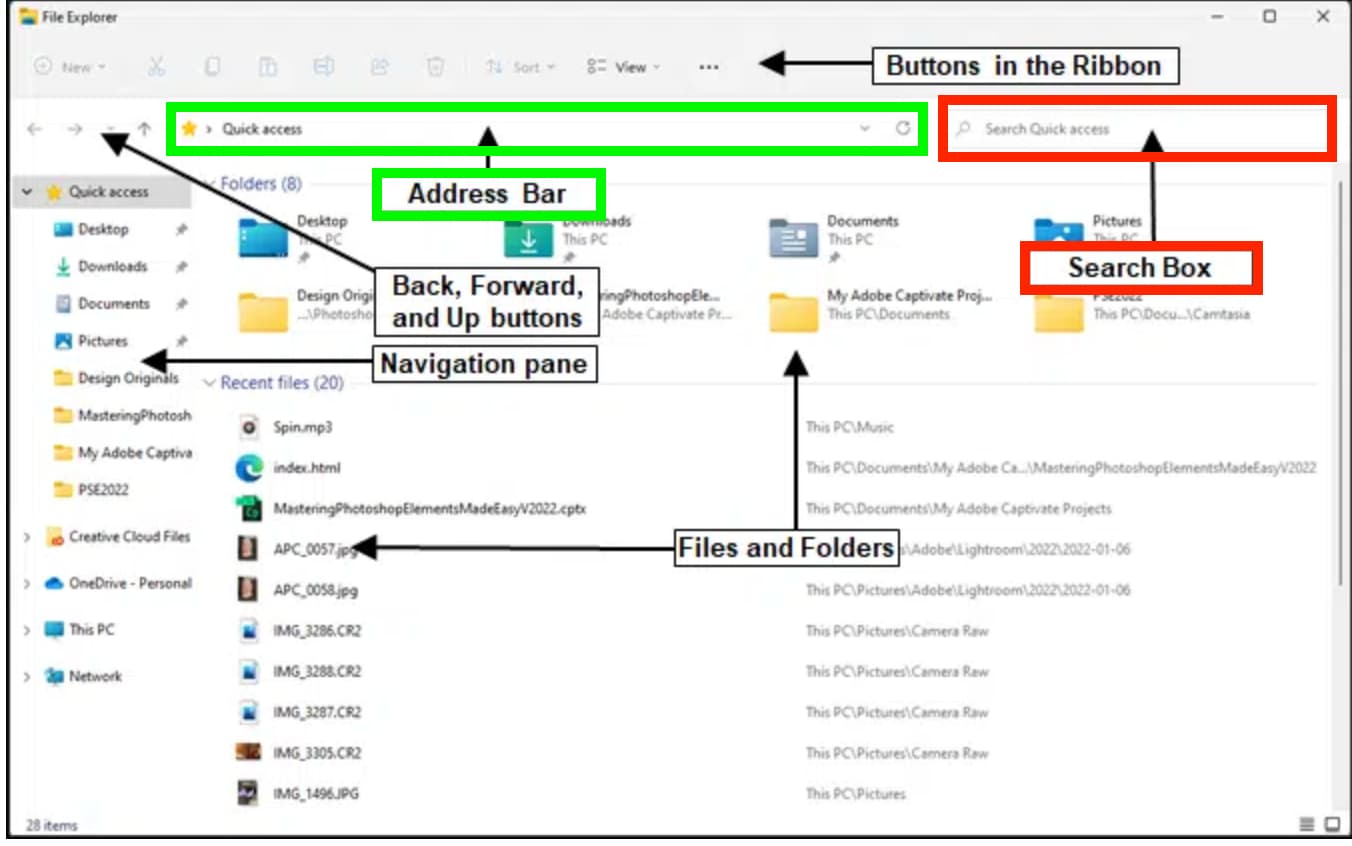
This is the Windows 11 File Explorer with labeled areas. Make sure you enter the \\NUCLEUS\Data\Storage\InternalStorage into the (green) address bar, not the (red) search box.
Exactly, and like I said, you should NOT enter the path into the search box, because this is searching files on the machine, essentially, and you do not want to search for the Nucleus.
What you want to do is TELL Windows to go to the network address, so enter \\NUCLEUS\Data\Storage\InternalStorage into the address bar of the File Explorer and then press the Enter key:
I am on windows 11 PRO version 25H2. I spent several hours with Microsoft going through I have both SMB and the older version of SMB enabled I have gpedit and did several things to enable guest logon
Then you can either use the instructions that @Saturn94 gave you, or you can use the other instructions for Pro that are given in the link in @Geoff_Coupe’s earlier post:
then the whole thing is most likely not a Roon problem but a Windows problem or a network problem. To be sure, after doing all the above things, open a proper Roon support ticket by clicking here → Support and then Get Help. Roon Labs can check your Nucleus logs.